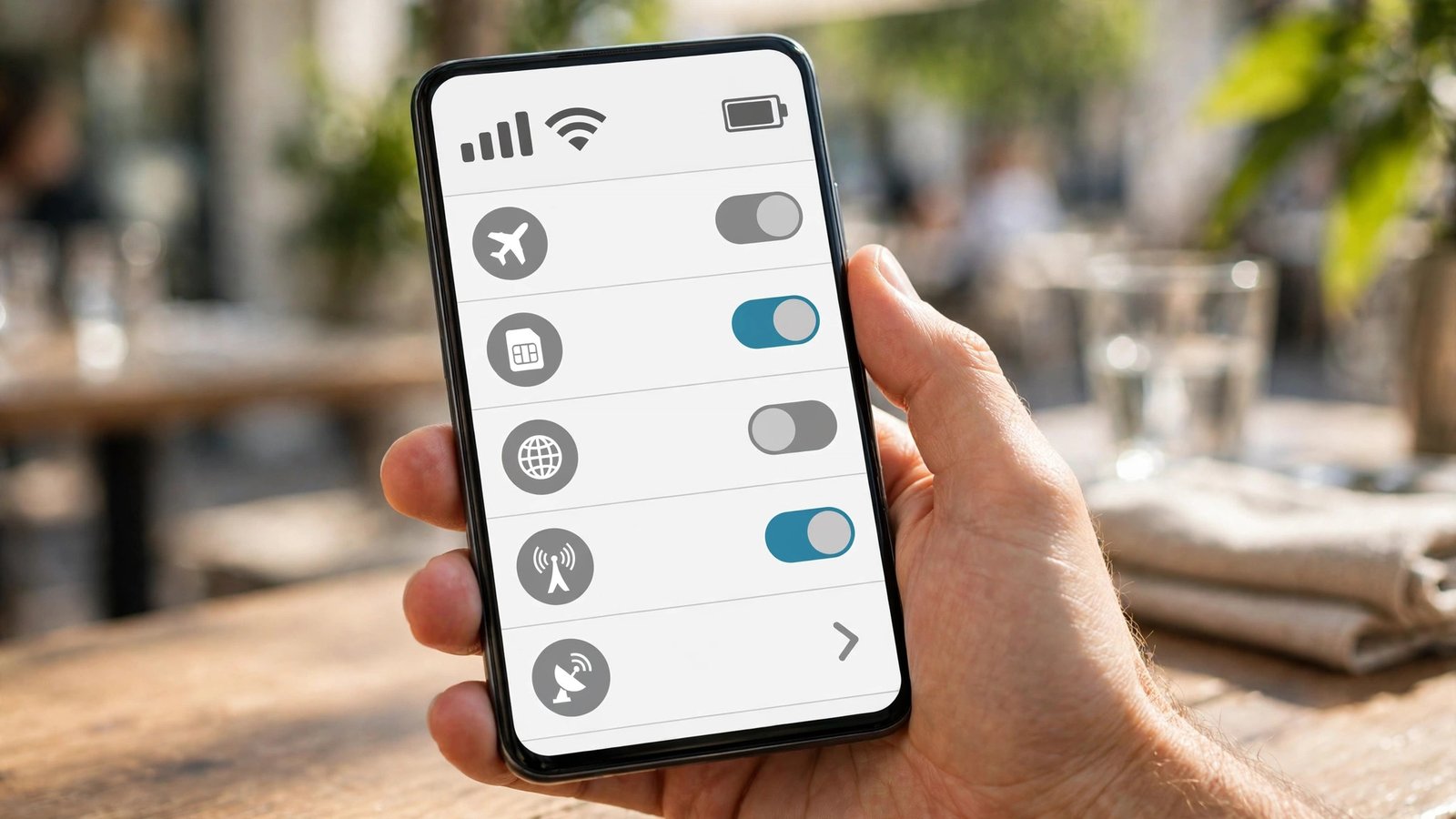
How to Check If Your Phone Uses 5G and Turn It On in Canada: iPhone and Android Steps
You may own a phone that supports 5G and still spend most of the day on 4G. That happens more often than people expect in Canada, because 5G needs three things to line up at once: a capable phone, a plan that includes 5G, and the right setting switched on. If any one of those is missing, the little 5G icon stays away and your speeds stay capped.
This guide walks through the checks in order, so you do not waste time changing settings when the real block is your plan, or calling your carrier when the real block is a single toggle. The steps cover iPhone and Android in general terms, since menus vary slightly by model and software version. Where a label differs, look for the closest match in your own settings.
Step 1: Check whether your phone can use 5G at all
Start with the model, not the settings. On iPhone, 5G arrived with the iPhone 12 series and continues in later models. If you use an iPhone 11 or older, the phone cannot connect to 5G, no matter what plan you buy. On Android, 5G support varies by model and by year, so check the model name in Settings, then About Phone, and compare it with the maker specs if you are unsure.
Step 2: Confirm your plan includes 5G in Canada
Next, confirm the plan itself. Many Canadian carriers include 5G on current plans, but some older or budget plans do not, or they limit speeds. Log in to your carrier app or account page and look at your plan details. Look for the words 5G, 5G access, or a speed note. If the plan page does not mention 5G, contact support through the app chat and ask directly whether your line has 5G access switched on.
If your plan does not include 5G, ask what it would cost to move to a plan that does, and whether you can change plans mid-cycle without a penalty. Do not assume a new SIM is needed. In most recent cases, the carrier can enable 5G on your existing line and SIM or eSIM without a store visit.
Step 3: Turn on 5G on iPhone
On iPhone, open Settings, then Cellular, then Cellular Data Options, then Voice and Data. You should see options such as 5G Auto, 5G On, and LTE. Choose 5G Auto for a balance of speed and battery life, since the phone will drop to LTE when 5G would not help much. Choose 5G On if you want the phone to stay on 5G whenever it is available, at the cost of more battery use.
Step 4: Turn on 5G on Android
On Android, open Settings, then Network and Internet or Connections, then Mobile Network, then Preferred Network Type. Choose a mode that includes 5G, such as 5G preferred, 5G/4G/3G/2G auto, or a similar label. The exact wording varies by maker: Samsung, Google Pixel, and other brands use slightly different menus, but the idea is the same. Pick the option with 5G at the top of the list.
Step 5: Test the connection properly
Do not judge 5G by one bar icon. Run a simple test in a spot with a clear view of the sky or near a window. Open a speed test app or a trusted speed test site, run it twice, and note the result. Then try loading a video or a large web page. If speeds are clearly higher than your usual 4G results and the icon shows 5G, the setting is working.
Step 6: Fix the common blocks
If 5G still does not appear, work through these fixes in order. First, restart the phone. A restart forces a fresh network search and clears a stuck connection state. Second, toggle Airplane Mode on for about 30 seconds, then off again. Third, check for a software update in Settings, since carriers sometimes need a newer carrier settings bundle for 5G to work well.
Fourth, reset network settings only if the earlier steps fail. On iPhone, this sits under Settings, General, Transfer or Reset iPhone, Reset, Reset Network Settings. On Android, look under Settings, System, Reset Options, Reset Wi-Fi, Mobile and Bluetooth. Note that this step erases saved Wi-Fi passwords and paired Bluetooth devices, so use it as a later step, not a first step.
Fifth, reseat the physical SIM if you use one, or check the eSIM line in settings if you use eSIM. A loose SIM or a line that was never fully activated can block 5G while calls still work. If none of these steps help, contact your carrier with your model, plan, and test locations ready. Ask them to check whether 5G is provisioned on your line and whether there is a known outage or tower work nearby.
Frequently Asked Questions
Why does my phone show LTE even though I have a 5G phone?
The most common reasons are a plan without 5G access, a setting that prefers LTE, or simply being outside strong 5G coverage at that moment. Check the plan first, then the Voice and Data or Preferred Network Type setting, then test outdoors before concluding there is a fault.
Does 5G use more battery than 4G?
It can, especially when the phone is set to stay on 5G all the time or when the signal is weak and the phone keeps searching. Using 5G Auto on iPhone or a 5G preferred mode on Android gives a good balance for most people, since the phone can fall back to LTE when 5G adds little benefit.
Do I need a new SIM to use 5G in Canada?
In most recent cases, no. Carriers can usually enable 5G on an existing SIM or eSIM. If your SIM is very old, your carrier may suggest a replacement, but ask them to confirm that step before you visit a store, since many lines work without any change.



Post Comment