How to Find and Use Saved Passwords on iPhone and Android in Canada
Most of us have dozens of passwords, and the phone is now the place where they live. Both iPhone and Android can save your logins, fill them in for you, and warn you when a password looks weak or reused. The trick is knowing where to look when autofill stops working. This guide shows you where saved passwords live on both systems, how to use them safely, and what to clean up.
One safety note first: never read a password aloud or screenshot it into a shared album. A password manager on your phone is protected by your face, fingerprint or device passcode.
Step 1: Find saved passwords on iPhone
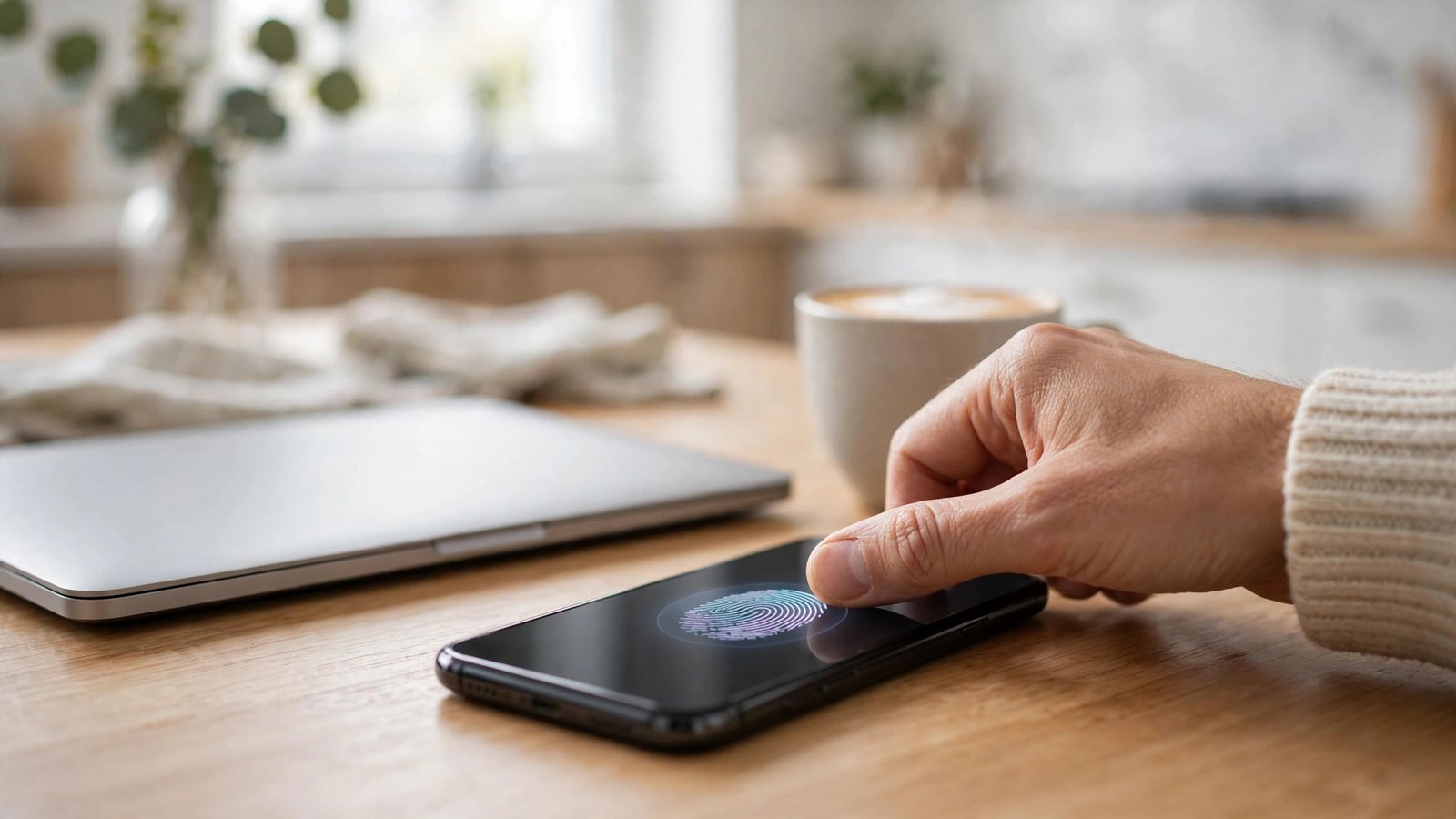
On most recent versions of iOS, go to Settings, then Passwords. You will be asked to unlock with Face ID, Touch ID or your device passcode. You will then see a list of saved accounts, searchable by website or app name. Tap an account to see the username and password, along with any notes and the option to copy either field.
If you use iCloud Keychain, the same passwords appear on your other Apple devices signed in with the same Apple Account. If a login is missing, check that Passwords and Keychain are turned on under Settings, then your Apple Account, then iCloud, then Passwords. Also check whether the password was saved in a different place, such as a third party password app or directly in a browser, rather than in Apple’s Passwords app.
Step 2: Find saved passwords on Android
On most recent Android phones, saved passwords live in Google Password Manager. Open Settings, then Passwords, passkeys and accounts, or open Chrome, tap the three dot menu, then Settings, then Password Manager. You may need to unlock with your fingerprint, face or screen lock. Search for the website or app, tap it, and you can view or copy the username and password.
Samsung phones add one more option: Samsung Pass, which can store logins for Samsung apps and browsers. If a password does not appear in Google Password Manager, check Samsung Pass under Settings, then Biometrics and security, if your phone offers it.
Step 3: Copy a password without getting locked out
When you need a password on a computer or another phone, tap the account, then Copy Password, and paste it quickly into the sign in field. Do not leave it sitting in the clipboard for long, and avoid pasting it into a notes app or a document that syncs to shared storage.
If the copied password does not work, check for a simple mismatch first: caps lock, an extra space at the end, or an old password saved after you changed it on the website. Open the account on the website itself and use the forgot password option if you are not sure which version is current. Changing the password there, then saving the new one when your phone offers to update it, keeps everything in sync.
Step 4: Turn on autofill so you stop typing passwords
Autofill is what makes a password manager feel effortless. On iPhone, go to Settings, then General, then AutoFill and Passwords, and make sure AutoFill Passwords and Passkeys is on, with Passwords selected as the provider. If you use a third party password app, select it there instead, so the phone does not ask you twice.
On Android, go to Settings, then Passwords, passkeys and accounts, and check which autofill service is selected. Google’s service is the default on most phones, and Samsung phones may offer Samsung Pass as well. Pick one service and stick with it. When you visit a sign in page, tap the username field, choose the suggested login, unlock with your fingerprint or face, and the phone fills in the rest. If autofill does not appear, tap the field again, look for a small key icon above the keyboard, and choose the account manually.
Step 5: Clean up old, duplicate and weak passwords
A password list grows messy over time: old accounts, test logins, and passwords you reused years ago. On iPhone, the Passwords app flags accounts with reused or weak passwords under Security Recommendations. On Android, Google Password Manager offers a Password Checkup that flags the same problems. Work through the list slowly, starting with email, banking and shopping accounts, since those matter most if they are compromised.
For each account you no longer use, delete it from the manager after confirming you do not need it. For a reused password, change it on the website first, let the phone save the new version, and only then delete the old entry.
Step 6: Move toward passkeys where they are offered
Many major sites now offer passkeys, which let you sign in with your fingerprint, face or device PIN instead of a typed password. When a site offers to create a passkey, your phone will ask where to save it, usually in the same password manager. Accepting it does not delete your old password right away, so keep the password until you are sure the passkey works on your other devices too.
Passkeys are worth using for your most important accounts, especially email, because email is often the key to resetting everything else. If a site does not offer a passkey yet, a long, unique password saved in your manager is still a strong choice.
Frequently Asked Questions
Is it safe to let my phone save passwords?
Yes, when the phone is protected by a strong passcode, fingerprint or face unlock, and the password manager itself is locked behind that same check. The risk comes from sharing, screenshots or an unlocked phone, not from the manager itself. Keep your phone updated and do not share your device passcode.
Why does autofill not show my login on some sites?
The most common causes are a different autofill service selected, a login saved under a slightly different website address, or a site that blocks autofill on purpose. Check your autofill provider in Settings, search the password manager for the site name, and try the manual key icon above the keyboard before retyping the password from scratch.
What should I do if I find a leaked password warning?
Change that password on the website right away, using a new password you have not used anywhere else, and let your phone save the updated version. If you used the same password on other sites, change those too, starting with email and banking. Then turn on two factor authentication on the affected accounts for extra protection.




Post Comment