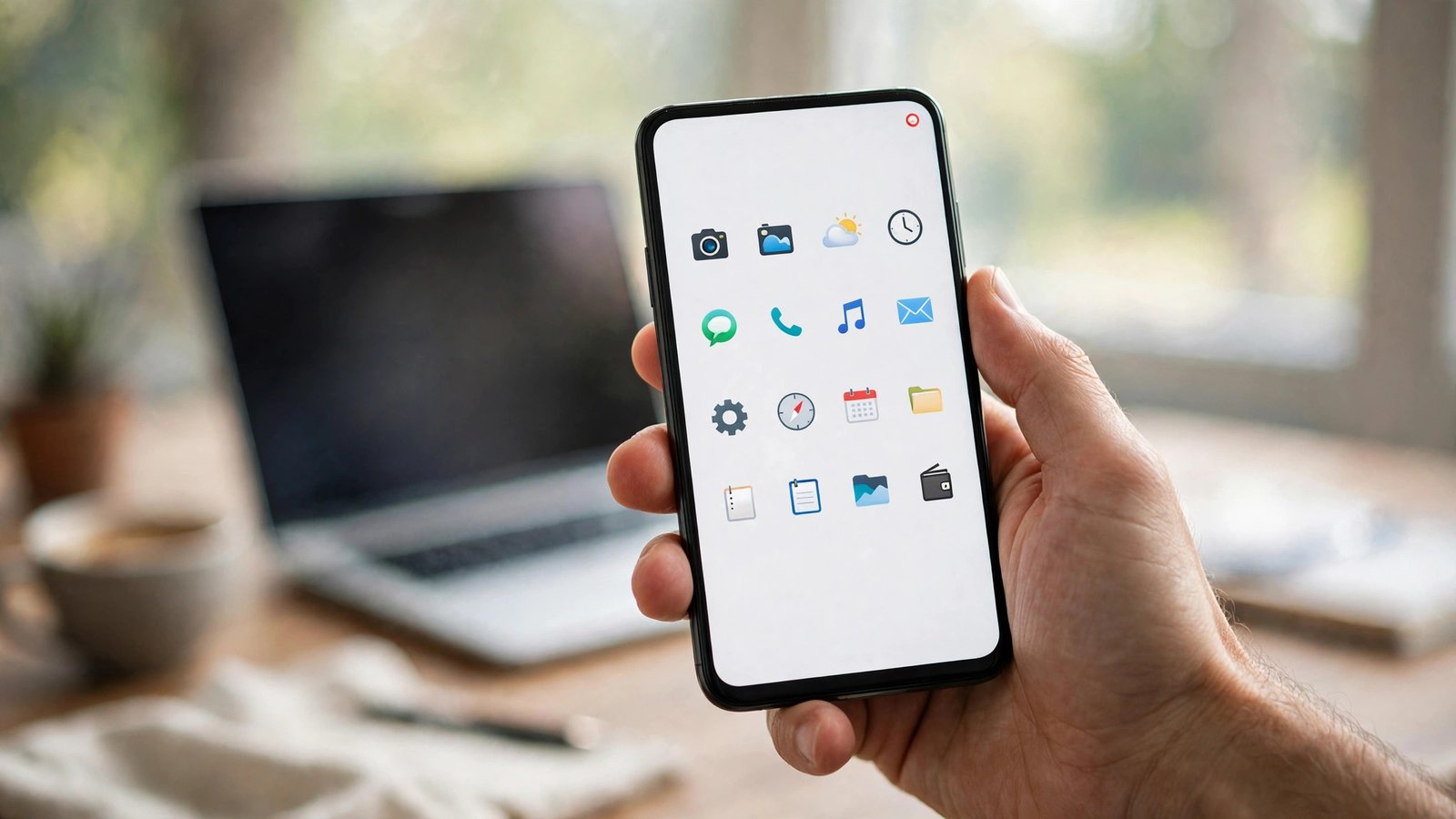
How to Record Your Phone Screen on iPhone and Android in Canada
Screen recording is a phone feature you only think about when you need it in a hurry: showing a friend how to change a setting, saving a video call moment, or capturing a bug to send to support. Both iPhone and Android have a built in recorder, so you usually do not need a separate app. This guide walks through the steps on both systems, plus privacy checks before you share anything.
Before you start, think about what will appear on screen. A recording captures everything visible, including notifications and messages. If you plan to share the clip, close private apps first, turn on Do Not Disturb, and check the finished video before you send it.
Step 1: Record on iPhone
On most recent versions of iOS, the recorder lives in Control Centre. Swipe down from the top right corner of the screen on a phone with Face ID, or swipe up from the bottom on a phone with a Home button, to open Control Centre. Look for the record button, a circle inside a larger circle. If you do not see it, go to Settings, then Control Centre, and add Screen Recording to the included controls.
To start, tap the record button. You will see a short countdown, then a red indicator at the top of the screen or around the clock, depending on your model. To record with your voice as well, press and hold the record button before you start and turn the microphone on. Tap the red indicator, or open Control Centre and tap the record button again, to stop. The video saves automatically to the Photos app.
Step 2: Record on Android
On most recent Android phones, swipe down twice from the top of the screen to open Quick Settings fully. Look for a tile called Screen Record. If it is not visible, tap the edit or pencil icon in Quick Settings and add it. Tap Screen Record, choose whether to record audio and whether to show touches on screen, then tap Start. A countdown appears, and a small recording indicator shows while it runs.
To stop, swipe down and tap the recording notification, or tap the small floating stop button if your phone shows one. The video saves to your gallery or to the Files app, usually in a folder called Movies or Screen recordings. Samsung phones follow the same pattern, and some also offer a Screen Recorder in the Edge panel or through the Game Launcher for game clips. The exact wording can vary by brand, so if a tile is named slightly differently, look for the camera style icon with a dot.
Step 3: Add microphone audio or silence it
Voice narration helps for a how to clip, but it also records background noise, conversations and anything playing nearby. On iPhone, press and hold the record button in Control Centre and check the microphone setting before you start. On Android, the Screen Record setup screen usually offers device audio, microphone audio, or both, or a no audio option.
A simple rule works well: use microphone audio when you are explaining steps, use device audio when you want the sound from a video or app, and use no audio when the clip is only meant to show where to tap. If you are recording a call, remember that consent rules and other people’s privacy matter. In Canada, recording a private conversation you are part of is generally treated differently from recording a conversation you are not part of, but sharing someone else’s voice or image without their okay can still cause trouble. When in doubt, ask first and keep the clip private.
Step 4: Trim and clean up the clip
Most recordings start with a few seconds of the control panel and end with the moment you stopped it. Trim those edges before sharing. On iPhone, open the video in Photos, tap Edit, drag the trim handles at the start and end, then tap Done and save as a new clip if you want to keep the original. On Android, open the video in Google Photos or your gallery app, tap Edit, and use the trim controls in the same way.
While you are editing, watch for private details such as a notification banner, a message preview, or a one time code. If you spot one, trim that part out or record the section again with notifications silenced.
Step 5: Share, save or send it for support
Once the clip looks right, you can share it from Photos or your gallery app using AirDrop, Nearby Share, email, or a messaging app. For a support request, a short clip with a written note works best: say what you tapped, what you expected, and what happened instead. Support teams can often spot the problem in seconds from a recording that would take several messages to describe.
Keep a copy of any clip you send to support until the issue is resolved, then delete it if it contains anything personal.
Step 6: Fix common problems
If the record button is missing on iPhone, add it in Settings under Control Centre. If Android shows no Screen Record tile, check for a system update and look in your phone maker’s own recorder app as a backup. If the video has no sound, check the microphone or audio setting before the next recording. Long recordings use more storage and battery, so record a long tutorial in shorter sections.
Frequently Asked Questions
Where do screen recordings save on iPhone and Android?
On iPhone, screen recordings save to the Photos app. On Android, they usually save to the gallery or to a Screen recordings or Movies folder in Files. Search your gallery for the most recent video if you cannot find it right away.
Can I record a phone call with screen recording?
Screen recording captures video and, depending on your settings, audio from the device or microphone, but it is not a reliable call recorder and rules about consent still apply. If you need a record of a call, ask the other person first and use a method that is clear to everyone on the call.
Why is my screen recording silent?
The most common cause is the audio setting chosen before recording. On iPhone, press and hold the record button and check the microphone. On Android, check the audio option on the Screen Record setup screen. Some apps also block their own audio from being recorded, which can leave a clip silent even when the setting looks right.



Post Comment