How to Fix Slow Wi-Fi at Home in the US: A Step-by-Step Router and Signal Guide
Slow Wi-Fi has a special way of ruining an evening. A video buffers, a work call freezes, and a game lags, all while the router lights blink like nothing is wrong. Before you call your internet provider or buy new gear, work through the fixes below. Most home Wi-Fi problems come from a small set of causes: router placement, an overloaded network, interference from neighbors, or a device issue. You can test each one in minutes.
Start with a quick speed test so you know what you are fixing. Stand near your router, run a speed test on your phone, then repeat it in the room where Wi-Fi feels slow. If speeds are fine near the router but poor farther away, you have a coverage problem. If speeds are poor everywhere, the issue may be your plan or modem.
Step 1: Restart your router and modem the right way
Unplug both the modem and the router from power. Wait a full 30 seconds, then plug the modem back in first and give it a minute or two to reconnect. Its lights should settle into a steady pattern. Then plug the router back in and wait another minute for it to come fully online. This clears temporary glitches and gives your devices a fresh connection.
Step 2: Move the router to a better spot
Router placement matters more than most people expect. Wi-Fi signals spread out and weaken through walls, floors, and large metal objects. A router hidden in a closet, behind a TV, or on the floor in a far corner will struggle to reach the rest of the house.
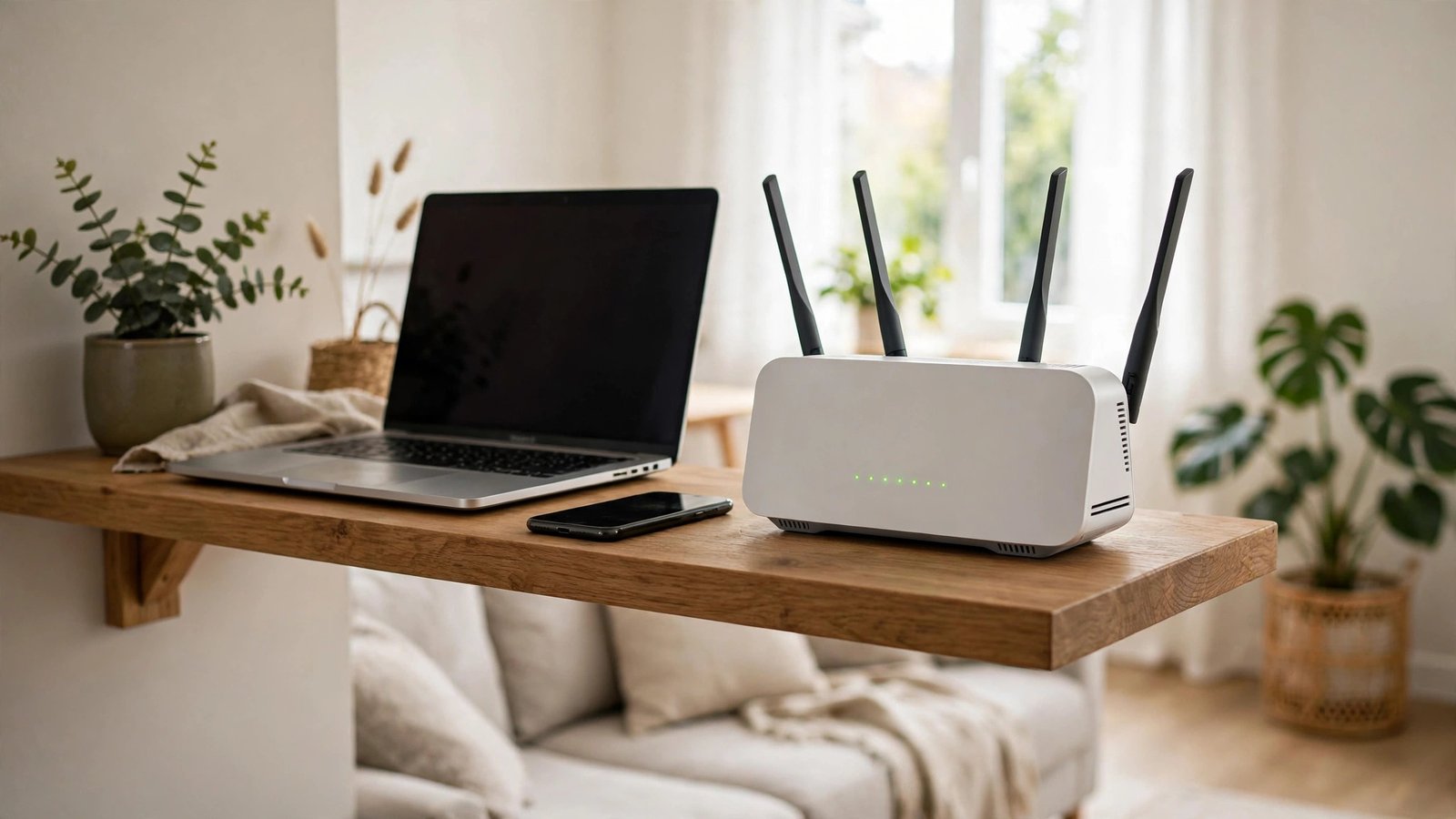
The best spot is central, raised, and open: on a shelf or table, away from thick walls, aquariums, microwaves, and large metal appliances. Avoid tucking it inside a cabinet or in a far corner. If your home has two floors, a spot near the stairs or in a central upstairs room often covers both levels better than a ground floor corner.
Step 3: Check what is hogging your connection
A single device can drag a whole network down. A game update, a cloud backup, or a video uploading in 4K can eat most of your upload speed. Open your router app, if your provider offers one, and look at connected devices and their activity. Pause large downloads and cloud backups while you test.
Also count how many devices are online. Phones, tablets, TVs, smart speakers, cameras, and doorbells all add up, and older routers can struggle when everyone is home in the evening. Turn off Wi-Fi on devices you are not using, and move big downloads to overnight when the network is quiet.
Step 4: Split the 2.4 GHz and 5 GHz bands if you can
Most routers broadcast two Wi-Fi bands. The 2.4 GHz band travels farther but is slower and more crowded, while 5 GHz is faster with shorter range. Many routers combine them under one name and let devices choose, which usually works well. If your router app lets you split the bands, connect phones and laptops near the router to 5 GHz for speed, and use 2.4 GHz for smart home gadgets and distant devices. If splitting makes things worse, switch back to the combined setting.
Step 5: Update firmware and move to a less crowded channel
Router firmware is the software that runs your router, and updates can fix bugs and security issues. In your router app or admin page, look for a firmware update option and install any available update. In most recent versions, this happens with one tap and a short restart. Do not unplug the router during an update.
While you are there, check the Wi-Fi channel setting if it is shown. In crowded apartment buildings, many routers sit on the same channel and interfere with each other. Setting it to Auto usually lets the router pick a quieter one on its own.
Step 6: Extend coverage the right way
If one room still has weak signal after the steps above, you need better coverage, not just a faster plan. A Wi-Fi extender can help in a small home, but it often cuts speed because it repeats the same signal. For most homes, a mesh Wi-Fi system works better: several units that hand your phone from one to the next as you move around.
Place mesh units in open spots, not too far from each other. A common mistake is putting the second unit in the dead zone itself, where it can barely hear the main router. Put it halfway between the router and the weak room instead. A wired connection for a work computer or TV, using an Ethernet cable or a powerline adapter, can also take pressure off Wi-Fi entirely.
Step 7: Know when to call your provider
If speeds are poor right next to the router, even after a restart and a firmware update, and a wired device connected directly to the modem is also slow, the problem may sit with your plan or provider. Check for a local outage on your provider app or status page, and test with a cable if you can. A wired test removes Wi-Fi from the picture and shows what speed actually reaches your home.
When you call, have your speed test results ready, plus the time of day the problem happens. If your plan speed is well below what you pay for on a wired test, ask about line issues or modem replacement. Do not pay for a faster plan to fix a coverage problem, though: if Wi-Fi is the bottleneck, a bigger plan will not reach the far bedroom any better.
Frequently Asked Questions
Why is Wi-Fi fast near the router but slow in my bedroom?
That pattern points to coverage, not your internet plan. Walls, floors, and distance weaken the signal. Moving the router to a more central spot, or adding a mesh unit halfway to the weak room, usually helps more than upgrading your plan.
Does restarting my router really help?
Yes, for temporary glitches. A proper restart, modem first, then router, after 30 seconds unplugged, clears stuck connections and gives devices a fresh start. If the problem returns every day, keep working through placement, congestion, and firmware checks.
Should I buy a Wi-Fi extender or a mesh system?
For one small weak spot, an extender can work. For a larger home, or several weak rooms, a mesh system usually gives faster and more stable coverage, because its units are designed to work together instead of just repeating a weak signal.



Post Comment