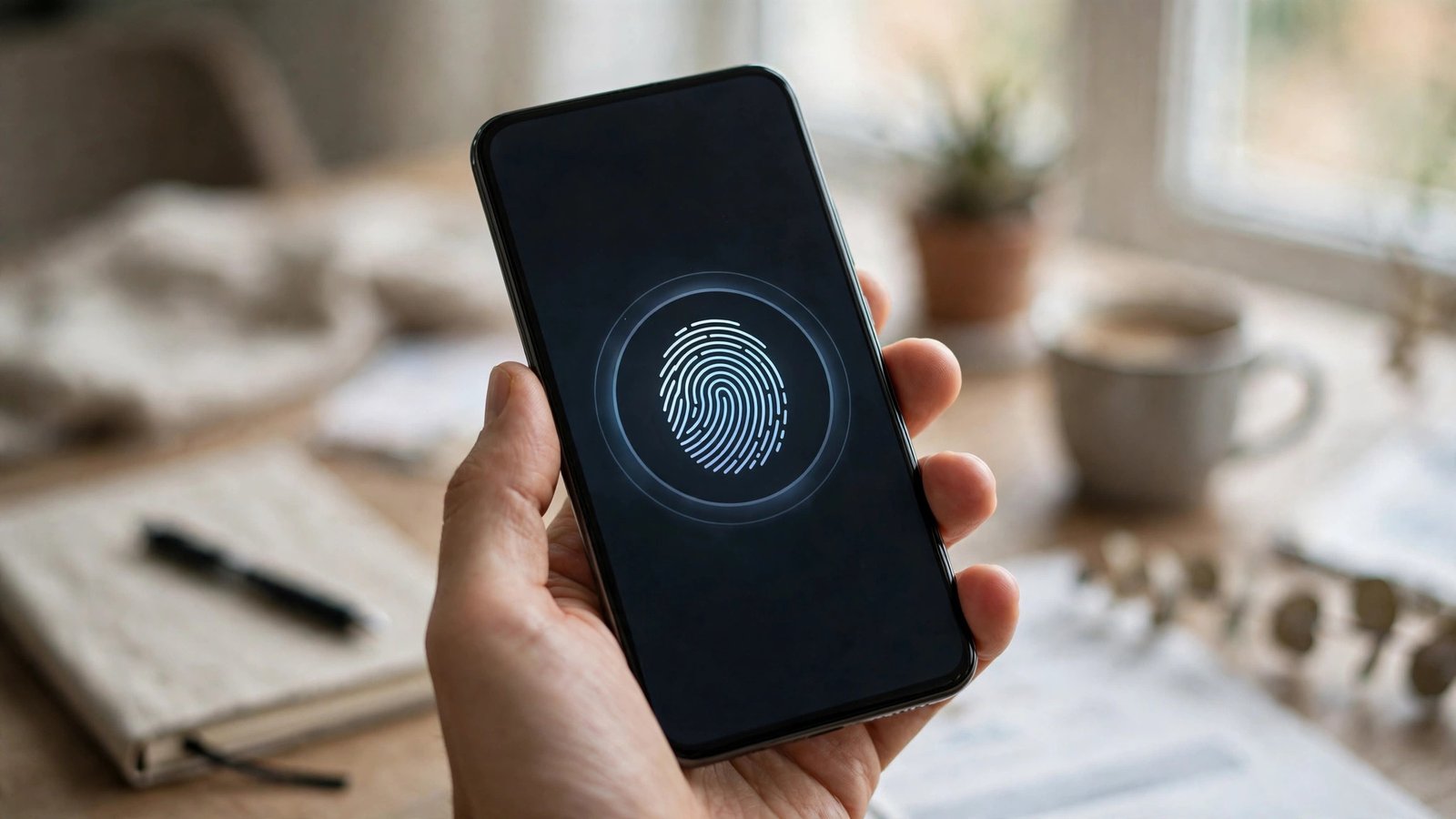
How to Lock Apps on iPhone and Android in the US
Handing your phone to a friend, a child or a repair shop feels different when messages, photos and banking apps are one tap away. Locking individual apps adds a useful second layer, so even if someone gets past your lock screen, they still need your face, fingerprint or passcode to open the apps you care about most. The steps differ between iPhone and Android, and vary a little by model and software version, but the core idea is the same: pick the sensitive apps, turn on the lock, and test it before you rely on it.
Step 1: Decide which apps actually need a lock
Start with a short list, not every app on your phone. Banking and payment apps, email, messages, photos, password managers and social media accounts are the usual priorities, because they can reveal personal details or allow spending. Health apps and work chat apps may also belong on the list if they hold private information. Locking too many apps can become annoying, and you may start leaving the phone unlocked to avoid the hassle, which defeats the purpose.
Check which apps already lock themselves. Many banking apps ask for a fingerprint or face scan each time they open, and some messaging apps offer an app lock in their own settings. Turn those built in locks on first. They are usually more reliable than a general lock tool, and they do not need extra permissions. For the rest of your list, use the system tools below.
Step 2: Lock apps on iPhone with Face ID, Touch ID or Screen Time
On iPhone, the simplest option in most recent versions is to lock an app directly. Press and hold the app icon on the Home Screen, then choose the option to require Face ID or Touch ID. If you see that option, turn it on and test it by closing the app fully and opening it again. The phone should ask for your face or fingerprint before showing any content. To remove the lock later, press and hold the icon again and turn the requirement off.
If that direct option is not available for an app, use Screen Time as a backup. Go to Settings, then Screen Time, and turn it on if you have not already. Set a Screen Time passcode that is different from your phone passcode, and keep it somewhere safe. Then go to App Limits, add a limit for the app or category you want to restrict, and set it to one minute. After that minute is used, the app will ask for the Screen Time passcode to continue. This method is less neat than a true app lock, because it works by time rather than by each open, but it is useful for shared devices and children's phones. A strong phone passcode still matters, because an app lock is only a second layer.
Step 3: Lock apps on Android with built in tools
Android does not have one single app lock that works the same on every phone, so steps depend on your maker. On Samsung phones, look in Settings for Biometrics and security, then Secure Folder. Secure Folder creates a separate locked space where you can add copies of apps such as photos, messages or banking. You open it with a PIN, pattern, fingerprint or password, and apps inside stay hidden from the main Home Screen.
On many other Android phones, including Pixel models in most recent versions, there is no built in app lock for every app. In that case, use app pinning when you hand the phone to someone for one task. Open the app, go to the recent apps view, tap the app icon at the top of its card, and choose Pin. The phone will stay in that app until you unpin it with your lock screen method. Pinning does not lock each app on its own, but it stops a borrower from wandering into your other apps. Some makers, such as Xiaomi, OnePlus and Huawei, include their own app lock in Settings under Privacy, Security or App lock. If your phone has that setting, use the maker's own tool before installing anything else, because it is less likely to drain battery or ask for broad permissions.
Step 4: Use a trusted lock app only if your phone lacks one
If your Android phone has no built in app lock, a third party lock app from the Play Store can fill the gap. Choose an app with a long history, a clear privacy policy, and a large number of installs and recent updates. Avoid apps that ask for access to contacts, call logs or location when they only need to lock other apps. An app lock should need accessibility or usage access to detect when a protected app opens, but it should not need your full contact list or messages.
After installing, grant only the permissions it truly needs, set a PIN or pattern different from your lock screen code, and add fingerprint unlock if offered. Test it with a low risk app first, such as a notes app, before protecting banking or email. If the lock app stops working after a restart, check battery optimization settings. Many Android phones pause background apps to save power, and you may need to set the lock app to run without restriction so it stays active. Be careful with free lock apps that show heavy ads or push extra features you did not ask for. If an app feels intrusive, remove it and try Secure Folder, app pinning, or separate user profiles instead.
Test each locked app by closing and reopening it, and store any recovery codes in your password manager.
Frequently Asked Questions
Can I lock just one app on iPhone without locking the whole phone?
Yes, in most recent versions you can press and hold an app icon and require Face ID or Touch ID for that app alone. If that option is missing, Screen Time app limits can act as a backup.
Why does my Android phone not have an app lock setting?
App lock is not standard on every Android phone. Samsung offers Secure Folder, some makers add their own app lock, and Pixel phones rely on app pinning. Check your maker's Settings menu first.
Is a third party app lock safe to use?
It can be, if you choose carefully. Pick a well established app, grant only needed permissions, and avoid tools requesting contacts or location without a clear reason.



Post Comment