How to Turn Your Old Phone Into a Home Security Camera in the US
That old phone in a drawer can still do useful work. With a camera app, a steady power supply and a decent Wi-Fi signal, a spare iPhone or Android can become a simple home security camera for a front door, a garage, a pet room or a porch. It will not replace a full alarm system, and it is not right for every home. For a low cost way to watch one spot, though, it is a practical project that takes less than an hour in most cases.
Step 1: Pick the right spare phone and prepare it
Start with a phone that still holds a charge, connects to Wi-Fi and has a working rear camera. A cracked screen is usually fine if the camera lens is clean and the touch screen still works for setup. Remove personal accounts you no longer need, and sign out of banking, email and shopping apps. If the phone will stay in one place, a factory reset is the cleanest start, but only do that after moving photos, contacts and two factor codes somewhere safe.
Update the phone to the most recent software version it supports, then set a lock screen PIN or passcode. Turn off notifications you do not need, and lower screen brightness to reduce heat. Test the camera in daylight and at night. If the image is cloudy, clean the lens gently with a soft cloth and check again before mounting anything.
Step 2: Install a camera app and link it to your main phone
Choose a well known security camera app that offers live viewing, motion alerts and a free basic plan. Some apps turn one phone into a camera and another into a viewer, with cloud clips or local recording depending on the plan. Read the permissions before installing, and check what it stores, how long clips are kept, and whether video is encrypted in transit.
Install the same app on your main phone, create one account, and sign in on both devices. Set the old phone as the camera and your main phone as the viewer. Give the camera a clear name, such as Porch or Garage, so alerts make sense at a glance. Test the live view in the same room, then from another room and, if you can, from outside on mobile data. If the view fails away from home, check that the camera phone is on home Wi-Fi and has permission to run in the background.
Step 3: Place the camera where it can actually see something useful
Placement matters more than fancy features. Mount the phone at about head height or a little higher, angled slightly downward, aimed at the door, driveway or hallway you care about most. Avoid pointing it directly at a bright window or bulb, because that can wash out the image and hide faces. If you must cover a doorway with strong backlight, move the phone a little to one side so light is not straight behind the subject.
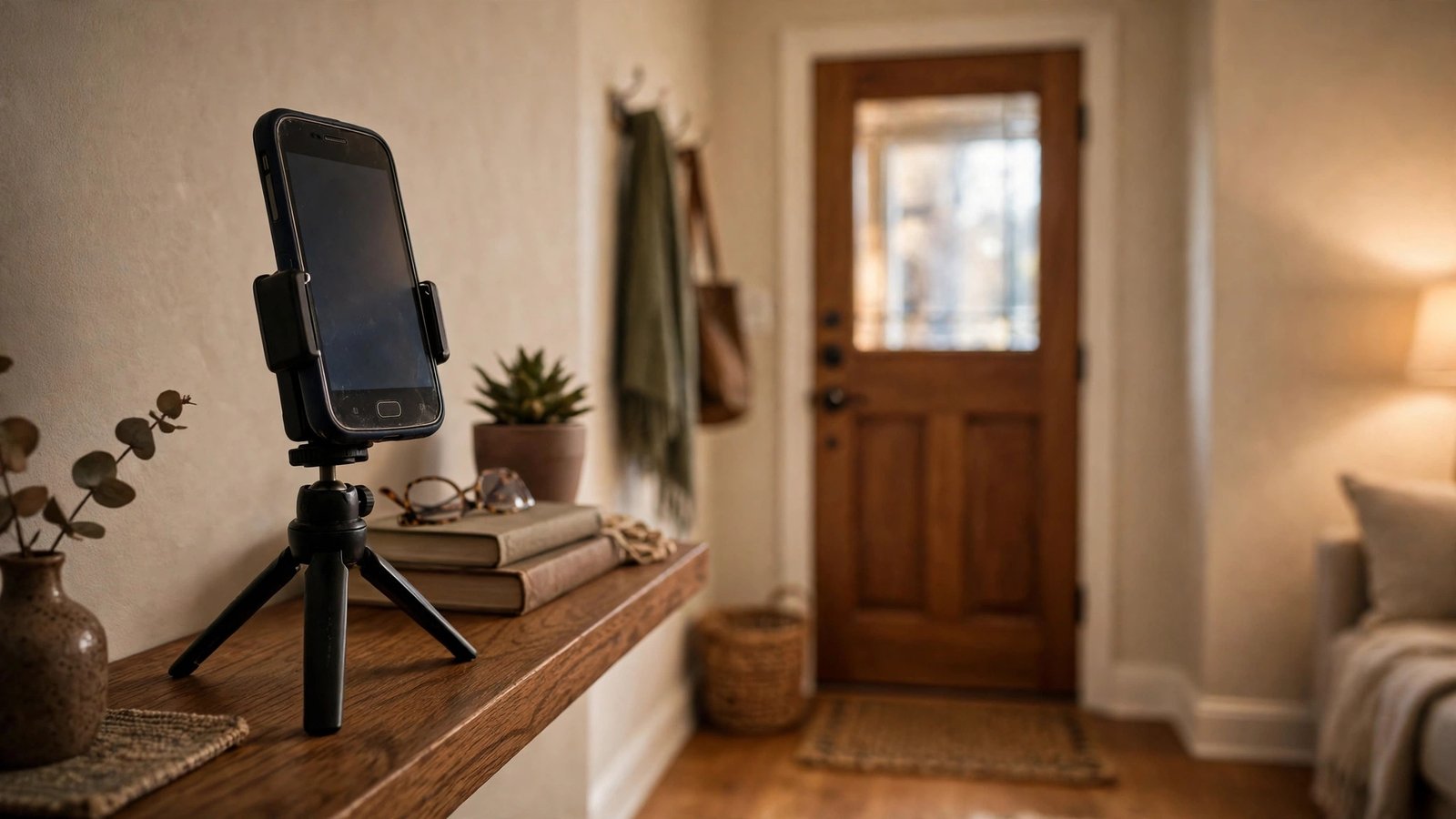
Use a simple phone tripod, suction mount, or sturdy shelf bracket. A phone that slides or tips over will send false motion alerts all day. Keep the phone indoors or in a sheltered spot unless it is rated for outdoor use. Heat, rain and direct sun can damage a battery. For porch coverage, a window view from inside is often safer, but check for glass glare at night before relying on it.
Step 4: Solve power and Wi-Fi before you rely on it
A camera that dies at night is not much help. Plug the old phone into a charger and leave it connected. Use the original charger if you have it, or a reputable charger with the right wattage for that model. Keep the cable tidy and away from walkways, and avoid running it through a door that will pinch it. If there is no nearby outlet, use a short indoor rated extension lead, or pick a spot closer to power.
Wi-Fi is the second weak link. Walk to the camera spot with your main phone and run a speed test. If the signal is weak, move your router a little, add a Wi-Fi extender, or choose a closer camera position. A camera that drops its connection will miss motion events and may drain battery faster as it keeps trying to reconnect. Once power and Wi-Fi are stable, leave the setup running for a full day before trusting it for a trip away.
Step 5: Set motion alerts, storage and privacy controls
Set motion sensitivity to a middle level first. A setting that is too sensitive will alert you every time a pet walks past or a tree moves outside. A setting that is too low may miss a person walking through the frame. Most apps let you draw a detection zone, so limit alerts to the door or path and ignore a busy street in the background if you can.
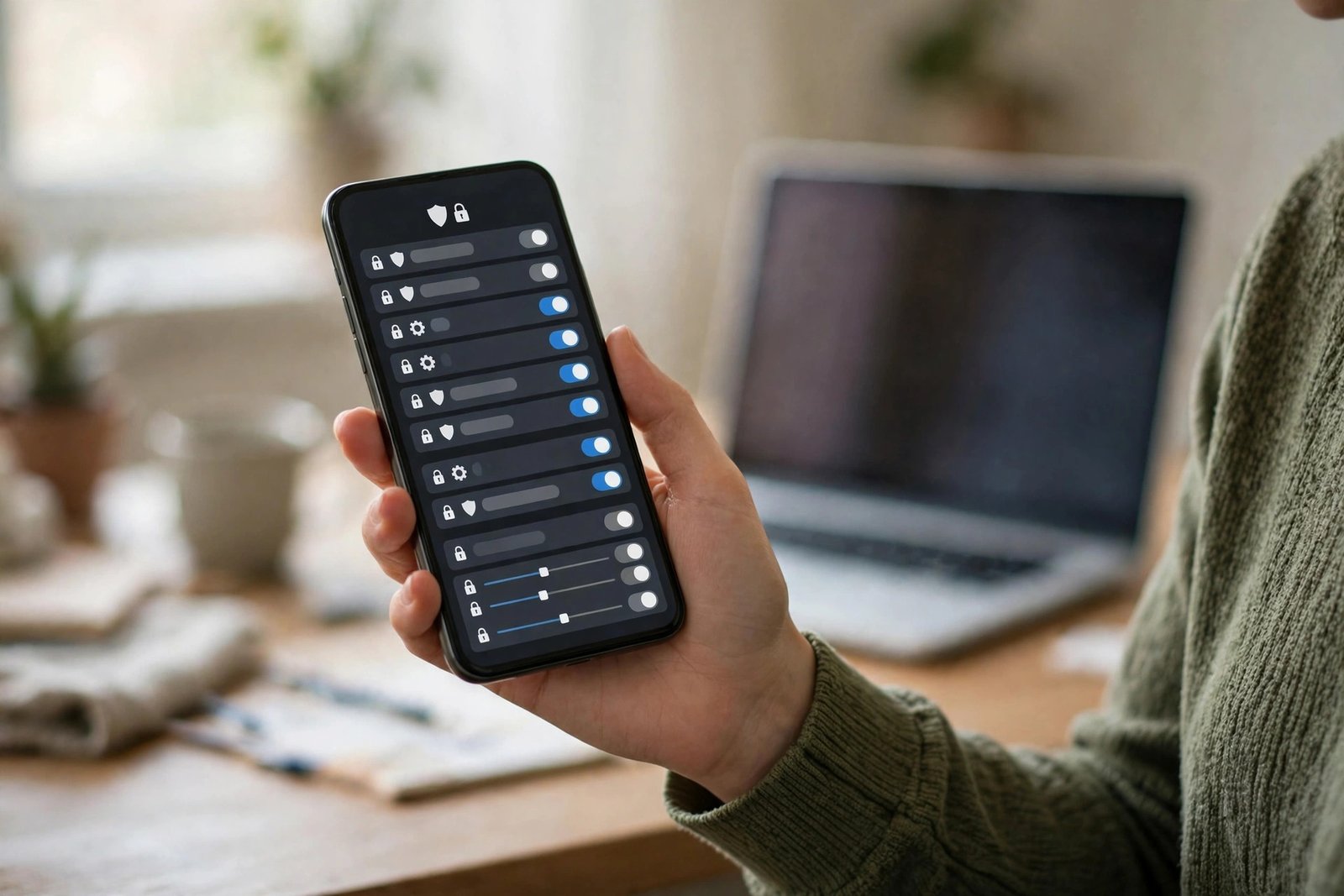
Decide how clips are stored. Free plans often keep short clips for a limited time, while paid plans may offer longer history. If you prefer not to store video in the cloud, look for an app that records to the phone itself or to local storage on your network. Review privacy settings too. Turn off audio recording if you do not need it, and remember that recording laws vary by state in the US. Avoid aiming a camera at a neighbor's yard or inside a bathroom or bedroom, and tell household members and regular visitors that a camera is running.
Check charging, sign-in and storage weekly, so you do not discover too late that the camera stopped days ago.
Frequently Asked Questions
Can I use an old phone as a security camera without a SIM card?
Yes, in most cases. The camera phone only needs Wi-Fi to send video to your main phone, so it does not need an active mobile plan.
Is an old phone camera as good as a dedicated security camera?
It can be good enough for one room or doorway, but it is not a full replacement. Dedicated cameras often offer weather sealing, wider night vision and better motion detection.
Should I worry about privacy when I reuse an old phone this way?
Yes, take basic care. Sign out of old accounts, use a fresh password, turn on two factor authentication where offered, and aim the camera only at your own space.



Post Comment