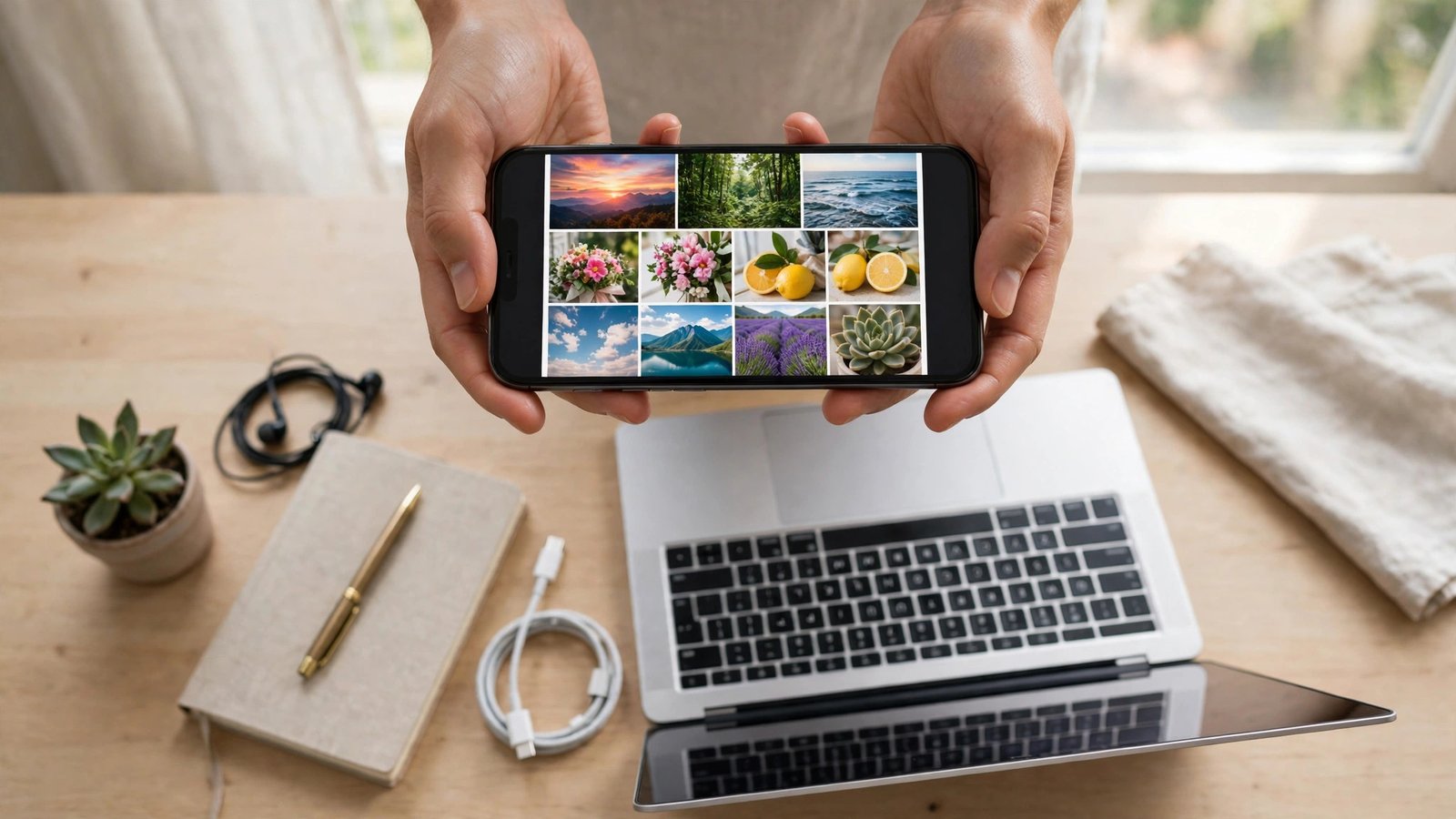
How to Free Up Storage on Your Phone Without Deleting Your Photos
The "Storage Almost Full" warning always seems to arrive at the worst moment, usually right when you are trying to take a photo or install an update. The good news is that you rarely need to delete your memories to fix it. Most phones are full of things you do not need: apps you never open, cached files, old downloads, and duplicate videos. Here is how to clear space on iPhone and Android without losing a single photo.
Step 1: See what is actually eating your storage
Start by checking the breakdown before deleting anything. On iPhone, go to Settings, then General, then iPhone Storage. You will see a bar showing how much space apps, photos, messages, and system files use, plus a list of apps sorted by size. On Android, open Settings, then Storage, where most recent versions show a similar breakdown by category.
This step matters because the fix depends on the cause: apps need a different approach than photos and videos do.
Step 2: Offload apps you do not use, without losing their data
On iPhone, the iPhone Storage screen offers a feature called Offload Unused Apps. When you turn it on, the phone removes apps you have not opened in a while but keeps their documents and data. If you reinstall an app later, it picks up where you left off. You can also offload a single large app manually from the same screen by tapping the app and choosing Offload App.
On Android, there is no single identical switch in most recent versions, but you can get a similar result by hand. Open Settings, then Apps, sort by size, and uninstall large apps you no longer need. Account data for most apps lives in the cloud, so signing back in later restores it. If an app holds files only on your phone, check for an export or backup option before removing it.
Step 3: Move photos to the cloud, then optimize what stays on the phone
Photos and videos are usually the biggest single category, and this is where you can win back the most space without deleting anything. Both iPhone and Android offer a way to keep full-resolution copies in the cloud and smaller versions on the phone.
On iPhone, make sure iCloud Photos is turned on in Settings under your name, then Photos, and choose Optimize iPhone Storage. The phone uploads full-resolution originals to iCloud and keeps lighter versions locally, freeing space automatically when storage runs low. This only helps if you have enough iCloud storage, so check your plan first.
On Android, Google Photos offers a similar path. Open Google Photos, make sure backup is on, wait until your photos show as backed up, then use the "Free up space on this device" option in the app. It removes local copies of photos that are already safely backed up. Your photos remain visible in the app and can be downloaded again at any time.
One warning applies to both systems: never delete anything before backup is confirmed. Open a photo or two in the cloud app and check that the backup badge or date looks right.
Step 4: Clear caches and old downloads
Cached files are temporary data apps store to load faster, and they can grow surprisingly large. On Android, clear an individual app cache in Settings, then Apps, then Storage, by choosing Clear Cache. This does not delete your login or your files inside the app. Browsers and social apps are usually the biggest offenders, so start there.
On iPhone, there is no single clear-all-cache button. Many apps have their own cache controls inside their settings, and Safari cache can be cleared in Settings under Safari. For other apps, offloading and reinstalling, as described in Step 2, clears the cache while keeping documents where the app supports it.
Next, clear your Downloads folder. On Android, open the Files app and look in Downloads for installers, PDFs, and videos you no longer need. On iPhone, open the Files app, browse to Downloads, and remove files you have already used. Old installers and forwarded videos are classic space wasters.
Step 5: Tame messages and large attachments
Messages can quietly hold gigabytes of photos, videos, and voice notes, especially in long group chats. On iPhone, go to Settings, then General, then iPhone Storage, then Messages, and review large attachments. You can also set messages to auto-delete after 30 days or one year under Settings, then Messages, then Keep Messages, if you are comfortable with that trade-off.
On Android, open your messaging app and look for large conversations, or use the Files app to find media shared through messaging apps. Delete the big video forwards first. They are usually the files you will never watch again, and they take up far more room than text ever will.
Step 6: Keep it clear going forward
Once you have breathing room, a few habits keep the warning away. Keep cloud backup for photos on so local copies can be optimized. Review the storage screen once every couple of months and offload apps you have stopped using. Before a big trip or a system update, do a quick storage check so you are not forced to delete things in a hurry.
You do not need a new phone to solve a full phone. An hour of cleanup across apps, caches, downloads, and photo settings usually frees several gigabytes, and your photos stay backed up and searchable.
Frequently Asked Questions
Will offloading an app delete my data?
On iPhone, offloading removes the app but keeps its documents and data, so reinstalling restores it. On Android, uninstalling can remove local data, so check for a backup or export option first. Photos in Google Photos or iCloud are not affected by offloading an app.
Is it safe to use "Free up space" in Google Photos?
Yes, as long as backup is complete first. The option only removes local copies of photos and videos that Google Photos confirms are already backed up. Wait until backup shows as complete, spot-check a few recent photos in the app, and only then run the cleanup. Your backed-up photos stay in your Google Photos library and can be downloaded again.
How much space can I realistically recover?
It depends on what is filling your phone, but the biggest wins usually come from offloading unused apps, clearing large app caches, and optimizing photo storage. People who have never cleaned their phone often recover several gigabytes from those three steps alone.




Post Comment