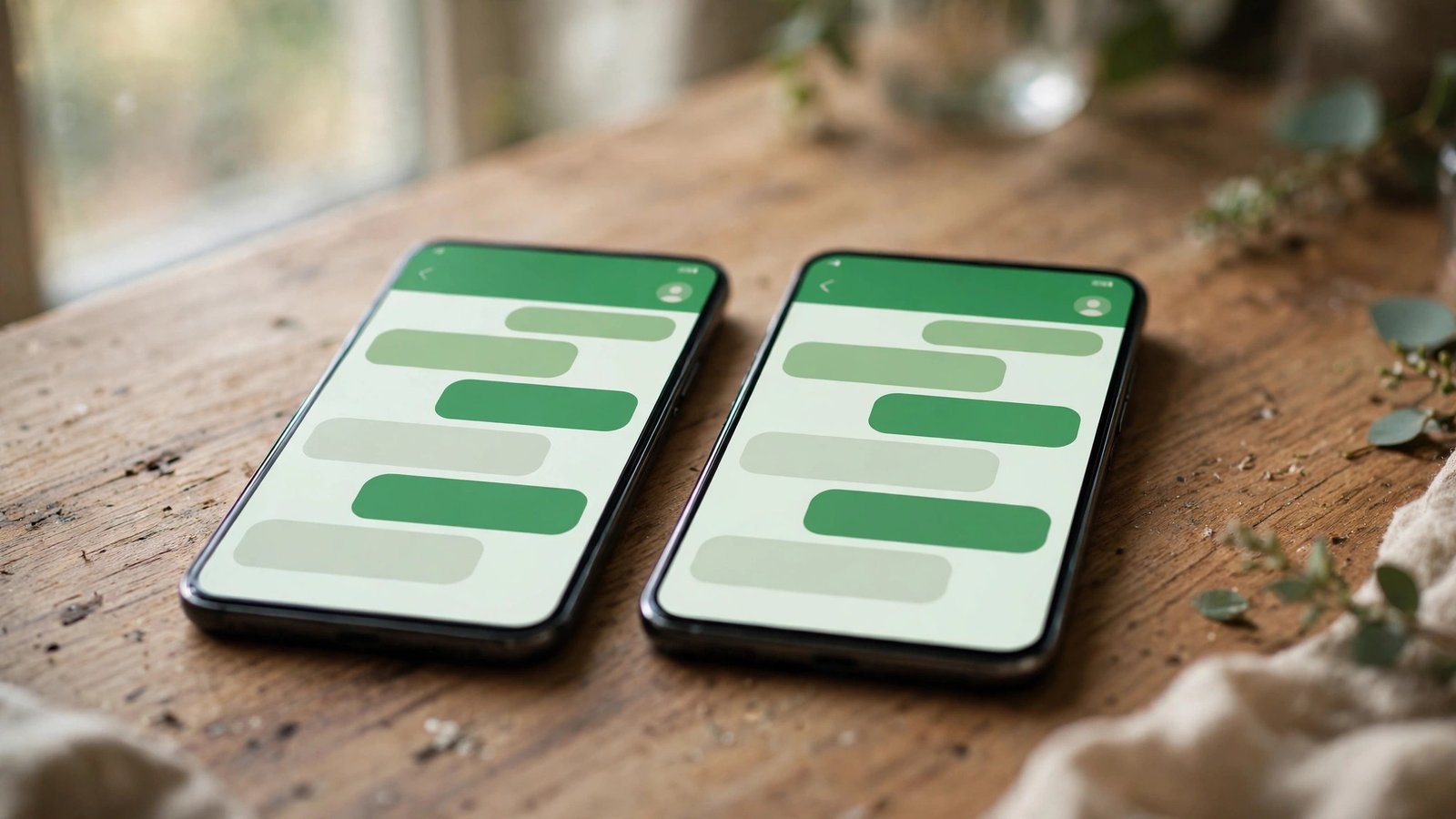
How to Use WhatsApp on Two Phones in the UK
Carrying two phones is common enough in the UK. One for work, one for personal life, or a newer phone alongside an older one that still works fine. WhatsApp used to insist on one phone per account, which meant juggling devices or missing messages. That changed with companion mode, which lets you link a second phone to the same WhatsApp account and use both at once.
The setup takes a few minutes and needs no second SIM card, no second number, and no extra app. Your messages stay end-to-end encrypted, and your chats sync between the two phones.
Before You Start
You need the phone that already has your WhatsApp account, which WhatsApp calls your primary phone, and the second phone you want to link. Both phones need an internet connection and the latest version of WhatsApp installed from the App Store or Google Play.
You do not need a second phone number. The second phone uses your existing number and account, so your contacts see the same name, photo, and number whichever phone you message from. Keep your primary phone nearby and unlocked, since you will need it to scan a QR code.
Link the Second Phone with Companion Mode
Start on the second phone. Install WhatsApp if it is not already there, then open it. Instead of entering a phone number, look for the option to link the phone to an existing account. On Android, tap the three-dot menu on the welcome screen and choose "Link as companion device". On iPhone, tap "Link as companion device" on the screen that asks for your number. A QR code appears on the second phone's screen.
Now pick up your primary phone. Open WhatsApp, go to Settings, then tap Linked devices, then tap Link a device. Your camera opens. Point it at the QR code on the second phone. If your primary phone asks for your fingerprint, face, or PIN, confirm it, and the link completes. Your recent chats then sync to the second phone, which can take a minute or two if you have a lot of messages.
What Works on the Linked Phone
The linked phone is a full WhatsApp phone for most purposes. You can send and receive messages, send voice notes, make voice and video calls, and view status updates from your contacts. Photos, videos, and documents send and receive the same way they do on your primary phone, and groups work too.
A few things work differently on a linked phone. Live location sharing is not available from a companion device, and some features, such as posting a status update, have arrived later on linked phones than on primary phones. In most recent versions, the gap is small, but if a feature is missing on your second phone, check that WhatsApp is up to date on both devices before assuming it is broken.
The 14-Day Rule You Should Know
There is one rule that catches people out. If your primary phone stays inactive on WhatsApp for more than 14 days, WhatsApp logs out all linked devices automatically, so a lost or stolen primary phone cannot stay linked forever.
In practice, this rarely causes trouble, because most people open WhatsApp on their main phone daily. But if you go on a long holiday and leave your primary phone at home switched off, you may find the second phone logged out when you return. Opening WhatsApp on the primary phone resets the clock.
Use WhatsApp Web as an Alternative
If companion mode does not suit you, there is a simpler option for occasional use. Open the browser on your second phone, go to web.whatsapp.com, and request the desktop version of the site. Then link it from your primary phone under Settings, then Linked devices, then Link a device, and scan the code on screen.
WhatsApp Web on a phone browser works, but it is less smooth than the app. Notifications can be unreliable, and the layout is designed for a computer screen. It is fine for a quick check of messages, but companion mode is the better choice if you use the second phone every day.
Keep the Linked Phone Secure
Linking a second phone means your WhatsApp account lives on two devices, so treat the second phone with the same care as your main one. Only link phones you own and control. Never scan the QR code for a phone that belongs to someone else, and never let someone link your account to a device you do not recognise.
Check your linked devices from time to time. On your primary phone, go to Settings, then Linked devices, and look at the list. Every device you have linked is shown there, with the date it was last active. If you see a device you do not recognise, tap it and choose Log out straight away. You can also log out from the second phone itself, under Settings, then Log out, which is the right move if you sell the phone or hand it to someone else.
If your second phone is lost or stolen, log it out from your primary phone as soon as you can. Your chats stay on your primary phone, and the lost device stops receiving new messages once it is unlinked.
When Two Phones Make Sense
Companion mode suits a few common setups. A work phone and a personal phone can share one WhatsApp account, so you stop checking two apps for the same conversations. And if your main phone is in for repair, a spare phone keeps you reachable on the same number.
Set it up once, keep both apps updated, and check the linked devices list now and then.
Frequently Asked Questions
Can I use the same WhatsApp account on two phones without a second number?
Yes. WhatsApp companion mode links a second phone to your existing account using a QR code. No second SIM card or phone number is needed.
How many devices can I link to my WhatsApp account?
You can link up to four devices in addition to your primary phone. Linked devices include other phones, computers, and tablets, and you can manage them all under Settings, then Linked devices.
Why did my second phone get logged out of WhatsApp?
The most common reason is the 14-day rule. If your primary phone stays inactive on WhatsApp for more than 14 days, all linked devices are logged out automatically. Open WhatsApp on your primary phone and link the second phone again to fix it.



Post Comment