How to Set Up a VPN on Your Phone in the US: iPhone and Android Steps for Public Wi-Fi
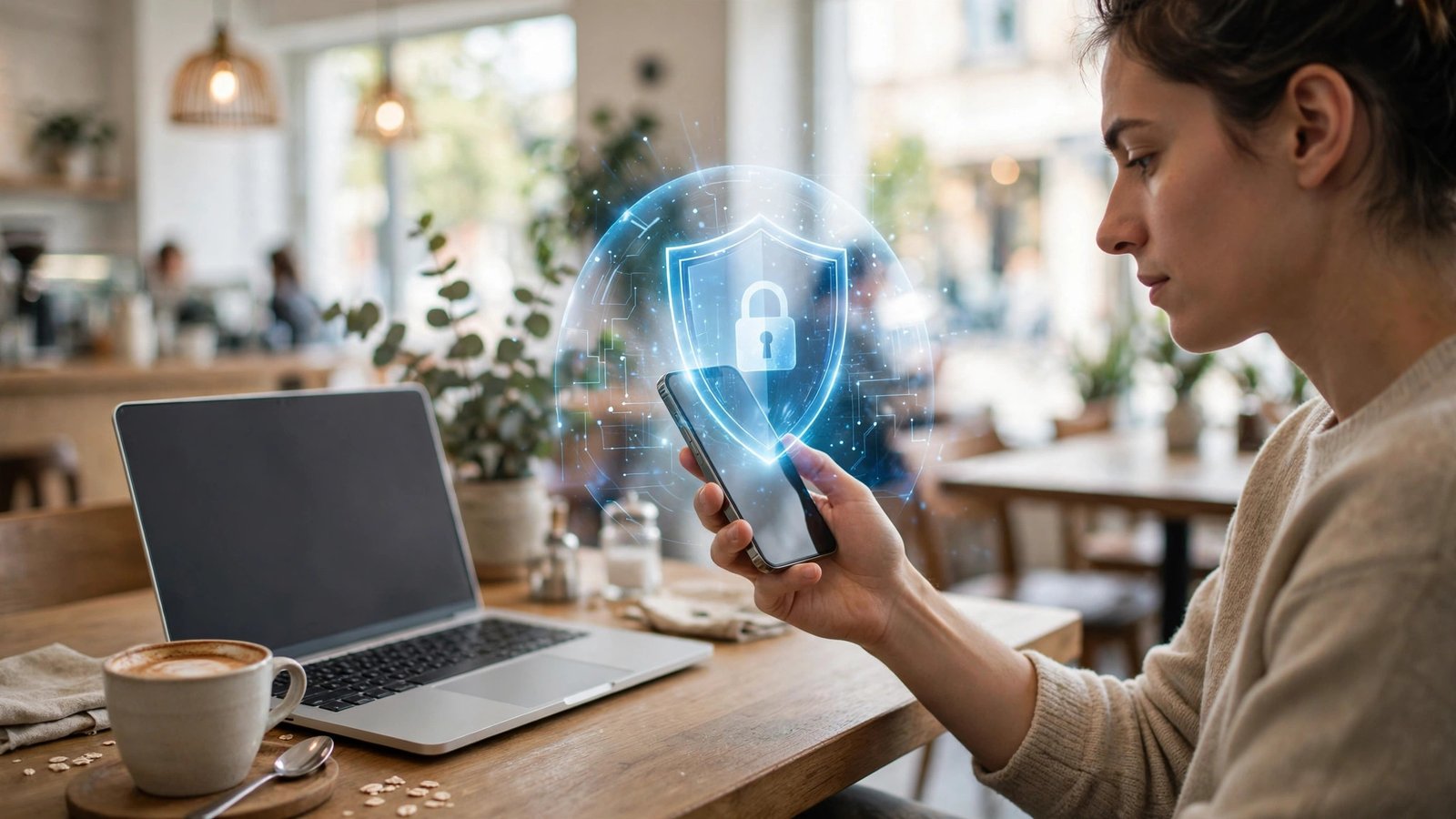
Public Wi-Fi is convenient, and it is also the place where your phone is most exposed. Coffee shop networks, airport hotspots, and hotel Wi-Fi often lack strong encryption, which means someone on the same network may be able to see more of your traffic than you would like. A virtual private network, or VPN, adds a layer of protection by encrypting your connection and routing it through a server run by the VPN provider. It is not magic, and it does not make you anonymous, but set up correctly it is one of the simplest upgrades you can make to your phone's security. This guide walks through choosing a provider and getting it running on iPhone and Android, with the pitfalls to avoid along the way.
Step 1: Understand what a VPN does, and what it does not do
Before you install anything, it helps to know what you are buying. A VPN creates an encrypted tunnel between your phone and a VPN server. Traffic that passes through that tunnel is much harder for someone on the local Wi-Fi network to read or tamper with. Your internet provider and the local network operator will see that you are connected to a VPN server, but not the contents of your browsing inside the tunnel.
A VPN does not protect you from everything. It does not stop phishing emails or make a malicious app safe, and it does not hide your activity from the VPN provider itself, since your traffic passes through its servers. That is why choosing a reputable provider matters more than choosing the cheapest one. Look for a clear privacy policy, a stated no-logs policy audited where possible, and a subscription business model rather than advertising.
Step 2: Choose a provider you can trust
Start with a short list of well-known paid providers and compare them on a few practical points. First, does it offer apps for both iPhone and Android that are kept up to date? Second, does it support a modern protocol such as WireGuard or OpenVPN, which are widely used and well tested? Third, does it allow enough simultaneous connections for your household, so your phone, tablet, and laptop can all be covered? Fourth, does it publish transparency reports or audit results?
Avoid providers that promise total anonymity or protection from all hackers. Those claims are marketing, not security. Check recent reviews from reputable technology publications rather than app store ratings alone, and sign up through the official website or app, never through a link in an unsolicited message.
Step 3: Install and connect on iPhone
On iPhone, open the App Store, search for your chosen provider by its exact name, and check that the developer name matches the provider's official name. Download the app, open it, and sign in with the account you created. The app will ask permission to add a VPN configuration to your phone. This is normal: iOS requires this step so the app can route your traffic through the encrypted tunnel. Tap Allow, then confirm with Face ID, Touch ID, or your passcode when prompted.
Once the configuration is added, pick a server. For everyday use, the fastest option is usually the closest server, and many apps offer an automatic choice. Tap Connect, and look for the VPN icon in your status bar, which confirms the tunnel is active. Test a website to check it loads normally. If pages fail to load, try a different server or protocol.
Step 4: Install and connect on Android
On Android, the steps are similar with a few differences in wording. Open the Google Play Store, search for your provider by its exact name, and verify the developer name before installing. Open the app, sign in, and grant the VPN connection permission when asked. Android will show a system warning that the app can monitor your network traffic. That warning sounds alarming, but it is the standard notice for any VPN app, since routing traffic through a tunnel is exactly what the app is designed to do. Read it, make sure you trust the provider, and tap OK or Allow to continue.
Choose a server close to you for the best speed. Tap Connect and look for the key icon in your status bar, which shows the VPN is active. Test a few websites and apps after connecting. Some banking and streaming apps may ask you to verify your identity again or block the connection. If an app refuses to work, disconnect temporarily, but reconnect before returning to public Wi-Fi.
Step 5: Turn on the kill switch and build the habit
Most good VPN apps include two settings worth enabling right away. The first is a kill switch. This blocks all internet traffic if the VPN connection drops unexpectedly, so your phone does not silently switch back to an unprotected connection without you noticing. Turn it on in the app settings. The second is auto-connect on untrusted networks, where offered. Some apps can connect automatically whenever you join a Wi-Fi network that is not on your trusted list, such as a coffee shop or airport network. Enable it for public networks and add your home network to the trusted list if you prefer not to use the VPN at home.
A VPN only helps if it is running when you need it. Connect before opening email, banking, or work apps on any network you do not control, or let auto-connect handle it. Keep your phone and apps updated, since updates fix flaws a VPN cannot cover. Review your subscription once a year, and if you stop using it, cancel and remove the VPN configuration so old settings do not linger.
Frequently Asked Questions
Do I need a VPN on my phone in the US?
You do not need one at home on a trusted network, but a VPN is worth using on public Wi-Fi, where the local network may be unsecured. It encrypts your traffic so others on the same network cannot easily read it.
Will a VPN slow down my phone?
A VPN usually slows your connection a little, since your traffic travels through an extra server and is encrypted along the way. Choosing a nearby server and a modern protocol such as WireGuard keeps the slowdown small.
Is a free VPN safe to use?
Most free VPNs are risky, because running VPN servers costs money, and a free service has to cover that cost somehow. Some do so by showing ads or selling user data, which defeats the purpose of using a VPN.


Post Comment