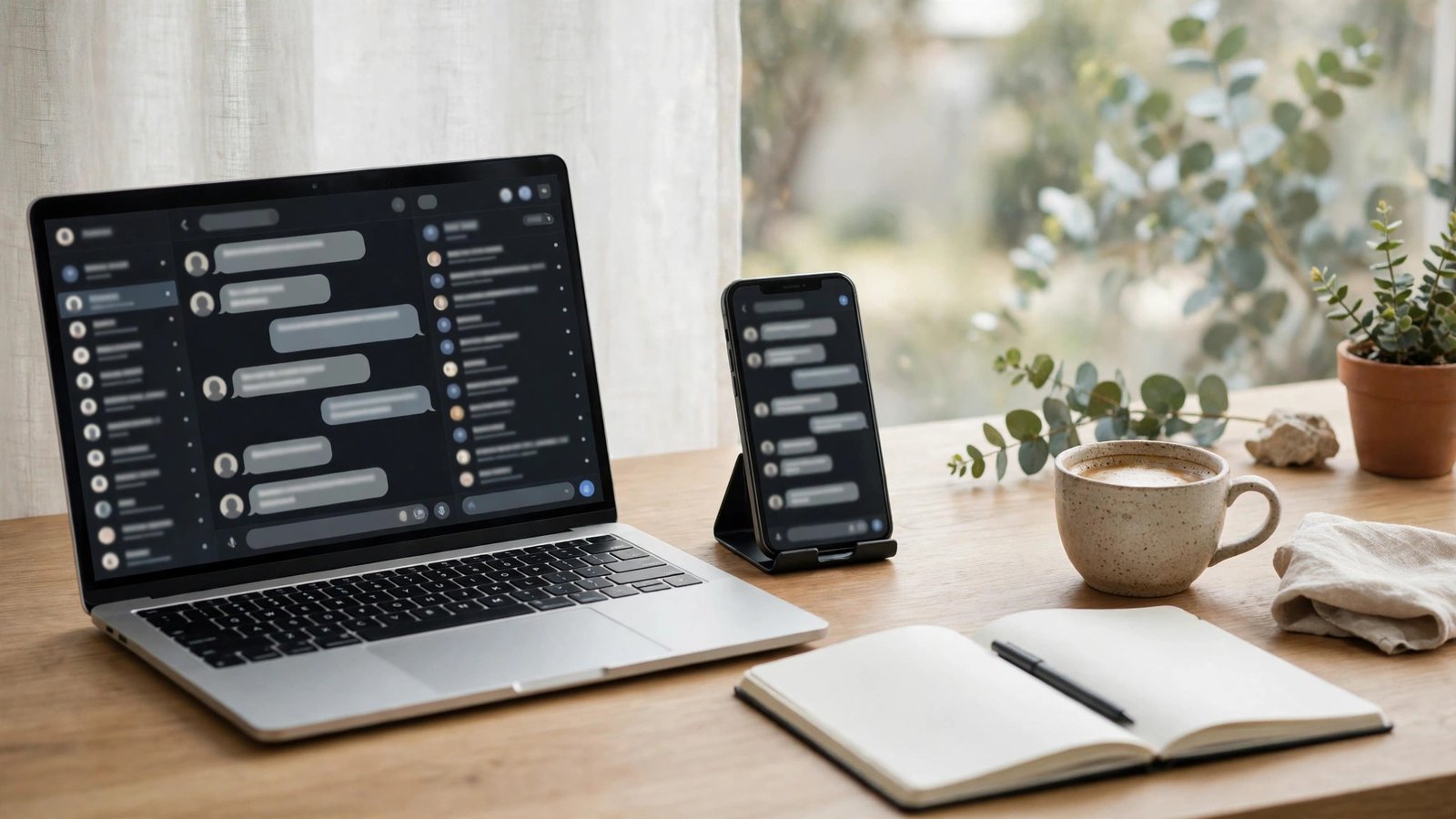
How to Use WhatsApp on Your Computer in Australia: WhatsApp Web and the Desktop App
Typing long messages on a phone keyboard gets old fast, and that is where WhatsApp on your computer earns its place. You can read and reply to chats on a big screen, share files straight from your computer, and even make voice and video calls without picking up your phone. There are two ways to do it in Australia: WhatsApp Web in your browser, and the WhatsApp desktop app for Windows and Mac. Both are free and use the same account and chats.
Before you start: what you need
You need WhatsApp installed and working on your phone, with the phone number you want to use. Your phone does not need to stay connected to the internet for WhatsApp on your computer to work in most recent versions, because linked devices now work on their own once they are set up. Your phone does need to be nearby for the first link.
Step 1: Open WhatsApp Web in your browser
The quickest way to get started is WhatsApp Web, because there is nothing to install. Open your browser and go to web.whatsapp.com. You will see a QR code, which is the key that links your computer to your phone.
Now open WhatsApp on your phone. On iPhone, tap Settings, then Linked Devices, then Link a Device. On Android, tap the three dots in the top right, then Linked Devices, then Link a Device. Point your phone camera at the QR code on your computer screen and hold it steady for a second. Your chats will load on the computer within a few moments.
Step 2: Try the desktop app if you use WhatsApp on your computer often
If you open WhatsApp on your computer every day, the desktop app is worth installing. It starts faster than a browser tab, it can send notifications even when the browser is closed, and on Windows and Mac it supports voice and video calls. Download it from the Microsoft Store, the App Store, or the WhatsApp website. Open the app after it installs and you will see a QR code, just like WhatsApp Web.
Link it the same way. On your phone, go to Linked Devices, tap Link a Device, and scan the code on your computer screen. Once it is linked, the app will sync your chats and stay signed in.
Step 3: Send messages, photos and files from your computer
Once you are linked, using WhatsApp on your computer feels much like using it on your phone. Click a chat to open it, type in the box at the bottom, and press Enter to send. You can attach photos and documents with the paperclip or plus icon, and you can drag a file straight from your computer into the chat window. Voice messages work too. Click the microphone icon in the message box and speak, then click again to stop and send. On the desktop app you can also make voice and video calls by clicking the phone or camera icon at the top of a chat.
Step 4: Manage your linked devices
Your phone keeps a list of every computer linked to your WhatsApp account, and it is worth checking now and then. On iPhone, go to Settings, then Linked Devices. On Android, tap the three dots, then Linked Devices. You will see each device with the browser or app name and the last time it was active.
If you see a device you do not recognise, tap it and choose Log Out straight away. If you used WhatsApp Web on a shared or public computer, log out the same way, or click the three dots above your chat list on the computer and choose Log Out.
Step 5: Fix the common problems
If the QR code will not scan, make sure your phone camera lens is clean and the code is fully visible on your computer screen. Try zooming the browser out to 100 percent, or refreshing the page to get a fresh code. Bright light reflecting off the screen can also confuse the camera, so tilt the phone slightly.
If your chats will not load or messages seem stuck, check your computer's internet connection first, then refresh the page or restart the desktop app. If you were signed out without warning, your phone may have been offline for more than 14 days, which signs out linked devices automatically. Link the device again with the QR code and it will work as before. If calls do not work in the desktop app, check that your computer has a microphone and speakers or headphones connected, and that WhatsApp has permission to use them in your system settings.
Staying safe while you chat on a bigger screen
WhatsApp on your computer is as private as WhatsApp on your phone, because your messages are still end-to-end encrypted. The risk is the screen itself. Anyone walking past can read your chats, so use it on a computer you trust and lock the screen when you step away. On the desktop app you can also turn on a screen lock with a password in the app settings, which adds a useful layer on a shared computer.
Never scan a WhatsApp QR code from a website or message that is not web.whatsapp.com or the official desktop app. Scammers sometimes send fake QR codes that link your account to their device. The real code only ever appears on your own computer screen when you open WhatsApp Web or the desktop app yourself.
Frequently Asked Questions
Do I need my phone connected to use WhatsApp on my computer?
Not in most recent versions. Once a device is linked, it works on its own, so your phone can be off or offline and your computer will still send and receive messages. Your phone does need to be nearby for the first link, and if it stays offline for more than 14 days, your linked devices will be signed out.
Is WhatsApp Web free in Australia?
Yes. WhatsApp Web and the desktop app are both free in Australia. You only need an internet connection on your computer and a working WhatsApp account on your phone. Your phone plan does not matter, because the computer uses its own connection.
Can I make calls from WhatsApp on my computer?
Yes, with the desktop app for Windows and Mac. You can make voice and video calls to individual contacts, and group calls work too. You will need a microphone and speakers or headphones connected to your computer.



Post Comment