
How to Use Public Wi-Fi Safely in Australia: Cafes, Airports and Hotels
Free Wi-Fi is everywhere in Australia, from the cafe on the corner to the airport lounge and the hotel lobby. It is handy, but it is also one of the easiest ways for a stranger to watch what you do online or trick you into handing over your details. Staying safe on public Wi-Fi does not take much effort. A few habits, set up once, protect you every time you connect.
Step 1: Make sure the network is the real one
Not every network with a familiar name is genuine. A common trick is to set up a fake hotspot with the same name as the venue's network, then watch the traffic that passes through it. This is known as an evil twin attack.
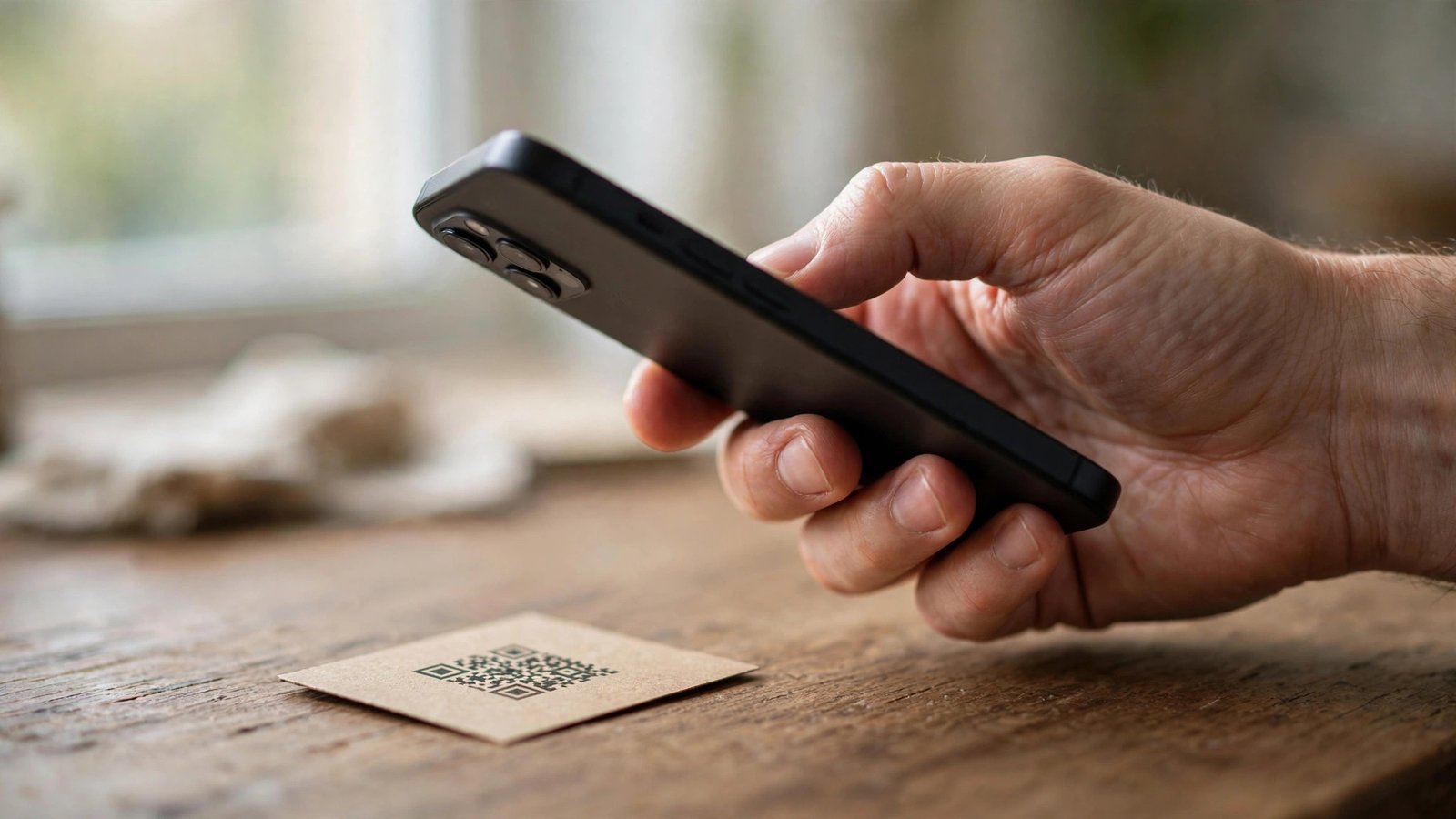
Before you connect, check the exact network name with staff or on a sign at the venue. If you see two networks with similar names, ask which one is the official network. Be suspicious of any network that asks for unusual details to join, such as a payment card number or a code sent to your phone just to get online. A real cafe network may ask for an email address or a voucher code, but it should never ask for banking details.
Step 2: Use mobile data for anything sensitive
The simplest rule is this: if it involves money or identity, do not do it on public Wi-Fi. That includes online banking, shopping, paying a bill or signing in to myGov. Save those tasks for your mobile data or your home Wi-Fi.
Your phone's mobile data is far harder for a stranger to intercept than an open Wi-Fi network. If you need to get online on your laptop, turn on your phone's personal hotspot and connect through that instead. It uses your mobile data and creates a private connection that only you control.
Step 3: Turn on a VPN
A virtual private network, or VPN, encrypts the traffic between your device and the internet, so anyone watching the Wi-Fi network sees scrambled data instead of your activity.
If you already have a VPN app installed, turn it on before you connect to the network, and leave it on until you disconnect. If you do not have one, choose a reputable paid VPN service and install it from your device's official app store. Free VPN apps can be risky, because some of them log and sell your browsing data, which defeats the purpose. A VPN protects your traffic, but it cannot stop you from typing your password into a fake website, so stay alert as well.
Step 4: Turn off auto-join, sharing and AirDrop
Your phone is probably set to join known networks automatically, which can connect you to a fake network with a familiar name before you have a chance to check. Turn off auto-join for public networks, and tell your device to forget the network when you leave, so it does not reconnect next time you walk past.
While you are on public Wi-Fi, also turn off anything that shares files or lets other devices find you. On iPhone, that means switching AirDrop receiving to Contacts Only or off. On Android, turn off Nearby Share and any file sharing options. If you do not need Bluetooth, switch it off too.
Step 5: Check the website before you sign in
Before you type a password or any personal detail into a website on public Wi-Fi, check that the address starts with https and shows a padlock icon. Most major sites use it by default, but a fake login page may not, or may use a slightly misspelled address.
Be extra careful with login pages that appear after you join a network. Many hotels, airports and cafes show a captive portal page when you first connect, asking you to accept terms or enter a room number or voucher code. That is normal. What is not normal is a captive portal asking for your email password, your bank login or a payment to get online. If a portal asks for that, close it, disconnect and ask staff.
Turn on two-factor authentication for your email, banking and social media accounts. That way, even if someone does capture a password, they still cannot sign in without the second step.
Step 6: Keep your software up to date and forget the network after
Outdated software is an easy way in for an attacker, because known flaws in old versions are public knowledge. Keep your phone, laptop and apps updated, and turn on automatic updates.
When you are done, disconnect from the network and tell your device to forget it. On iPhone, go to Settings, then Wi-Fi, tap the information icon next to the network name and choose Forget This Network. On Android, open Settings, then Network and internet, then Wi-Fi, tap the network and choose Forget. This stops your device from reconnecting automatically next time you are nearby.
What to do if you joined a suspicious network
If you realise you connected to a fake network, act quickly. Disconnect and forget it on your device. Change the passwords for any accounts you signed in to while connected, starting with your email and bank. Check your bank statements and email for unfamiliar activity over the next few days.
If you entered banking details or a card number on the network, call your bank straight away using the number on the back of your card. If you think your identity was stolen, contact IDCARE on 1800 595 160 or at idcare.org for free help.
Frequently Asked Questions
Is it safe to use public Wi-Fi in Australia?
It can be, if you take basic precautions. Use the official network, turn on a VPN, avoid banking and shopping on open networks, and forget the network when you leave.
Do I need a VPN for public Wi-Fi?
A VPN is the strongest single protection on public Wi-Fi because it encrypts your traffic. It is highly recommended, but it is not a replacement for the other steps. You still need to check website addresses and avoid entering sensitive details on a network you do not trust.
Should I use free VPN apps on public Wi-Fi?
Be careful. Some free VPN apps log and sell your browsing data, which defeats the purpose of using one. If you use a VPN regularly, a reputable paid service from a well-known provider is the safer choice. Install any VPN from your device's official app store, never from a link in a message or a pop-up.



Post Comment