How to Use Your Phone as a TV Remote in the US: iPhone and Android Setup
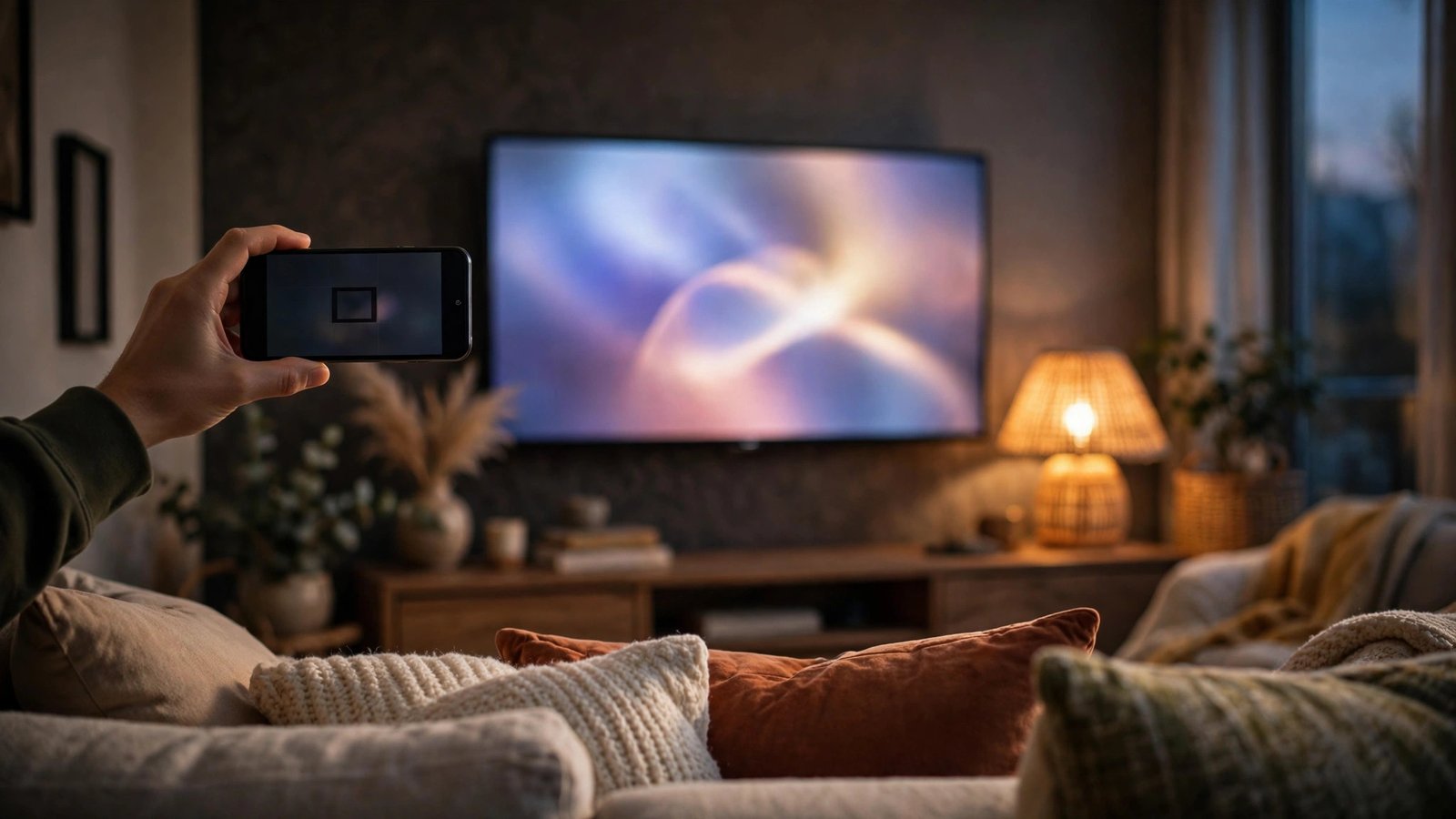
The remote has vanished into the couch cushions again. Your phone, on the other hand, is right in your hand. Almost every modern TV can be controlled from a phone, and setup usually takes only a few minutes. You can change channels, adjust the volume, type searches on a real keyboard, and even turn the TV on and off. This guide covers the built-in options on iPhone and Android, the free apps for the big TV brands, and what to do when the connection refuses to work.
Before you start: two things to check
First, your phone and TV need to be on the same Wi-Fi network. Nearly every phone remote method uses Wi-Fi to find and talk to the TV, so if your phone is on mobile data or a guest network, the TV simply will not appear. Second, find your TV brand and model. The best app is usually the one made by the TV manufacturer. A small number of Android phones also have an infrared blaster that works like a traditional remote, but most recent phones do not, so Wi-Fi apps are the method this guide relies on.
Use an iPhone as a TV remote
If you own an Apple TV, the remote is already built into your iPhone. Open Control Center by swiping down from the top right corner, tap the Apple TV Remote icon, and select your Apple TV. You get a touchpad, play and pause, volume, and a menu button, and you can ask Siri to play a show when your hands are full.
For other TV brands, download the maker's free app from the App Store. Samsung owners use SmartThings, LG owners use ThinQ, Sony owners use the Video and TV SideView app or Google TV depending on the model, and Roku and Fire TV each have their own apps. Open the app, make sure the TV is on, and follow the pairing prompt. The app usually asks you to confirm a code shown on the TV screen, and after that the phone works as a full remote with a keyboard for searches.
The Google TV app is a good all-rounder on iPhone if your TV runs Google TV or you use a Chromecast. It finds the device on your network, pairs with a code, and gives you navigation, volume, and voice search.
Use an Android phone as a TV remote
Android has a built-in remote too. The Google TV app comes with most Android phones and includes a remote for any Google TV or Chromecast on your network. Open the app, tap the remote icon in the bottom right, pick your TV from the list, and enter the pairing code shown on screen. Some Android phones also put a TV remote tile in the Quick Settings panel, so you can reach it with one swipe.
For Samsung TVs, the SmartThings app is the best fit, and it comes preinstalled on many Galaxy phones. It can control the TV, switch inputs, and manage other smart home devices from the same screen. LG owners should install ThinQ, Roku owners the Roku app, and Fire TV owners the Amazon Fire TV app. Each follows the same pattern: same Wi-Fi network, TV switched on, pair with the code on screen. A few Android phones, mostly some Xiaomi and older Huawei models, also have an infrared blaster that works like a traditional remote when Wi-Fi is down.
What you can do once it is connected
A phone remote does more than the plastic one it replaces. Typing a show title on a phone keyboard beats tapping letters one by one with arrow keys, and that alone makes searching far less painful. Most apps also offer voice search, so you can say the name of a movie instead of typing it. The Roku app even offers private listening, which sends TV sound to your phone for late night viewing with headphones.
When the phone cannot find the TV
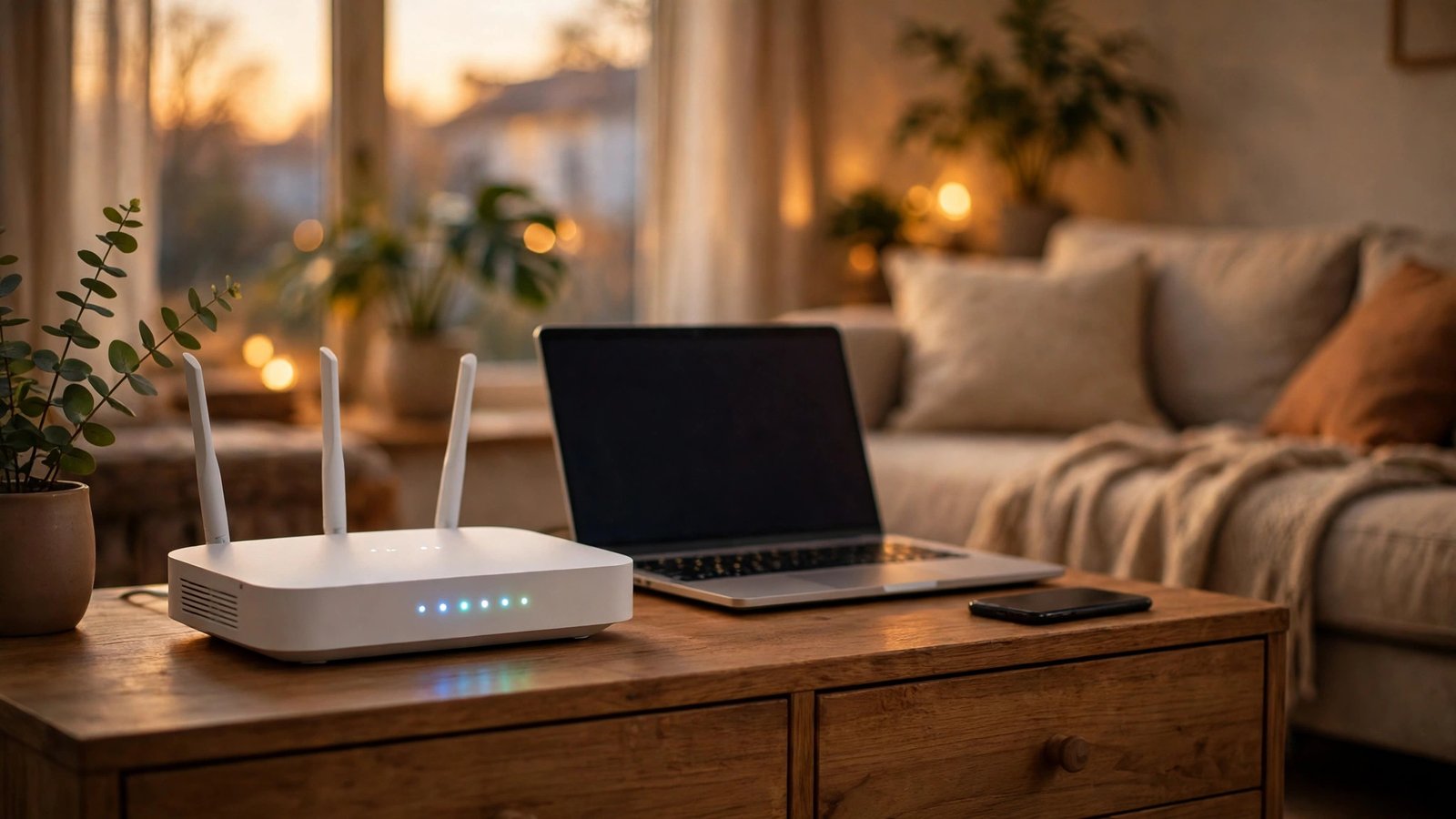
Connection problems are common, and most have simple fixes. First, confirm both devices are on the same Wi-Fi network and the TV is switched on, not in deep standby. Second, restart both the TV and the phone. Third, check that your TV software is up to date. Fourth, restart your router if other devices are also struggling to connect.
If the app still cannot see the TV, check whether your router splits the network into two bands, often called 2.4 GHz and 5 GHz. Some TVs only connect to one band, so move your phone to the same band as the TV and try again. If your TV is wired into the router with an Ethernet cable while your phone is on Wi-Fi, that should still work, since both are on the same home network. But a guest network or a VPN on your phone will block the connection, so turn the VPN off while you pair.
Keep it working: a few practical tips
Once the remote is set up, keep the app updated so it stays compatible with your TV software. If you replace your router or change the Wi-Fi password, pair the phone again. If several people want to control the same TV, each phone pairs separately. And keep the old remote as a backup, since a phone remote is no help with a dead battery.
Frequently Asked Questions
Do I need Wi-Fi to use my phone as a TV remote?
In most cases, yes. Phone remote apps find and control the TV over your home Wi-Fi network, so both devices must be on the same network. The exception is a phone with an infrared blaster, which works like a traditional remote and needs line of sight instead.
Which app should I use for my Samsung or LG TV?
Use the maker's own app for the best fit: Samsung SmartThings for Samsung TVs and LG ThinQ for LG TVs. Roku, Fire TV, and Google TV each have their own free apps too, and the Google TV app works well as an all-rounder for Chromecast and Google TV devices.
Why does the app say my TV is not found?
The usual cause is that the phone and TV are on different networks, or the TV is in deep standby. Check both are on the same Wi-Fi, switch the TV on, restart both devices, and turn off any VPN on your phone while you pair.


Post Comment