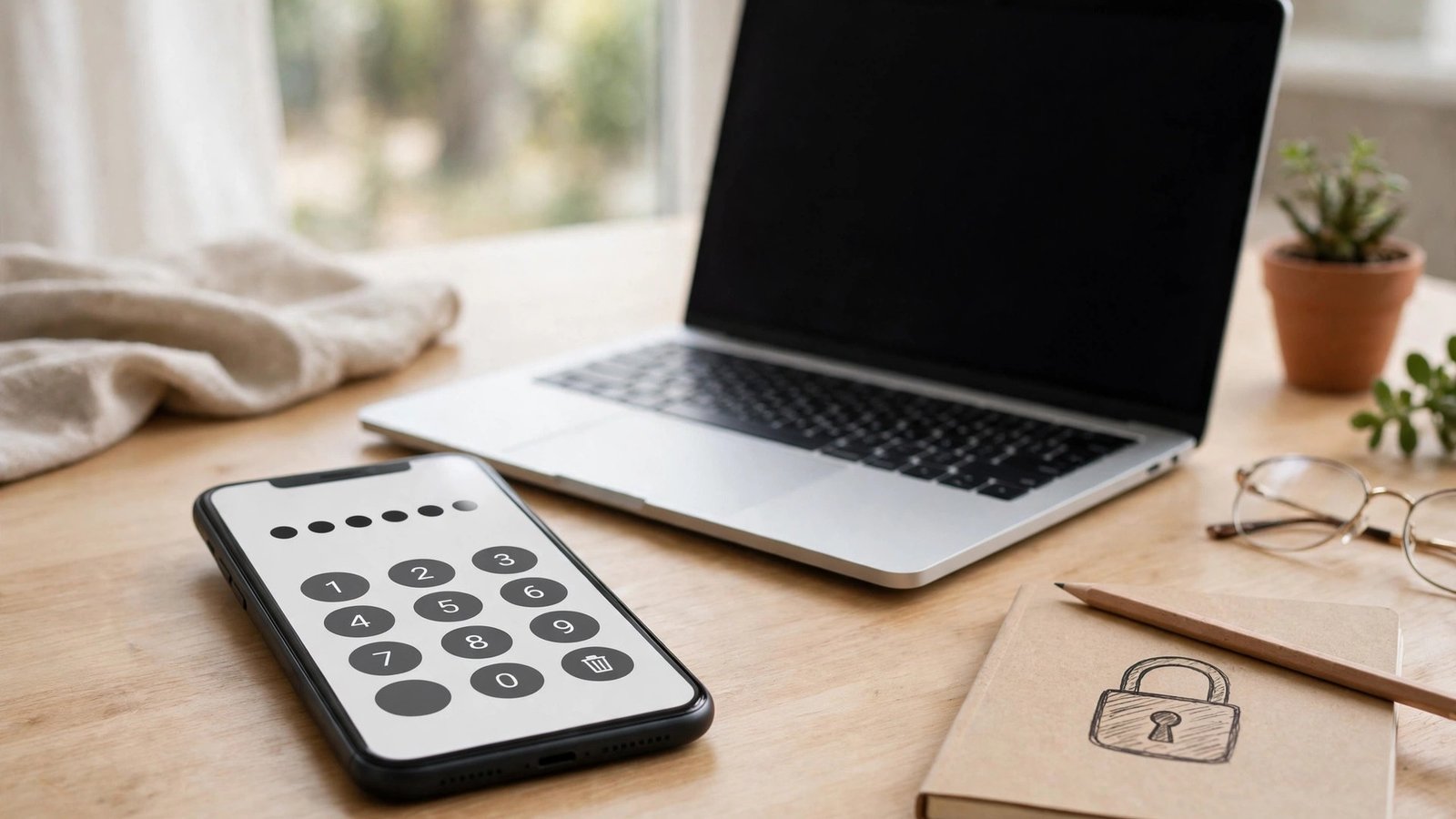
How to Turn On Two-Factor Authentication for Google, Apple and Facebook in Australia
A password alone is no longer enough to protect your accounts. If a password leaks in a data breach, is guessed, or is stolen in a phishing email, anyone who has it can walk straight into your account. Two-factor authentication, usually called 2FA, adds a second check. Even if someone has your password, they also need your phone, or a code that only your phone can generate.
Two-factor authentication stops most account hijacks. It is the single most effective thing you can do to protect your accounts, and it takes only a few minutes to turn on. Here is how to set it up for the three accounts that matter most: Google, Apple and Facebook.
Step 1: Turn on 2-Step Verification for Google
Start with your Google account, since it is the key to your Gmail, your photos and your documents.
Open your Google Account settings and go to Security. Find "How you sign in to Google" and tap "2-Step Verification". Google will ask you to sign in again, then offer you a choice of second steps. The simplest option is Google Prompt, which sends a yes-or-no question to a phone where you are already signed in.
If you prefer codes, choose "Authenticator app" instead. Google will show a QR code on screen. Open your authenticator app, tap the plus sign, scan the code, and enter the six-digit number the app shows. From then on, the app generates a fresh code every 30 seconds, and you can use it even when your phone has no signal.
Google also offers backup codes: eight-digit codes you can print or save somewhere safe. Each code works once, and they are your way back in if you lose your phone.
Step 2: Turn on two-factor authentication for your Apple ID
Your Apple ID protects your iPhone, your iCloud photos, your messages and your payment methods, so it is worth securing properly.
On your iPhone, go to Settings, tap your name at the top, then tap Sign-In and Security, then turn on Two-Factor Authentication. Apple will ask you to confirm a trusted phone number, then send a six-digit code to that number, which you enter to finish the setup.
After that, whenever you sign in on a new device, Apple shows a code on one of your trusted devices. Enter it and you are in. Apple also offers a recovery key in the same settings screen: if you turn it on, write it down and keep it somewhere safe.
Step 3: Turn on two-factor authentication for Facebook
Facebook accounts are a common target for scammers in Australia, because a hijacked account can be used to message your friends and ask them for money. Turning on 2FA takes a few minutes and makes that much harder.
Open the Facebook app, tap the menu icon, then go to Settings & Privacy, then Settings, then Accounts Centre, then Password and Security, then Two-Factor Authentication. Facebook will show your options: an authentication app, text message, or a security key. Choose the authentication app if you already use one for Google, and scan the QR code Facebook shows. If you do not have an authenticator app, text message codes are a fine starting point.
Step 4: Save your backup codes and recovery options
Setting up 2FA is only half the job. The other half is making sure you can still get in if you lose your phone. For each account, check the recovery options now, while you still have access.
Make sure each account has a recovery email address and a recovery phone number that you still control. For Google and Facebook, generate the backup codes and store them somewhere safe, away from your phone. For Apple, write down your recovery key if you turned one on. If you use a password manager, it can store the codes for you.
Test the recovery path once, while you still have access. Sign out of one account on a spare browser, sign back in, and go through the 2FA step.
Step 5: Turn on 2FA everywhere else that matters
Once the big three are done, work through the rest of your accounts. Start with the ones that hold your money or your identity: your bank, your myGov account, and any shopping or delivery apps that store your card details.
Then move on to the accounts that could be used to trick your friends or steal your identity: WhatsApp, Instagram and any work accounts. The steps are similar on each service: look in the security or privacy settings for two-factor authentication or login approvals, and follow the prompts. Use the same authenticator app for all of them so you only have one place to look for codes.
What to do if you get locked out
If you lose your phone, try the backup codes you saved. If you do not have them, use the account recovery page, which will ask questions to prove who you are. This can take a day or two.
If your phone was stolen, contact your carrier first and ask them to block the SIM, then change the passwords on your most important accounts from another device. If someone has already got into an account, change the password and sign out of all other devices. In Australia, you can also report identity theft to IDCARE on 1800 595 160 for free advice.
Frequently Asked Questions
Is two-factor authentication really worth the hassle?
Yes. Most hijacks start with a stolen or guessed password, and 2FA stops them because the attacker does not have your phone.
What happens if I lose my phone and 2FA is on?
Use your backup codes. If you do not have them, use the account recovery page, which will ask questions to prove your identity.
Should I use text message codes or an authenticator app?
An authenticator app is safer, because text messages can be intercepted if someone tricks your carrier into moving your number. Use an app where the service offers it, and keep text messages as a backup option rather than your main one.




Post Comment