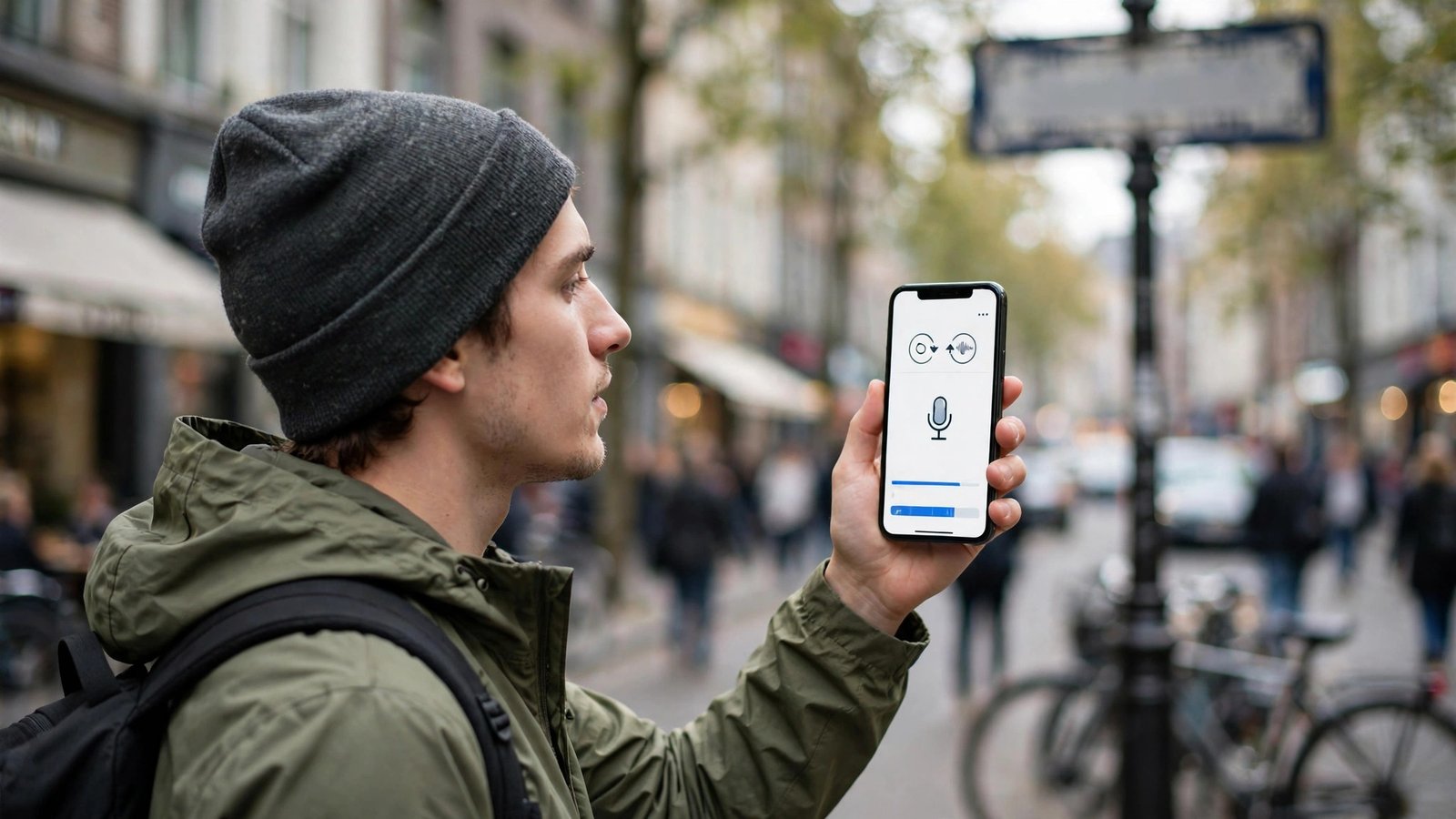
How to Translate Text, Signs and Conversations on Your Phone in the US
Travel, school, work, and everyday life in the US bring you into contact with many languages. Your phone can translate street signs, restaurant menus, product labels, and live conversations in seconds, and most of the tools are already installed. This guide covers the three methods you will actually use: camera translation, typed translation, and live conversation mode, plus how to make them work without an internet connection.
Step 1: Translate signs and menus with your camera
Camera translation is the fastest way to read text you cannot type. On both iPhone and Android, the free Google Translate app handles this well in most recent versions:
- Open Google Translate and tap the Camera button.
- Point your phone at the sign, menu, or label. The translation appears overlaid on the original text in real time.
- If the overlay looks messy, tap the shutter button to capture a still image, then swipe over the exact lines you want translated.
- Tap the speaker icon to hear the translation spoken aloud, which helps with pronunciation.
Apple’s Translate app on iPhone offers a similar camera feature. Open Translate, tap Camera, and point at the text. Whichever app you choose, hold the phone steady and make sure the text is well lit. Curved labels on bottles and cans translate less reliably than flat printed signs, so try a couple of angles if the first attempt garbles a word.
Step 2: Translate typed text and whole messages
For emails, messages, and web pages, typed translation is more accurate than camera mode because you control the exact input:
- Open Google Translate or Apple Translate and set the two languages, for example Spanish to English.
- Type or paste the text. Keep sentences short and complete for the best results.
- Tap the copy button to paste the translation into a message, email, or document.
- For a web page, most mobile browsers offer a translate prompt in the address bar or share menu that translates the whole page in place.
A useful habit: when translating something important, such as a medical instruction or a contract clause, translate it back into the original language and compare. If the round trip changes the meaning, simplify the sentence and try again, or ask a fluent speaker to check it.
Step 3: Hold a live conversation with conversation mode
Conversation mode lets two people talk through the phone, each in their own language. In Google Translate, tap Conversation, choose both languages, and set it to automatic detection if you want hands free use. Each person speaks in turn, and the phone shows and speaks the translation. On iPhone, Apple Translate has a similar Conversation tab with a face to face view that shows each person their own side of the screen.
This works best when you follow a few ground rules. Speak in short sentences, pause after each one, and keep background noise low. Names, slang, and jokes translate poorly, so say what you mean plainly. For anything with legal, medical, or financial consequences, treat the phone as a starting point and confirm the details with a professional interpreter.
Step 4: Download languages for offline use
Translation apps need the internet unless you download language packs first, and this is the step most people forget until they are abroad or in a dead zone:
- In Google Translate, tap your profile icon, choose Downloaded languages, and download the languages you need before you travel.
- On iPhone, open Translate, tap the languages button, and download languages under On Device Mode.
- Test offline translation at home by switching your phone to airplane mode and translating a few phrases.
Offline packs are large, so download them over Wi-Fi. Camera translation and conversation mode both work offline once the packs are installed, though typed translation tends to be the most reliable without a connection.
Step 5: Get better results and avoid common mistakes
Machine translation is very good at everyday language and still shaky at nuance. These habits close most of the gap:
- Photograph or type the full sentence, not a single word, since context fixes most wrong guesses.
- Watch for false friends: words that look similar in two languages but mean different things. If a translation seems odd, check it with a second phrasing.
- For signs with mixed languages or stylized fonts, capture a still image and select the text manually rather than relying on the live overlay.
- Keep the app updated. Translation quality improves regularly, and newer versions handle handwriting, voice, and camera input noticeably better than older ones.
One last tip: if you translate often for work or school, pin the Translate app to your home screen or add its widget. The seconds you save each time add up, and you are far more likely to use a tool that is one tap away.
Frequently Asked Questions
Which free app is best for translating signs with a phone camera?
Google Translate is the most widely used free option on both iPhone and Android, with live camera overlay, still image translation, and offline packs. Apple Translate on iPhone covers camera translation too, so either works for everyday signs and menus.
Can I translate without an internet connection?
Yes, if you download the language packs in advance over Wi-Fi. In Google Translate, use Downloaded languages; on iPhone, use On Device Mode in the Translate app. Then test in airplane mode before you rely on it.
How accurate is phone translation for important documents?
It is reliable for everyday meaning but not a substitute for a certified translator on legal, medical, or financial documents. For critical text, translate it back to check the meaning, simplify complex sentences, and have a fluent speaker or professional review the final version.



Post Comment