How to Translate Text, Signs and Conversations on Your Phone in Canada
You are standing in front of a menu, a sign, or a message in a language you do not read, and your phone is already in your hand. That is all you need. Both iPhone and Android phones now include strong translation tools, and free apps from Google and Apple cover most everyday situations in Canada, from English and French to dozens of other languages. This guide shows you how to translate typed text, signs you point your camera at, and live conversations, step by step.
You do not need to buy anything to start. The built-in tools handle most tasks, and the free Google Translate app adds a few extras on both iPhone and Android. Download it before a trip if you can, because offline packs need Wi-Fi to install.
Step 1: Translate typed text in seconds
Open Google Translate on either phone, or Apple Translate on an iPhone. Type or paste the text, pick the two languages, and the result appears right away. On iPhone, you can also highlight text in many apps, tap Translate in the pop-up menu, and read it without switching apps.
If you are not sure which language you are looking at, set the source language to Detect Language in Google Translate. For longer documents, paste smaller chunks so the result stays accurate and easy to check.
A useful habit is to translate back: swap the languages and translate the result back. If the meaning survives, you can trust it for everyday use. If it comes back garbled, shorten the sentence and try again.
Step 2: Point your camera at signs, menus and labels
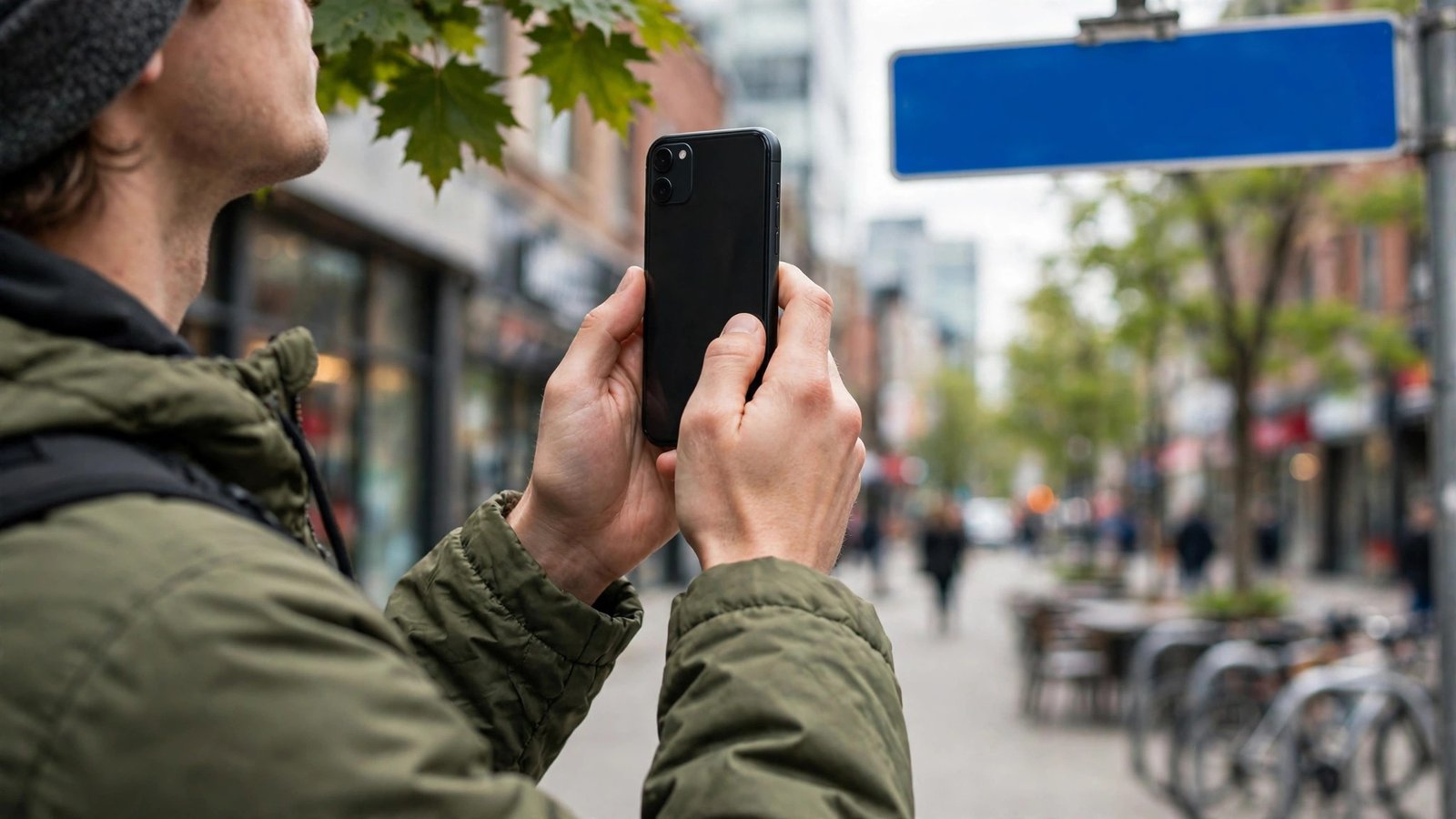
Camera translation is the fastest way to read a sign, a menu, or a product label. In Google Translate, tap Camera, point your phone at the text, and the translation appears over the original words on screen. You can also take a photo first, then tap the scan button to translate only the part you need.
On iPhone, open the Camera app, point it at text, and tap the small text button that appears in the corner when text is detected. You can then tap Translate to read it. Apple Translate also has a Camera mode on newer iPhones, which works in a similar way.
Good lighting helps a lot. Move closer if the text is small, avoid glare from glass or bright sun, and hold still for a second while the app locks onto the words. If a sign mixes two languages or uses fancy lettering, try one line at a time instead of the whole sign at once.
Step 3: Hold a live conversation with two people
For a face to face chat, use Conversation mode. In Google Translate, tap Conversation, choose the two languages, and tap the microphone button for the person speaking. The app listens, translates, and speaks the result aloud. On iPhone, open Apple Translate, tap Conversation, and do the same.
Keep sentences short and pause between speakers. Long, rambling sentences confuse translation apps more than anything else. Speak clearly, avoid slang if you can, and let the other person finish before you tap to speak again. If the app mishears a word, tap the text to edit it and translate again rather than repeating yourself louder.
Conversation mode also helps in shops, clinics, and schools across Canada, where English and French meet other languages every day. It is not a replacement for a professional interpreter for legal, medical, or safety decisions, but it is excellent for directions, orders, and appointments.
Step 4: Download offline packs before you need them
Offline translation is a lifesaver when you have no signal, such as on a plane, in a rural area, or in a building with thick walls. In Google Translate, tap your profile picture, then Downloaded Languages, and download the languages you need. On iPhone, open Settings, then General, then Language and Region, and check the translation settings, or download languages inside Apple Translate where offered.
Download packs over Wi-Fi, because they can be large. Test them before you travel: turn on airplane mode, type a test sentence, and confirm the translation still works. Keep the packs updated when the app prompts you, since newer packs tend to handle everyday phrases better.
Offline mode works best for typed text and short phrases. Camera translation may still work for some languages offline, but live conversation quality can drop without a connection. Plan for that by saving key phrases ahead of time, such as an address, an allergy note, or a hotel name.
Step 5: Translate photos, chats and web pages
You can also translate text inside photos you already took. In Google Translate, tap Camera, then the gallery icon, and pick the photo. The app will find the text and translate it. This is useful for a photo of a notice, a receipt, or a document someone sent you.
For chats, copy the message, paste it into your translation app, and read the result. Some Android phones also offer a translate option right in the share menu or in the keyboard.
Tips that make translations more accurate
Use short, plain sentences and avoid jokes, idioms, and double meanings, since those rarely survive translation. Names, addresses, and numbers should be checked character by character, because one wrong digit changes everything. If a translation matters, show it to the other person and ask if it looks right.
Privacy is worth a thought too. Avoid translating highly sensitive documents, passwords, or private medical details through a free online service unless you must. For everyday travel and shopping, the built-in tools are fine.
With these steps, your phone becomes a pocket interpreter. Start with typed text, try the camera on a sign today, and download one offline pack before your next trip.
Frequently Asked Questions
Is Google Translate free on iPhone and Android in Canada?
Yes. Google Translate is free on both iPhone and Android, and Apple Translate is built into iPhones at no extra cost. Offline language packs are also free, though they need Wi-Fi to download.
Can I translate without an internet connection?
Yes, if you download the language pack in advance. Offline translation works best for typed text and short phrases. Camera and conversation features may be more limited offline, depending on the language and your phone.
How accurate is phone translation for everyday use?
Phone translation is generally reliable for directions, menus, shopping, and casual conversation, especially with short, plain sentences. For legal, medical, or safety decisions, check the result carefully or use a professional interpreter.




Post Comment