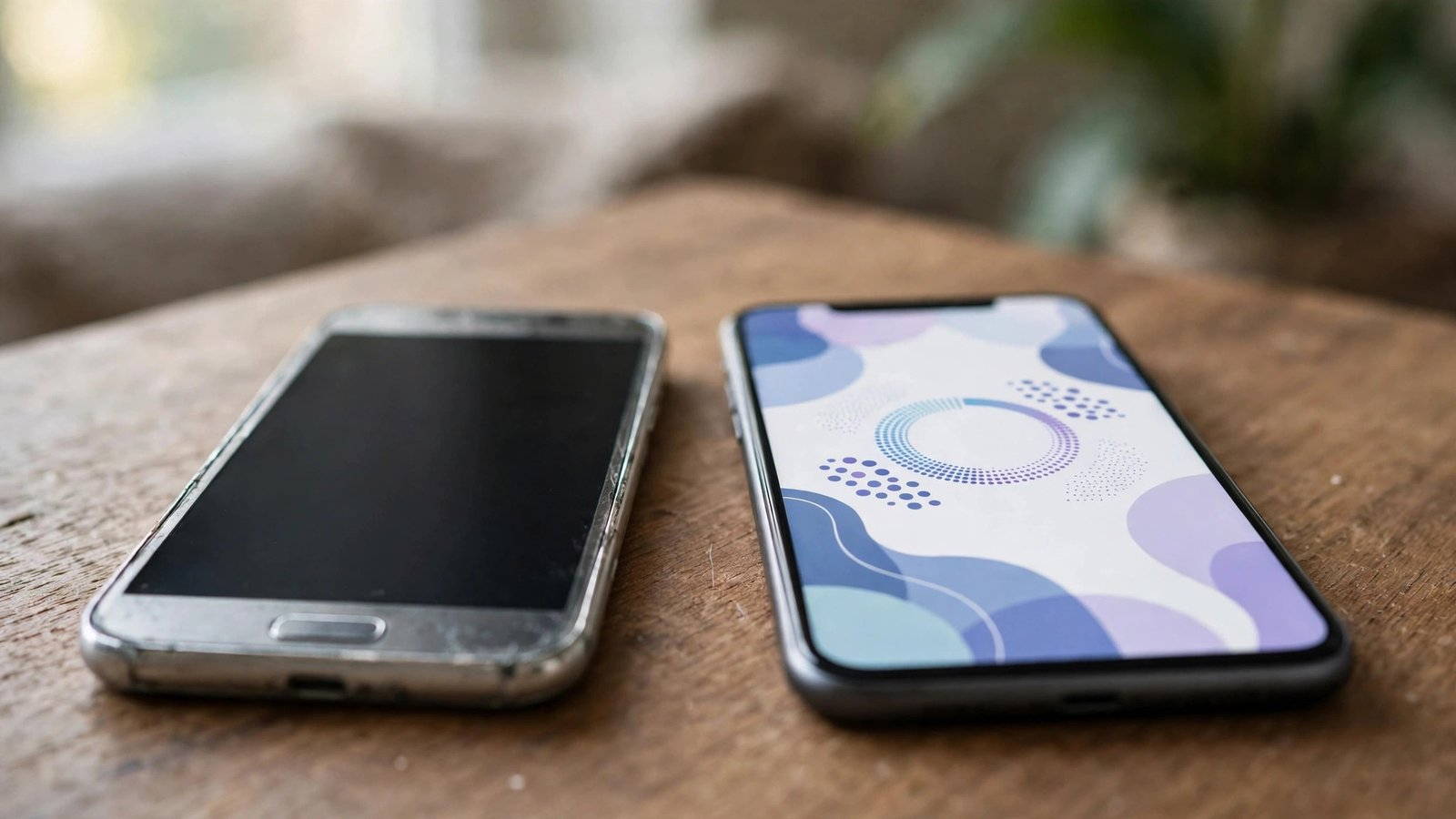
How to Transfer WhatsApp Chats to a New Phone in Canada
Getting a new phone is exciting, but losing your WhatsApp chats is not. The good news is that WhatsApp makes it easy to move your messages, photos, voice notes and groups to a new iPhone or Android phone in Canada — if you back up first and restore correctly. This guide explains the exact steps for every switch: iPhone to iPhone, Android to Android, Android to iPhone, and iPhone to Android.
Before you start: do this on your old phone
Do not wipe, sell or trade in your old phone until the transfer is finished and you have checked your chats on the new phone.
- Update WhatsApp to the latest version on both phones.
- Charge both phones and connect to Wi-Fi. A chat backup can be large, especially with videos.
- Make sure the new phone has enough free storage for your backup.
- Use the same phone number on the new phone. WhatsApp is tied to your number, not just the device.
- Sign in to the same iCloud account (iPhone) or Google account (Android) you used for the backup.
Method 1: iPhone to iPhone
This is the simplest transfer, using iCloud.
- On your old iPhone, open WhatsApp and go to Settings > Chats > Chat Backup.
- Tap Back Up Now. Turn on Include Videos if you want your videos moved too. Wait for the backup to finish.
- On your new iPhone, install WhatsApp and verify the same phone number.
- When WhatsApp finds your iCloud backup, tap Restore Chat History.
- Wait for the restore to finish, then tap Next. Your chats, media and groups will appear.
If the restore does not appear, check that iCloud Drive is turned on, that you are signed in with the same Apple ID, and that you have enough iCloud storage. WhatsApp backups do not count toward the free iCloud storage in some plans, but a large backup can still fail if your iPhone is nearly full.
Method 2: Android to Android
Android phones use Google Drive for WhatsApp backups.
- On your old Android phone, open WhatsApp and go to Settings > Chats > Chat backup.
- Choose your Google account and tap Back Up. Include videos if you want them.
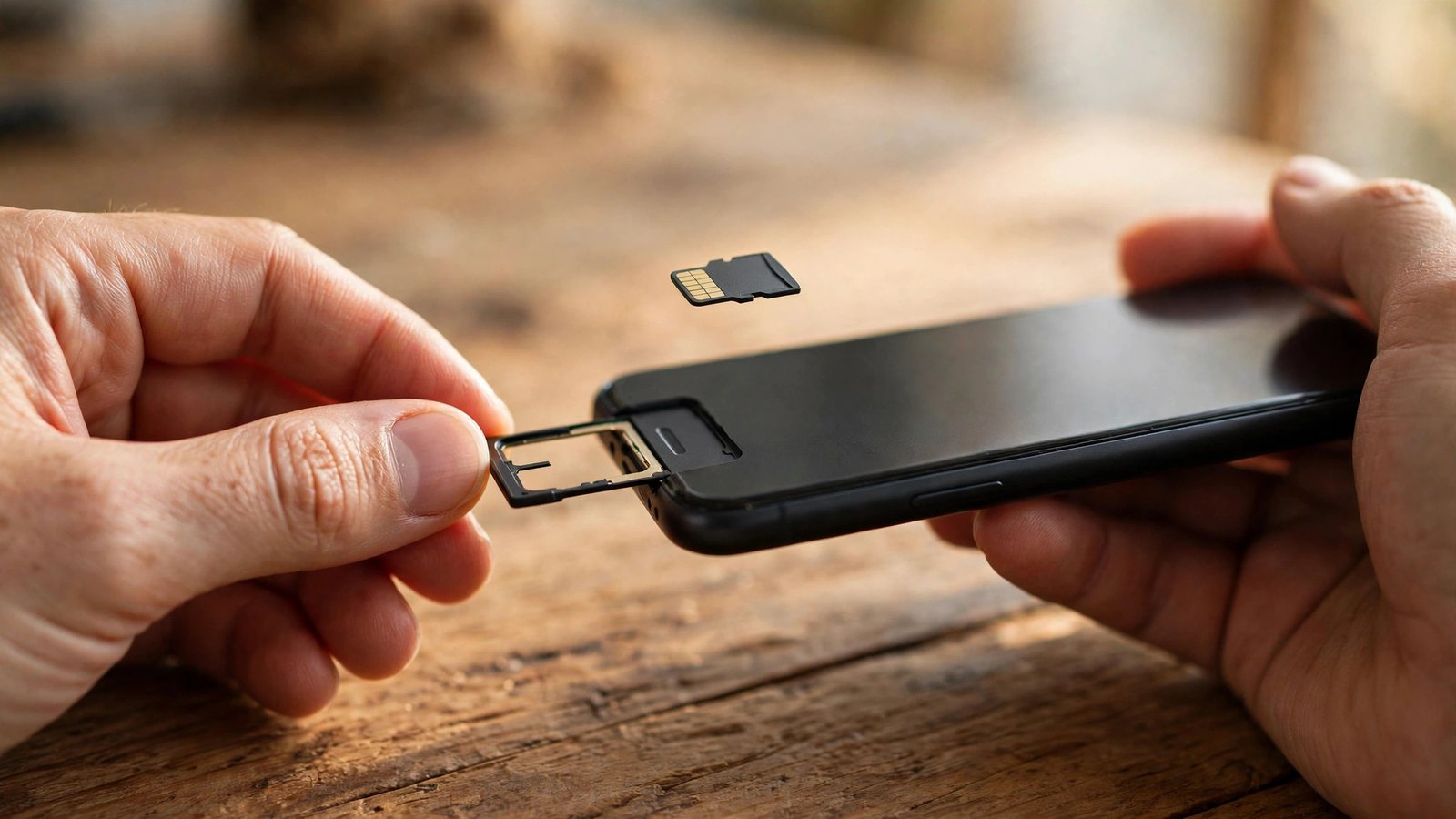
- On your new Android phone, install WhatsApp and verify the same phone number.
- When prompted, tap Restore and wait. WhatsApp will restore your chats and then your media.
Make sure the new phone is signed in to the same Google account and that Google Drive has enough space. If the backup is very large, stay on Wi-Fi and keep the phone plugged in.
Method 3: Android to iPhone
WhatsApp now supports moving chats from Android to iPhone with the Move to iOS app.
- On your new iPhone, factory reset it if it is already set up — the transfer happens during setup. On the Apps & Data screen, choose Move Data from Android.
- On your old Android phone, install the Move to iOS app and open it.
- Follow the prompts to connect the two phones and enter the code shown on the iPhone.
- On the Transfer Data screen, select WhatsApp and tap Start. Wait for the transfer to finish.
- Install WhatsApp on the iPhone, sign in with the same phone number and tap Start to complete the transfer.
Both phones must stay close together, on Wi-Fi and charging during the transfer. The transfer uses a local connection, so it does not use your mobile data, but it can take a while for large chat histories.
Method 4: iPhone to Android
Moving from iPhone to Android works with a cable on supported Samsung, Google Pixel and other Android 12 or later phones.
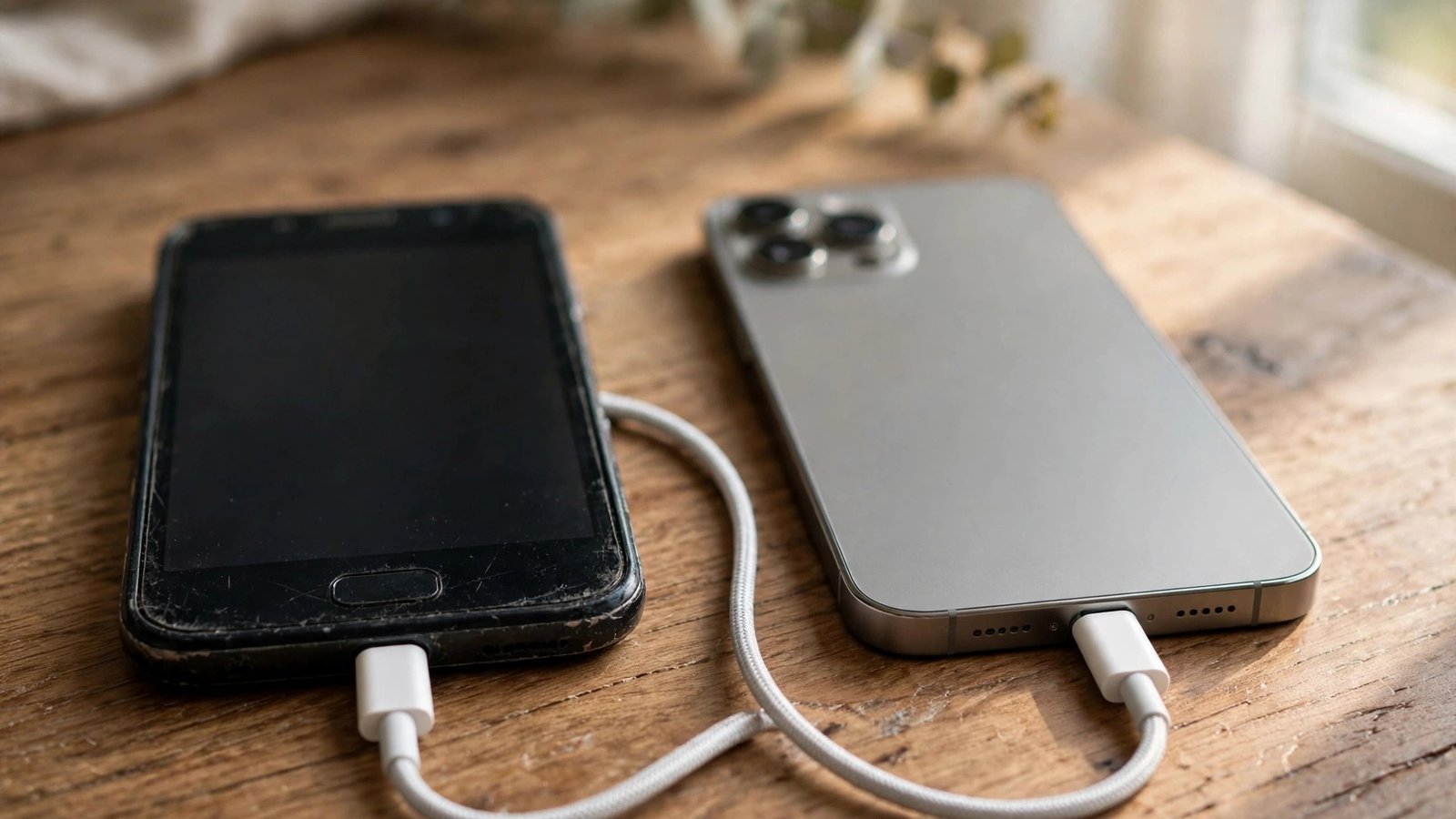
- Connect the iPhone and the Android phone with a USB-C to Lightning cable.
- On the Android phone, follow the setup prompts and choose to copy apps and data from the iPhone.
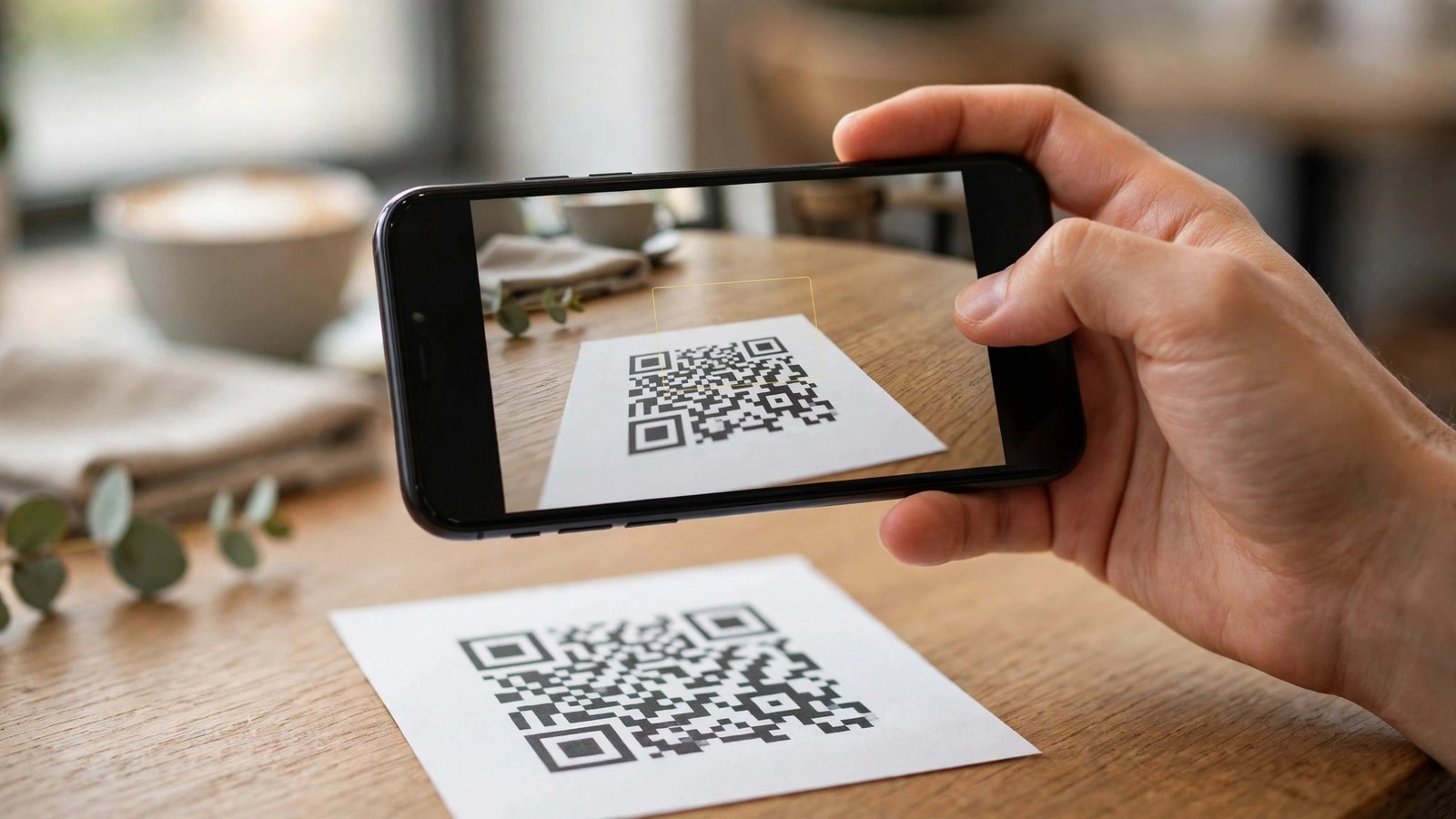
- When asked, scan the QR code with your iPhone and open WhatsApp on the iPhone to start the transfer.
- Wait for the transfer to finish, then install WhatsApp on the Android phone and sign in with the same phone number.
- Tap Start to complete the transfer and restore your chats.
The exact screens vary by phone brand. Samsung phones use Smart Switch for this step, while Pixel phones use the built-in setup flow. Keep both phones connected until the transfer is complete.
What transfers and what does not
Your messages, photos, videos, voice notes, documents and group memberships move with a proper backup or transfer. Your WhatsApp call history and most settings also move.
What does not move automatically:
- Messages sent or received after your last backup.
- Payment details and some linked-device settings, which you may need to set up again.
- Chats that were not included in the backup — for example, if you skipped videos or the backup failed.
That is why a fresh backup just before you switch phones matters. Do the backup, then switch, then check.
Troubleshooting
WhatsApp cannot find my backup
Check that you signed in with the same phone number and the same Apple ID or Google account used for the backup, and that the backup actually completed on the old phone. A backup that was interrupted by a weak connection or low battery may not be usable.
The restore is stuck or very slow
Stay on Wi-Fi, keep the phone charged and do not close WhatsApp. Large backups with many videos can take an hour or more. If it fails repeatedly, free up storage, restart the phone and try again.
Some chats or media are missing
This usually means they arrived after your last backup, or media was excluded. Do a new backup on the old phone if you still have it, then restore again on the new phone.
Transfer between iPhone and Android fails
Check that you signed in with the same phone number and the same Apple ID or Google account used for the backup, and that the new phone has enough free storage and a stable Wi-Fi connection. If the old phone still works, do a fresh backup on it first and restore again.


Post Comment