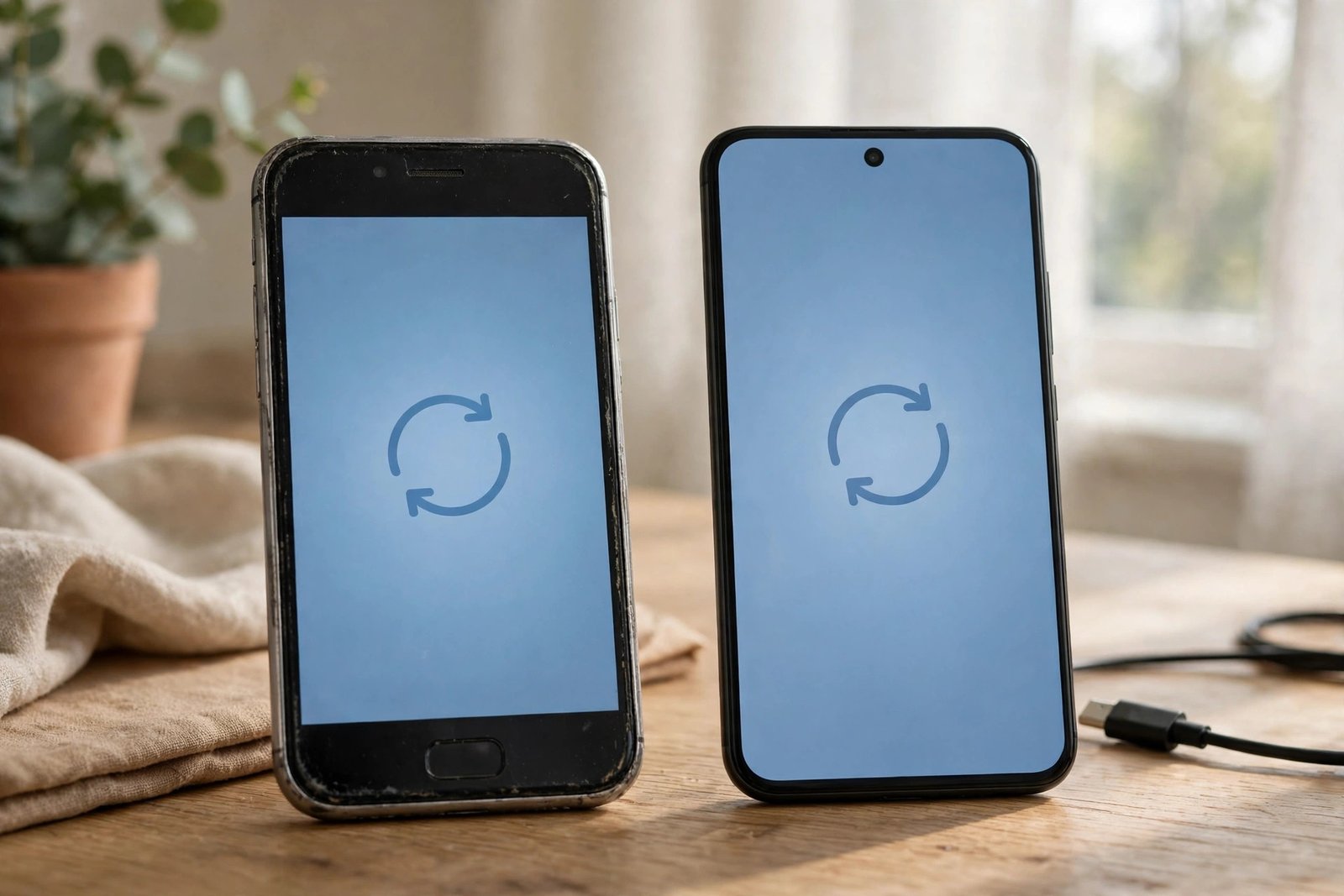
How to Transfer Your eSIM to a New Phone in the US
Switching phones used to mean prying out a tiny SIM card and sliding it into the new handset. With an eSIM, there is no card at all: your mobile plan lives as a digital profile inside the phone. Done in the right order, a transfer takes a few minutes. This guide walks through the process for iPhone and Android in the US, plus the checks that prevent the common headaches.
Step 1: Check compatibility and keep the old phone nearby
Before you start, confirm the new phone supports eSIM and is compatible with your carrier. Most recent iPhones and many recent Android flagships support eSIM, but some budget models and some carrier locked phones do not. To check, on iPhone go to Settings, then General, then About; on Android, go to Settings, then Network and internet, then SIMs.
Keep the old phone charged, connected to Wi-Fi, and signed in to the same account you used before. Many transfers use a direct phone to phone handshake, so the old phone needs to be working and close by. Also make sure you know your carrier account login. If the transfer asks for carrier approval, you will need it, and resetting a forgotten password mid transfer is a needless delay. Do not wipe or factory reset the old phone until the new phone is making calls and using mobile data.
Step 2: Transfer an eSIM to a new iPhone
Apple's eSIM Quick Transfer is the smoothest path when both phones are iPhones and your carrier supports it. On the new iPhone, during setup or later under Settings, then Cellular, then Add eSIM, choose Transfer From Nearby iPhone if that option appears. A prompt should appear on the old iPhone asking you to confirm the transfer. Approve it, keep both phones near each other with Bluetooth on, and wait for the new phone to activate. You may be asked for a verification code sent by your carrier.
If the nearby option does not appear, your carrier may still support transfer through its app or website. Verizon, AT and T, and T-Mobile in the US all offer eSIM activation in their apps or account portals in most recent versions, though the exact menu names differ. If neither route works, contact carrier support and ask them to push a fresh eSIM activation to the new phone while you are on Wi-Fi.
Step 3: Transfer an eSIM to a new Android phone
Android transfers are less uniform because makers and carriers implement them differently. On a Pixel, Samsung Galaxy, or other recent Android phone, go to Settings, then Network and internet, then SIMs, then Add SIM or Download a SIM instead, and follow the prompts. Some phones offer a direct transfer from a nearby phone, while others ask you to scan a QR code from your carrier.
If your new Android phone does not show a transfer option, go to your carrier's app or website and look for eSIM activation, replace SIM, or bring your own device. You will typically confirm the new phone's IMEI or EID number, which you can find in Settings under About phone. The carrier then issues a new eSIM profile for that device. Keep the phone on Wi-Fi during activation, since the profile downloads over the internet rather than over the mobile network it is trying to set up.
Step 4: Moving between iPhone and Android
Cross platform transfers need a carrier issued profile in almost every case, because the direct phone to phone tools are brand specific. The safe sequence is: set up the new phone on Wi-Fi first, then ask your carrier for a new eSIM activation for that phone, then activate it, and only then test calls, texts, and data. Do not delete the eSIM from the old phone before the new one is working. Deleting the profile early can force you into a support call to get a replacement, and some carriers limit how often a profile can be reissued.
One more wrinkle: some prepaid or business lines need an extra approval step, and some carriers treat an eSIM move as a SIM change that triggers a confirmation text. If you get one, approve it promptly. If the old phone is broken, tell support up front: the carrier route is then your only route, and they can deactivate the old profile remotely once your identity is verified.
Step 5: Test everything before you wipe the old phone
Once the new phone shows signal bars and your carrier name, run a quick checklist. Make a test call, send a text, and turn Wi-Fi off briefly to confirm mobile data works. Check that voicemail still works and that two factor texts arrive, since some banking and email logins depend on SMS codes. If you use a second line, such as a work number or a travel eSIM, confirm that line transferred too or re-add it separately, since most transfers move one line at a time.
Only after those tests pass should you erase the old phone. When you do, remove the eSIM profile as part of the reset if the phone offers that choice, so the next owner cannot reuse your line. Keep your carrier's confirmation message until the new phone has worked for a full day, just in case a delayed activation problem appears.
Frequently Asked Questions
Can I transfer an eSIM if my old phone is broken?
Yes, but you will need your carrier's help. Direct phone to phone transfer needs a working old phone, so a broken phone means asking the carrier to issue a fresh eSIM profile for the new device. Have your account login and a photo ID ready if support asks for identity verification.
Does transferring an eSIM cost anything in the US?
In most cases, no. The major US carriers generally do not charge for an eSIM transfer or a replacement eSIM profile, though some prepaid or reseller plans may differ. If a support agent mentions a fee, ask whether an app or website activation avoids it, since self service activation is usually free.
How many eSIMs can I keep on one phone?
It depends on the model. Many recent phones can store several eSIM profiles but keep only one or two active at once for calls and data. Check your phone's specs before a trip or a dual line setup, and remember that transferring a profile moves it: the old phone loses that line once the new phone activates.




Post Comment