How to Share Your Wi-Fi Password With a QR Code in the UK
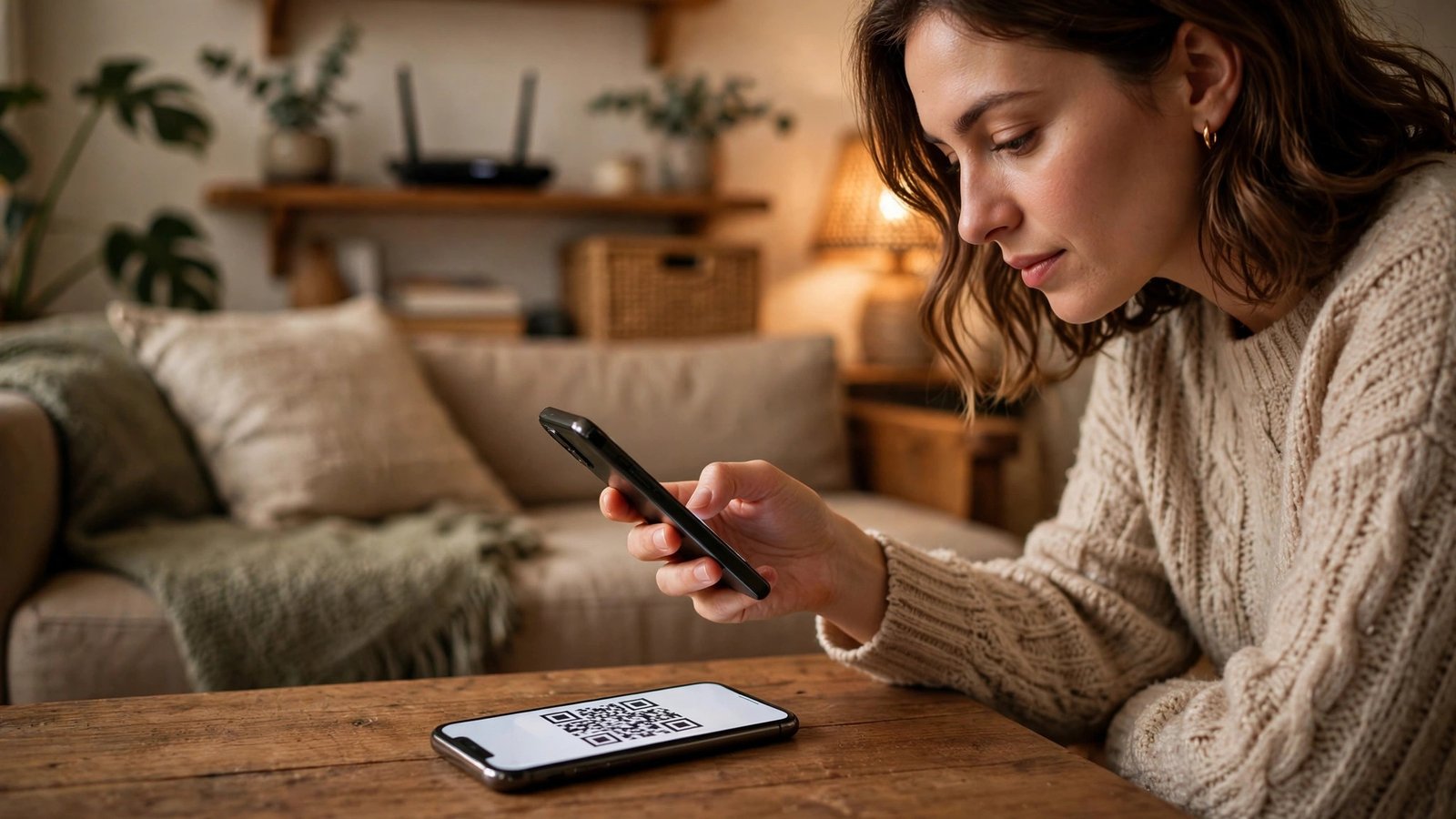
Sharing your home Wi-Fi password usually means reading out a long string of letters, numbers and symbols while a guest types it in wrong twice. There is an easier way. Most modern phones can turn your Wi-Fi details into a QR code, which is a square barcode that another phone can scan with its camera. Your guest points their camera at the code, taps to join, and connects without typing anything. It is faster, it avoids spelling mistakes, and it means you do not have to say your password out loud in a room full of people.
This guide covers iPhone and Android in the UK. You will need to be connected to the Wi-Fi network you want to share, or at least know its exact name and password. If you are sharing your home network, you can usually find those details on a sticker on your router, in your broadband provider app, or in your phone settings if you are already connected. Only share your home Wi-Fi with people you trust.
Share Wi-Fi from an iPhone
The simplest iPhone method works between Apple devices. Ask your guest to open Settings, then Wi-Fi, then tap your network name. A prompt should appear on your phone. Tap Share Password and their device should connect. Both devices need Wi-Fi and Bluetooth on, and your guest needs to be in your contacts. This does not help a guest with an Android phone.
For a method that works with any phone, make a QR code. Apple does not include a built in Wi-Fi QR code maker in Settings in most recent versions, so you have a couple of safe options. A simpler option for most people is a trusted QR code generator website. Enter the network name, password and security type, usually WPA or WPA2 for home routers in the UK, and it will create a QR code image. Choose a well known generator, avoid sites that ask for an account or extra software, and treat that code like your password.
Share Wi-Fi from an Android phone
Android makes this easier, because most Android phones include a built in Wi-Fi QR code option. First, make sure you are connected to the network you want to share. Open Settings, then Network and internet, then Wi-Fi, or look for Connections and then Wi-Fi on a Samsung phone. Tap the network name you are connected to, or tap the gear or settings icon next to it. You should see a Share button, sometimes shown as a QR code icon. Tap it.
Your phone may ask you to confirm with fingerprint, face unlock or PIN. After you confirm, a QR code will appear. Your guest scans it with their camera or from Wi-Fi settings and taps to join. The labels vary by maker, but the flow is the same: Settings, Wi-Fi, tap your network, Share, show the code.
If you cannot find a Share button, check that your phone software is up to date. In most recent versions of Android, this feature is standard. Older phones may need a QR code generator website instead, using the same steps as the iPhone section above. Enter the network name exactly as it appears, including capital letters and spaces, or the code will not work.
Help your guest connect by scanning
Ask your guest to open their camera app and point it at the QR code. A banner should appear with a Join or Connect button. Tap it and the phone should join without a password. If nothing appears, try scanning from inside Wi-Fi settings, where a QR code button usually sits near Add network.
If scanning still fails, check three things. First, is the screen bright enough and the code large enough to read? Turn up brightness and hold the phone steady about 20 centimetres away. Second, is the network name spelled exactly right in the code? One wrong letter will stop it working. Third, is your guest already connected to a different network with a stronger signal? Ask them to forget that network temporarily or move closer to your router, then scan again.
You can also save the QR code for future guests in a private album or note. Do not post it on social media. If you change your Wi-Fi password later, make a new QR code, since the old one will stop working.
Keep your home network safe while sharing
Sharing by QR code is convenient, but it is still sharing access to your home network, so a few habits help. If your router supports a guest network, consider using it for visitors. A guest network usually gives internet access without giving access to your computers, printers and smart home devices. Look for Guest Wi-Fi in your router settings or provider app and switch it on with a separate password if you can.
Change your Wi-Fi password from time to time, especially after a house move or if you think it has been shared too widely. After you change it, you will need to reconnect your own devices. Keep your router software up to date too, since providers release updates that fix security issues.
Finally, a QR code does not make a weak password safe. If your password is short or easy to guess, change it to a longer passphrase of three or four unrelated words with a number mixed in, then make a fresh QR code.
Frequently Asked Questions
Does the guest need a special app to scan a Wi-Fi QR code?
In most cases, no. The camera app on iPhone and Android can recognise a Wi-Fi QR code, and Wi-Fi settings on both systems also include a scan option. If the camera does not offer a join button, try scanning from inside Wi-Fi settings.
Will the QR code work if my guest uses a different type of phone?
Yes. A Wi-Fi QR code is a standard format, so a code made on an Android phone can be scanned by an iPhone, and a code made on a website can be scanned by either. The guest just needs a phone with a camera and Wi-Fi.
Should I share my main Wi-Fi password or set up a guest network?
A guest network is the safer choice when your router supports it, because it gives visitors internet access without access to your private devices. If your router does not offer a guest network, only share your main password with people you trust, and change it if you are unsure who has it.


Post Comment