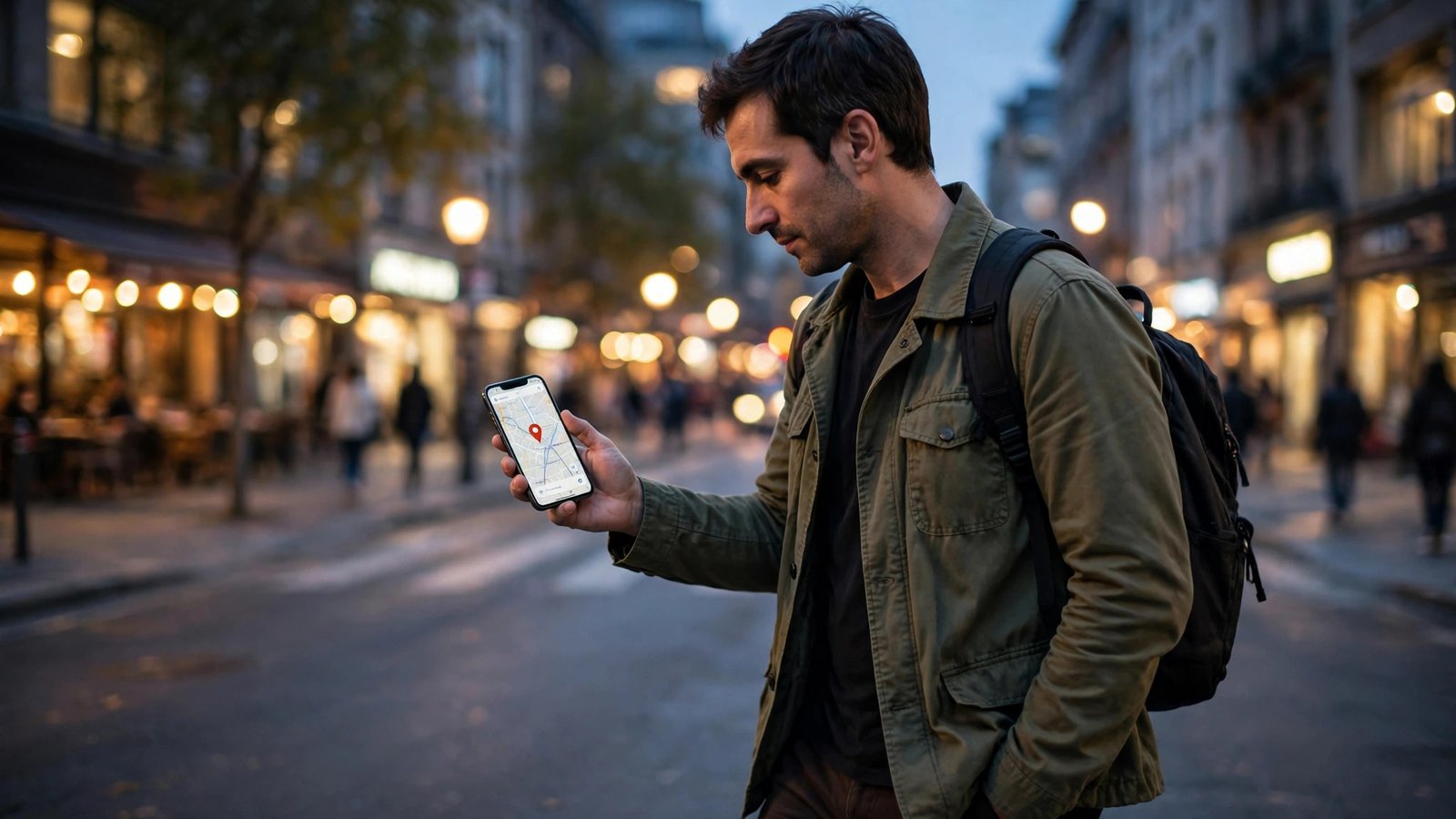
How to Share Your Live Location Safely With Family on iPhone and Android in the US
Sharing your live location can be reassuring. A parent can see that a teen arrived at school, a friend can follow your drive home late at night, and a family member can find you at a crowded event. The risk is sharing it too widely, for too long, or with the wrong person. This guide shows how to share your live location in the US on iPhone and Android, with clear limits, and how to stop sharing at any time.
The golden rule is simple: share with one trusted person, for a short time, and check back later to make sure sharing has stopped.
Step 1: Decide who, why, and for how long
Before you open any settings, decide three things. Who needs your location? Why do they need it? For how long?
Good examples include a drive home after dark, a first meeting with someone new, a hike, a road trip, or a child traveling alone. In each case, a limited share makes sense. Sharing your location all day, every day, with a large group rarely makes sense, and it creates a record of your routine.
Step 2: Share your live location on iPhone
On iPhone, the easiest way is through Messages or Find My. In Messages, open the conversation with the person you trust, tap their name or photo at the top, then tap Share My Location. You can choose to share for one hour, until the end of the day, or indefinitely. Choose one hour or until the end of the day for most trips. Avoid indefinitely unless you have a long-term reason and you both agree to it.
In Find My, open the app, tap the People tab, then tap Share My Location and choose the contact. You can also tap a person you already share with to see how long sharing lasts and to stop it.
Make sure Location Services is on. Go to Settings, then Privacy and Security, then Location Services, and confirm it is turned on. For Find My, set location access to While Using the App or Always, depending on what your phone offers in its current version. If sharing does not appear, check that you are signed in to iCloud and that the other person is in your contacts.
Step 3: Share your live location on Android
On Android, Google Maps is the most common way to share live location. Open Google Maps, tap your profile photo, then tap Location sharing. Tap Share location, choose how long to share, and pick the person from your contacts. You can share for 15 minutes, one hour, or until you turn it off. For a trip, one hour is usually enough, and you can extend it if needed.
You can also share through a link, but be careful with links. A link can be forwarded, so only use it with someone you trust, and stop sharing as soon as you no longer need it. Sharing directly with a signed-in Google contact is safer than sharing a public link.
On Samsung phones, you may also see location sharing in Samsung's Find app or in Messages, depending on the model and software version. The same rule applies: choose a short time limit and a single trusted contact.
Step 4: Share safely during a trip or late-night journey
Once sharing is on, keep your phone charged and keep mobile data on, because live location needs a data connection. If you enter an area with poor signal, your location may update slowly or pause. That is normal, and it does not mean sharing stopped.
Agree on a check-in plan as well. Location alone does not tell someone you are safe if your phone dies or loses signal. A simple text when you arrive is still the best confirmation. If you are meeting someone new, share your location with a friend or family member first, and meet in a public place.
Step 5: Check who can see you and stop sharing
This step is the one people forget most often. After your trip, stop sharing. On iPhone, go back to Find My, tap the person, then tap Stop Sharing My Location. In Messages, tap the contact at the top of the conversation and choose Stop Sharing My Location.
On Android, open Google Maps, tap your profile photo, then Location sharing, and tap Stop next to the person you shared with. If you shared a link, stop that link too, because the link may still work until you turn it off.
Do a quick review once a month. On iPhone, open Find My and check the People list. On Android, open Google Maps location sharing and check the list. Remove anyone who no longer needs access. A monthly check takes less than a minute and prevents old shares from lingering for months.
Step 6: Protect your location privacy in general
Review background location access too. On iPhone, check Settings, then Privacy and Security, then Location Services for apps set to Always. On Android, check Settings, then Location, then App location permissions, and turn off Precise Location for apps that only need a general area.
Sharing your location should feel helpful, not exposed. A short, trusted, and reviewed share gives you the safety benefit without handing over your routine.
Frequently Asked Questions
Is sharing my live location safe?
It can be safe when you share with one trusted person for a short time and stop sharing afterward. It becomes risky when you share indefinitely, with many people, or through a link that can be forwarded. Always review and stop old shares.
Can the other person see my location after I stop sharing?
No. Once you stop sharing on iPhone Find My or Google Maps location sharing, the other person should no longer see live updates. If you shared a link, make sure you stop that link as well, and check the sharing list to confirm it is gone.
What should I do if I shared my location with the wrong person?
Stop sharing immediately through Find My on iPhone or Location sharing in Google Maps on Android. Then check your sharing list again to confirm the person is removed. If you are worried about safety, tell a trusted person and consider changing relevant passwords and reviewing app permissions.


Post Comment