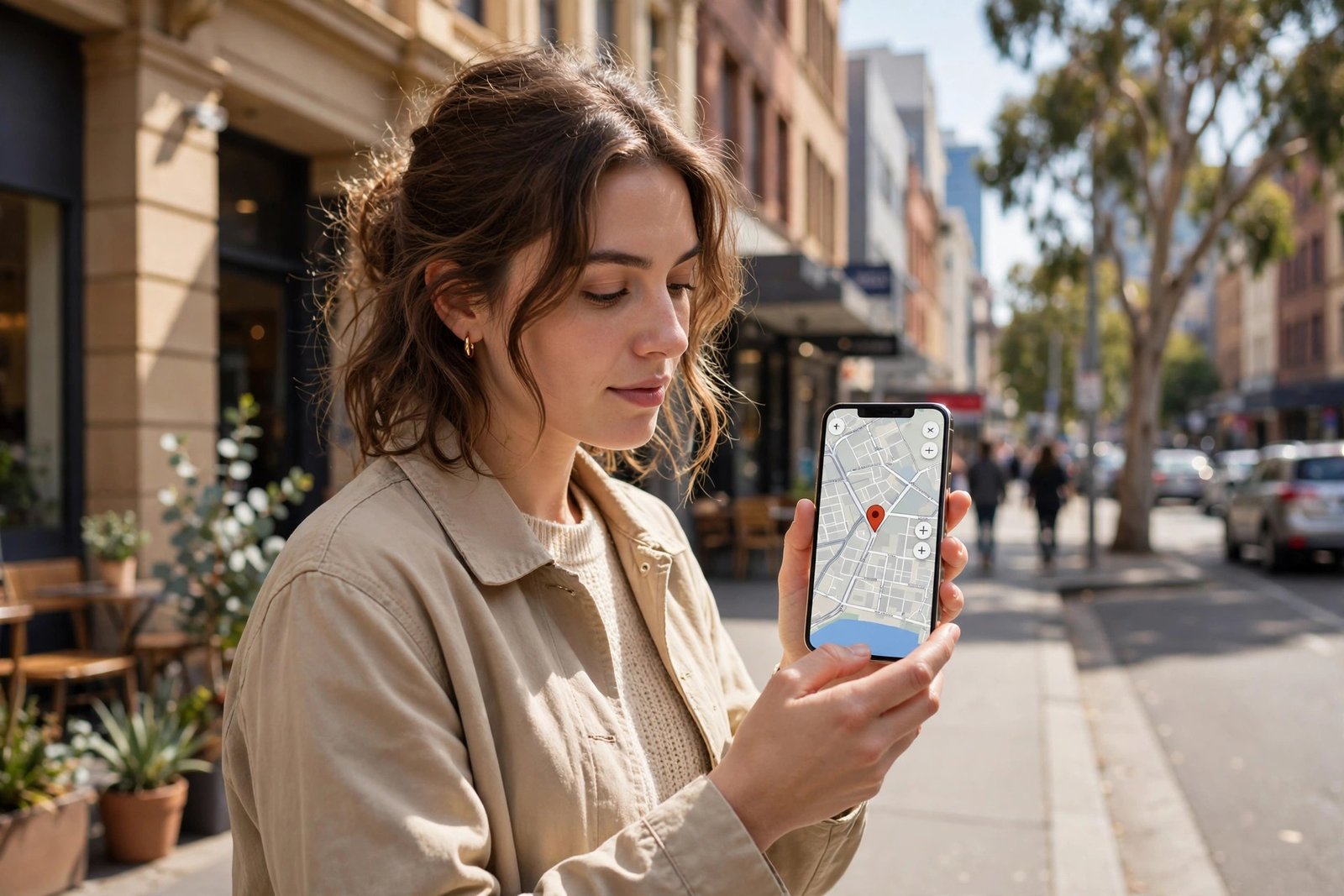
How to Share Your Live Location Safely on iPhone and Android in Australia
Sharing your live location can be genuinely useful. It lets a friend find you in a crowd, helps family know you got home safely, or makes meeting up much easier. It can also share more than you intend if you leave it running or send it to the wrong person. This guide shows how to share your live location on iPhone and Android, how to set a time limit, and how to stop sharing in seconds.
Before you share: three quick decisions
First, decide who really needs to see your location. A live location link is best shared with one trusted person or a small group, not posted in a large group chat or on social media. Second, decide how long it should last. An hour is usually plenty for meeting up, while a longer window suits a road trip. Third, check what the app will show. In most cases it shows your moving position on a map, and anyone with the link can watch it until the time runs out or you stop it.
It helps to tell the person you are sharing with, so they know to expect it. If you are sharing for safety, agree on what they should do if your location stops updating or looks unusual.
Share your live location on iPhone
On iPhone, the simplest option is Apple Messages or Find My. In Messages, open the conversation with the person, tap their name at the top, then choose Share My Location and pick a duration. In most recent versions you can choose one hour, until the end of the day, or indefinitely. For a safety share, one hour is the sensible default.
In Find My, open the app, tap Share My Location, and choose the contact. You can also manage existing shares in Find My under the People tab. Tap a person’s name to see what you are sharing with them, and choose Stop Sharing My Location to end it at any time.
If you use WhatsApp on iPhone, open the chat, tap the plus sign, choose Location, then Share Live Location. Pick a duration of 15 minutes, 1 hour or 8 hours, add a short comment if you like, and send. A map preview appears in the chat, and a stop button lets you end it early. Google Maps on iPhone works in a similar way: tap your profile picture, choose Location sharing, then share with a contact or copy a link.
Share your live location on Android
On Android, Google Maps is the most widely available option. Open Google Maps, tap your profile picture, then choose Location sharing. Tap Share location, set how long to share for, and pick a contact or copy the link. The person you share with can open the link to see your moving position on a map.
WhatsApp on Android works the same way as on iPhone. Open the chat, tap the attach button, choose Location, then Share live location, and pick 15 minutes, 1 hour or 8 hours. You can stop it from the same chat at any time by tapping Stop sharing.
Samsung phones also offer location sharing through Samsung’s own apps in some models, but Google Maps and WhatsApp cover almost every Android phone in Australia. Stick with the app you already use, so you remember where the share is running and how to stop it.
How to stop sharing, and check what is still running
Stopping is just as important as starting. In WhatsApp, open the chat where you shared, and tap Stop sharing. In Google Maps, go back to Location sharing and tap Stop next to the share. On iPhone, open Find My, tap the person’s name, and choose Stop Sharing My Location.
Make a habit of checking once a week. Open Google Maps location sharing and Find My on iPhone, and look for any shares you forgot about. Old shares are easy to miss, especially one set to run indefinitely or until you stop it manually. If you no longer need a share, end it. It takes seconds and removes a standing window into where you are.
If you shared a link rather than sharing with a named contact, remember that anyone who received that link can use it until it expires. Avoid forwarding live location links, and do not post them publicly. If you think a link has spread further than intended, stop the share and start a fresh one with a shorter duration if you still need it.
Staying safe while sharing
Never share your live location with strangers, and be cautious with people you have only just met online. If someone pressures you to share your location, that pressure itself is a warning sign. A genuine friend will accept a meeting point or a suburb instead of a live map pin.
Think about what your location reveals. A live location can show your home address, your workplace, your children’s school run, or your daily routine. That is why time limits matter. Share for the shortest time that still does the job, and use a suburb or a nearby landmark as a meeting point when exact tracking is not needed.
If you ever feel unsafe, sharing your live location with a trusted person can help, but it is not a substitute for calling for help. In an emergency in Australia, call Triple Zero (000). You can also share your location with emergency services or a trusted contact while you wait, so they know where to find you.
Frequently Asked Questions
Can the person I share with see my location after the time runs out?
No. Once the duration ends, the live share stops and they can no longer follow your moving position. They may still see the last location shown in the chat, depending on the app, so check the app’s settings if that matters to you.
Is it safe to share my live location on WhatsApp or Google Maps?
Sharing with one trusted person for a short time is generally safe. The risk comes from sharing widely, leaving shares running indefinitely, or sending links to people you do not know well. Use short durations, share only with people you trust, and stop the share when you no longer need it.
How do I know if I am still sharing my location with someone?
On iPhone, check Find My under the People tab. On Android, open Google Maps, tap your profile picture, then Location sharing. Both screens list your active shares and let you stop any of them straight away.


Post Comment