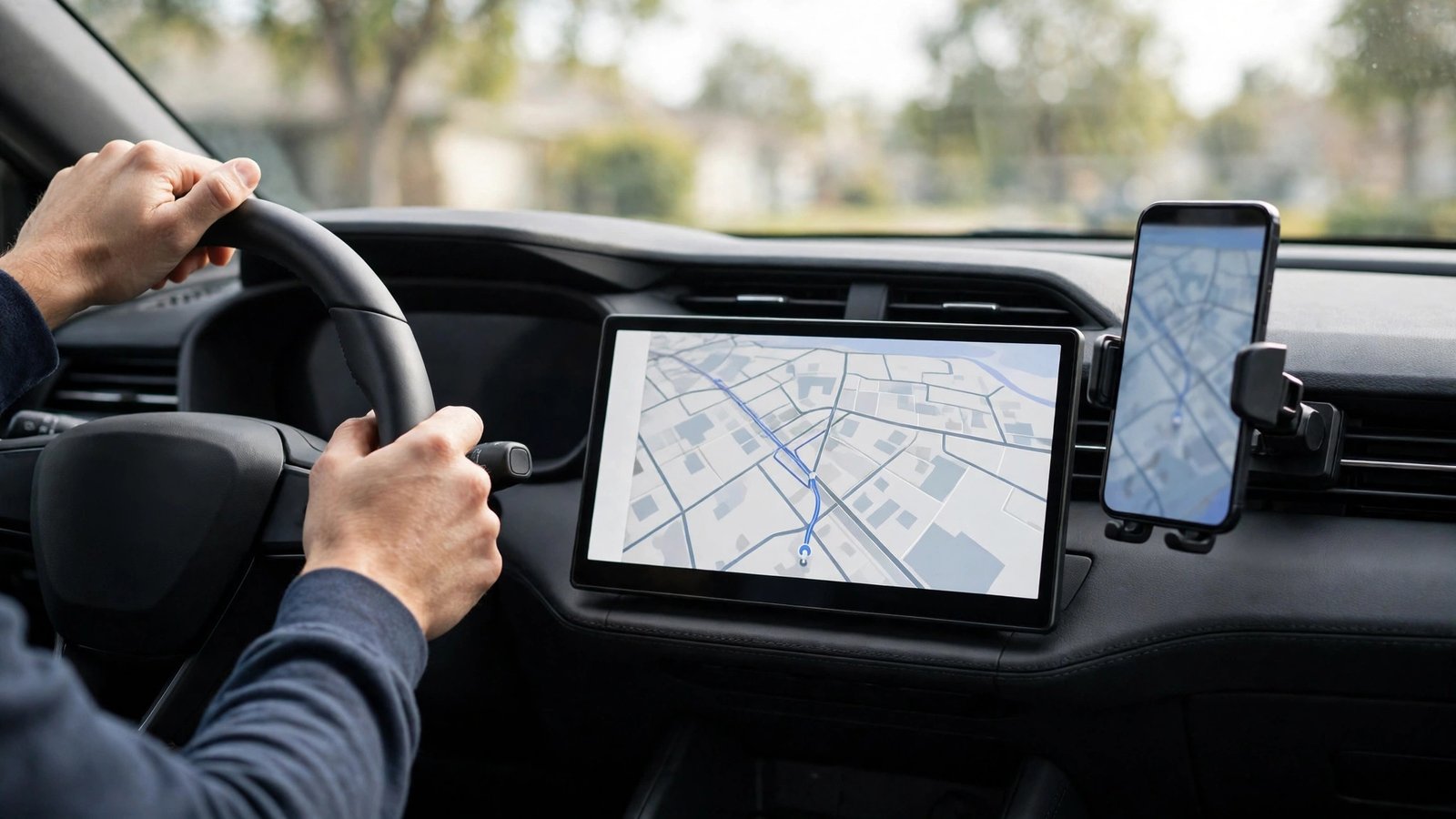
How to Set Up and Use Apple CarPlay in Your Car in the US
Apple CarPlay puts your iPhone on your car's screen, so you can get directions, take calls, send messages, and play music without picking up your phone. Most cars sold in the US in recent years support it, and setup takes only a few minutes once you know which kind of connection your car uses. This guide walks through wired and wireless setup, the apps you get, and what to do when CarPlay refuses to connect.
Check that your car and iPhone support CarPlay
CarPlay works with iPhone 5 and later models, and in practice any iPhone running a recent version of iOS. Your car needs a built-in display or an aftermarket stereo that supports CarPlay. Check your car manual or the maker's website if you are unsure.
Before you start, turn on Siri. CarPlay relies on voice control, and it will not work properly with Siri off. Go to Settings, then Apple Intelligence and Siri on newer iPhones, or Siri and Search on older ones, and make sure Listen for Siri and Allow Siri When Locked are both on. Also make sure Bluetooth is on if you plan to use wireless CarPlay.
Connect with a cable
Wired CarPlay is the most reliable option, and it charges your phone at the same time. Find the USB port in your car that supports CarPlay. In many cars only one port works, and it is often marked with a small CarPlay or smartphone icon, or labeled as the data port rather than a charge-only port. The center console or the area below the dashboard are common spots.
Plug your iPhone in with an Apple-certified Lightning or USB-C cable. Cheap uncertified cables are the most common cause of CarPlay dropping out, so try the cable that came with your phone first. When you connect for the first time, tap Allow when your iPhone asks about CarPlay while locked, and confirm on the car screen if it asks too.
Connect wirelessly
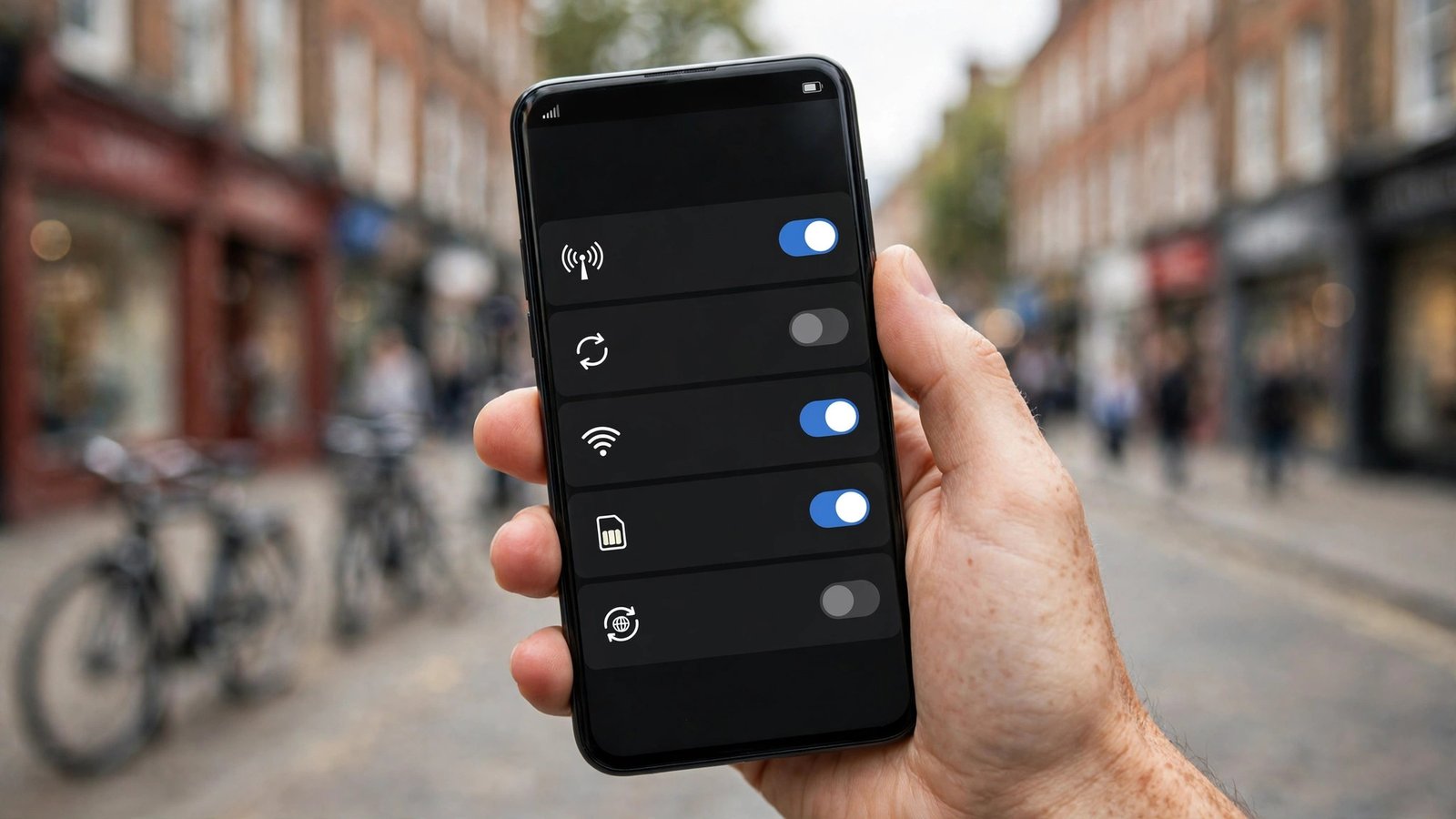
Wireless CarPlay is convenient because your phone stays in your pocket, but it only works if your car or stereo supports it. Start by making sure Bluetooth and Wi-Fi are both turned on. Then press and hold the voice command button on your steering wheel, which is the usual way to start wireless pairing. On your iPhone, go to Settings, then General, then CarPlay, and tap Available Cars. Select your car from the list and follow the prompts on both screens.
Once paired, CarPlay should start on its own each time you get in the car, as long as Bluetooth and Wi-Fi are on. Some cars take 20 to 30 seconds to wake up the connection, so give it a moment before assuming it failed.
What you can do with CarPlay
The CarPlay home screen shows a grid of apps built for the car: Phone, Messages, Maps, Music, Podcasts, and any third-party apps you have that support CarPlay, such as Spotify, Waze, or Google Maps. Tap an app to open it, or press and hold the voice command button and ask Siri to do it for you.
Siri is the safest way to use CarPlay while driving. Say "Hey Siri" or hold the voice button, then ask for directions, dictate a text, or play a playlist. Incoming messages can be read aloud, and you can reply by voice without touching the screen.
You can rearrange the apps from your phone. Go to Settings, then General, then CarPlay, tap your car, and tap Customize. Drag apps into the order you want, and hide ones you never use in the car.
Fix CarPlay when it will not connect
Start with the simple checks. Restart your iPhone and restart your car, then try again. For a wired connection, try a different Apple-certified cable and a different USB port. For wireless, turn Bluetooth and Wi-Fi off and back on, and make sure your phone is not in Airplane Mode or Low Power Mode, which can block the connection in some cars.
Next, check your iPhone settings. Go to Settings, then Screen Time, then Content and Privacy Restrictions, and make sure CarPlay is allowed under Allowed Apps. If CarPlay is restricted there, it will never appear. Also check Settings, then General, then CarPlay, and look at your car in the list. Tap Forget This Car, then set it up again from scratch. That clears a bad pairing, which fixes a surprising number of problems.
If it still fails, check for updates on both sides. Update your iPhone to the latest iOS version, and check your car maker's website or your dealer for a stereo firmware update. If only one app misbehaves, such as Maps losing your location, check that the app has location permission set to While Using the App, and try the same route in a different navigation app to see if the problem follows the app or the connection.
A few habits that keep CarPlay smooth
Keep a certified cable in the car even if you use wireless CarPlay, because a cable is the fastest way to tell whether a problem is the wireless link or the car itself. Do not run a VPN on your phone while using wireless CarPlay, since some VPN setups interfere with the Wi-Fi link the car uses.
CarPlay is at its best when you barely touch it. Set your destination before you pull out of the driveway, let Siri handle messages, and keep your eyes on the road.
Frequently Asked Questions
Does Apple CarPlay cost money?
No. CarPlay is a free feature built into the iPhone and supported by car makers at no extra charge. You only pay for the data your apps use, under your normal phone plan, and for any music or navigation subscriptions you already have.
Why does CarPlay keep disconnecting?
The most common cause is a worn or uncertified cable for wired CarPlay, or interference with the Wi-Fi link for wireless CarPlay. Try a new Apple-certified cable and a different USB port first. If the problem continues, forget the car in Settings, then General, then CarPlay, pair it again, and check for updates.
Can I use Google Maps or Waze instead of Apple Maps?
Yes. If you have Google Maps or Waze installed on your iPhone, they appear as CarPlay apps and you can use either one for navigation. Set your preferred app as the default in its own settings, or simply open it from the CarPlay home screen. Siri directions still open in Apple Maps unless you name the other app in your request.



Post Comment