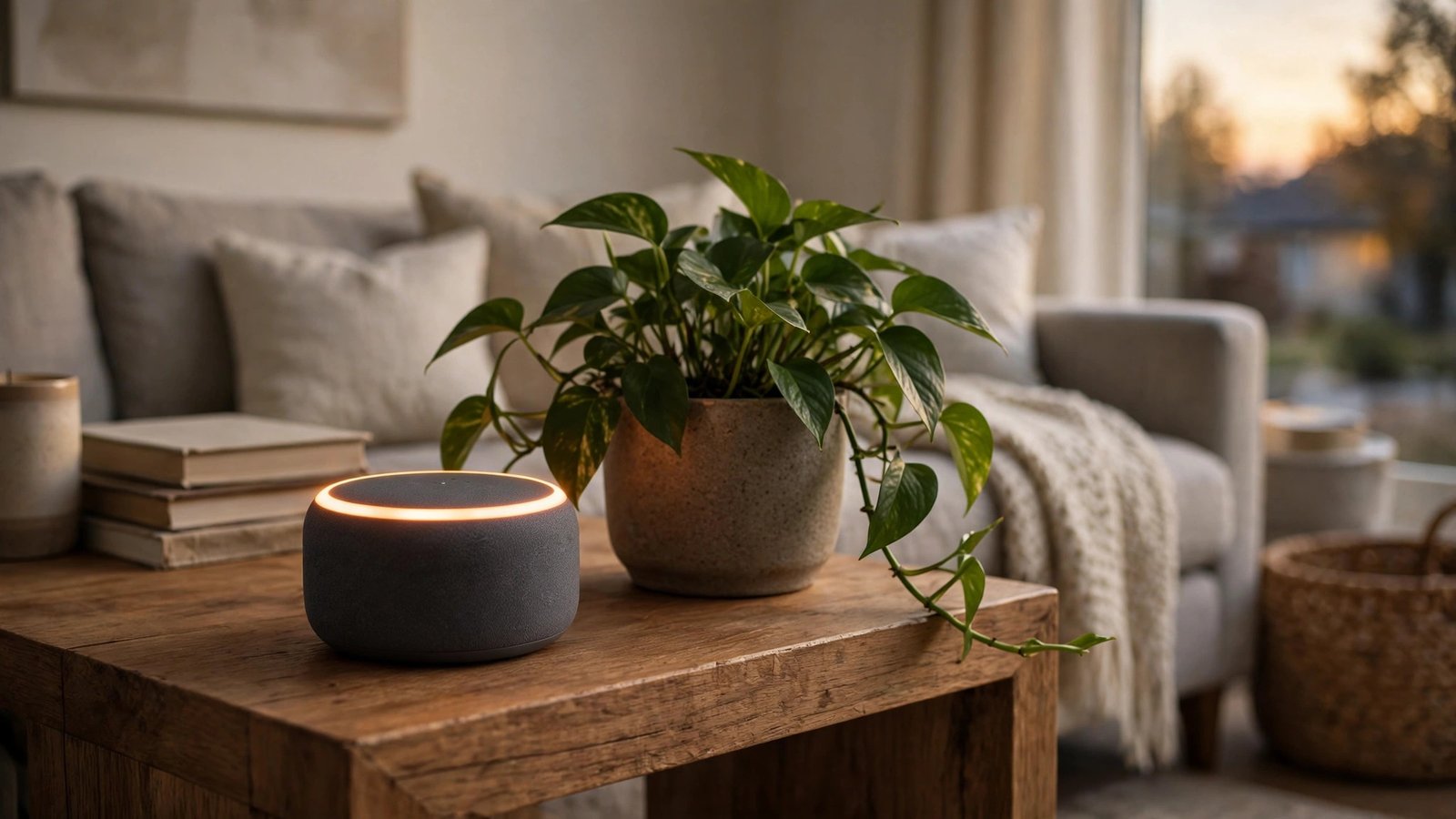
How to Set Up and Use an Amazon Echo and Alexa in the US
An Amazon Echo is one of the easiest smart speakers to set up, and most people get it working in about ten minutes. You plug it in, open the Alexa app, connect it to Wi-Fi, and start talking. This guide walks through the whole process for US buyers, from unboxing to your first voice commands, plus fixes for the most common problems.
Step 1: Unbox and plug in your Echo
Place the Echo where you want it to live: a kitchen counter, a living room side table, or a bedside table all work well. Keep it a few inches from a wall so the microphones can hear you, and away from running water and direct heat.
Plug the included power adapter into the Echo, then into a wall outlet. The light ring will turn blue, then orange, which means the speaker is ready to set up. If you see a different color, check that the power cable is fully pushed in. Do not use a random USB charger: Echo speakers need their own adapter to get enough power.
Echo devices bought from Amazon often arrive linked to your account already. If you bought yours elsewhere, you will link it during setup.
Step 2: Install the Alexa app and add your device
Download the Amazon Alexa app from the App Store or Google Play, and sign in with the Amazon account you want tied to the speaker. If you have more than one, pick the one with your Prime membership and music subscriptions, since Alexa will use that account for orders, music, and lists.
Tap Devices, then the plus sign, then Add Device. Choose Amazon Echo and pick your model. Confirm that the light ring is orange; if it is not, press and hold the Action button on top of the speaker, the one with the dot, until the ring turns orange.
Name the device and assign it to a room, such as Living Room or Kitchen. The room name matters later, because it lets you say "turn off the kitchen lights" without naming the device each time.
Step 3: Connect to Wi-Fi
Pick your home network from the list and enter the password. Most Echo speakers work on both 2.4 GHz and 5 GHz, but if you have trouble connecting, try 2.4 GHz first: it reaches further through walls and is more forgiving in apartments and larger houses.
If the app cannot find your network, check that your phone is on the same network, and move the Echo closer to your router for the first setup. A weak signal is the most common cause of Alexa answering slowly or saying she is having trouble understanding you.
Step 4: Train Alexa to recognize your voice
Go to More, then Settings, then Your Profile and Family, then Voice ID. Tap Set Up and read the four short phrases out loud. This teaches Alexa to tell your voice apart from other people in the house, which matters for personal results like your calendar, messages, and shopping lists.
Voice ID also helps with purchases. In Settings, then Account Settings, then Voice Purchasing, you can choose whether Alexa should ask for a four-digit voice code before buying anything. That code is worth setting if children or guests use the speaker, since it stops accidental orders.
While you are in settings, check the language and time zone. The US defaults are usually right, but a wrong time zone throws off alarms and timers.
Step 5: Try your first commands and connect your music
Start simple: "Alexa, what time is it?" or "Alexa, set a timer for ten minutes." If you use Amazon Music, Spotify, Apple Music, or another supported service, link it under More, then Settings, then Music and Podcasts, then Link New Service, and set your favorite as the default so you can just say play.
Smart home devices are where the Echo earns its keep. Tap Devices, then the plus sign, then Add Device, and pick the brand of your lights, plugs, locks, or thermostat. Give each device a clear name like "bedroom lamp" and assign it to a room, then say "Alexa, turn on the bedroom lamp" or "Alexa, set the thermostat to 72 degrees."
Routines tie it all together. Go to More, then Routines, and tap the plus sign. One phrase can run several actions: "Alexa, good night" could turn off the lights, lock the door, and set a 7 a.m. alarm. Build one or two simple routines first, then add more once you trust them.
Step 6: Fix the most common problems
If Alexa does not respond, check the microphone button on top of the speaker. A red ring means the microphones are muted; press the button once to turn them back on. A spinning blue ring means Alexa is listening, so wait a second and try again.
If the speaker cannot connect to the internet, restart your router first, then unplug the Echo for ten seconds and plug it back in. If it still fails, go to Devices in the app, pick the Echo, then Device Settings, then Wi-Fi Network, and re-enter your password.
If Alexa misunderstands you often, move the speaker away from the TV or a loud fan, and speak at a normal volume from a few feet away. Shouting does not help. If a command keeps failing, rephrase it.
To start over, press and hold the Action button for about 25 seconds until the light ring turns orange, then set the Echo up again from Step 2. A reset also removes your account, so do this before selling or giving the Echo away.
Frequently Asked Questions
Do I need an Amazon Prime membership to use an Echo?
No. An Echo works with a free Amazon account, and Alexa handles timers, weather, news, and basic questions without Prime. Prime adds Amazon Music and some extra features, and you can also link Spotify, Apple Music, Pandora, and other services instead.
Can I use an Echo without the Alexa app?
You need the app for the first setup, including Wi-Fi and account linking. After that, most daily use is by voice, but the app is still the easiest place to change settings, add devices, and build routines.
Is Alexa always listening to me?
The Echo listens for the wake word, "Alexa," and only starts recording after it hears that word. You can mute the microphones with the button on top, and you can review or delete your voice recordings in the app under More, then Settings, then Alexa Privacy.


Post Comment