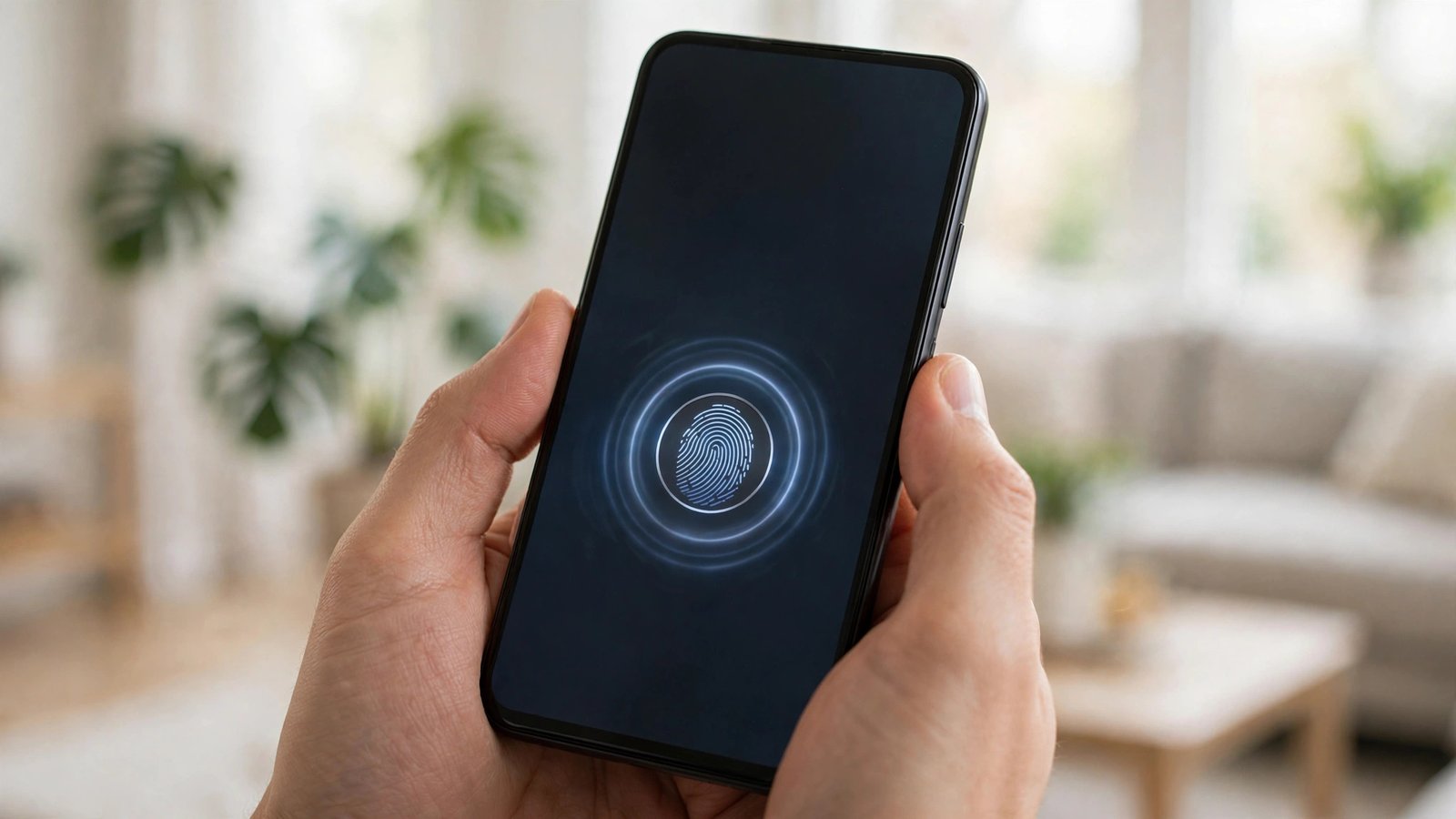
How to Set Up a Secure Lock Screen with Face ID or Fingerprint on iPhone and Android in the UK
Your lock screen is the first line of defence for everything on your phone: messages, photos, banking apps and email. A strong passcode plus face or fingerprint unlock gives you both security and speed, because you can open your phone in a second while a stranger who picks it up cannot get in at all. This guide walks through the setup on iPhone and Android, with the settings that are easy to miss.
Start with the passcode, not the biometric. Face ID and fingerprint unlock are convenient, but your phone will still ask for the passcode after a restart, after several failed biometric attempts, and in some security situations. If that passcode is a birthday or 1234, the rest of the setup does not help much. Pick something you can remember but someone else would struggle to guess, and avoid reusing a PIN you use for a bank card.
Step 1: Set a strong passcode first
On iPhone, go to Settings, then Face ID and Passcode, or Touch ID and Passcode on older models. Tap Turn Passcode On if it is off, or Change Passcode if you want a stronger one. When you are asked for a new passcode, tap Passcode Options. That menu lets you choose a custom alphanumeric code, a custom numeric code, or a 4-digit code. A longer custom code is stronger, so choose at least six digits if you prefer numbers, or a short phrase of letters and numbers if you are happy typing it occasionally.
Once the passcode is set, set the lock delay to Immediately on iPhone, or the shortest delay on Android, so the phone does not stay unlocked after you put it down.
Step 2: Add Face ID on iPhone
On a Face ID iPhone, go to Settings, then Face ID and Passcode, and enter your passcode. Tap Set Up Face ID and follow the on-screen prompts. Hold the phone at a normal reading distance, move your head slowly in a circle when asked, and repeat for the second scan. Good light helps, so face a window rather than sitting with a bright light behind you.
After setup, scroll down in the same screen and check which features Face ID can unlock. Most people want iPhone Unlock turned on, and it is sensible to turn on Wallet and Apple Pay, iTunes and App Store purchases, and Password AutoFill as well, so you are not asked for a password for every small task. If you wear a mask often, look for Face ID with a Mask in the same screen on supported models and turn it on.
Step 3: Add fingerprint unlock on iPhone or Android
On an iPhone with Touch ID, go to Settings, then Touch ID and Passcode, enter your passcode, and tap Add a Fingerprint. Follow the prompts and lift and rest your finger several times so the phone learns different parts of the print. Add a second finger, such as the index finger on your other hand, so you are not stuck if one hand is busy or wet.
On Android, go to Settings, then Security and privacy, then Biometrics or Fingerprint, depending on your phone. Tap Add fingerprint and follow the prompts. If your phone has an under-screen sensor, press firmly and hold still until the scan completes, and try the same finger in a couple of slightly different positions. If it has a sensor on the back or side button, register the finger in the position you naturally use to pick the phone up.
Step 4: Check what shows on the lock screen
A secure lock does not help if private details sit on top of it. On iPhone, go to Settings, then Face ID and Passcode, and scroll to Allow Access When Locked. Turn off anything you do not want a stranger to use without unlocking, such as Wallet, Control Centre changes, or replying to messages. You can keep useful options such as Siri for hands-free use, but think about whether message previews should be visible.
Still on iPhone, go to Settings, then Notifications, then Show Previews, and choose When Unlocked. That way a notification will say you have a message, but not show its contents until Face ID or Touch ID confirms it is you. On Android, go to Settings, then Notifications, then Lock screen notifications, and choose Hide sensitive content or Show sensitive content only when unlocked, depending on your phone's wording.
Step 5: Test it, and plan for the day it fails
Lock your phone, wait a few seconds, and try to open it with your face or finger. Then try the wrong face or a different finger and confirm the phone refuses and asks for the passcode. Try it again after a restart, when only the passcode should work. That quick test confirms the setup is doing its job.
Make a plan for a failed biometric. If Face ID or fingerprint stops working after a software update or a screen repair, your passcode is your way back in, so do not forget it. Write it down somewhere safe at home, away from your phone, until you are sure you remember it. If you use a password manager, store a note there too, but remember that you will need another device to read it if your phone is locked out.
Frequently Asked Questions
Is face or fingerprint unlock safe enough on its own?
It is safe as part of a setup, not as a replacement for a passcode. Your phone still needs the passcode after a restart and after failed biometric attempts, so a weak passcode undermines the whole lock.
Why does my phone sometimes ask for the passcode instead of Face ID or fingerprint?
That is normal after a restart, after 48 hours without unlocking, after several failed attempts, or when you add or remove a fingerprint or face. It is a security check, not a fault.
Should I turn on smart lock or extend unlock on Android?
Only if you accept the trade-off. Those features keep your phone unlocked at home, on your body, or near a trusted device, which is convenient but weaker.




Post Comment