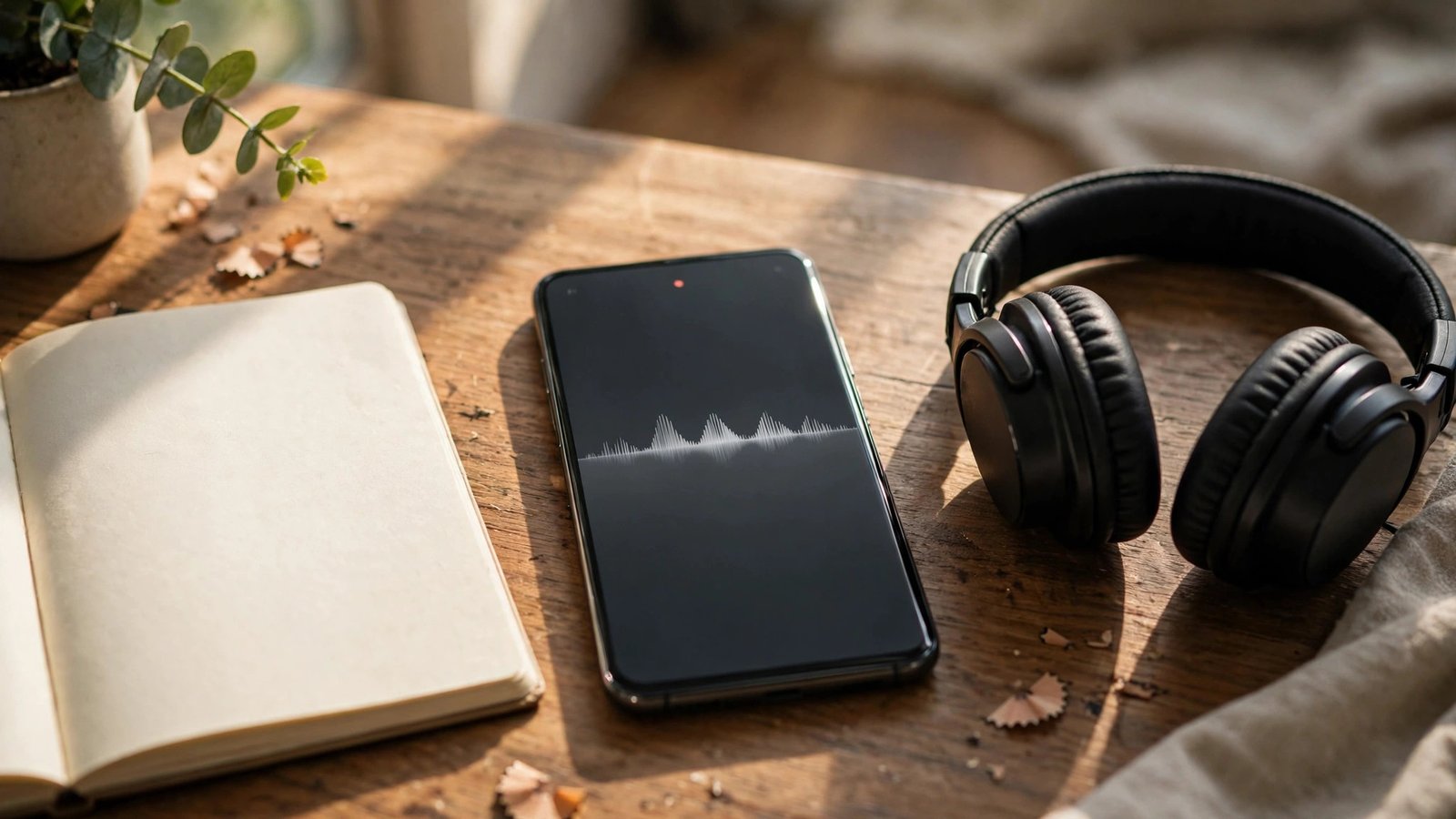
How to Record Voice Memos and Transcribe Them on iPhone and Android in the US
A voice memo is the fastest way to capture an idea, a lecture point, a meeting note, or a reminder before it slips away. Both iPhone and Android phones include a built-in recorder, and in most recent versions you can also turn speech into text without a paid app. The trick is to record cleanly, name files well, and know where transcription lives on your phone.
This guide covers the iPhone Voice Memos app, Google Recorder on Pixel phones, and Samsung Voice Recorder on Galaxy phones. Menu names can vary slightly by model and software version, but the core steps are the same. Before recording anyone else, remember the basic courtesy and legal point: in the US, recording laws vary by state, and some states require all parties to consent. Record your own notes freely, and get permission before recording a conversation with others.
Step 1: Record a clear memo on iPhone
On iPhone, open the Voice Memos app, which comes preinstalled. Tap the red record button to start, speak at a normal volume about a foot from the phone, and tap the button again to stop. Your recording appears in the list with a date and time.
For better sound, record in a quiet room when you can, and avoid covering the microphone at the bottom of the phone with your hand. If you are recording a lecture or a meeting you have permission to capture, place the phone on a stable surface near the speaker rather than holding it and rustling it. You can pause and resume with the pause button, which keeps everything in one file instead of creating many short clips.
To rename a memo, tap its title in the list and type a useful name, such as the topic and date. A name like "Grocery ideas" is less helpful a month later than "Book club notes Oct 2026" or "Plumber quote kitchen sink." Good names are the difference between a useful archive and a long list of untitled recordings you never open again.
Step 2: Record a clear memo on Android
On a Pixel phone, open the Recorder app from Google. Tap the red record button, speak, and tap to stop. Pixel Recorder is known for on-device transcription, which we cover in Step 4. On a Samsung Galaxy phone, open Voice Recorder, choose the recording mode if asked, and tap the record button to start and stop.
The same recording tips apply: quiet room, steady phone, clear distance, and a useful file name right after you stop. On Samsung Voice Recorder, you can rename a file from its list by tapping the options menu for that recording. On Pixel Recorder, tap the recording, then the title area to rename it.
Step 3: Trim, organize, and back up your recordings
Most memos do not need editing, but trimming the silence at the start and end makes them easier to reuse. On iPhone, open a memo, tap the options button, then Edit Recording, and drag the trim handles to keep only the part you need. On Samsung Voice Recorder, open a recording and look for the edit or trim option in the menu. Pixel Recorder offers trimming from the recording view as well.
Step 4: Transcribe a memo in most recent versions
Transcription turns speech into searchable text, which makes a long memo far more useful. On iPhone, in most recent versions of iOS, open a memo, tap the transcript option where available, and the app will generate text you can read, copy, and search. The transcript may take a short while for a long recording, and accuracy is best with clear speech and little background noise.
On Pixel phones, transcription is a core feature of Recorder. Open a recording and switch to the Transcript tab to read the text, search for a word, and jump to that moment in the audio. This runs on the device on supported Pixel models, which is handy when you have no connection. On Samsung phones, transcription support varies by model and version. In most recent versions, look for a transcribe or speech-to-text option in the recording view or in the share menu.
Step 5: Share a memo and fix common problems
Sharing a memo is simple, but it is worth choosing the right method. For a short clip, the share button in your recorder app can send the audio file by message, email, or cloud link. For a longer recording, email may compress it or reject it for size, so a cloud drive link or a direct file transfer to a computer works better.
Before you share, listen to the start and end to make sure you trimmed any private chatter you did not intend to send. Remember that anyone with the file can forward it. Do not share a recording of another person without their permission, and do not send a memo containing passwords, account numbers, or other sensitive details through an unsecured channel. If you only need to share the words, send the transcript instead of the audio.
Voice memos work best when they stay simple: record cleanly, name the file well, transcribe when you need searchable text, and back up anything important. With those habits, your phone becomes a reliable notebook that captures ideas in the moment and lets you find them again later.


Post Comment