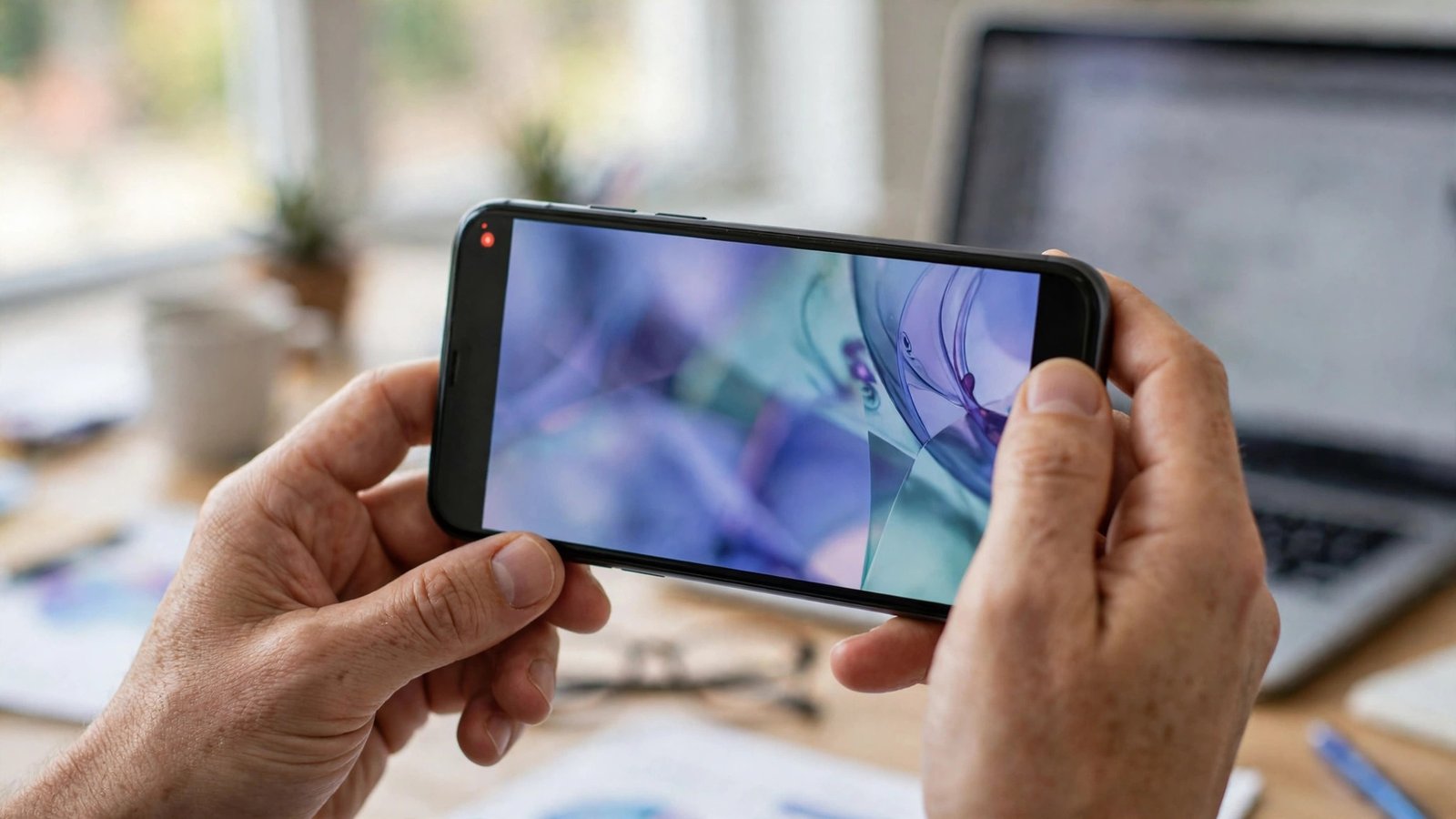
How to Record Your Phone Screen on iPhone and Android in Australia
Screen recording is one of those features you do not think about until you need it. You might want to show a family member how to change a setting, save a video call moment, capture a game highlight or record a bug to send to support. Both iPhone and Android now include screen recording built in, so in most recent versions you do not need to install a separate app. This guide covers how to start a recording, capture sound, stop cleanly, and tidy up the video before you share it.
Step 1: Set up screen recording on iPhone
On iPhone, the screen recording button lives in Control Centre. Open Settings, tap Control Centre, and check whether Screen Recording is listed. If it is not, scroll to the extra controls and tap the green plus sign beside it. Once added, you can reach it any time by swiping down from the top right corner of the screen on newer iPhones, or swiping up from the bottom on models with a Home button.
Before you record something important, do a short test. Open Control Centre, tap the record button, wait for the three second countdown, then record a few seconds of swiping around. Stop it, open the video in Photos, and check that it looks and sounds the way you expect. A test run avoids discovering a muted microphone or a blocked notification after you have already recorded the real thing.
Step 2: Record with or without sound on iPhone
A quick tap on the record button starts a silent recording, which is fine for showing steps on screen. If you also want your voice, or sound from the phone itself, press and hold the record button instead. That opens a panel with a microphone option. Turn the microphone on if you plan to talk over the recording, and leave it off if you only want the visuals.
Keep in mind that some apps block recording of protected video, such as certain streaming services, and will show a black screen for that part of the video. That is normal and not a fault with your phone. Also remember that notifications can appear in your recording, so turn on Do Not Disturb first if you do not want messages popping up mid video.
Step 3: Stop the recording and find the video
To stop on iPhone, tap the red status bar or the red pill shape at the top of the screen, then confirm Stop. On newer models you can also open Control Centre and tap the record button again. The video saves automatically to the Photos app, in your library and in the Screen Recordings album if your version of iOS groups them there.
Open the video and watch it through before sharing. Trim the start and end if you caught the Control Centre swipe or a pause while you got ready. In Photos, tap Edit, drag the handles at each end of the timeline to the points you want, then tap Done and save the trimmed version. Trimming takes seconds and makes the result look far more polished.
Step 4: Set up screen recording on Android
On Android, the steps vary slightly by brand, but the core feature works the same way in most recent versions. Swipe down twice from the top of the screen to open the full Quick Settings panel and look for a tile called Screen Record. If you cannot see it, tap the edit or pencil icon and drag the Screen Record tile into your active tiles.
Tap the tile to start. Most Android phones show a small panel where you can choose whether to record audio and whether to show touches on screen. Turning on “show touches” is handy for how to videos, because viewers can see exactly where you tap. Some Samsung phones also offer a front camera overlay, which is useful if you want your face in the corner while you explain something.
Step 5: Record audio and stop cleanly on Android
For sound, choose your audio source before you start. Options usually include device audio, microphone audio, or both. Device audio captures sound from the phone itself, such as a game or a video. Microphone audio captures your voice. Picking both gives you commentary plus the app sound, but test the balance first so your voice is not drowned out.
While recording, a small floating control or a notification lets you pause or stop. Tap Stop when you finish, and the video saves to your gallery, usually in a Screen recordings album or in the Movies folder depending on the brand. As with iPhone, watch it back, trim the rough edges in your gallery editor, and delete any retakes you do not need so they do not fill up your storage.
Step 6: Edit, share and protect your privacy
Before you send a screen recording to anyone, check what else is visible in it. Recordings can capture private messages, email previews, account numbers or photos in the background. Pause on any frame that shows personal details and trim or crop it out. If the detail cannot be removed, record that section again with the sensitive app closed.
Sharing is straightforward from here. You can send the video through Messages, WhatsApp or email, upload it to Google Drive or iCloud, or post it to social media. Large recordings can be heavy, so if a share fails, trim the video shorter or lower the quality in your editor before trying again.
Frequently Asked Questions
Where do screen recordings save on my phone?
On iPhone, recordings save to the Photos app. On Android, they usually save to the gallery in a Screen recordings album, or to the Movies folder on some brands. Search your gallery for “screen recording” if you cannot find the video straight away.
Why is there no sound in my screen recording?
On iPhone, a quick tap starts a silent recording, so press and hold the button and turn the microphone on if you want voice. On Android, check the audio setting before you start and choose device audio, microphone audio, or both, depending on what you need.
Why does a streaming app show a black screen in my recording?
Some apps block recording of protected video content, which shows up as a black screen while the rest of the phone still records normally. This is a copyright protection built into the app, not a problem with your phone or your recording settings.


Post Comment