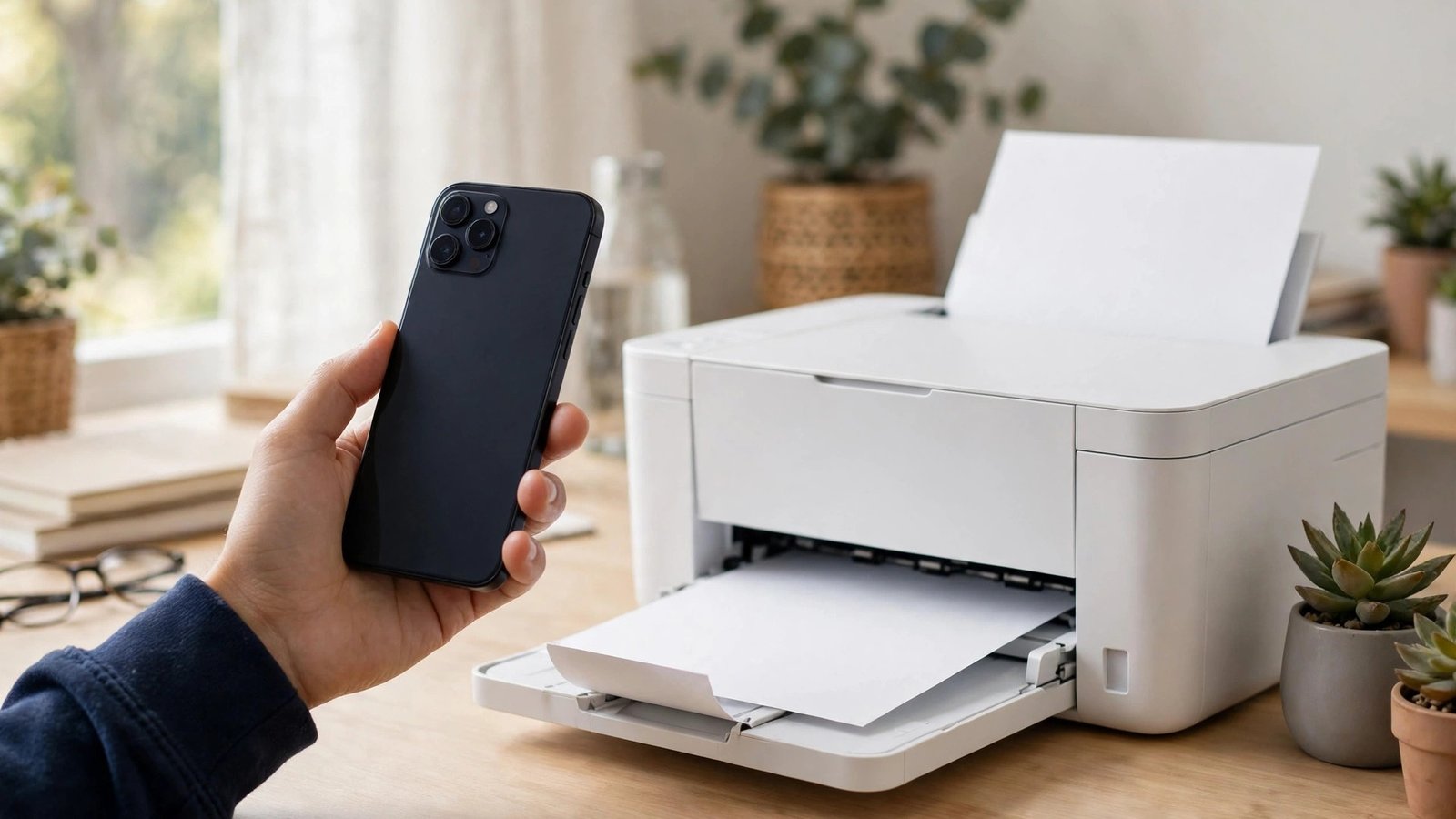
How to Print From Your Phone in Australia: iPhone and Android Made Simple
Printing from a phone used to mean emailing a file to yourself and opening it on a computer. These days most printers can take a job straight from your pocket, as long as both devices share a Wi-Fi network and the printer supports wireless printing. This guide covers iPhone and Android setup, common fixes, and what to do with no printer at home.
Step 1: Check your printer and connect it to Wi-Fi
Before touching your phone, confirm the printer itself is ready. Most printers sold in Australia in recent years support wireless printing, and the feature may be labelled Wi-Fi, AirPrint, Mopria, or Wi-Fi Direct on the box or in the manual. Connect the printer to your home Wi-Fi using its own screen or buttons, following the setup wizard on the printer. If the printer has a small display, look for a wireless icon or a network settings menu and confirm it shows as connected.
Then connect your phone to the same Wi-Fi network. If your phone is on mobile data, or on a guest network while the printer sits on the main network, the two devices often cannot see each other. Keep Bluetooth on as well, since some printers use it to help with discovery. If your printer supports Wi-Fi Direct, it can create its own direct connection without a router, though the steps vary by brand.
Step 2: Print from iPhone with AirPrint
iPhones use AirPrint, Apple's built-in printing system, and most recent wireless printers support it with no extra app needed. Open the photo, document, email or web page you want to print, then tap the Share button, the square with an arrow pointing up. Scroll down and tap Print. Your iPhone will search for nearby AirPrint printers. Tap your printer's name when it appears, choose the number of copies, and adjust options such as colour or black and white, single or double sided, and paper size if your printer offers them. Tap Print in the top right corner and the job should start within seconds.
If your printer does not appear, check it is switched on, connected to Wi-Fi, and not showing an error such as low ink or a paper jam. Restarting the printer and the phone fixes many discovery problems. If it still does not show up, check the manufacturer's website to confirm AirPrint support; older printers without it usually need the manufacturer's app instead.
Step 3: Print from Android with the default service or a printer app
Android phones include a default print service that works with many wireless printers. Open the photo or document, tap the three-dot menu or the Share button, then tap Print. Your phone will search for available printers. If yours appears, select it, adjust copies and colour settings, and tap the print button. In most recent versions of Android, you can also manage printers under Settings, then Connected devices, then Connection preferences, then Printing, where you can add a print service or check which services are switched on.
If the default service cannot find your printer, install the manufacturer's app from the Play Store: HP Smart, Canon PRINT, Epson iPrint, or Brother iPrint and Scan. These apps walk you through connecting the printer and add extras such as scanning to your phone and checking ink levels. Keep the app updated, since makers regularly fix connection issues in new versions.
Step 4: Print documents, PDFs and photos without a computer
Almost anything you can open on your phone can be printed. For PDFs, open the file and use Share or Print. For emails, look for Print in the menu, noting that some apps print the whole thread while others print only the open message. For photos, open the image, tap Share, then Print, and check the paper size first so a photo does not come out stretched or tiny.
Use ink and paper suited to the job, since cheap paper jams more often and dulls photo prints. For tickets and forms, print a test page first if details must be exact, and keep a PDF copy on your phone as backup. For photos, choose photo paper in the printer settings when that option exists.
Step 5: Fix the most common printing problems
When a print job fails, work through the basics in order. Confirm the printer has paper, ink and no error lights, and that both devices are on the same Wi-Fi network within range of the router. Restart the printer, wait 30 seconds, then restart your phone. Check for phone and printer firmware updates through the manufacturer's app, since updates often fix wireless discovery bugs.
If the job appears to send but nothing comes out, check the print queue: on iPhone, open the App Switcher and tap Print Centre while a job is running; on Android, check the notification or printing settings. Cancel a stuck job and retry with a single page. If the printer keeps disappearing, move it nearer the router, since a weak signal often causes dropouts.
Step 6: Print when you have no printer at home
No printer at home is no barrier in Australia. Many public libraries offer printing from your phone through a web upload portal or an app, with a small per-page charge, and office supply stores and print shops offer the same service. If you print rarely, this is usually cheaper than buying and maintaining a printer.
To use a library or shop service, save your file as a PDF first, since PDF keeps the layout exact across devices. Avoid sending sensitive documents, such as tax forms, to a public printer unless you can collect the pages immediately.
Frequently Asked Questions
Do I need an app to print from my iPhone?
Not usually. Most recent wireless printers support AirPrint, so you can print from the Share menu with no extra app. Older printers without AirPrint support usually need the manufacturer's app instead.
Why can my Android phone not find my printer?
The usual causes are different Wi-Fi networks, a printer error, or a weak signal. Check both devices are on the same network, clear any printer errors, restart both devices, and try the manufacturer's app if the default print service still cannot see the printer.
Can I print from my phone without a Wi-Fi router?
Yes, if your printer supports Wi-Fi Direct it can connect straight to your phone. Check your printer's manual for Wi-Fi Direct setup, or use a library or print shop service when you have no printer at home.





Post Comment