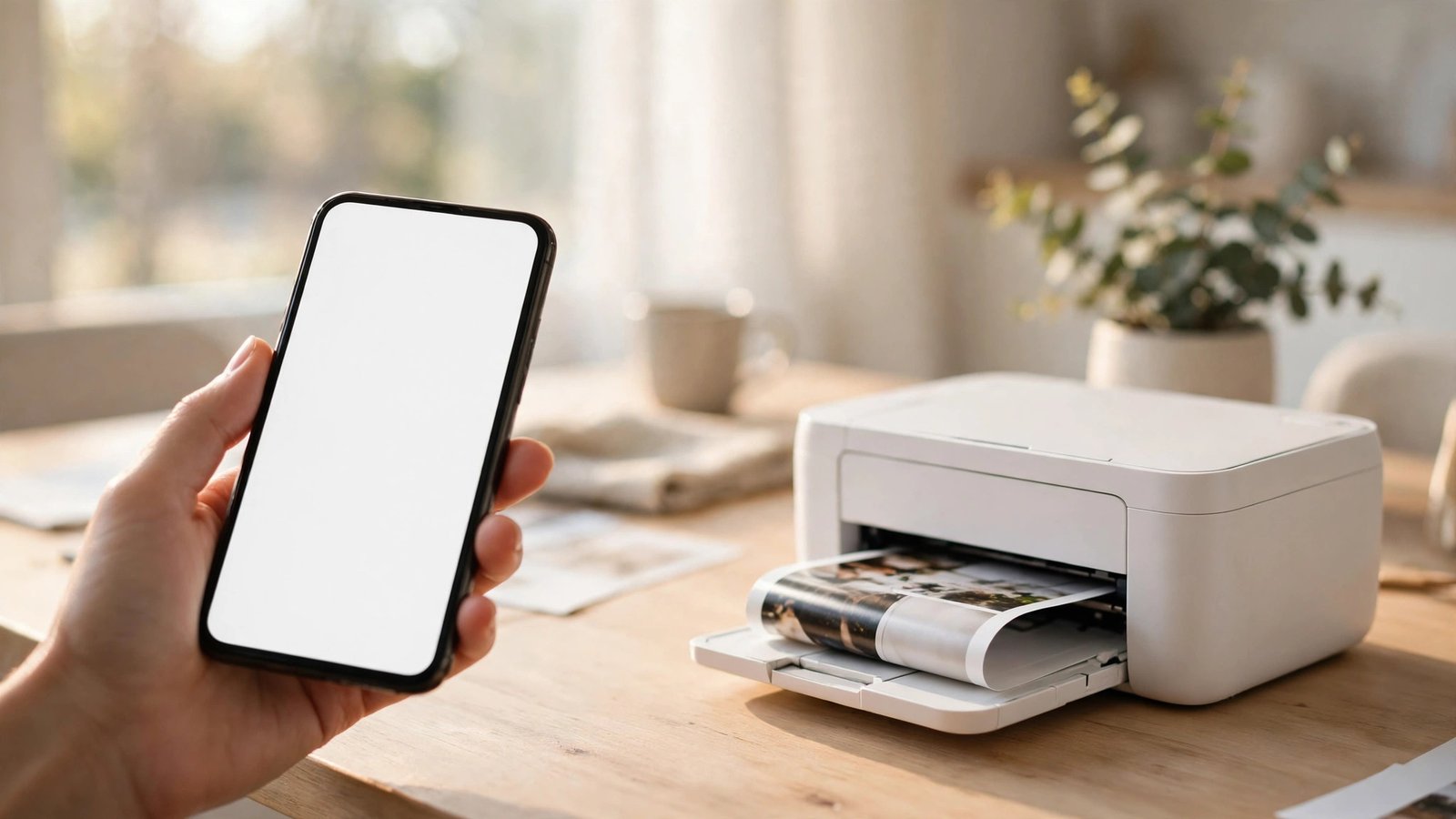
How to Print From Your iPhone or Android Phone in the US
Printing from your phone used to mean emailing a file to yourself and opening it on a computer. That is no longer necessary. Most printers sold in the last few years work directly with iPhone and Android, and the setup takes about a minute. This guide covers the built-in options on both platforms, the printer maker apps that fill the gaps, and the fixes that solve the most common problems.
Before you start: two quick checks
First, your phone and your printer need to be on the same Wi-Fi network. This is the step that trips up most people. If your home has separate network names, put both devices on the same one.
How to print from an iPhone with AirPrint
AirPrint is Apple's built-in printing system, and it needs no app and no setup. If your printer supports AirPrint, your iPhone will find it on its own.
Open the file you want to print. This works from Photos, Files, Mail, Safari, Notes and most other apps. Tap the Share button, the square with an arrow pointing up. Scroll down the share sheet and tap Print. Your iPhone will show a list of nearby AirPrint printers. Pick yours, choose the number of copies and the page range if you need to, then tap Print in the top right corner.
To print a photo, open it in Photos, tap Share, then tap Print. To print a web page, open it in Safari, tap Share, then tap Print. To print an email, open the message, tap the reply arrow at the bottom, then tap Print.
If your printer does not appear in the list, check that it is turned on, connected to the same Wi-Fi network, and awake. Some printers go into a deep sleep mode and need a minute to wake up. Restarting the printer and your iPhone also fixes most discovery problems.
How to print from an Android phone
Android has a built-in print service that works much like AirPrint. Open the file you want to print, tap the three-dot menu or the Share button, then tap Print. Android will show the Default Print Service and any printers it has found on your network. Pick your printer, adjust the copies, paper size and color settings, then tap the print button.
The exact menu labels vary a little by phone maker. On Samsung phones, the option is usually under Share and then Print. On Pixel phones, it is under the three-dot menu and then Print. If you do not see a Print option in an app, try opening the file in Google Drive or the Files app, where the Print option is always available.
If your printer does not show up, go to Settings, then Connected devices, then Connection preferences, then Printing. Make sure the Default Print Service is turned on. You can also add your printer maker's print service from the Play Store here, which often finds models the default service misses.
How to print a photo, a document or a boarding pass
Photos print best from the Photos app on iPhone or the Gallery or Google Photos app on Android. Open the photo, tap Share, then tap Print, and choose your printer. For a 4 by 6 inch photo, change the paper size in the print options if your printer has a photo tray.
Documents print best from the Files app on iPhone or the Files or Google Drive app on Android. Open the document, tap Share or the three-dot menu, then tap Print. For a PDF, the print option appears in the same place. Boarding passes and tickets usually arrive as PDFs, and printing the PDF version works the same way.
Fixes for the most common printing problems
If your printer does not appear, the most likely cause is the network. Confirm both devices are on the same Wi-Fi network, restart the printer, and restart your phone. If the printer has been idle for a long time, print a test page from its own control panel to wake it up.
If the print job starts but nothing comes out, check the ink or toner and the paper tray. Many printers will sit silently when they are out of ink or paper instead of showing an error on your phone. Open the printer maker app to see the status and any error messages.
If your phone finds the printer but the job fails every time, remove the printer from your phone and add it again. On iPhone, there is no stored printer list to clear, so restart the phone and the printer. On Android, go to Settings, Connected devices, Connection preferences, Printing, and remove the printer service, then turn it back on.
If nothing works, check for a firmware update for your printer on the maker website or in the maker app. Printer makers still release updates that fix Wi-Fi and compatibility problems, and an old firmware version is a common reason a new phone cannot find an older printer.
Frequently Asked Questions
Can I print from my phone without Wi-Fi?
Yes, in most cases. Many Wi-Fi printers support Wi-Fi Direct, which lets your phone connect straight to the printer without a router. Turn on Wi-Fi Direct on the printer, connect your phone to the printer network it creates, and print as usual. Bluetooth printing is also available on some models, and the printer maker app will show you the options for your model.
Why does my iPhone say no AirPrint printers found?
This usually means the phone and the printer are on different networks, the printer is asleep, or the printer does not support AirPrint. Check that both devices use the same Wi-Fi network, wake the printer by printing a test page from its panel, and confirm on the maker website that your model supports AirPrint. If it does not, use the printer maker app instead.
Is it safe to print from a public printer at a library or hotel?
Public printers are fine for ordinary documents, but avoid printing anything with personal details such as bank statements, medical forms or boarding passes with booking codes. If you must print something sensitive, delete the file from the printer queue when you are done, and never leave the printed pages in the tray.




Post Comment