How to Use Your Phone Notes App to Stay Organised in the UK
Most phones already have a notes app that is far more useful than a blank page. Apple Notes, Google Keep and Samsung Notes can hold shopping lists, ideas, passwords hints, travel plans and meeting notes, and they can sync across your phone, tablet and computer. The trick is not to collect more notes, but to set up a small system you will actually use. This guide shows you how, step by step, with the UK details that matter, like sharing a list with family and keeping sensitive notes safe.
Step 1: Pick one notes app and stick to it
Start by choosing the app that already fits your phone. On iPhone, Apple Notes is built in and syncs through iCloud to your iPad and Mac. On most Android phones, Google Keep is the simple option and syncs through your Google account. On Samsung phones, Samsung Notes is built in and works well with the S Pen on models that have one. All three are free, and all three search your notes, which matters more than any fancy feature.
Step 2: Set up a handful of folders and lists
A notes app without structure fills up fast. Create just five or six folders or labels, and use them for everything. A simple set is: Home, Work, Money, Travel, Ideas, and Shopping. On iPhone, tap Folders, then New Folder. In Google Keep, use labels from the menu, and pin your most used lists to the top. In Samsung Notes, use folders in the same way.
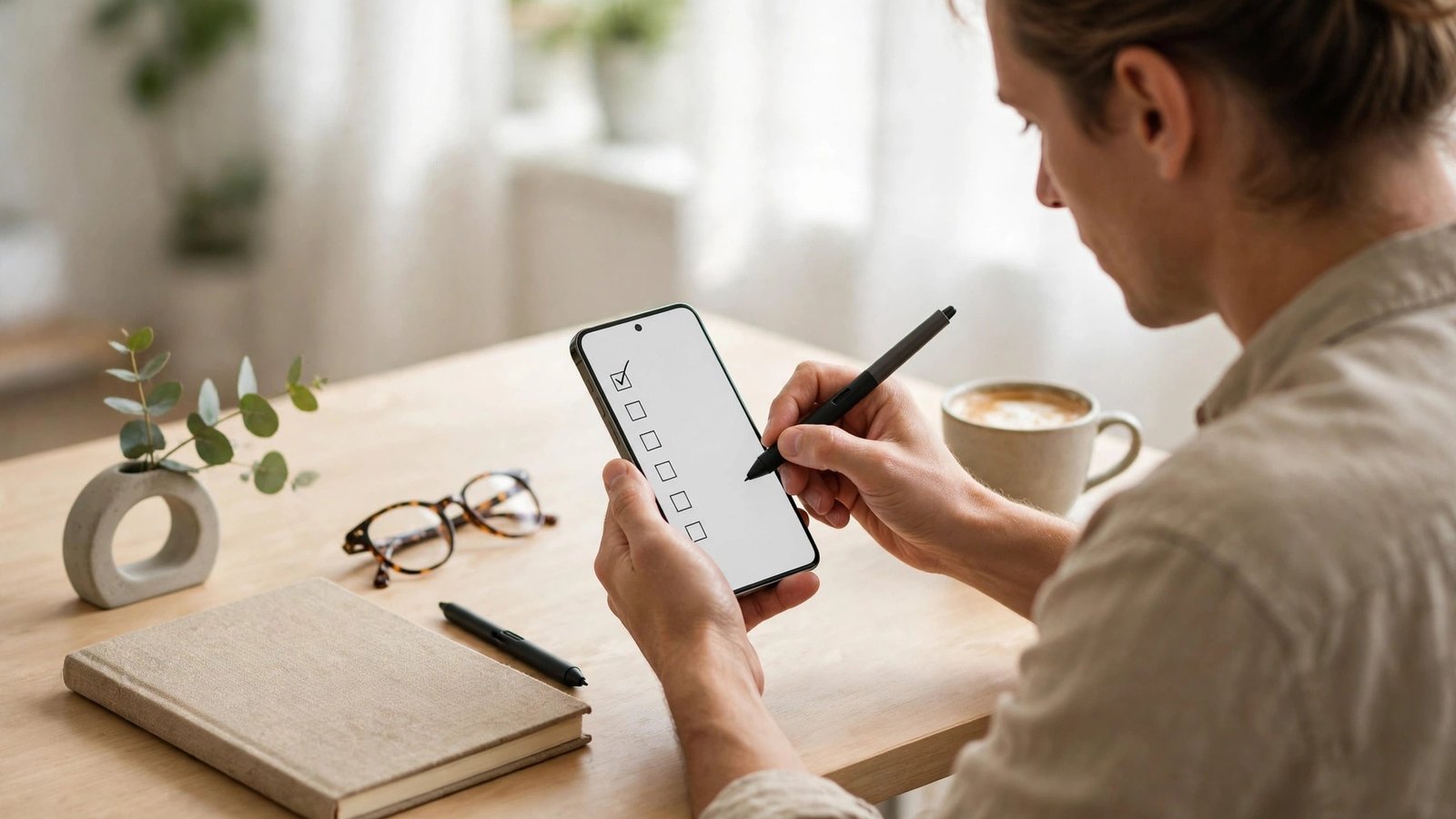
Keep the names short and obvious, because you will be choosing a folder in a hurry. Move each existing note into one folder, and delete anything you have not needed in a year. For lists, use the checklist format rather than plain text: ticking off shopping or packing items feels satisfying, and it stops you buying the same thing twice. A shared shopping list is one of the best uses here. On iPhone, share a note from the share button and invite family by message or email. In Google Keep, tap the collaborator icon and add their Google account. Everyone on the list sees ticks in real time, which ends the classic "did you get milk?" message.
Step 3: Capture ideas fast, then sort them later
The best notes system is the one you use in the moment. When an idea strikes, open a quick note, type the thought, and close the app. Do not worry about folders or formatting at that point. On iPhone, you can add a note from the lock screen with a widget, or ask Siri to create one. On Android, a home screen widget for Google Keep lets you start a note in one tap, and voice typing works well when your hands are busy.
Once a week, spend five minutes sorting. Open your inbox or unfiled notes, move each one into a folder, turn vague thoughts into clear tasks, and delete anything that no longer matters. This weekly tidy is what separates a useful notes app from a digital junk drawer. If a note says "holiday ideas", add dates and who is going, or it will stay vague. If a note is a receipt, rename it with company and date, such as "British Gas meter reading March", so search finds it later.
Step 4: Use search, pins and favourites every day
Search is the real power of a notes app, and it works best when your notes have clear words in them. Search for "passport", "dentist" or "plumber" and you should find the right note in seconds. That is why renaming matters: a note called "Note 47" helps nobody, while "Plumber number and boiler service date" helps future you at once. In Apple Notes, Google Keep and Samsung Notes, search covers the text inside notes, and in most recent versions it also finds words inside scanned documents and images you have added.
Pin the notes you open every day. Your shopping list, weekly plan and travel checklist should sit at the top, not buried under old notes. On iPhone, swipe a note and tap the pin icon. In Google Keep, tap the pin icon. If you photograph a document, add a short typed summary underneath, so search can still find it later.
Step 5: Keep sensitive notes safe and back them up
Notes often hold things you would not want a stranger to see: bank reference numbers, health details, addresses and passwords hints. Never store full passwords in a plain note. Use a proper password manager for passwords, and use locked notes only for low-risk reference details, with a clear warning to yourself if needed. On iPhone, you can lock a note with your device passcode or Face ID from the share menu. In Google Keep, there is no built-in note lock, so keep sensitive items out of Keep and use your phone lock and account security instead. Samsung Notes offers a lock option on many models.
Backups matter as much as locks. Because Apple Notes syncs through iCloud and Google Keep syncs through your Google account, your notes should appear on another device signed into the same account. Test this once: open the notes app on a computer or tablet and check that a recent note is there. If it is not, sync is off somewhere, and that is worth fixing before you rely on it. ## Frequently Asked Questions
Which notes app is best on iPhone and Android?
Apple Notes is the natural choice on iPhone because it syncs through iCloud to iPad and Mac. Google Keep is the simplest choice on most Android phones because it syncs through your Google account. Samsung Notes suits Samsung owners, especially with an S Pen. Pick the one that matches your phone and use it for everything.
Can I share a notes list with family in the UK?
Yes. Apple Notes lets you share a note or folder and invite people by message or email, and Google Keep lets you add collaborators by Google account. Shared shopping and packing lists update for everyone at once, so ticks and additions appear in real time on each person's phone.
Is it safe to store passwords in a notes app?
No, not as plain text. Use a dedicated password manager for passwords, and keep only low-risk reference details in notes, locked where your app allows it. A locked note is better than an open one, but it is not a substitute for a password manager, and full bank details should never sit in a notes app.



Post Comment