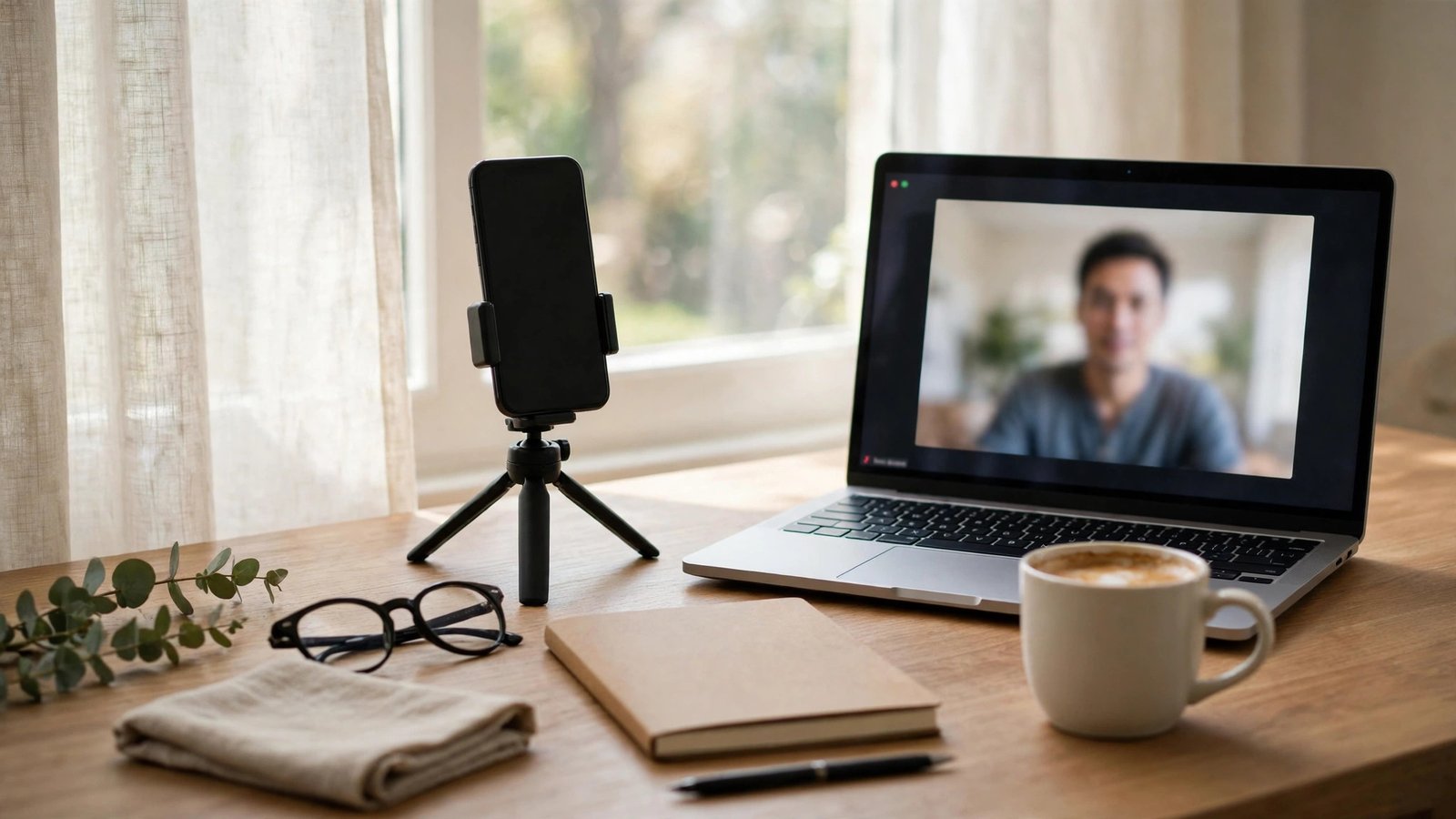
How to Use Your Phone as a Webcam for Your Computer in Australia
Most laptop webcams are average at best. They sit in dim light, they flatten your face, and they make you look worse than you do in real life. Your phone, on the other hand, has a far better camera, and in most recent versions of iOS, Android, Windows and macOS you can use it as your computer’s webcam in a few minutes. The picture is sharper, the colours are truer, and you already own the hardware.
Why your phone beats a laptop webcam
Phone makers spend a fortune on camera hardware and image processing, while laptop makers treat the webcam as an afterthought. A phone from the past few years usually has a larger sensor, a brighter lens and far smarter software for low light. The difference shows up immediately on a video call.
There is also the angle. A laptop camera looks up at you from below, which is nobody’s best side. A phone on a small tripod or stand can sit at eye level, which looks far more natural.
Use an iPhone as a webcam on a Mac
The easiest setup of all is an iPhone with a Mac, thanks to a feature Apple calls Continuity Camera. It works wirelessly, and it needs no extra app.
First, check that both devices are signed in to the same Apple ID with two factor authentication switched on, and that Bluetooth and Wi-Fi are turned on for both. Your iPhone needs iOS 16 or later and your Mac needs macOS Ventura or later. Older versions will not show the option.
Open a video app on the Mac, such as FaceTime, Zoom or Microsoft Teams. In the app’s video settings, choose your iPhone as the camera. The Mac will start using the phone’s rear camera. For the best result, mount the phone above or beside the screen with the rear camera facing you, using a small clamp or a MagSafe mount.
To stop, pick the Mac’s built in camera again in the video app, or disconnect the phone. If the iPhone does not appear in the list, make sure it is unlocked, nearby, and not already in use by another app.
Use an iPhone as a webcam on a Windows PC
Continuity Camera is Apple only, so Windows users need a third party app. Camo is a popular option, and it has a free version that covers the basics. Install the Camo app on your iPhone and Camo Studio on your Windows PC, then connect the phone by cable or over Wi-Fi. Open your video call app, choose Camo as the camera, and you are live. A cable connection is more stable than Wi-Fi for long calls, so plug the phone in if you can.
Use an Android phone as a webcam
Android phones have a built in option in recent versions, and third party apps fill the gaps for older models.
On many phones running Android 14 or later, plug the phone into the computer with a USB cable, then pull down the notification shade and tap the USB notification. You should see an option for webcam mode. Choose it, then open Zoom, Teams or Google Meet and pick the phone as your video source. This works on both Windows and Mac, and it needs no extra app.
If your phone does not offer a webcam mode, DroidCam is a well known free app that does the same job. Install DroidCam on the phone and the DroidCam client on the computer, connect by cable or Wi-Fi, and select DroidCam as the camera in your video app. The free version is fine for most calls.
Set up the shot
A better camera only helps if the shot is good. Put the phone at eye level or slightly above, about an arm’s length away, using a small tripod, a stack of books or a phone clamp attached to the monitor. A camera that looks up your nose undoes most of the benefit.
Light matters more than the camera itself. Face a window or a lamp so the light falls on your face, not behind you. A window behind you turns you into a silhouette, no matter how good the camera is. Clean the camera lens before the call too, since phone lenses collect fingerprints and a smudged lens makes the picture soft and hazy.
Keep the call running smoothly
Using your phone as a webcam uses battery, and a long call can drain it fast. Plug the phone into a charger while you use it, and use a cable connection where possible, since Wi-Fi video can stutter if the signal is weak.
Turn on Do Not Disturb on the phone before the call starts. Nothing ruins a work meeting faster than a personal notification popping up on screen, and some webcam apps mirror the phone’s notifications. Also close apps you do not need, since the camera app and the video call together use a lot of processing power.
Fix the most common problems
If the computer does not see the phone, check the cable first. Not all USB cables carry data, and some cheap cables only charge. Use the cable that came with the phone, or one you know works for file transfers. On Android, make sure you selected webcam mode or file transfer in the USB notification, not charging only.
If the picture appears upside down or sideways, rotate the phone or change the orientation setting in the webcam app.
If the video app shows a black screen, another app may already be using the camera. Close the camera app on the phone, quit other video apps on the computer, and try again. If the sound is bad, remember that the webcam app only handles video, so use a headset or a USB microphone rather than the laptop’s built in mic.
Frequently Asked Questions
Can I use my phone as a webcam without installing anything?
Sometimes. An iPhone with a Mac needs no extra app thanks to Continuity Camera, and many Android phones running Android 14 or later offer a built in webcam mode over USB. For other combinations, such as iPhone with Windows, you will need an app like Camo or DroidCam.
Does using my phone as a webcam drain the battery?
Yes, the camera and the video stream use a lot of power. Plug the phone into a charger during the call, and use a USB cable connection where possible, since it charges the phone at the same time.
Which camera on my phone should I use?
The rear camera gives the sharpest picture, and it is the default for Continuity Camera and most webcam apps. The front camera is more convenient for framing yourself, and it is fine for everyday calls, but the rear camera is noticeably better in low light.



Post Comment