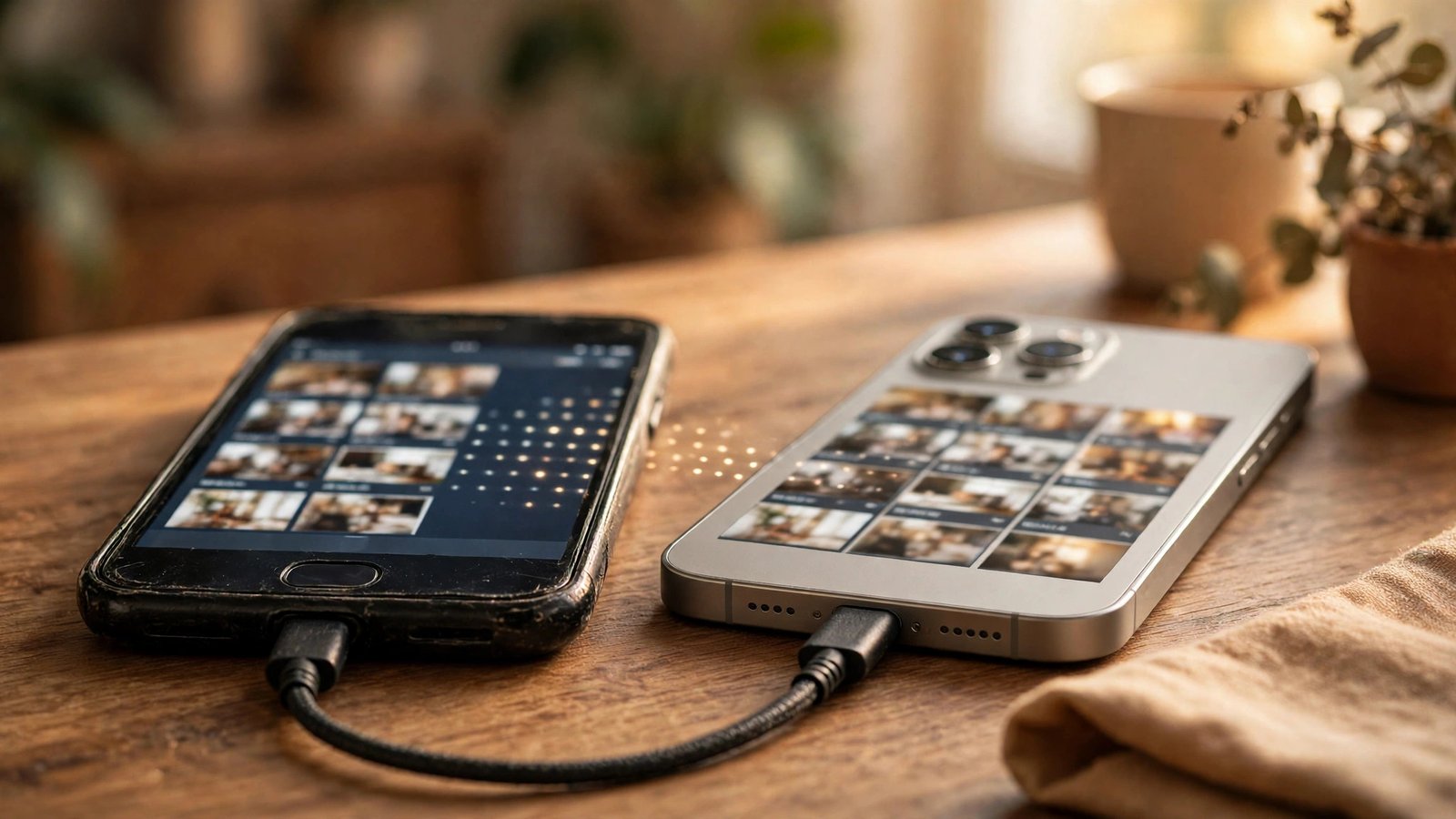
How to Move Your Photos and Files From an Old Phone to a New One in the UK
Getting a new phone is exciting until you realise everything that matters is still on the old one: years of photos, downloaded files, contacts, messages and app logins. The good news is that moving to a new phone is far easier than it used to be. Both Apple and Google now offer a transfer tool that does most of the heavy lifting, and a few checks beforehand will save you from losing anything along the way.
Before you start: the five-minute prep
Start by charging both phones and connecting them to Wi-Fi. Transfers can take a while, and a phone that dies halfway through is the fastest way to create a mess. Then back up the old phone. On iPhone, go to Settings, tap your name, then iCloud, then iCloud Backup, and tap Back Up Now. On Android, go to Settings, then System, then Backup, and check that Google One backup is on.
Next, check what will not transfer automatically. Most transfer tools move photos, videos, contacts, messages and many apps, but they do not always move WhatsApp chats unless you use its own backup, and they never move passwords stored only on the old device. Make a quick note of any banking or email logins you may need to re-enter, and make sure you know the password for your Apple ID or Google account before you wipe anything.
Move from iPhone to iPhone
Apple's Quick Start is the simplest route when both phones are iPhones. Place the new iPhone next to the old one, and a prompt should appear on the old phone asking if you want to set up the new device. Confirm, then scan the swirling animation on the new phone with the old phone's camera.
You then choose whether to transfer directly from the old phone or restore from an iCloud backup. Direct transfer is usually faster and does not need much iCloud space, but both phones must stay close together and powered on. The process copies your photos, apps, settings and messages, and in most recent versions your phone number and mobile plan move over too if your carrier supports it. When it finishes, leave the new phone alone until it says the transfer is complete, then check that your photos and main apps are all present before you reset the old phone.
Move from Android to Android
Google's setup flow works in a similar way. When you switch on the new Android phone and sign in with your Google account, it asks whether you want to copy data from your old phone. Choose the cable option if you have a USB cable that fits both phones, as it is faster and more reliable than Wi-Fi, especially for large photo libraries. If your phones have different ports, a Wi-Fi transfer works too, just more slowly.
The tool copies photos, videos, contacts, messages, call history and most apps, along with their data where the app supports it. Samsung phones also offer Smart Switch, which works the same way and can move data from other Android brands as well as from iPhone in some cases. Whichever tool you use, keep both phones awake and on charge until the transfer finishes.
Move between iPhone and Android
Switching platforms takes one extra step, but it is still straightforward. To move from Android to iPhone, download the Move to iOS app on your old Android phone. Start setting up the new iPhone until you reach the Apps and Data screen, tap Move Data from Android, and enter the code shown on the iPhone into the Android app. It transfers contacts, message history, photos, videos and many free apps.
To move from iPhone to Android, connect the phones with a cable during setup, or use the Switch to Android app on your iPhone if your new phone supports it. You sign in with your Google account and choose what to copy. Note that paid apps do not carry over between stores, so you may need to buy them again, and iMessage history does not move to Android, so save any important messages first.
Do not forget WhatsApp and your photos
WhatsApp needs its own backup, because phone transfer tools do not always carry chats across. On your old phone, open WhatsApp, go to Settings, then Chats, then Chat Backup, and run a backup to iCloud on iPhone or Google Drive on Android. On the new phone, install WhatsApp and restore from that backup when asked. If you are switching between iPhone and Android, WhatsApp now supports moving chats directly with a cable during setup, but check the app's own transfer screen before you wipe the old phone.
Photos deserve a second check. Open your gallery on the new phone and scroll back to your oldest photos to confirm they arrived. If you use Google Photos or iCloud Photos, your library may still be downloading in the background, so give it time on Wi-Fi before judging. If anything is missing, check the old phone before you reset it: that is the moment to catch a gap, not after.
The final step: wipe the old phone safely
Only reset the old phone once you have checked the new one properly: photos present, contacts correct, WhatsApp restored, banking apps reinstalled and signed in. Then sign out of your Apple ID or Google account on the old phone, and use the factory reset option in Settings.
Frequently Asked Questions
How long does moving to a new phone take?
It depends on how much data you have. A small library can move in under half an hour, while a phone with tens of thousands of photos can take a couple of hours over cable, and longer over Wi-Fi. Keep both phones charged and do not interrupt the transfer.
Will my apps and passwords move to the new phone?
Most apps move, but you will need to sign in again to banking, email and shopping apps, and paid apps do not transfer between the Apple App Store and Google Play. A password manager makes this far easier, since you only need to remember one master password.
What should I check before wiping my old phone?
Check that your photos, contacts and WhatsApp chats are all on the new phone, and that your main apps open and work. Only run a factory reset after those checks, and sign out of your Apple ID or Google account first.


Post Comment