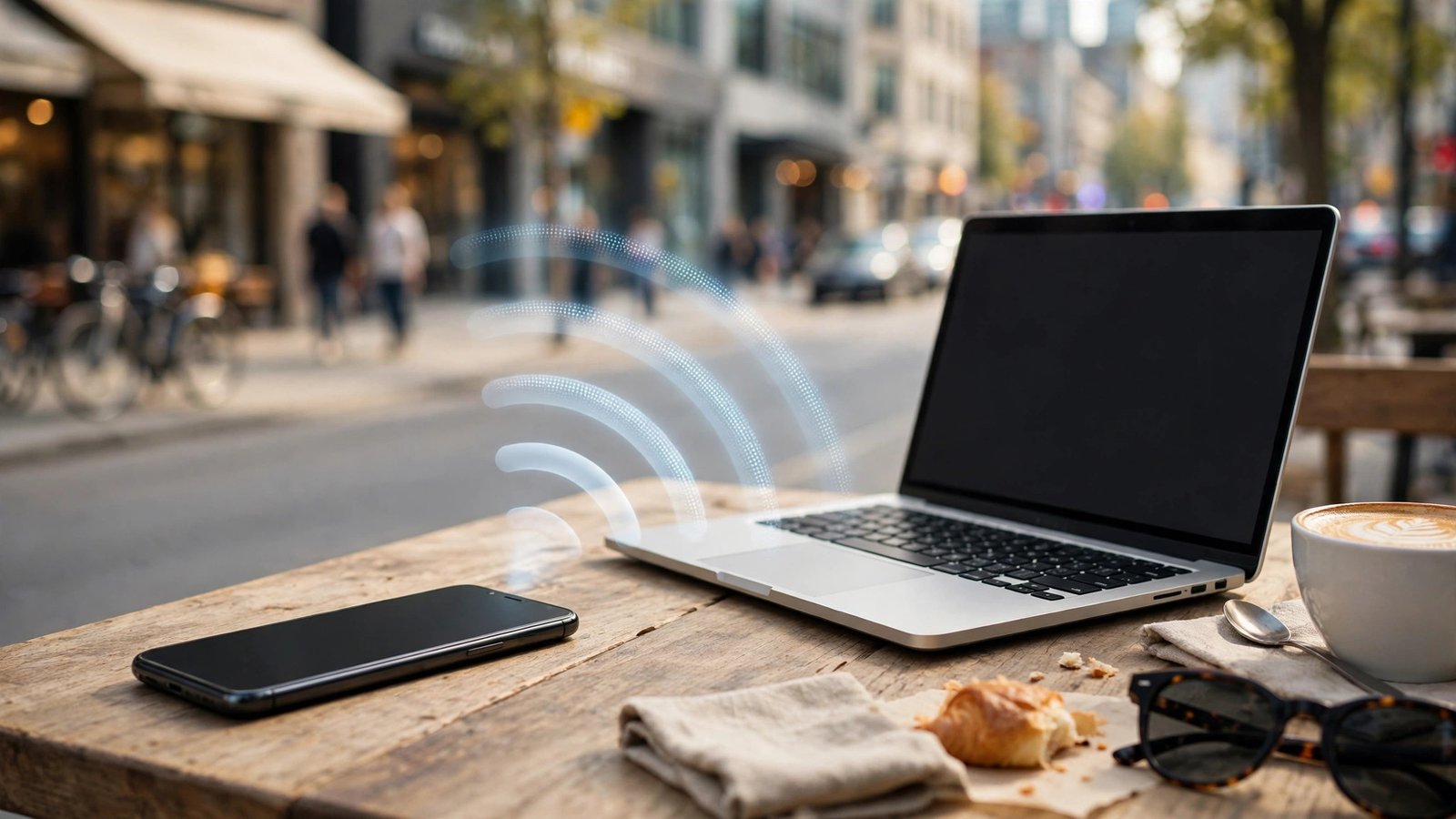
How to Set Up a Mobile Hotspot on iPhone and Android in Canada
A mobile hotspot turns your phone into a small Wi-Fi network. Your laptop, tablet or a family member's phone can connect through your mobile data when no trusted Wi-Fi is nearby. It is handy on a train, in a cottage, at a conference or during a home internet outage, and it takes only a minute to set up once you know where the switch lives.
Before you start, check two things. First, make sure your Canadian mobile plan includes hotspot use, sometimes called tethering. Most current plans do, but some older or budget plans limit it or charge extra. Second, keep an eye on your data allowance. A laptop can use far more data than a phone, especially with video calls, cloud backups and software updates running in the background.
Set up a hotspot on iPhone
Apple keeps the hotspot switch in the same place across recent iPhones, with small wording differences by iOS version.
Step 1: Open Settings, then tap Personal Hotspot. If you do not see it on the main Settings screen, look under Cellular or Mobile Data, where it appears in most recent versions.
Step 2: Turn on Allow Others to Join. Your iPhone will show a Wi-Fi network name, which is usually your phone name, and a password.
Step 3: Change the password if you want something easier to share. Tap Wi-Fi Password, type a strong password with letters and numbers, then tap Done. Avoid a password you use anywhere else.
Step 4: On the other device, open its Wi-Fi settings, pick your iPhone name from the list, and enter the password. The connection should start right away.
Step 5: When you finish, turn the hotspot off again in Settings, then Personal Hotspot. Leaving it on drains the battery and keeps the network open longer than needed.
Set up a hotspot on Android
Android menus vary by maker, so the labels below may differ slightly on Samsung, Google Pixel and other phones. The path is similar in most recent versions.
Step 1: Open Settings, then tap Network and Internet, or Connections on a Samsung phone.
Step 2: Tap Hotspot and Tethering, then Wi-Fi Hotspot.
Step 3: Turn the hotspot on. Tap the hotspot name and password fields to change them to something clear and private. Choose a strong password, and keep the security setting on WPA2 or WPA3 where offered.
Step 4: On the other device, open Wi-Fi settings, choose your phone from the list, and enter the password.
Step 5: When you finish, switch the hotspot off in the same menu. Some Android phones also let you set the hotspot to turn off automatically after a period with no devices connected, which is worth turning on.
Keep your hotspot private and safe
A phone hotspot is a real Wi-Fi network, so treat it like one. Always use a password, and never leave it open for anyone nearby to join. An open hotspot can let a stranger use your data, slow your connection, and in some cases reach shared files on a connected device.
Share the password only with people you trust, and change it from time to time, especially after lending it to a guest.
Watch your data and your battery
Hotspot use can eat data fast. Video streaming in high quality, large downloads and automatic cloud photo uploads are the usual culprits. Before a long session, pause cloud backups and app updates on the connected laptop, and lower video quality where the app allows it.
On the phone side, check your data use in Settings so you know where you stand against your monthly allowance. On iPhone, look under Settings, then Cellular or Mobile Data. On Android, look under Settings, then Network and Internet, then SIMs or Data Usage, depending on your phone.
Battery is the other cost. Broadcasting Wi-Fi while using mobile data is heavy work for a phone. Plug the phone in during a long hotspot session if you can, lower the screen brightness, and close apps you do not need. A portable charger helps on a train or in a park, but a wall plug is better for a full work session.
Fix common hotspot problems
If the other device cannot see your phone, first check that the hotspot is actually on and that the phone has mobile data and a decent signal. Turn the hotspot off and on again, then refresh the Wi-Fi list on the other device.
If it connects but nothing loads, check your data allowance and whether your plan blocks tethering. Restarting both devices clears most stuck connections. If the problem repeats only with one laptop, forget the network on that laptop and join again with the current password.
If the hotspot keeps dropping, move the phone closer to the other device, keep it out of a thick case or a bag, and plug it in. Heat and a weak signal are two common reasons a hotspot becomes unstable, and both improve with a better position and a charger.
A phone hotspot will never replace home fibre for heavy work, but for a few hours of email, browsing and calls it is a solid backup.
Frequently Asked Questions
Does using a hotspot cost extra in Canada?
It depends on your plan. Most current Canadian plans include hotspot use within your data allowance, but some older or budget plans limit tethering or charge extra, so check your plan details before a long session.
Why does my hotspot use so much data?
Laptops and tablets use more data than phones because they run background updates, cloud sync and higher quality video. Pause large downloads and cloud backups on the connected device, and lower video quality to stretch your allowance.
How do I make my hotspot more secure?
Use a strong, private password, keep the security setting on WPA2 or WPA3, share the password only with people you trust, and turn the hotspot off when you finish. Change the password after sharing it with a guest.




Post Comment