How to Make Your Phone Battery Last Longer in the UK: Settings That Actually Help
If your phone barely makes it to the evening, you probably do not need a new handset yet. In most cases a handful of settings are quietly eating your battery, and a few small changes can add hours to your day. This guide walks through the checks that actually help on iPhone and Android, in order of impact, so you can stop guessing and start with what matters most.
First, find what is draining your battery
Before changing anything, look at the evidence on your own phone. On iPhone, open Settings, then Battery, and look at the battery usage list for the last 24 hours or 10 days. On Android, open Settings, then Battery, then Battery usage, where the wording may vary slightly by brand. In most recent versions you will see a percentage next to each app.
One app at the top of the list is normal if you used it heavily. A problem looks different: an app you barely opened sitting near the top, or a long stretch of background activity while you were not using the phone. Note the top two or three names before you move on, because those are the apps to deal with first.
Step 1: Switch on the built in battery saver
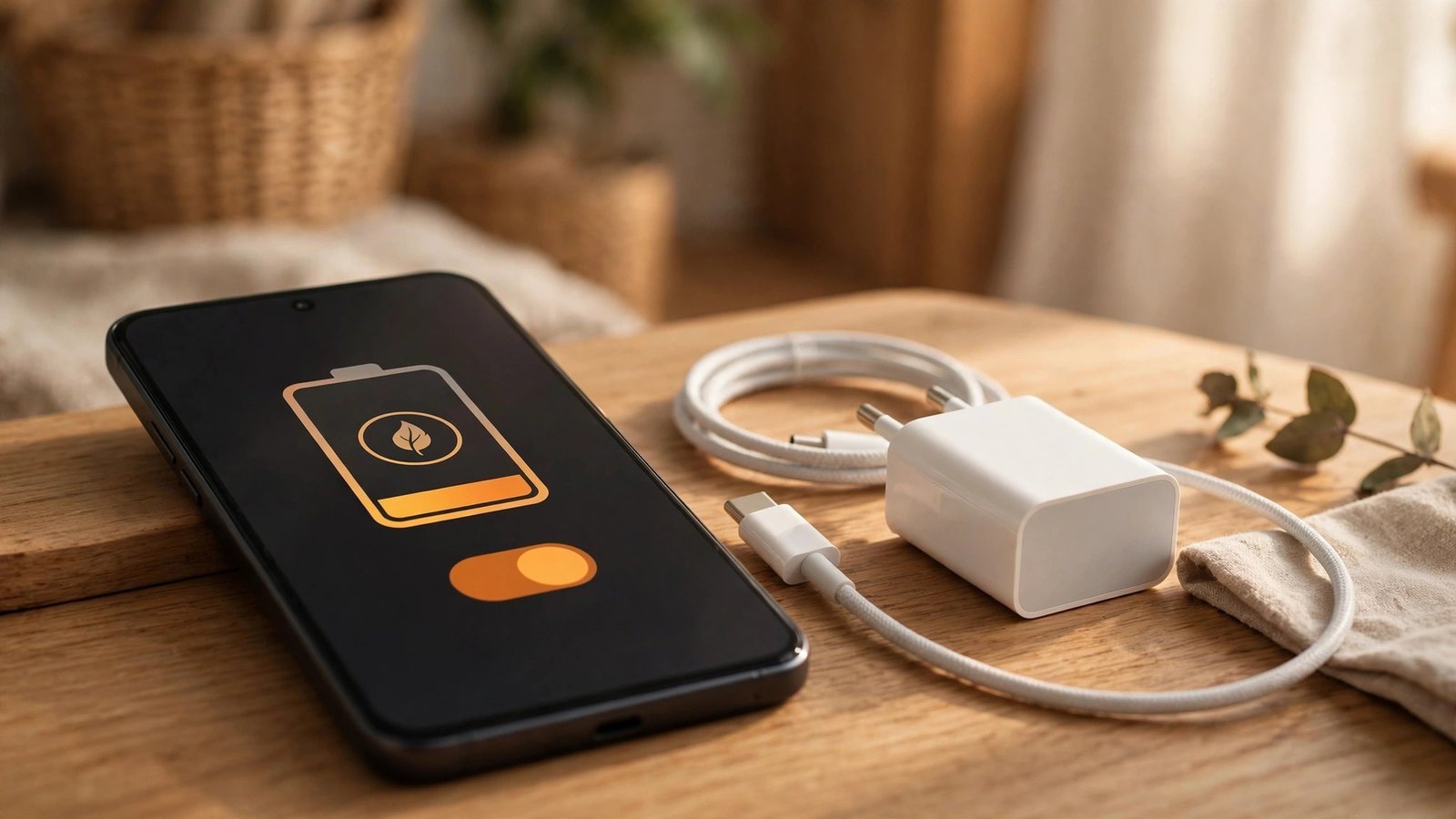
Both iPhone and Android have a battery saver mode, and it is the fastest single win. On iPhone, go to Settings, then Battery, and switch on Low Power Mode. On Android, go to Settings, then Battery, then Battery Saver, and switch it on. Some Android phones also offer an adaptive battery setting in the same area, which learns how you use apps and limits power for ones you rarely open.
Battery saver works by cutting background refresh, lowering visual effects and, on some phones, reducing performance slightly. You may notice mail fetching less often, but for most people the trade off is well worth it. On iPhone you can also add Low Power Mode to Control Centre, so it takes one swipe and one tap in future.
Step 2: Tame the screen, the biggest single drain
The screen uses more power than almost anything else, so screen settings come second. First, turn on auto brightness rather than leaving brightness fixed high: on iPhone it sits under Settings, then Accessibility, then Display and Text Size, while on Android it is usually under Settings, then Display. Auto brightness adapts to the room and saves power without you thinking about it.
Second, shorten the screen timeout to 30 seconds or one minute, so the display does not stay lit in your pocket or on your desk. Third, if your phone has an always on display, consider switching it off or limiting it to show only when you tap. Finally, a dark wallpaper and dark mode can help on phones with OLED screens, where black pixels use very little power.
Step 3: Stop apps refreshing and tracking in the background
Background activity is the silent drain most people miss. On iPhone, go to Settings, then General, then Background App Refresh, and switch it off for apps that do not need fresh data waiting for you, such as games and shopping apps. Keep it on for messaging and mail if you want instant notifications. On Android, go to Settings, then Apps, pick an app, then Battery, and restrict background usage for apps you rarely use.
Location is another quiet cost. In your phone's location settings, change apps that do not need your position to Never or Only While Using, instead of Always. Weather and maps genuinely need location, but a photo editor or a game usually does not.
Step 4: Fix weak signal and connectivity drain
A phone struggling for signal works far harder than one with a strong connection, and this is a common cause of fast drain on trains, in rural areas and inside thick walled buildings. If you are somewhere with no signal for a while, switching on aeroplane mode stops the phone hunting for a network and can save a large amount of battery. Switch it back off when you need to be reachable again.
Wi-Fi and Bluetooth also deserve a quick look. Leaving Wi-Fi on is usually fine at home, but if your phone keeps jumping between weak public hotspots, turning Wi-Fi off while you are out can help. And if you use your phone as a hotspot, expect much faster drain: keep it plugged in while hotspotting.
Step 5: Check battery health and charge smarter
If the settings above barely help, the battery itself may be worn. On iPhone, go to Settings, then Battery, then Battery Health, where you will see a maximum capacity percentage. On Android, the path varies, and some brands show battery health under Settings, then Battery, then Battery Health, while others need a diagnostic in the support app. A capacity below about 80 percent usually means noticeably shorter life, and a replacement battery from a reputable repairer is often far cheaper than a new phone.
Charging habits matter too. Avoid regularly running the phone to zero, and avoid leaving it on a fast charger at 100 percent for hours every night if your phone offers an optimised charging option, which holds the charge at around 80 percent until you need it. Heat is the real enemy, so do not charge under a pillow or in direct sun.
Frequently Asked Questions
Does closing apps from the multitasking view save battery?
Usually no. In most recent versions, apps in the multitasking view are frozen and use almost no power, and reopening them from scratch can use more energy than resuming them. It is better to restrict background activity for problem apps in Settings than to swipe everything away all day.
Is it bad to leave battery saver on all the time?
No, it is safe to leave on, though you may notice slower mail fetching, reduced visual effects and slightly lower performance. If those trade offs bother you, switch it on only when your battery drops low, or schedule it through your phone's battery settings where that option exists.
When should I replace my phone battery instead of changing settings?
If battery health is below about 80 percent, or your phone shuts down suddenly with charge remaining, settings alone are unlikely to fix it. A battery replacement from a reputable repairer usually restores most of the original life and costs far less than a new handset.



Post Comment