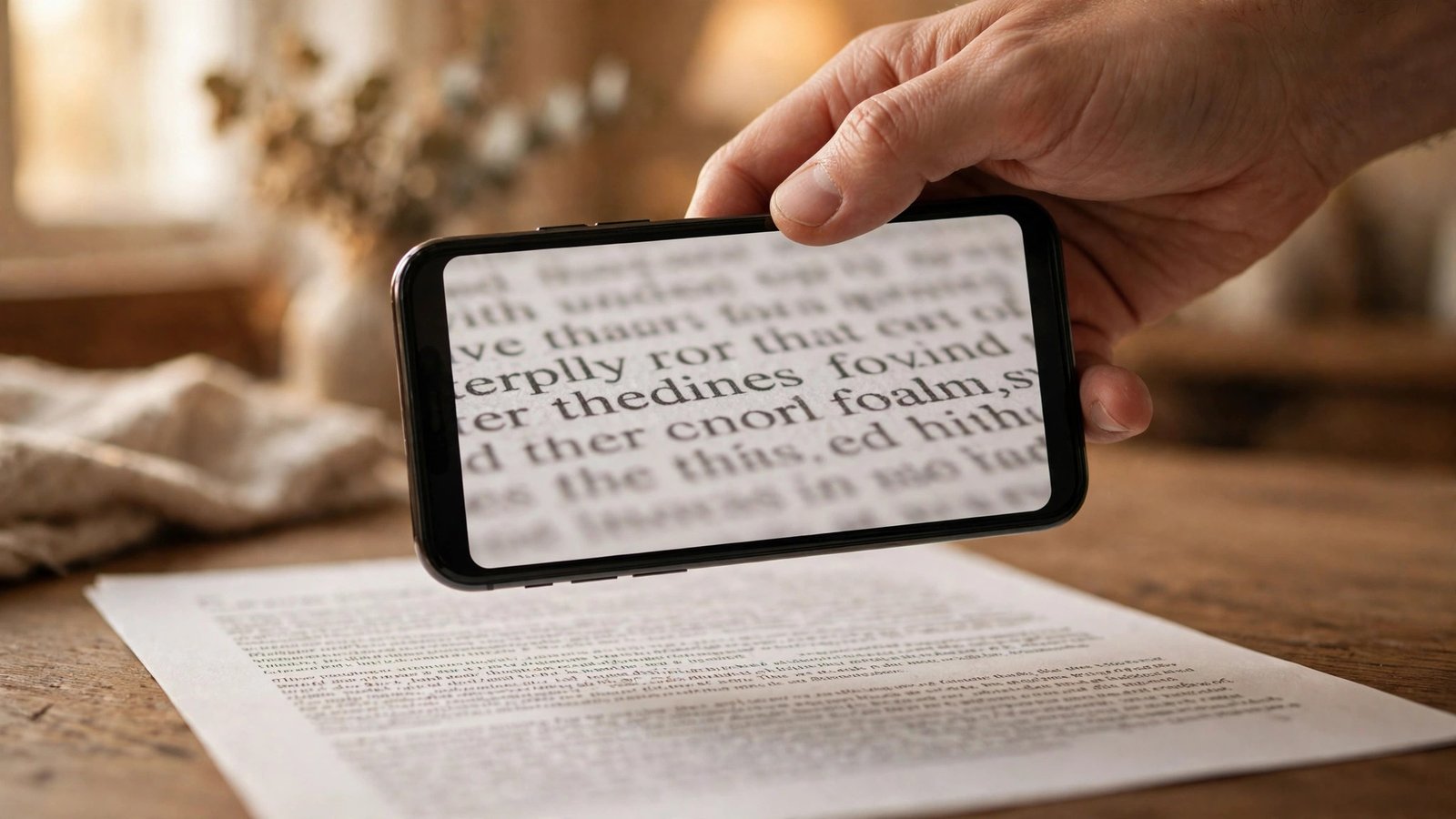
How to Use the Magnifier on iPhone and Android in the US
Small print is everywhere: on medicine bottles, restaurant menus in dim light, serial numbers on the back of a device, and instruction sheets printed in tiny type. Your phone already has a tool for this, and you do not need to download anything to use it. The magnifier turns your camera into a digital magnifying glass, with zoom, brightness, and contrast controls that make hard to read text much clearer.
This guide covers iPhone and Android in the US. The steps use the layout found in most recent versions of iOS and Android. If a menu looks slightly different on your phone, search Settings for "magnifier" and you should find the right setting.
Open the magnifier on iPhone
On iPhone, the magnifier lives in Accessibility, but you can add it to Control Center so it is always one swipe away. Open Settings, then Control Center, and add Magnifier to your included controls if it is not there already. Then swipe down from the top right corner to open Control Center and tap the magnifier icon, which looks like a magnifying glass.
You can also set it up as a shortcut. Open Settings, then Accessibility, then Magnifier, and switch it on. In the same place, you can add it to the Accessibility Shortcut, so triple clicking the Side button opens it.
Once the magnifier opens, point your camera at the text. Drag the zoom slider at the bottom to enlarge it, and use the brightness and contrast sliders to sharpen the view. You can freeze the image with the capture button, which is useful if your hand shakes or the object moves. After freezing, you can zoom in further on the still image and read it at your own pace, then tap again to return to the live camera view.
Open the magnifier on Android
Android does not use one single name for this tool, so the steps depend on your phone. On a Google Pixel phone, open Settings, then Accessibility, then Magnifier, and switch on the Magnifier shortcut. You can then start it from the accessibility button on screen or with a gesture, depending on the shortcut you choose. Point the camera at what you want to read and use the zoom controls on screen.
On a Samsung phone, look in Settings, then Accessibility, then Vision enhancements, for Magnifier. Switch it on and choose how to start it, such as triple tapping the screen with two fingers or using the accessibility button. Samsung phones also offer a separate Magnifier app on some models, which you can open from the app drawer if it is installed.
On other Android phones, search Settings for "magnification" or "magnifier." Some makers place it under Accessibility, while others place it under Vision or Display settings. If your phone does not include a dedicated magnifier, the camera app itself can help: open the camera, point it at the text, and pinch to zoom. It is not as smooth as a real magnifier, but it works in a pinch for a label or a menu.
Get a clearer view with filters and light
Zoom alone is not always enough, especially with faded print or glossy packaging that reflects light. The magnifier includes a few tools that make a real difference, and they are worth learning before you need them.
First, try the filters. On iPhone, tap the filters icon in the magnifier and try the inverted or grayscale options. White text on black can be much easier to read for some people, while grayscale can cut glare from shiny labels. On Android, look for contrast and color options in the magnifier settings, and try them one at a time until the text stands out.
Second, use the flashlight. Most magnifier screens include a torch button. Turning it on lights the page evenly and stops your shadow from falling across the text. Hold the phone steady, about 15 to 20 centimetres from the page, and move it slowly until the text is sharp. If the light creates a bright spot on glossy paper, tilt the phone slightly until the glare moves off the words.
Third, freeze and save when it matters. If you are reading a dosage label, a serial number, or a return address, freeze the image and take a screenshot. That gives you a copy you can check again later, or show to someone else, without holding the phone up a second time.
Fix it when the magnifier will not open
If you cannot find the magnifier, start with a Settings search. Type "magnifier" into the search box at the top of Settings on iPhone or Android. If nothing appears, check for a software update, since accessibility tools move between versions and older software may use a different name, such as "magnification gestures" on Android.
If the shortcut does nothing, check that you set it up correctly. On iPhone, triple clicking the Side button only opens the magnifier if you added it to the Accessibility Shortcut. On Android, the shortcut may need the accessibility button turned on in Settings before it appears on screen. Open the magnifier settings page and read the shortcut description there, since it shows the exact gesture for your phone.
If the image looks blurry, clean the camera lens with a soft cloth and hold the phone steadier. Rest your elbows on a table if you can, or prop the object against something instead of holding it in the air. Tap the screen to focus on the text, then adjust zoom slowly. Fast zooming makes blur worse, while slow, small changes let the camera catch up.
Frequently Asked Questions
Is the magnifier the same as zooming in the camera app?
Not quite. The camera app can zoom, but the magnifier adds brightness, contrast, and filter controls, plus a freeze button for reading still images. It is designed for reading small print, so it is easier to use for labels, menus, and documents.
Does using the magnifier cost anything?
No. The magnifier is built into iPhone and most Android phones, and it works without an internet connection. You do not need to buy an app or sign up for anything to use it.
Can I save what I see in the magnifier?
Yes. Freeze the image in the magnifier, then take a screenshot with your usual buttons. On iPhone, press the Side button and Volume Up together. On most Android phones, press Power and Volume Down together. The screenshot saves to your photos.





Post Comment