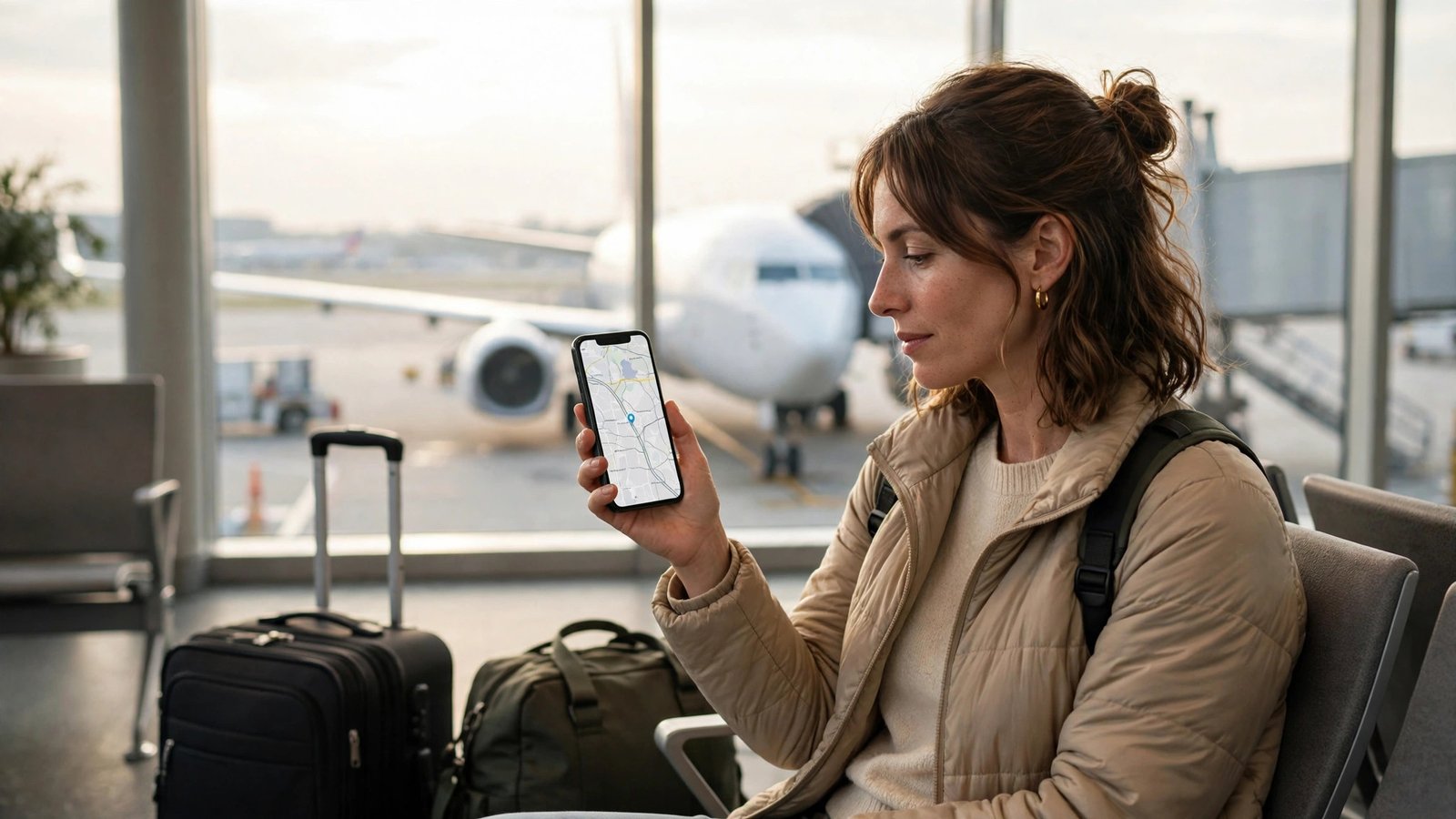
How to Use International Roaming on Your Phone in the US: Avoid Surprise Bills Abroad
Nothing ruins the first day of a trip like a warning text from your carrier about roaming charges. Roaming lets your phone connect to a partner network abroad, but the cost depends on your plan, so a few minutes of setup before you leave the US is worth it.
What international roaming actually is
When you leave the United States, your phone can no longer reach your carrier's own towers. Roaming is the agreement that lets it connect to a local carrier's network instead. Your US carrier then bills you for that use, either through a travel plan you already have or through daily passes and pay-per-use rates.
Roaming is not one price. Some plans include free data abroad at slower speeds, some charge a flat daily fee, and some charge per megabyte, per minute, or per text. Two travelers on the same flight can pay very different amounts, which is why the plan check comes first, before you touch any setting.
Step 1: Check your plan before you leave
Open your carrier's app or website while you are still home and look for the international or travel section. AT&T, Verizon, and T-Mobile each handle travel differently, and the details change often, so confirm the current terms for your exact plan.
Look for three things: free data abroad, a daily travel pass, and pay-per-use rates. T-Mobile's main plans have long included data in many countries at slower speeds, with options to buy faster passes. AT&T's International Day Pass and Verizon's TravelPass both charge a flat daily fee, typically around $12 a day per line, only on days you use your phone.
If your plan lacks a good travel option, add one before you fly. A daily pass is almost always cheaper than pay-per-use data. While you are in the app, check that your line is eligible for international use at all: a few prepaid and older plans block roaming unless you add a feature.
Step 2: Turn on roaming on iPhone and Android
On iPhone, open Settings, tap Cellular, then Cellular Data Options, and turn on Data Roaming. If you use two lines, pick the line you want to roam on first. Leave it on if you bought a daily pass or your plan includes roaming, since the pass is charged only on days you use your phone abroad. To avoid all roaming charges, leave Data Roaming off and use Wi-Fi only. Your phone will still connect to local networks for emergency calls.
On Android, the path varies a little by brand. Open Settings, tap Connections or Network and internet, then tap Mobile networks, and turn on Data roaming. On a Samsung phone the path is Settings, then Connections, then Mobile networks, then Data roaming. On a Pixel it is Settings, then Network and internet, then SIMs, then your SIM, then Roaming.
If you use two SIMs, make sure roaming is on for the right one. In the SIM settings, set Mobile data to the line you want to use abroad. If you use a travel eSIM for data, set it as the data line and leave roaming off on the US line. Before you travel, also check for a carrier settings update: on iPhone, go to Settings, then General, then About, and install any update offered.
Step 3: Pick the right option when you land
Once your plane lands, your phone should connect to a partner network within a minute. If it does not, toggle Airplane Mode once to force a fresh network search. If it still does not connect, switch network selection from automatic to manual in the network settings and pick a carrier from the list.
You have three ways to stay connected: your carrier's daily pass, which gives you your normal plan allowance for a flat daily fee; a local SIM or travel eSIM, which usually gives you more data for less money; or Wi-Fi only, which costs nothing but leaves you without maps or messages between hotspots.
For short trips, the daily pass is the easy choice. For trips over a week, a local eSIM often wins on price. Install the eSIM before you leave the US, since you need internet to download it, and keep your US line on for texts if you need two-factor codes from your bank.
Step 4: Keep data use under control
Roaming data is the part of the bill that grows fastest. Turn on Low Data Mode on iPhone or Data Saver on Android before you travel to stop apps refreshing in the background, and download offline maps for your destination while you are on Wi-Fi so navigation does not burn data all day.
Turn off automatic app updates and photo backup over mobile data, and set photo backup to Wi-Fi only. Video is the biggest data user of all, so save streaming for hotel Wi-Fi and download shows before you leave.
If roaming does not work
If your phone shows No Service abroad, work through the list: toggle Airplane Mode, restart the phone, check Data Roaming is on for the right line, then try manual network selection and pick a different local carrier. If none of that works, call your carrier's international support line, usually free from your phone even while roaming, or reach them through Wi-Fi chat. A common cause is an unpaid bill or a fraud hold, which the carrier can clear in minutes. Another is a phone still locked to a carrier, which matters for a local SIM, so request the unlock before you travel if you plan to use one.
Frequently Asked Questions
Do I need to turn on data roaming to use my phone abroad?
Yes, for mobile data. Without Data Roaming on, your phone will not use a foreign network for data, though Wi-Fi works. Turn it on with a daily pass or a roaming plan, and leave it off to avoid all roaming charges.
How much does international roaming cost from the US?
Daily travel passes from the major US carriers typically cost around $12 a day per line, charged only on days you use your phone. Some plans include free data abroad at slower speeds. Check your carrier's current terms before you travel.
Is a local eSIM cheaper than my carrier's roaming pass?
Often, yes, especially for trips longer than a week. A travel eSIM usually gives you more data for less money. Install it before you leave the US, since you need internet to download it, and set it as your data line in the SIM settings.




Post Comment