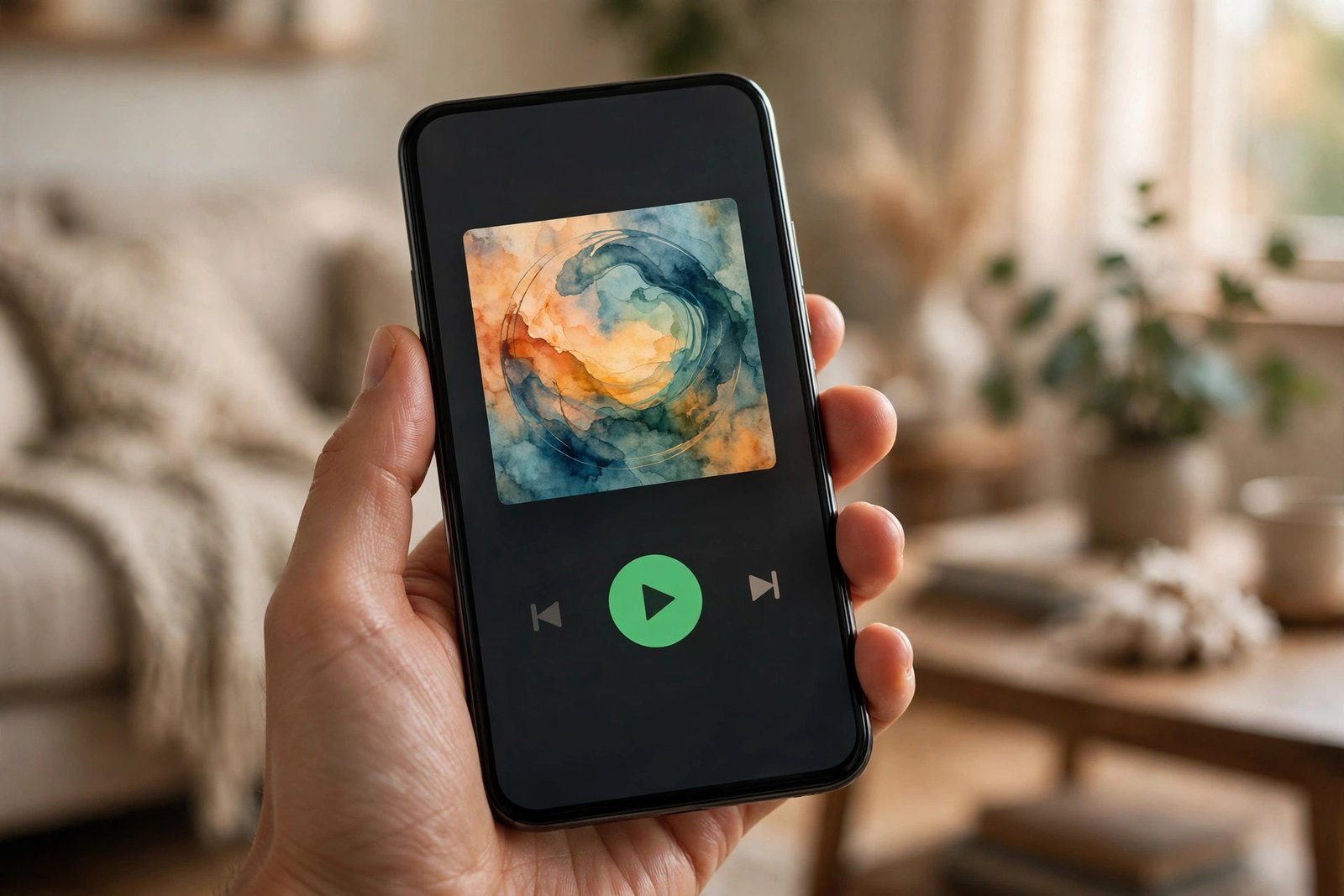
How to Use Spotify on iPhone and Android in the US
Spotify is the most popular music streaming app in the US, and it works the same way whether you carry an iPhone or an Android phone. You can listen for free with ads, or pay for Premium to skip ads, download songs and play anything on demand. This guide walks through setting it up, finding music and podcasts, building playlists and fixing the problems people run into most.
Step 1: install Spotify and create your account
Start by downloading Spotify from the App Store on iPhone or the Google Play Store on Android. Open the app and tap Sign up. You can create an account with an email address, or sign up with Google, Facebook or Apple, depending on what your phone offers. Pick a username and a strong password, and confirm your email if the app asks you to.
If you already have an account, just tap Log in instead. Your playlists, liked songs and listening history follow your account, not your phone, so everything will be there when you sign in.
Before you go further, check which plan you are on. The free plan plays music with ads, and on phones it mostly plays in shuffle mode. Spotify Premium, which costs a monthly fee in the US, removes ads, lets you pick any song on demand, and lets you download music for offline listening. You can compare the current plans in the app under Settings and then Premium, since prices change from time to time.
Step 2: find music, podcasts and audiobooks
The Home tab is where Spotify puts music it thinks you will like, including your daily mixes and new releases from artists you follow. The Search tab is where you look for something specific. Type an artist, song, album or podcast name, and Spotify shows matching results split into sections, so you can tap straight into the artist page or the exact track.
Try the search filters when the results are crowded. You can search for a mood, like "focus", or a genre, like jazz, and Spotify's editorial playlists, such as Today's Top Hits, are a good way to discover new songs without building anything yourself.
Podcasts live in the same app. Search for a show by name, tap Follow, and new episodes will show up in Your Library. Many popular podcasts also offer video episodes on phones. Audiobooks are available too, though on the free plan and some Premium plans the number of listening hours per month is limited, so check your plan details in the app.
Step 3: build playlists and save songs you love
Playlists are the heart of Spotify. To make one, go to Your Library, tap the plus sign, and choose Playlist. Give it a name, then add songs by tapping the three dots next to any track and choosing Add to playlist. You can also create a playlist straight from a song you are listening to.
When you hear a song you like, tap the heart or the plus button to save it to your Liked Songs. You can also follow artists, so their new releases appear on your Home screen, and share a playlist with friends by tapping Share and sending a link.
Step 4: download music for offline listening
Downloading is a Premium feature, and it is the one most people pay for. On a Wi-Fi connection, open a playlist or album, tap the download arrow, and Spotify saves the songs to your phone. A small green arrow shows what is ready to play offline.
This is useful on flights, on the subway, or anywhere your signal drops. To keep downloads from eating your mobile data, set downloads to Wi-Fi only under Settings, and pick a middle audio quality there if your phone is nearly full.
Downloaded songs stay on your phone as long as your Premium subscription is active and you connect to the internet at least once every 30 days. If a download disappears, check that you are still logged in and that the playlist is still set to download.
Step 5: control playback on other devices
Spotify Connect lets you move music between devices without missing a beat. Start playing a song on your phone, tap the speaker icon at the bottom of the player, and you will see nearby devices, such as a smart speaker, a TV or your computer. Tap one, and the music jumps over to it while your phone stays the remote.
If a device you do not recognize shows up in the list, sign out everywhere from your account page on Spotify's website, then change your password. This also fixes music that keeps pausing because someone else is using your account.
Step 6: fix the most common problems
If Spotify will not play a song, check your internet connection first, then force close the app and reopen it. If a song is greyed out, it is usually unavailable in your region or was removed by the artist or label, and there is nothing to fix on your end.
If the app keeps crashing, update it from the App Store or Play Store, then restart your phone. Clearing the cache can help too. On iPhone, delete and reinstall the app. On Android, go to Settings, then Apps, then Spotify, then Storage, and tap Clear cache. Do not tap Clear data unless you are ready to sign in again and re-download your offline music.
If your downloads keep disappearing, make sure your phone has free storage space, and check that Spotify has permission to store files. On Android, this lives under the app permissions in your phone settings.
Frequently Asked Questions
Is Spotify free in the US?
Yes, Spotify has a free plan in the US with ads. On phones, the free plan mostly plays albums and playlists in shuffle mode. Spotify Premium is a paid monthly subscription that removes ads, lets you pick any song on demand and lets you download music for offline listening.
Can I use the same Spotify account on iPhone and Android?
Yes. Your account, playlists, liked songs and listening history follow your login, not your phone. Sign in with the same email and password on any device and everything will be there.
Why are some songs greyed out on Spotify?
A greyed out song is usually unavailable in your region or was removed by the artist or record label. It can also happen if a song is only available on Premium. There is no setting on your phone that brings it back.


Post Comment