How to Use Google Lens in the UK: Identify Plants, Translate Signs and Shop Smarter
Google Lens turns your phone camera into a search tool. Point it at a plant, a sign, a menu or a product, and it tries to tell you what you are looking at. It can also translate text in a photo, copy printed words into your phone, and find similar items to buy. You do not need a new phone to use it, and in most recent versions it is built into tools you already have.
Step 1: Find Google Lens on your phone
On Android, Google Lens is often built into the Camera app, the Google app, or Google Photos. Open the Google app and look for the camera icon in the search bar, or open Google Photos, choose a photo, and tap the Lens icon. On some Android phones, Lens also appears as its own app in the app drawer.
On iPhone, there is no separate Lens button in the Camera app. The easiest route is the Google app, which is free from the App Store. Open it, tap the camera icon in the search bar, and Lens will open. You can also use Lens inside Google Photos by opening a photo and tapping the Lens icon. If you do not have the Google app yet, install it first and sign in with your Google account.
Step 2: Allow camera access and take a clear photo
Lens needs camera permission to work live. When it asks, choose to allow access while using the app. For the best results, hold your phone steady, get close enough that the subject fills a good part of the frame, and make sure there is enough light. Blurry photos, heavy shadows and text shot at a sharp angle all make recognition harder. If the first attempt fails, move a little closer, tap the subject on screen to focus, and try again.
You can use Lens in two ways. Live mode points the camera at something in real time. Photo mode works on a picture already saved on your phone, which is handy for screenshots, old photos and images a friend sent you. Both routes use the same recognition, so pick whichever fits the moment.
Step 3: Identify plants, animals and everyday objects
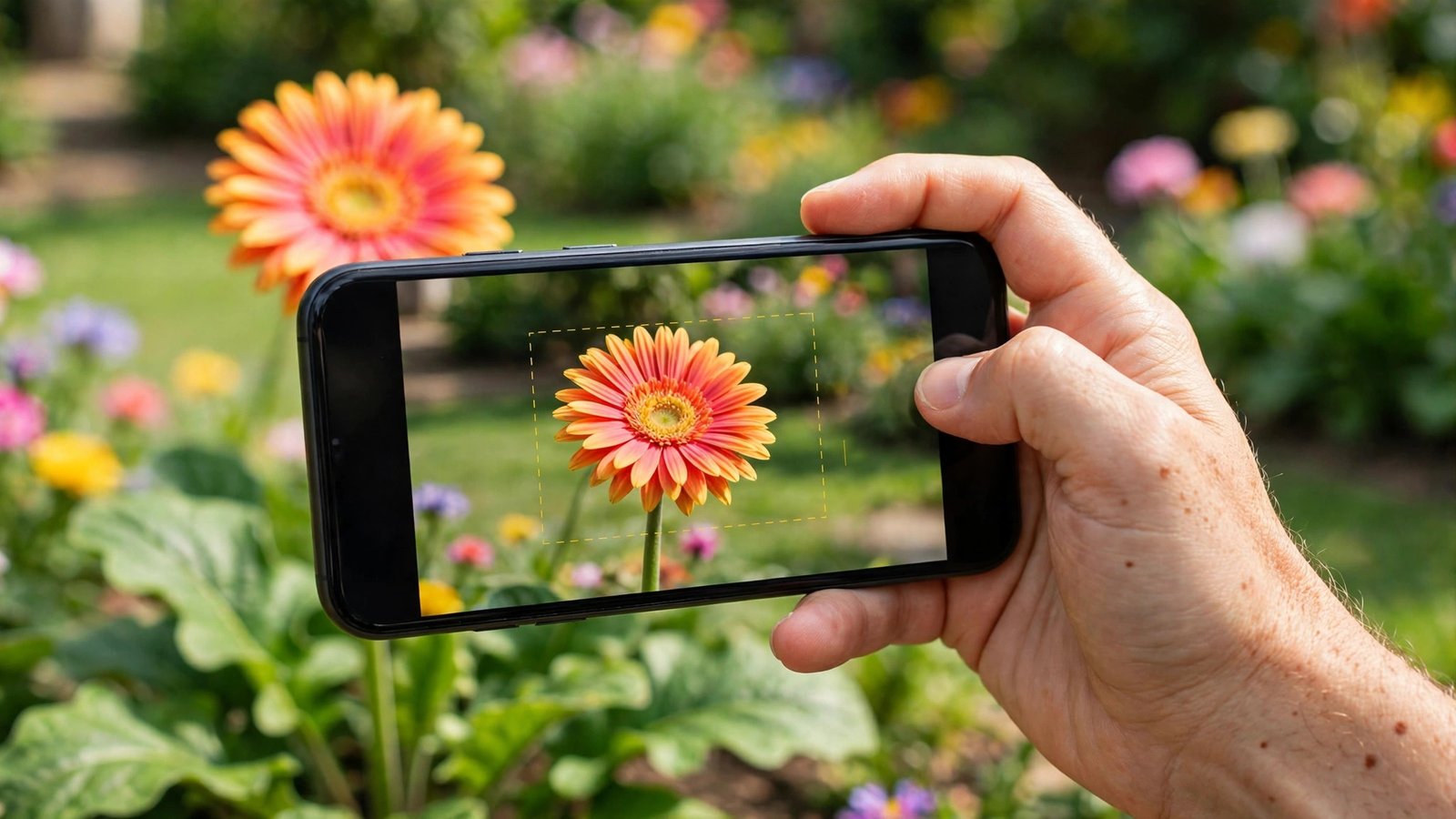
Point Lens at a plant or flower and tap the shutter button or the search icon. Lens will show visually similar results and, in many cases, a likely species name with links to learn more. The same approach works for dog breeds, landmarks, books, artwork and household objects. Treat plant and mushroom identifications as a starting point, not a final answer, especially before eating anything or letting pets near it. If two results disagree, check a second source or ask an expert.
For landmarks and buildings, Lens can often name the place and show opening times, reviews and directions. This is useful on days out in the UK, when a sign gives a name but no other details. Tap a result to open it in Search or Maps, and save the place if you plan to return.
Step 4: Translate signs, menus and documents
Translation is one of the most practical Lens features. Point your camera at a sign or menu in another language, choose Translate, and pick the languages involved. Lens will overlay translated text on the image in most recent versions. This works well for short phrases, street signs, food labels and hotel notices. Longer documents can be harder to read this way, so for a full page, photograph it first and use the photo version of Lens for a steadier result.
If you travel, download the language you need in the Google Translate app as a backup, since live translation can struggle without a good data connection. At home in the UK, Lens translation also helps with imported products, instructions written in another language, and homework or study materials.
Step 5: Copy text, solve homework and find products
Tap the Text option in Lens to select printed words from a photo. You can copy them into a note, a message or a document, which beats typing out a long serial number, a recipe or a quote by hand. Students can also use the Homework filter to search for help with a maths problem or a science question, though answers should always be checked against class notes and textbooks.
For shopping, point Lens at a product, a barcode-free item or a piece of clothing you like. Lens will show visually similar products and, where available, shops that sell them. This is useful when you see something in a friend's home or on a walk and want to find it online. Compare prices across sellers before buying, and check delivery and returns terms, since Lens results do not rank shops by trustworthiness.
Extra tips for better results
Keep your Google app and Google Photos updated, since Lens improves with app updates. Clean your camera lens, because a smudged lens causes more failed searches than most people expect. If Lens keeps guessing wrong, crop the photo so only the subject is visible, or search with a few extra words typed by hand. You can also turn off Lens search history in your Google account settings if you prefer not to keep a record of image searches.
Privacy is worth a quick thought too. Lens sends the image to Google to analyse it, so avoid pointing it at bank cards, identity documents, private letters or anything with passwords in view. For everyday subjects such as plants, signs and products, the trade is small, but sensitive documents are better kept out of image search altogether.
Frequently Asked Questions
Is Google Lens free to use in the UK?
Yes. Google Lens is free inside the Google app and Google Photos on iPhone and Android. You need a Google account and an internet connection for most features, and data charges may apply if you are not on Wi-Fi.
Can Google Lens identify plants accurately?
Lens often gives a likely match for common plants and flowers, but it is not always right, and similar species can look alike. Use it as a guide for learning and gardening, and never eat a plant or mushroom based on a Lens result alone.
Does Google Lens work without the Google app on iPhone?
On iPhone, Lens lives inside the Google app and Google Photos, so you need one of those apps installed. The built-in Camera app on iPhone does not include Google Lens, though it has its own visual lookup feature for some subjects.




Post Comment