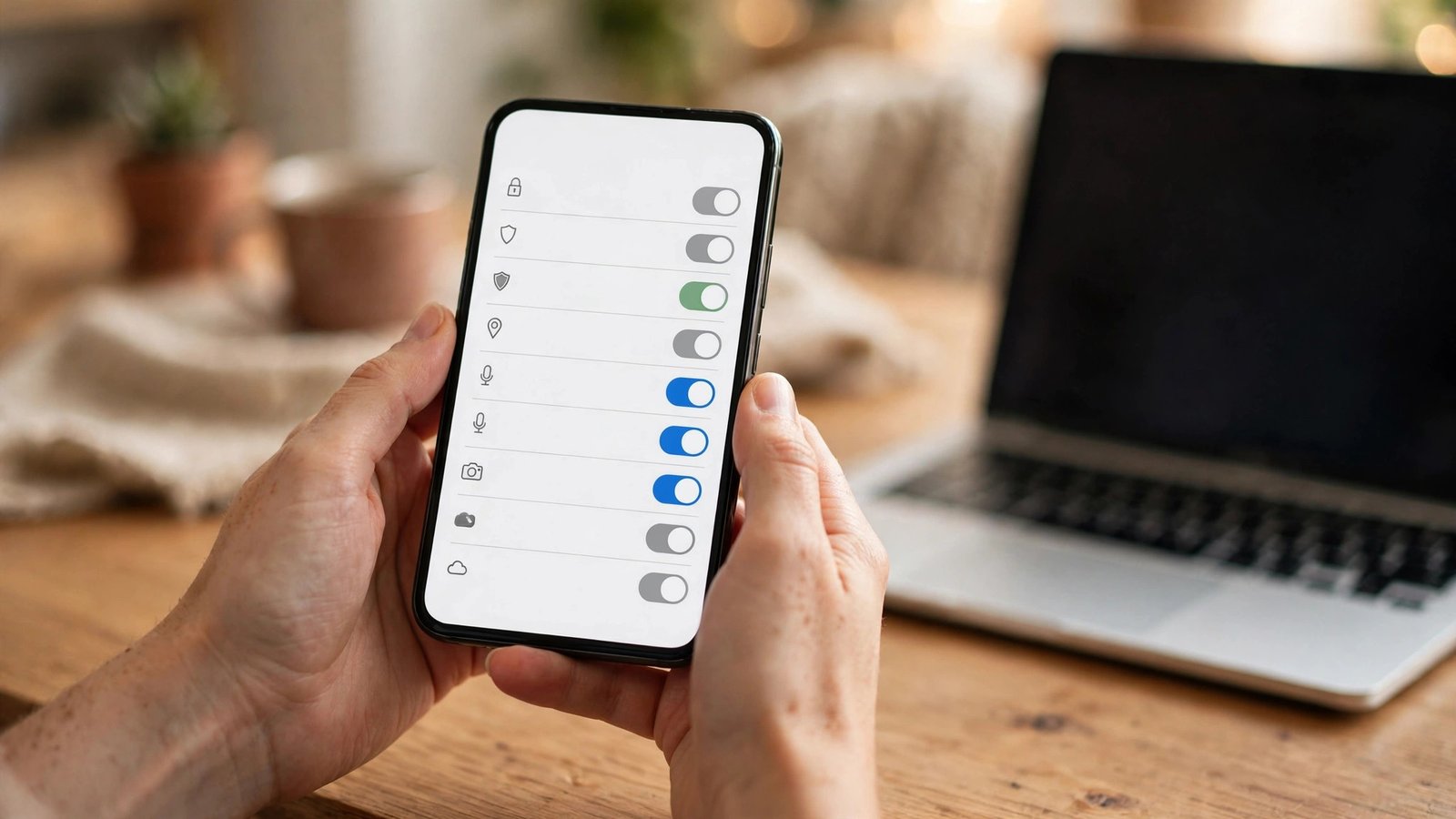
How to Stop AI Companies Using Your Data to Train Their Models in the UK
Most AI tools learn from the things people type, upload and post, and in many cases the setting that allows it is switched on by default. If you live in the UK, you have the right under UK data protection law to object, and most big AI services now offer a way to say no.
This guide walks through the opt-out steps for the main services, one by one. Menus move around as apps are updated, so if a setting is not exactly where described, look for Data Controls, Privacy, or AI training in the same area. Set aside ten minutes and work through the services you actually use.
ChatGPT: turn off model training
Open ChatGPT on your computer or phone and tap your profile picture or name to open Settings. In most recent versions, look for Data Controls. There you will find a switch called Improve the model for everyone. Turn it off. From that point, your new chats should not be used to train OpenAI's models.
This covers future conversations. Anything typed before switching it off may already have been used, and OpenAI says it keeps some data for safety monitoring even when training is off.
You can also request deletion of your account data from the same Data Controls area, which is a separate step from the training switch.
Google Gemini: pause Apps Activity and training
Google's Gemini assistant is tied to your Google account, so the controls live in your Google settings rather than only in the Gemini app. Go to myactivity.google.com, or open your Google Account and choose Data and privacy. Find Gemini Apps Activity and turn it off. With it off, your Gemini conversations are not saved to your account and are not used to improve Google's products.
Inside the Gemini app itself, look in Settings for an option about improving Google products or using your data for training, and switch it off if you see it. Turning off Apps Activity also stops your chat history being saved, so you will lose the ability to scroll back through old Gemini conversations.
If you use Gemini at work through Workspace, your organisation may control these settings instead.
Meta AI: object to training on Facebook and Instagram
Meta uses public posts from adults in the UK to train its AI models. Because this is based on legitimate interests under UK GDPR, you can object to it, and Meta has to consider that objection.
On Facebook or Instagram, go to Settings, then Privacy Centre, and look for the section about AI at Meta. In most recent versions there is a form to object to Meta using your information for AI training. Fill it in with your account details and submit it. Meta will send a confirmation once it has processed your objection.
The objection covers your public posts and profile information. Private messages are not used for training. Posts already used to train a model cannot easily be pulled back out of it, so setting your posts to friends only also helps.
Microsoft Copilot: check your privacy dashboard
Microsoft lets you control whether your Copilot conversations are used for training through your account privacy settings. Go to account.microsoft.com and open Privacy, then look for the Copilot or AI settings. In most recent versions there is a switch for model training on your conversations. Turn it off.
You can also clear your Copilot history from the same dashboard. If you use Copilot through work or school, your organisation's admin may control these settings.
X and Grok: switch off training on your posts
On X, Grok can be trained on your posts and your interactions with the chatbot. To stop this, open Settings and privacy, then Privacy and safety, then Grok. There you should find a switch labelled along the lines of allow your posts and interactions with Grok to be used for training. Turn it off.
This only affects your own account. If someone reposts your public posts, that copy can still end up in training data, so making your account protected is the stronger step.
LinkedIn: opt out of generative AI improvement
LinkedIn has a specific setting for generative AI training. Open Settings and privacy, then Data privacy, and look for Data for Generative AI Improvement. Turn that switch off. LinkedIn says this stops your data being used to train its generative AI models.
This is separate from the advertising settings on the same page.
What opting out does not do
Opting out is worth doing, but it has limits. First, it usually only covers new data. Content already used to train a model is hard to remove. Second, some data is still kept for safety and legal reasons even when training is off. Third, settings can reset after a major update or a new device, so check them every few months.
You can also reduce what is available to train on. Avoid typing sensitive details into chatbots, such as your address, health information or financial details. Keep social media posts private where you can, and use a temporary chat mode for anything you would rather not have stored.
Finally, remember you can ask any company what personal data it holds about you and object to how it is used. Those rights sit at the heart of UK GDPR. If a company refuses without a clear reason, you can complain to the ICO.
Frequently Asked Questions
Can I stop AI companies using my data for training in the UK?
Yes, in most cases. Under UK GDPR you can object to your personal data being used to train AI models, and the main services, including ChatGPT, Google Gemini, Meta, Microsoft Copilot, X and LinkedIn, each offer a setting or form to opt out. The exact steps differ by service, and the settings are usually found under Data Controls, Privacy, or AI training.
Does opting out delete data that was already used for training?
Usually not. Opting out normally stops your new chats, posts and uploads being used for future training, but content already used to train a model is very hard to remove. Some services also keep limited data for safety and legal reasons even after you opt out.
Do I need to opt out on every AI service separately?
Yes. There is no single switch that covers all companies. You need to change the setting in each service you use, and check again after major app updates, because menus move and settings can sometimes reset.





Post Comment