How to Free Up iCloud Storage on Your iPhone in the UK
That warning pops up at the worst moment. Your iPhone tells you iCloud storage is full, your photos stop backing up, and your messages stop syncing. The fix is usually simpler than it looks.
Every iPhone comes with 5 GB of free iCloud storage, and that fills up fast. This guide shows you how to see exactly what is using the space, clear the biggest culprits, and keep it under control afterwards.
Step 1: See what is using your iCloud storage
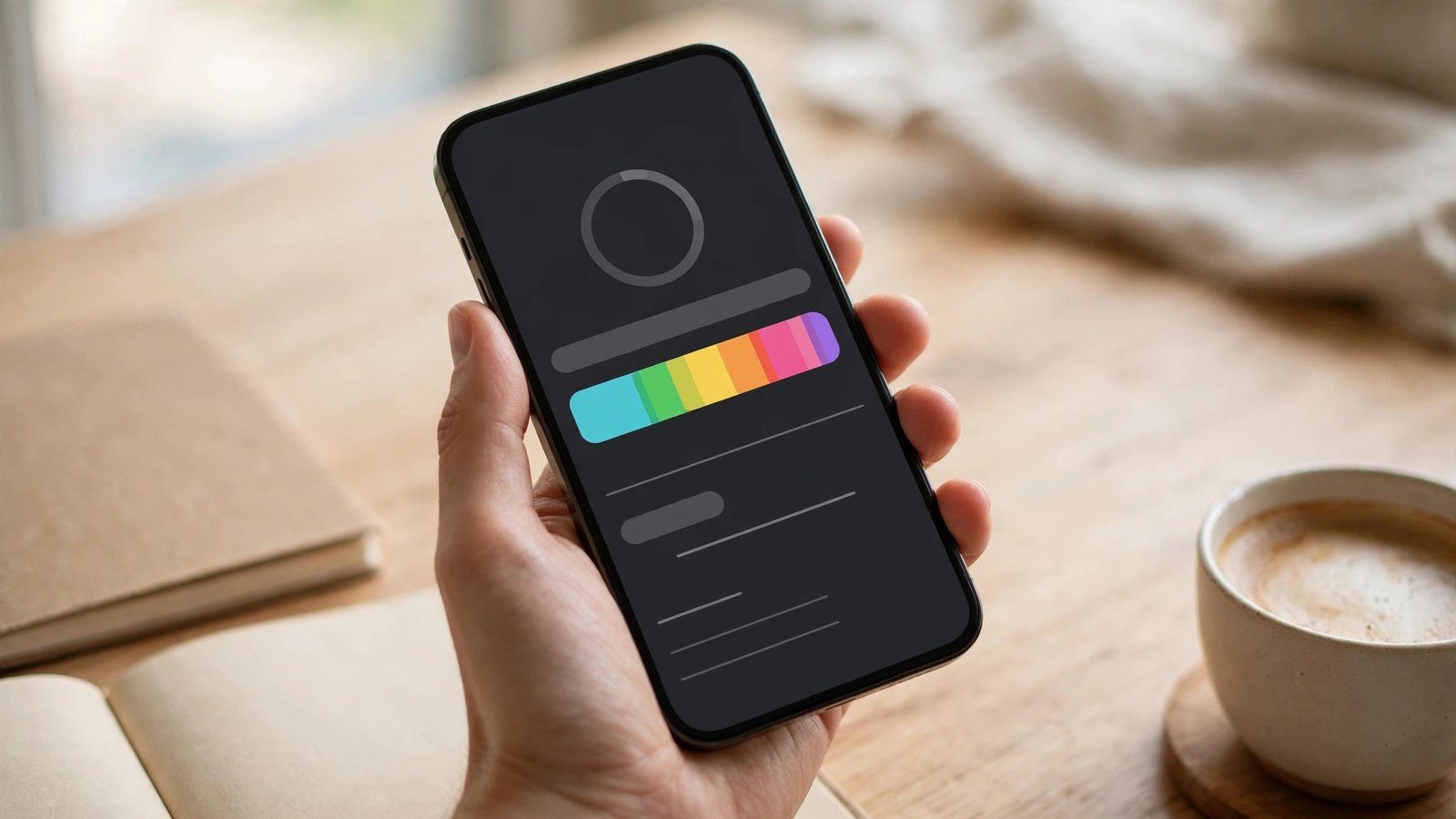
Open Settings, tap your name at the top, then tap iCloud. You will see a coloured bar showing how much storage you have used and how much is left.
Tap Manage Account Storage to see the full breakdown. Photos, backups and messages are usually the biggest items. The list is sorted by size, so the worst offenders sit at the top.
Take a screenshot or make a note of the numbers. You will want to compare them after you clean up.
Step 2: Clean up your photos first
Photos and videos are almost always the biggest part of a full iCloud account. Open the Photos app and look at your Recently Deleted album first. Deleted photos stay there for 30 days and keep using storage until they are gone for good.
Open Albums, scroll down to Recently Deleted, tap Select, then Delete All. This frees the space immediately. Be sure you really want those photos gone, because this step cannot be undone.
You can also turn off iCloud Photos for a while if you need breathing room, but a better long-term fix is to move older photos to your computer or an external drive. Connect your iPhone to a Mac or PC, copy the photos across, then delete them from the phone.
Step 3: Trim your iCloud backups
Your iPhone backs up its data to iCloud automatically, and that backup can be large. Go to Settings, tap your name, tap iCloud, then Manage Account Storage, then Backups.
Tap the backup for your iPhone and look at the list of apps included. Many apps back up data you will never miss, such as old games and apps you no longer use. Turn off backup for apps you do not need, and the next backup will be much smaller.
If you have an old iPhone or iPad listed in backups, delete its backup too. Old devices keep using storage long after you stop using them.
Step 4: Manage messages and mail
Messages can quietly use a surprising amount of iCloud storage, especially if you receive a lot of photos and videos in chats. Go to Settings, tap your name, tap iCloud, then Manage Account Storage, then Messages.
You can delete large conversations from inside the Messages app. Open a chat, tap the contact name, scroll down and look for the photos and videos shared in that conversation. Delete the ones you no longer need.
In the Mail app, large attachments also add up. Delete old emails with big attachments, then empty the Bin. Mail you delete stays in the Bin for a while and keeps using space until it is cleared.
Step 5: Check the apps using iCloud
Some apps store their data in iCloud even when you rarely open them. Go to Settings, tap your name, tap iCloud, then Manage Account Storage and look through the app list.
Tap any app that uses a lot of space and see what it stores. You can delete its iCloud data from that screen. Just be careful with apps you still use, because deleting their iCloud data can remove documents and settings you want to keep.
WhatsApp deserves a special mention. Its chats and media back up to iCloud separately, and that backup can be several gigabytes. Open WhatsApp, go to Settings, then Chats, then Chat Backup, and check the size. You can turn off video in the backup, which usually cuts it down a lot.
Step 6: Decide whether to pay for more storage
If you clear everything you can and still run out of space, you may simply need more. Apple sells iCloud+ plans in the UK with 50 GB, 200 GB and larger options, billed monthly. The cheapest plan costs a small monthly amount and usually ends the storage warnings for good.
Before you pay, ask yourself what is filling the space. If the answer is thousands of photos you never look at, a storage plan is a quick fix but not a real solution. If the answer is a genuine collection you want to keep, paying for more space is the sensible choice.
You can change or cancel an iCloud+ plan at any time from the same iCloud settings screen, so there is no long commitment.
Step 7: Keep it under control
A little maintenance keeps the warning away. Once a month, empty Recently Deleted in Photos and check your iCloud storage bar. Delete old device backups when you upgrade your phone.
Turn on Optimise iPhone Storage if it is not already on. Go to Settings, tap Photos, and choose Optimise iPhone Storage. This keeps small versions of your photos on the phone and stores the full versions in iCloud, which saves space on the device itself.
Review your app backups after installing new apps. Some apps switch on iCloud backup by default, and their data grows quietly in the background.
Frequently Asked Questions
How much free iCloud storage does an iPhone have?
Every iPhone comes with 5 GB of free iCloud storage, shared across photos, backups, messages and app data. That amount has stayed the same for years, and it fills up quickly once photos and backups start syncing.
Will deleting photos from iCloud delete them from my iPhone?
It can, because iCloud Photos keeps your library in sync across devices. If you delete a photo while iCloud Photos is on, it disappears from your iPhone and from iCloud. Copy photos to your computer first if you want to keep them.
Why is my iCloud storage full when I hardly have any apps?
Photos, videos and device backups are usually the cause, not apps. A single iPhone backup can be several gigabytes, and long videos use far more space than most people expect. Check the storage breakdown in iCloud settings to see the real culprits.


Post Comment