How to Set Up Emergency SOS on iPhone and Android in the UK
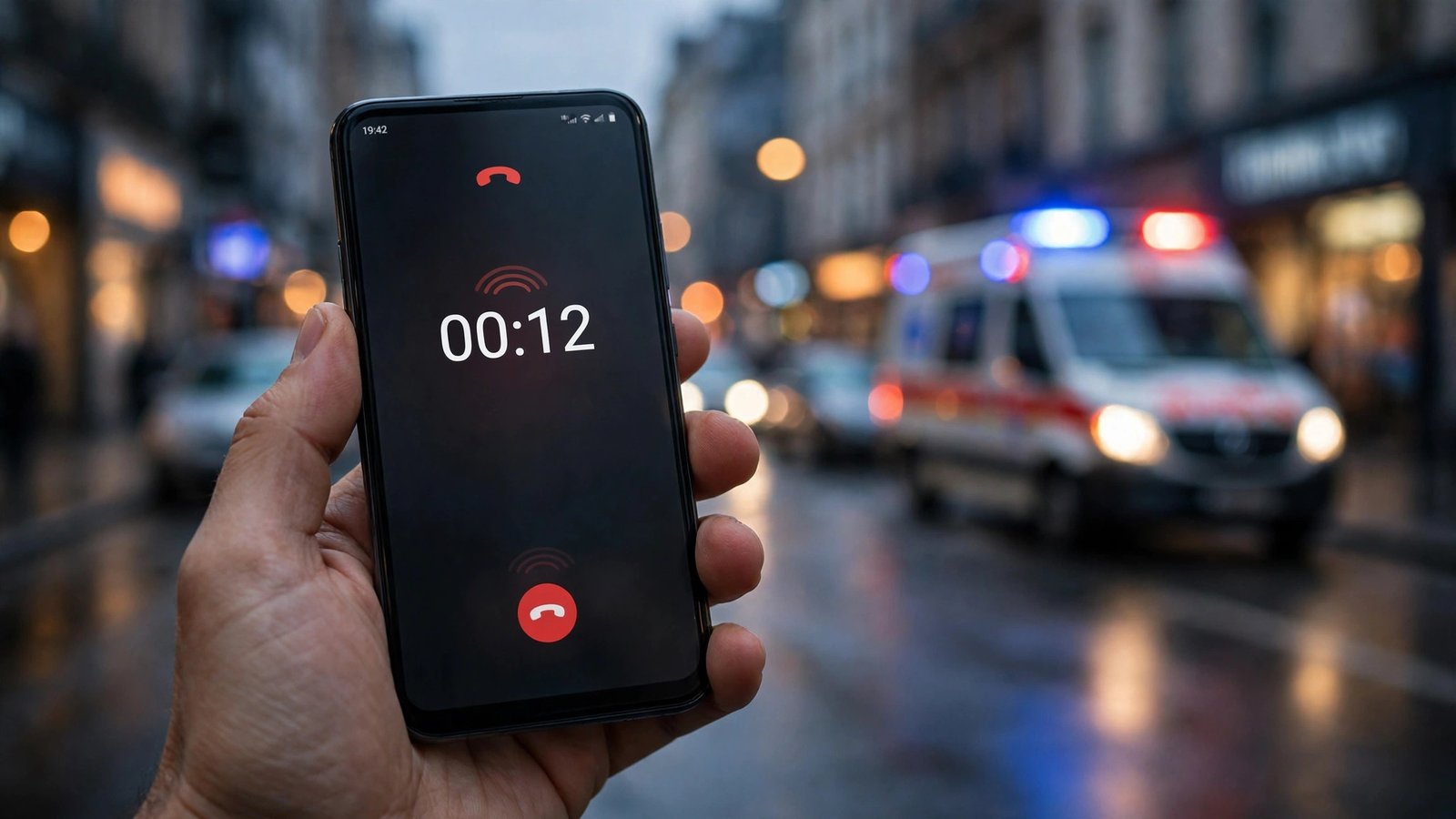
Nobody plans to need Emergency SOS. That is the whole point of it. When something goes wrong, you want your phone to help without you having to think, unlock screens or remember numbers. Both iPhone and Android have a built-in Emergency SOS feature that can call 999, alert people you trust and share your location, but it only works well if you set it up before you need it.
What Emergency SOS does
Emergency SOS is a shortcut for getting help fast. On most phones, pressing the side or power button several times in a row starts a countdown and then calls the local emergency number, which is 999 in the UK. Your phone can also send a message to your emergency contacts with your current location, and keep updating that location for a while afterwards.
On iPhone, the feature can also play a loud alarm sound during the countdown, which helps draw attention if you are in a public place. On Android, the exact behaviour varies a little by brand, but the core idea is the same: a fast, simple way to reach emergency services without unlocking your phone or opening the dialler.
Step 1: Set up Emergency SOS on iPhone
Open Settings, then tap Emergency SOS. You will see a few switches. Turn on Call with Hold and Release if you want holding the side button and a volume button together to start the countdown. Turn on Call with 5 Button Presses if you would rather press the side button five times quickly. You can leave both on if you like.
In most recent versions of iOS, you can also choose a countdown sound. Leaving the sound on is a good idea, since the alarm can alert people nearby. Below these options you will find your emergency contacts. If none are listed, go to the Health app, tap your profile picture, then Medical ID, then Edit, and add people under Emergency Contacts. Choose people who are likely to answer their phone at any hour, and tell them you have added them.
Step 2: Set up Emergency SOS on Android
Android phones differ by maker, so the menu names are not identical everywhere. Open Settings, then search for "Emergency SOS" in the settings search bar. That search step saves a lot of tapping around, since Samsung, Google Pixel and other brands bury the option in different places.
On a Google Pixel, go to Settings, then Safety and emergency, then Emergency SOS. Turn the feature on, choose whether to play an alarm sound, and decide whether your phone should share your location with emergency contacts. On a Samsung phone, look in Settings under Safety and emergency, then Emergency SOS, where you can switch it on and pick your emergency contacts.
Add at least two emergency contacts if you can, and make sure the phone numbers are current. Also confirm that location permission is allowed for the emergency feature, since location sharing is one of the most useful parts of it.
Step 3: Make sure your phone can reach 999
A phone without a signal cannot call anyone, but emergency calls are a special case. In the UK, a mobile phone can call 999 even if it has no SIM card or no service from your own network, as long as it can reach any available network. That is a useful fact to know, but do not rely on it in remote areas with no coverage at all.
If you live in or travel through rural parts of the UK, it is worth checking your network's coverage map before a trip. If you walk or drive in remote areas regularly, consider telling someone your route and expected return time as well, since no phone feature replaces that basic safety habit.
Step 4: Tell your emergency contacts
Setting up the feature is only half the job. The people on your list need to know what will happen if they get that alert. Tell them they may receive a message saying you have called emergency services, along with a map link showing your location. Ask them to answer unknown numbers if such an alert comes through, and agree on what they should do: call you back, head to your location, or call 999 themselves with the details.
This conversation takes two minutes and makes the whole system work. An alert that lands on a phone belonging to someone who ignores unknown numbers will not help much. If your main contact works nights or travels often, add a second contact with different hours so someone is usually reachable.
Step 5: Keep the setup current
Emergency SOS is not a set-and-forget feature. Review it once or twice a year, or whenever something changes. New phone? Set it up again from scratch, since settings do not always carry over. Changed your emergency contact's number? Update it. New medication or allergy? Update your Medical ID on iPhone or your emergency information on Android.
It also helps to show family members, especially older relatives, how the shortcut works on their own phones. Walk them through the button presses and explain the countdown, so they are not startled by the alarm sound if it ever goes off by accident. If it does go off by accident and a call connects, stay on the line and tell the handler it was a mistake rather than hanging up.
Emergency SOS takes about five minutes to set up and costs nothing. It will probably never be used, and that is the best outcome. But if the day comes when you need help and cannot make a normal call, those five minutes will have been well spent.
Frequently Asked Questions
Does Emergency SOS call 999 automatically in the UK?
Yes, once the countdown finishes, your phone calls 999, the UK emergency number. You can cancel during the countdown if you triggered it by accident, but once the call connects, stay on the line and explain the mistake.
Can I test Emergency SOS without calling 999?
You can practise the button presses and check your settings, but do not complete a real call to 999 for a test, since that ties up emergency handlers. Cancel during the countdown before the call connects.
Who gets notified when I use Emergency SOS?
Your chosen emergency contacts receive a message with your location, and your phone can keep sharing location updates with them for a period afterwards. Make sure your contacts know they are on the list and what to do if they get an alert.



Post Comment