How to Use Dark Mode on iPhone and Android in the US
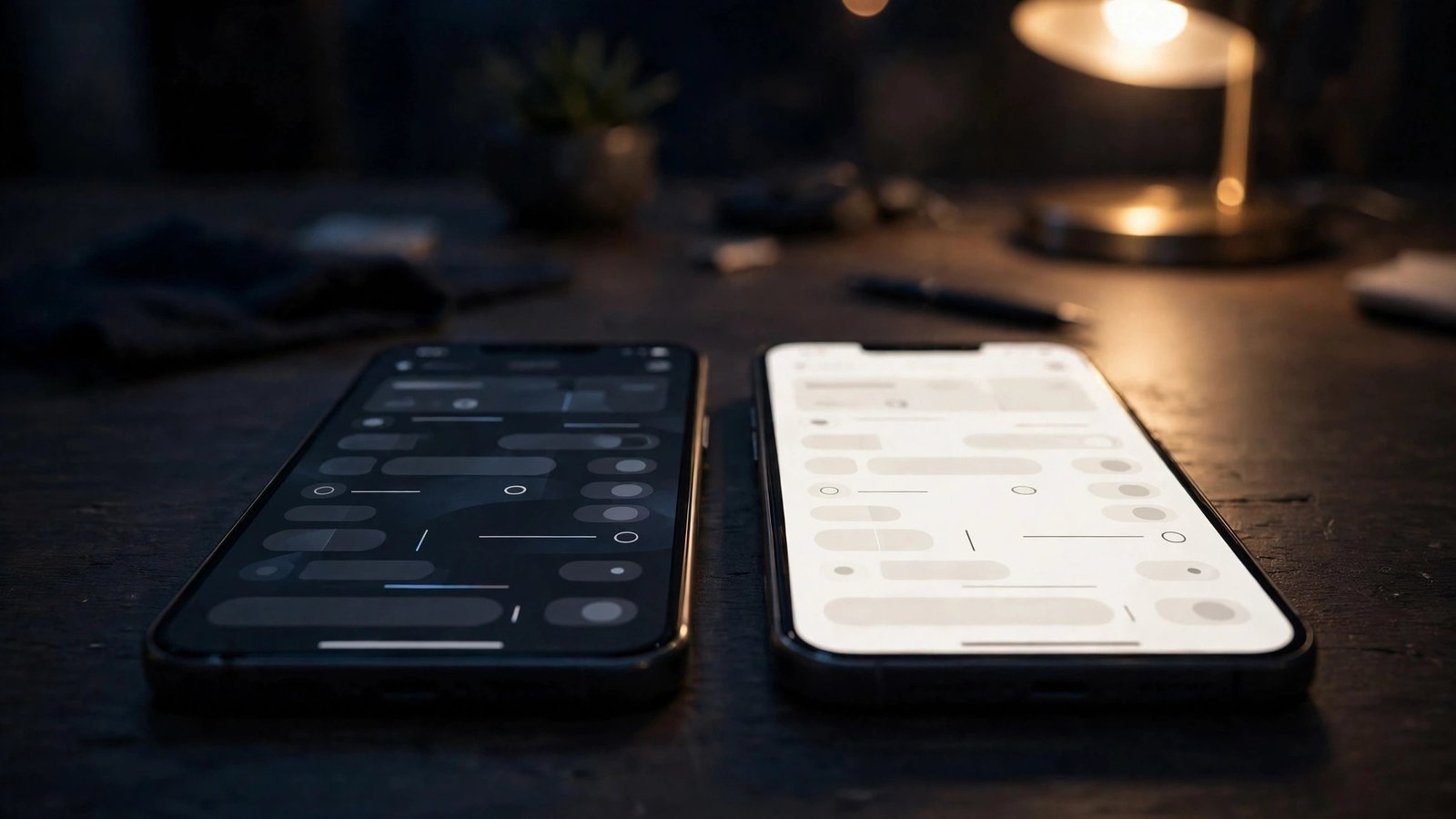
Dark mode flips your phone's bright white screens to dark backgrounds with light text. Many people find it easier on the eyes at night, and on phones with OLED screens it can save a little battery. Both iPhone and Android have it built in, and most popular apps follow the system setting automatically. Here is how to turn it on, schedule it, and fix the apps that refuse to cooperate.
Turn on dark mode on iPhone
On an iPhone, dark mode lives in the display settings, and it takes about ten seconds to switch on.
- Open Settings, then tap Display and Brightness.
- Under Appearance, tap Dark. Your menus, Messages, Mail, and most Apple apps switch immediately.
- If you want the switch to happen on its own, turn on Automatic, then choose either Sunset to Sunrise or a custom schedule with your own times.
- To toggle it fast, open Control Center by swiping down from the top right corner, then press and hold the brightness slider and tap the Dark Mode button.
One detail: the Automatic schedule uses your location for sunset and sunrise times, so location services need to be on for that option to work well. If you set a custom schedule instead, no location is needed. In most recent versions of iOS, your wallpaper can also dim slightly in dark mode, which keeps the home screen from glaring at night.
Turn on dark mode on Android
Android phones vary a little by brand, but the setting is in the same place on nearly all of them.
- Open Settings, then tap Display.
- Tap Dark theme (on Samsung phones it is called Dark mode) and switch it on.
- To schedule it, tap the schedule option on the same screen if your phone offers one. Pixel phones let you pick Sunset to sunrise or a custom time range, and Samsung phones offer a similar schedule under the same menu.
- For a quick toggle, swipe down twice from the top to open Quick Settings, then tap the Dark theme tile. If you do not see it, tap the pencil or edit icon and add it.
Once the system setting is on, apps that support dark mode, including Gmail, YouTube, Chrome, and most social apps, switch to match. A few older apps still have a light-only design, and those will stay bright no matter what the system says.
Make your apps follow the system setting
Most apps today have three choices: light, dark, or follow the system. The follow-the-system option is the one you want, because it keeps everything consistent when your schedule flips at sunset.
In Gmail, tap the menu icon, then Settings, then General settings, and set Theme to System default. In YouTube, tap your profile picture, then Settings, then General, and set Appearance to Use device theme. In Chrome, tap the three-dot menu, then Settings, then Theme, and pick System default or Device. In WhatsApp, go to Settings, then Chats, then Theme, and choose Default, which tracks the system in recent versions. In Facebook and Instagram, the dark setting is under Settings and privacy, and both offer a system option.
If an app still looks bright after you change the system setting, check its own theme menu first. That is the cause in most cases. If the app has no dark option, it has not added one yet, and no phone setting can force it.
Schedule dark mode for sunset and save battery
A schedule is the easiest way to live with dark mode. Set it to turn on at sunset and off at sunrise, and you never have to think about it. Your phone is bright during the day when you need readability in sunlight, and dark at night when a glowing white screen feels harsh.
On OLED screens, which most current iPhones and many Android phones use, dark mode can also stretch battery life a little. OLED pixels that show true black are switched off, so a dark screen draws less power than a white one. The saving is modest in normal use, because photos, videos, and bright app content still light up plenty of pixels. On LCD screens, which some budget Android phones still use, the backlight stays on either way, so the battery effect is close to zero.
Fix the common problems
Dark mode is simple, but a few quirks trip people up. If only some apps changed, check each app's own theme setting, as described above. The system setting is a request, not a command, and apps with their own theme menus can ignore it.
If dark mode turns on at the wrong time, check your schedule. A custom schedule with the wrong AM and PM times is the usual culprit, and on iPhones the sunset option needs location services to know your local sunset time.
If text becomes hard to read, the problem is usually an app that inverts colors badly or a wallpaper that clashes with dark menus. Try a darker wallpaper, and turn off any accessibility color inversion you may have enabled by accident, since that setting fights with dark mode.
If your phone feels dim during the day, remember that dark mode does not change your brightness. If auto-brightness has turned the screen down in a dark room, nudge the brightness slider up manually and it will adapt from there.
Frequently Asked Questions
Does dark mode really save battery?
On phones with OLED screens, yes, a little. Black pixels on an OLED panel are switched off, so dark screens draw less power than white ones. The saving is modest in everyday use, because photos and videos still light up the screen. On LCD screens there is almost no battery difference, since the backlight stays on regardless.
Why do some apps stay bright when dark mode is on?
Because the app has its own theme setting that overrides the system, or because the app has no dark design at all. Open the app's settings and look for a theme or appearance option, and set it to follow the system or device theme. If there is no such option, the app simply does not support dark mode yet.
Can I schedule dark mode to turn on only at night?
Yes. On iPhone, go to Settings, then Display and Brightness, turn on Automatic, and pick Sunset to Sunrise or a custom schedule. On most Android phones, go to Settings, then Display, then Dark theme, and choose a sunset schedule or custom times if your phone offers scheduling.


Post Comment