How to Copy Text From Photos on iPhone and Android in the US
A photo of a receipt, a whiteboard, a street sign or a printed page often contains text you need somewhere else: an address, a phone number, a quote or a recipe ingredient. Retyping it is slow and easy to get wrong. Both iPhone and Android can read that text for you in most recent versions, and copy it straight into a message, note or document. The steps below cover the fastest method on each phone, plus fixes for when the text will not select.
Step 1: Copy text from a photo on iPhone with Live Text
On iPhone, Live Text works in the Photos app and in Camera. Open Photos and choose a picture that contains clear text. If Live Text is available, you will see a small text icon in the bottom corner of the photo. Tap it, then press and hold on the words you want. Drag the handles to select more text, then tap Copy.
You can also paste the text right away. Tap in a note, message or email, then tap Paste. Live Text can recognize phone numbers, email addresses and web addresses too. Tap a recognized phone number to call it, or tap an email address to start a message. That shortcut saves a step when you are copying contact details from a business card or a flyer.
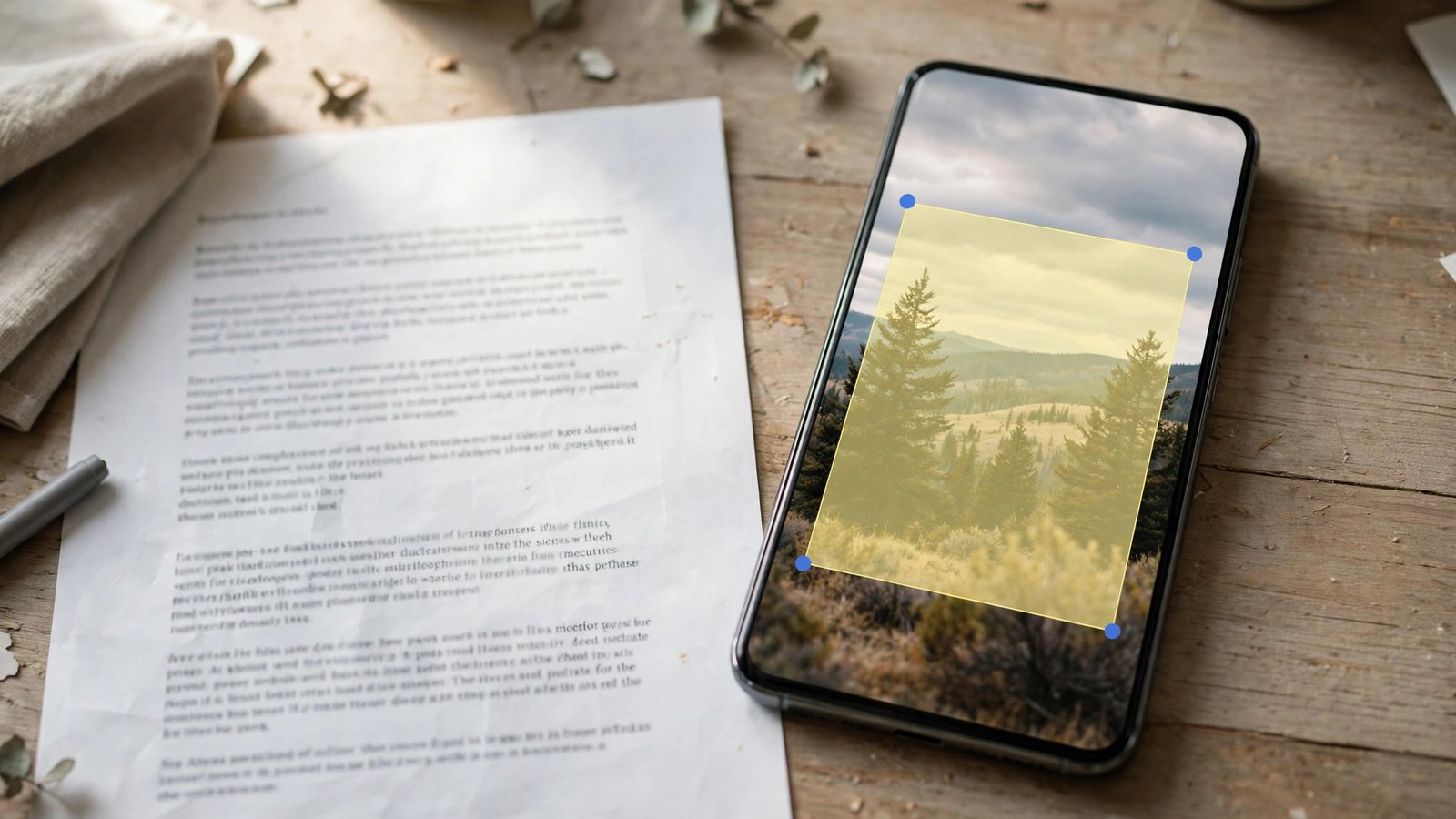
Live Text also works live through Camera. Point your camera at a sign, menu or document, wait for the yellow brackets or text icon to appear, then tap the text icon. Select the words on screen and tap Copy, or tap the option to translate if it appears. This is useful for a quick address or opening hours, when you do not want to take a photo at all.
Step 2: Copy text from a photo on Android with Google Lens
On Android, the easiest route is Google Lens. Open the Google app or Google Lens, then tap the camera or gallery icon and choose your photo. Lens will scan the image and highlight the text it finds. Tap Select all to grab everything, or drag to select part of it, then tap Copy text.
You can also use Google Photos. Open a photo in Google Photos, tap the Lens icon at the bottom, then select the text and copy it. On Samsung phones, you may see a similar option called Extract text or a Lens button in Gallery, depending on the model and Android version. The names vary, but the result is the same: the phone reads the printed text and lets you copy it as editable words.
If Lens does not appear, install the Google Lens app or the Google app from the Play Store and sign in. No extra setup is needed beyond granting camera and photo access. Lens works best on printed text, signs and documents. Handwriting can work too, but results depend on how clear the writing is.
Step 3: Copy text from a screenshot or a document photo
Screenshots work the same way as photos, and they are often easier to read because the text is sharp and flat. Take a screenshot of a web page, chat or document, then open it in Photos on iPhone or Google Photos on Android and follow the steps above. Select only the part you need, so you do not paste extra menus or timestamps by accident.
For a longer document, take the photo straight on, with good light and the page filling most of the frame. Avoid shadows across the text and keep the phone steady. If the page is curved, as in a book, flatten it as much as you can and photograph one page at a time. A second photo taken closer up often reads better than one wide photo of two pages. After copying, read through the pasted text once. The phone may misread a similar looking letter, such as a zero and the letter O, especially in small print.
Step 4: Paste, edit and share the copied text
Once the text is copied, open the app where you need it: Notes, Google Keep, Gmail, Messages or a document app. Tap and hold in the text field, then tap Paste. Clean up line breaks, because text copied from a photo often pastes with extra breaks where the original lines ended. Join short lines into sentences, fix any misread characters, and check numbers carefully. Phone numbers, prices and addresses deserve a second look before you send them.
If you need the text often, save it in a note with a clear title and the date.
Step 5: Fix it when text will not select
If no text icon appears on iPhone, check that Live Text is turned on. Open Settings, tap General, tap Language and Region, then make sure Live Text is enabled. Live Text needs a supported iPhone model and a recent iOS version, so update iOS if the option is missing. If the photo is blurry, dark or taken at a steep angle, retake it with better light and a straighter angle.
On Android, if Lens finds no text, try a clearer image or a closer crop. Crop the photo to the text area first, then run Lens again. A crop removes background clutter and gives the reader a larger, sharper target. For sensitive documents, such as IDs or bank letters, think before uploading a photo to a cloud service. Copy the text you need, then delete the photo or move it to a locked folder if your phone offers one.
Frequently Asked Questions
Why does Live Text not appear on my iPhone photo?
Live Text needs a supported model and a recent iOS version, and it must be enabled under Settings, General, Language and Region. It also needs clear, readable text in the image. Try a sharper photo taken straight on, with good light.
Can Android copy text from any photo?
Most Android phones can, through Google Lens or Google Photos, in most recent versions. Printed text works best. Handwriting, fancy fonts and very small print may read less accurately, so always check numbers and names after pasting.
Is it safe to copy text from sensitive documents?
Copy only what you need, and be careful with photos of IDs, bank letters or medical papers. Avoid leaving those photos in a shared album, and delete them or move them to a locked folder after you have copied the text you need.



Post Comment