How to Copy Text From a Photo on iPhone and Android in the US
Copying text from a photo sounds like a small trick, but it saves a surprising amount of typing. You can grab an address from a flyer, copy a recipe from a cookbook page, pull a tracking number from a screenshot, or save a quote from a sign without retyping it letter by letter. On most recent iPhones and Android phones, this is built in. You just need to know where to look, because the feature hides under different names on each platform.
The results depend on the photo. Clear, well lit text copies far better than blurry, angled, or handwritten text. If the first try fails, a closer crop or a brighter photo often fixes it.
Step 1: Copy text from a photo on iPhone with Live Text
On iPhone, the feature is called Live Text. Open the Photos app and open a photo that contains text. In most recent versions of iOS, you will see a small text icon in the corner of the photo when text is detected. Tap that icon, or simply long press directly on the words in the photo, and the text should highlight. Drag the handles to select exactly what you need, then tap Copy.
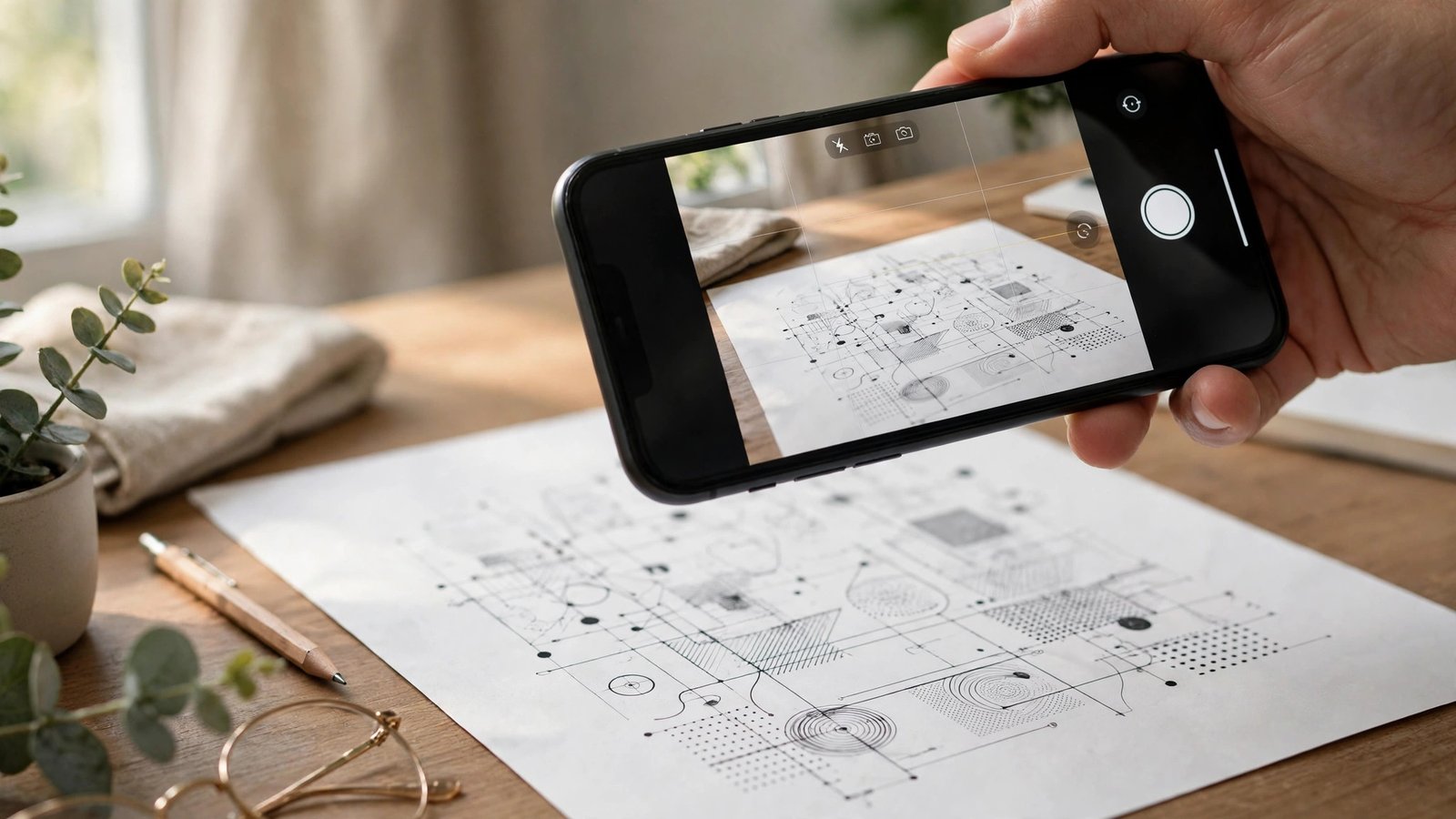
You can also use Live Text in the Camera app. Point the camera at printed text, wait for the yellow brackets or text icon to appear, and tap it to select and copy the text without taking a photo at all. That is handy for signs, menus, and documents when you only need a line or two.
Once copied, paste the text into Notes, Messages, Mail, or any app that accepts text. Long press in the text field and choose Paste. Read the pasted text once before you send it, because Live Text can misread similar looking letters, especially in small print or decorative fonts.
Step 2: Copy text from a photo on Android with Google Lens
On Android, Google Lens is the usual tool for this job. Open Google Photos and open the photo you want to use. Tap the Lens icon, then tap the text option if it appears. Lens will scan the image and highlight the text it finds. Tap Select all to grab everything, or drag to select a smaller section, then tap Copy text.
You can also open the Lens app directly, or use Lens from the Google app or the camera app on many Android phones. The steps vary slightly by brand, but the pattern is the same: open Lens, point it at the photo or the real world text, select the words, and copy them.
Some Android phones also include text selection in their own gallery app. Samsung Gallery, for example, has offered a text extraction option in many recent versions when you view a photo and tap the relevant icon. If Lens is not installed, installing Google Lens from the Play Store is the simplest route for most Android users in the US.
Step 3: Copy text from a screenshot without extra apps
Screenshots work the same way as photos, which makes this trick useful for messages, receipts, and web pages. On iPhone, take the screenshot, open it in Photos, and use Live Text to select the words. On Android, open the screenshot in Google Photos and use Lens, or check whether your gallery app offers text selection directly.
This is especially handy for tracking numbers, confirmation codes, and addresses that arrive as images. Instead of switching back and forth between apps to retype a long code, copy it from the screenshot and paste it where you need it. Just be careful with sensitive screenshots. A copied code pasted into the wrong chat is easy to do and hard to undo, so check the destination before you send.
Step 4: Fix text that will not select or copies badly
If no text is detected, try the simplest fixes first. Make sure the photo is sharp and the text fills a good part of the frame. Crop the photo to cut out clutter around the words, then try again. Brighten a dark photo, or retake it with steadier hands and better light if you still have the original in front of you.
Handwriting is the most common failure. Printed text copies far more reliably than cursive or messy handwriting. Fancy fonts, curved text on bottles, and text at a steep angle can also confuse the scan. In those cases, copy a smaller section at a time, or type the few words that fail while letting the tool handle the rest.
If the feature seems missing entirely, update your phone software and your Photos, Lens, or Gallery app. Live Text needs a recent iOS version and a supported iPhone model, and Lens needs an up to date Google app on Android. Older phones may support only part of the feature, or none of it.
Step 5: Put copied photo text to good use
Once you can copy text from photos reliably, a few everyday uses stand out. Copy an address from a photo and paste it straight into Maps for directions. Copy a recipe ingredient list into Notes before a grocery run. Copy a Wi-Fi password from a router label photo instead of squinting at tiny print each time. Students can copy a passage from a textbook page into study notes, with a citation added by hand.
Frequently Asked Questions
Why does Live Text not appear on my iPhone photo?
Live Text needs a recent iOS version and a supported iPhone model, and it only appears when the photo contains clear, readable text. Update iOS, open a photo with sharp printed text, and look for the text icon or try long pressing on the words.
Can I copy text from a photo on Android without Google Lens?
On many Android phones, yes, through the gallery app, but Lens is the most consistent option across brands. Open the photo in Google Photos, tap Lens, select the text, and copy it. If Lens is missing, install it from the Play Store.
Does copying text from a photo work with handwriting?
Sometimes, but far less reliably than with printed text. Neat, large handwriting may copy well, while cursive or small handwriting often fails or misreads words. For handwriting, copy small sections at a time and check each word before you use it.




Post Comment