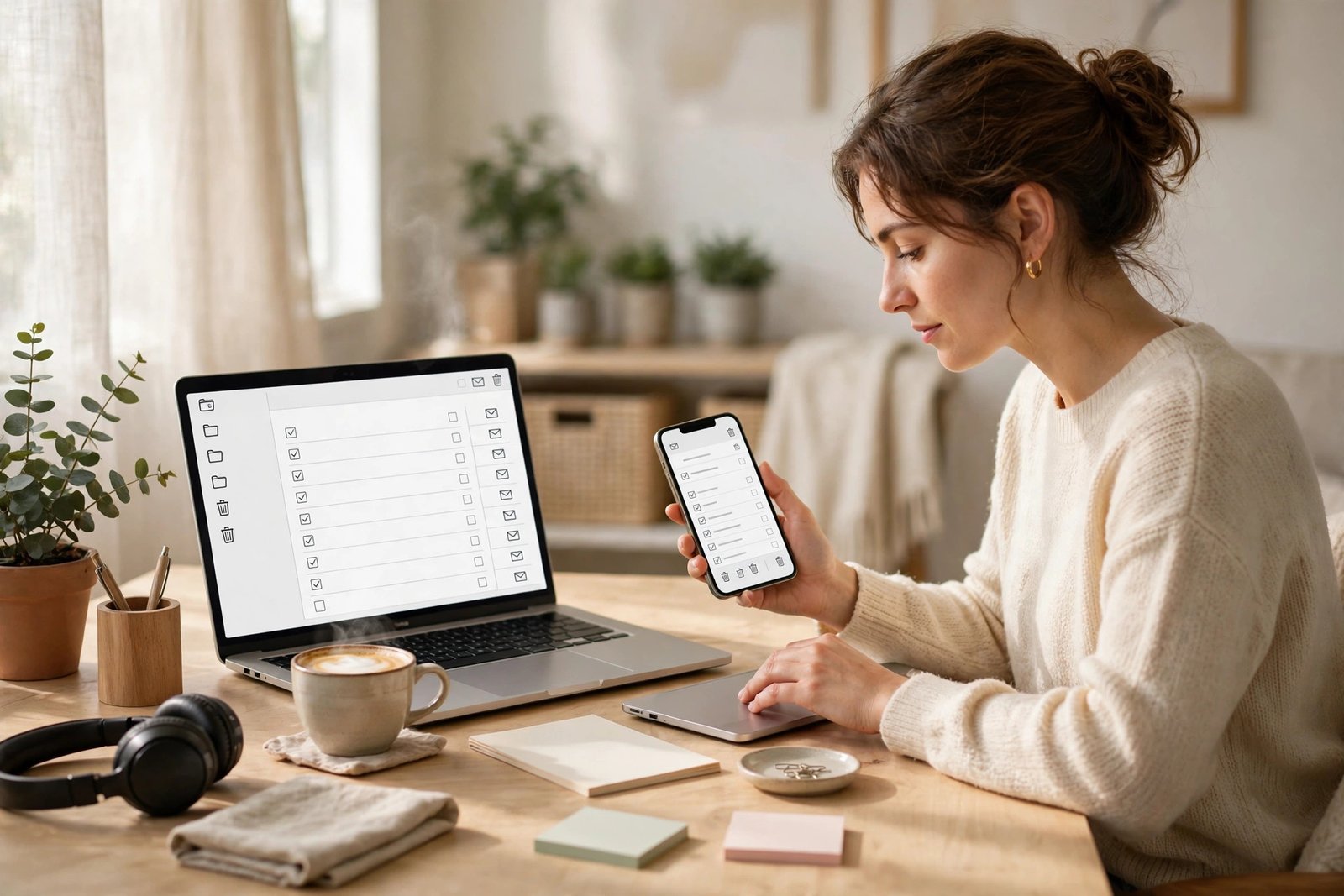
How to Clean Up Your Email Inbox on iPhone and Android in Australia
A messy inbox is rarely a sign of laziness. Newsletters pile up, shops send daily offers, and old accounts keep mailing you long after you stopped using them. The result is the same on iPhone and Android: important mail hides under a mountain of messages you never asked to read again.
This guide shows a calm way to clear the backlog, unsubscribe safely, and set up a routine that keeps your inbox close to empty.
Step 1: Search, do not scroll
Scrolling through thousands of emails is the slowest way to clean an inbox. Search is faster, because it groups the mail you can delete in bulk.
Start with large attachments. In Gmail, search for larger:10M to find emails bigger than 10 megabytes. In Outlook, sort by size or search for large attachments. Delete old files you already have saved elsewhere, such as photos, videos and large documents, then empty the trash so the space is actually freed.
Next, search for the senders who mail you most. Type a shop, newsletter or service name into the search box, select all the results, and delete them in one go. Repeat for the next few senders. In most apps you can select all results on the current page, and Gmail also offers a link to select every matching conversation, not just the ones shown.
Then search for old mail you no longer need. Try before:2025/01/01 in Gmail to find mail from before that date, and adjust the year to suit your inbox. Keep anything tied to tax, legal matters, warranties or major purchases, and delete the rest. If you are unsure about an old message, archive it instead of deleting it. Archiving removes it from the inbox without losing it.
Step 2: Unsubscribe the right way
Deleting mail without unsubscribing is like mopping without turning off the tap. Every newsletter you no longer read should be unsubscribed, not just deleted.
Open a recent email from a sender you do not want, scroll to the bottom, and tap the unsubscribe link. Reputable senders must honour that request, although it can take a few days for the mail to stop. In Gmail on iPhone and Android, many newsletters also show an Unsubscribe button near the top of the message, which is faster than hunting for the small print.
Be careful with mail you did not ask for and do not recognise. Do not tap unsubscribe links in obvious scam or phishing emails, because that can confirm your address is active. Instead, mark those messages as spam or junk, and block the sender if your app offers that option. For Australian readers, suspicious messages can also be reported to Scamwatch, which helps track scam campaigns.
For mailing lists you joined yourself but no longer read, unsubscribe in batches of five, and repeat tomorrow. A short daily habit beats a single exhausting session.
Step 3: Use labels, folders and filters
A clean inbox stays clean when new mail sorts itself. Labels in Gmail and folders in Outlook do the same job: they move routine mail out of the way without deleting it.
Create a small set of folders or labels, such as Bills, Receipts, Travel and To Read. Keep the list short. Ten folders you never use are worse than three you actually check. Then set up a filter or rule for the senders you want to keep but do not need to see at once. For example, send shop receipts straight to Receipts, and send a weekly newsletter to To Read, skipping the inbox.
On iPhone, Apple Mail can move mail with rules set up on iCloud Mail on the web, and the app itself offers filters for unread mail and mail with attachments. On Android, the Gmail app supports labels and filters created on the web, and Outlook supports rules and the Focused Inbox view, which separates important mail from the rest.
Turn on notifications only for important senders if your app allows it. Getting an alert for every newsletter is what trains you to ignore your inbox.
Step 4: Deal with the apps and accounts behind the mail
Some inbox clutter comes from accounts you no longer use. If an old shopping, streaming or forum account still sends mail, log in and turn off marketing emails in its settings, or close the account if you no longer need it. That step takes longer than tapping unsubscribe, but it stops mail at the source.
Also check which apps have access to your email account, and remove apps you do not recognise or no longer use.
If you use more than one email address, consider which one should be your main inbox. Many Australians keep a personal address for family, banking and government mail, and a second address for shopping and newsletters.
Step 5: Keep it tidy with a five-minute routine
A clean inbox does not need daily perfection. A short routine, done two or three times a week, is enough to stop the pile from returning.
Each time you check mail, delete or archive anything you have dealt with, unsubscribe from one sender you no longer want, and star or flag anything that needs action later. Then, once a week, empty the trash and spam folders, and check the To Read folder for anything you actually want to keep.
A tidy inbox is not about reaching zero emails. It is about being able to find the message that matters, without wading through mail you stopped caring about months ago.
Frequently Asked Questions
Should I delete old emails or archive them?
Archive mail you might need later, such as receipts, warranties, tax documents and important conversations. Delete mail you are sure you will never need, such as old newsletters, expired offers and duplicate notifications. Archiving clears the inbox without the risk of losing something useful.
Is it safe to tap unsubscribe in every email?
No. Unsubscribe only from senders you recognise and signed up with. For scam or phishing mail you did not request, mark the message as spam or junk and block the sender instead, because tapping links in scam mail can confirm that your address is active.
How long does it take for newsletters to stop after unsubscribing?
Usually a few days, as mailing lists update in batches. If mail from the same sender keeps arriving after a week or two, check whether you subscribed with a second email address, or use your mail app's block and report options.




Post Comment