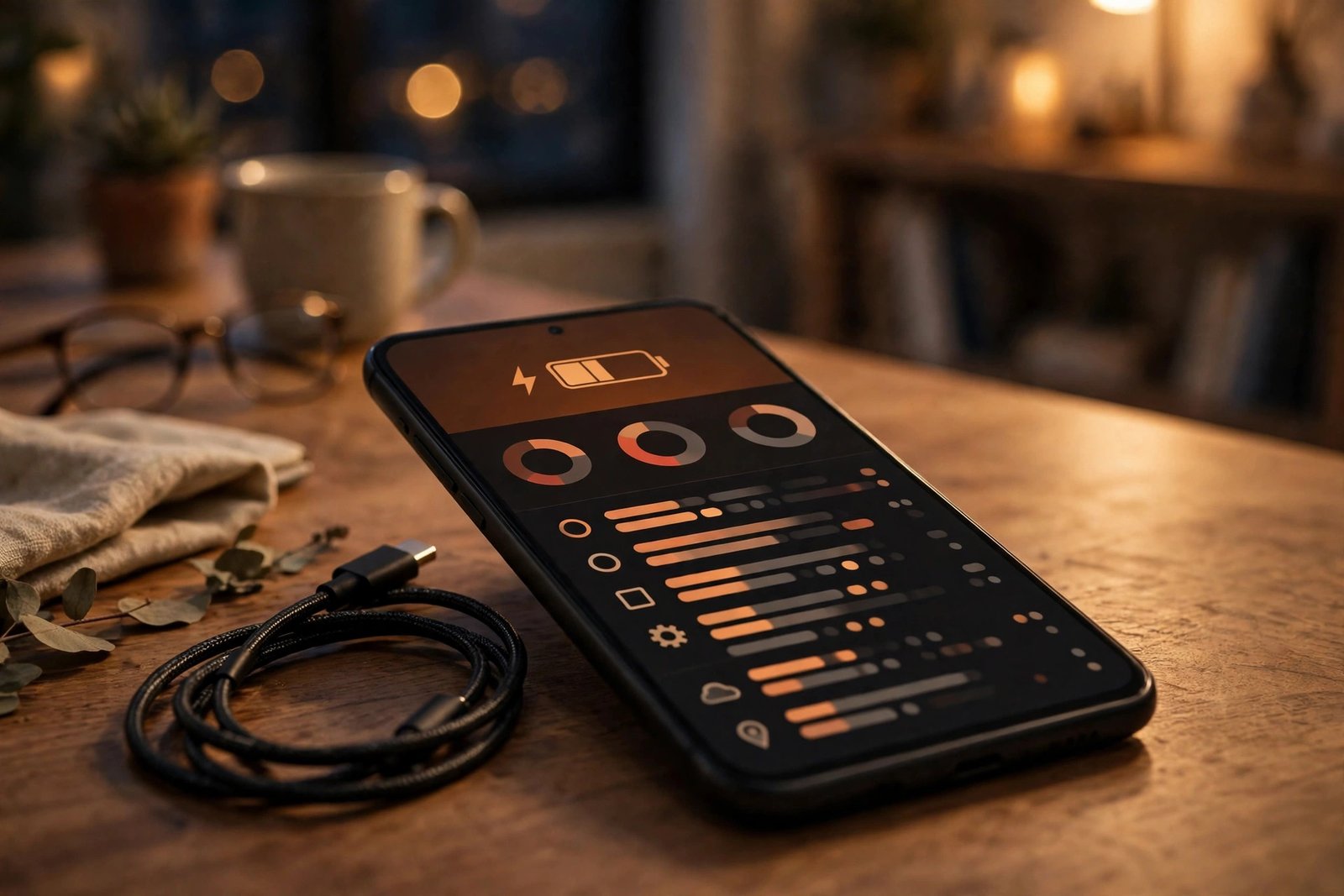
How to Check Which Apps Are Draining Your Battery on iPhone and Android in the US
If your phone dies by dinner time even though you barely used it, some app is probably working in the background. Both iPhone and Android keep a battery usage screen that shows exactly which apps used the most power, and how much of it happened while the screen was off. Checking that screen takes about a minute, and it usually points straight at the problem.
The numbers are shown as percentages of total battery use over the last 24 hours or the last 10 days. A high percentage does not always mean an app is misbehaving: the app you use most will naturally sit at the top. The real clue is background activity. An app that used a lot of power while you were not using it is the one worth fixing.
Check battery usage on iPhone
Open Settings, then tap Battery. The screen shows a chart of battery level and activity over the last 24 hours, and you can switch to the last 10 days at the top. Below the chart is a list of apps ranked by battery use, with a percentage next to each one.
Tap an app in the list to see more detail. The iPhone splits the number into on screen time and background time. If an app shows a lot of background minutes, it was running while you were doing something else. Social media, email, navigation and music apps often show background time, because they fetch new content or keep tracking your location.
You can also check battery health on the same screen. Tap Battery Health in the Battery settings to see the maximum capacity. If the capacity is under 80 percent, Apple considers the battery worn, and a replacement will do more than any settings change.
Check battery usage on Android
On most Android phones, open Settings, then Battery, then Battery usage. The screen lists apps by how much power they used, with a percentage for each. The names vary a little by brand, but the idea is the same.
Tap an app to see its breakdown. Android shows foreground use, when you were actively using the app, and background use, when the app was running on its own. An app with heavy background use is usually syncing data, checking location, or refreshing content in the background.
Android also lets you restrict an app directly from this screen. On many phones, tapping an app in the battery usage list shows a Background usage option. Setting it to Restricted stops the app from running in the background except for essential tasks. This is the fastest fix for a single greedy app, and you can undo it just as easily.
The usual suspects
A few kinds of apps show up at the top of battery lists again and again. Social media apps refresh feeds, play videos and track location, often in the background. Email apps that check for new mail every few minutes use more power than ones set to fetch mail hourly or only when you open them. Navigation apps use GPS, which is one of the biggest battery drains on any phone. Streaming apps use a lot of power while playing video, which is normal, but should drop to nearly zero when you close them.
Games are another common entry, but they usually drain the battery while you play, which is expected. A game that keeps using power after you close it is a problem: it may still be running in the background. Swipe it away from the recent apps screen and check again the next day.
How to fix the worst offenders
Start with the top background user. On iPhone, open Settings, then General, then Background App Refresh, and turn it off for the apps you do not need updated in the background. On Android, use the Restricted background setting described above, or go to Settings, then Apps, pick the app, then Battery, and choose Restricted.
Next, check location access. An app that always knows where you are uses far more power than one that checks only while you use it. On iPhone, go to Settings, then Privacy and Security, then Location Services, and change apps set to Always to While Using the App. On Android, go to Settings, then Location, then App location permissions, and do the same.
Then look at the display. Screen brightness is often the single biggest battery user, and it appears as Screen in the usage list. Turn on auto brightness and shorten the screen timeout to 30 seconds or one minute. On phones with a high refresh rate display, switching from 120Hz to 60Hz in the display settings can also help.
Finally, check for updates. A buggy app version can drain a battery until the developer fixes it, so update the app and your phone software. If one app still drains power after all of this, delete it and reinstall it.
When the battery itself is the problem
Sometimes no app is to blame. If the battery usage list looks normal, every app shows low numbers, and the phone still dies early, the battery may be worn out. Phones that are two or three years old often hold noticeably less charge than when they were new. Heat makes it worse: a phone left in a hot car or on a sunny dashboard loses capacity faster.
Frequently Asked Questions
Which app usually drains the battery most?
It depends on how you use your phone. Social media, video streaming and navigation apps are usually at the top, because they use the screen, data and location together. The battery usage screen shows your own ranking, which matters more than any general list. Look for apps with high background use rather than high total use.
Is background app refresh bad for battery life?
It uses some power, but it is not always bad. Background refresh keeps your apps up to date so they open faster and show new content right away. The problem is only when apps you rarely use refresh constantly, so turn it off for those and leave it on for the ones you check often.
Should I force close apps to save battery?
No, not as a habit. Force closing an app and reopening it later can use more power than leaving it paused in memory. Only force close an app when it is misbehaving, such as draining power in the background or freezing. For everyday use, let the phone manage apps on its own and use the battery usage screen to find the real problems.



Post Comment