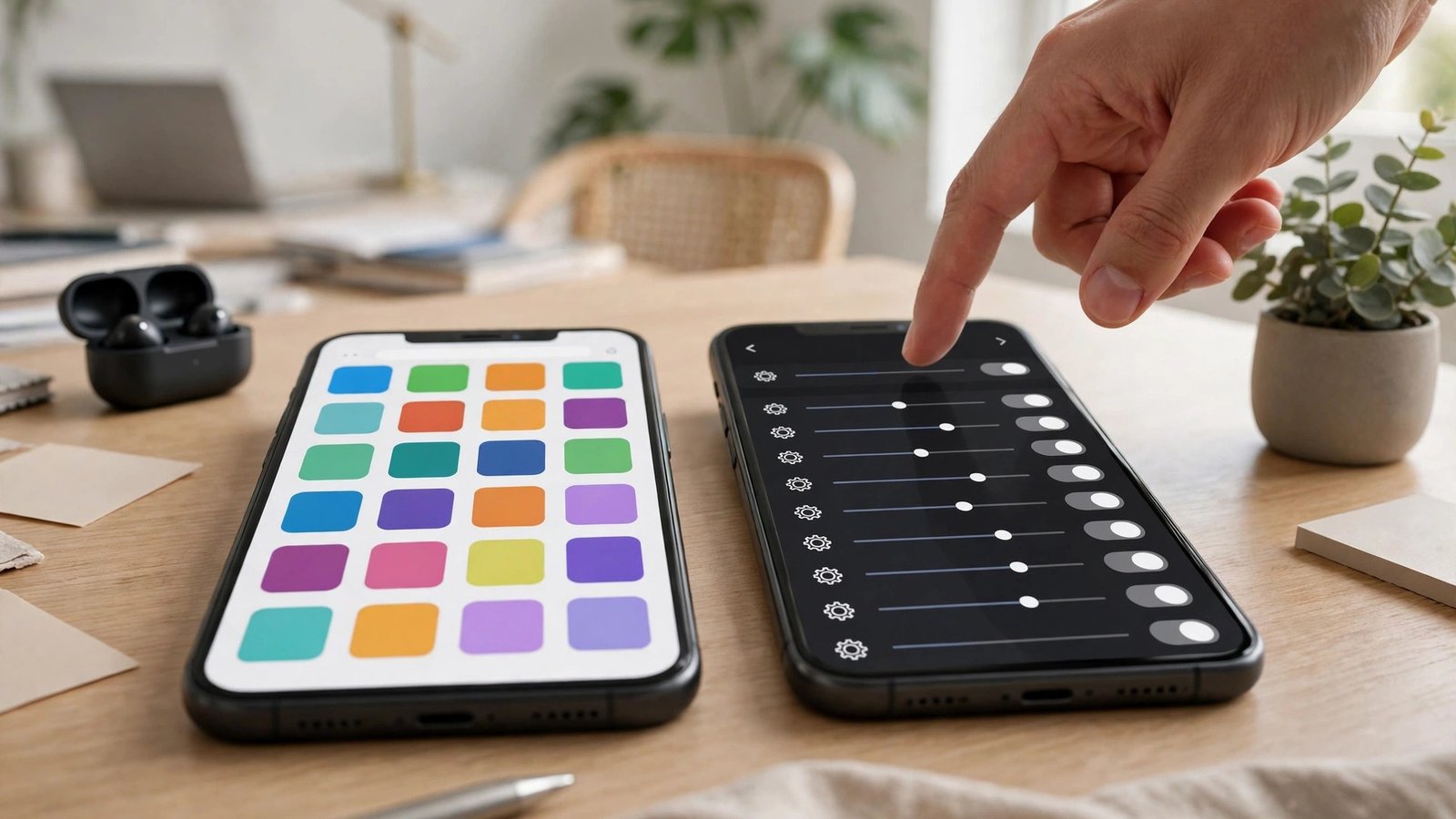
How to Change Your Default Browser on iPhone and Android in the US
Every phone comes with a browser already chosen for you, Safari on iPhone and Chrome on most Android phones. That is fine until you prefer a different one, and then every link you tap keeps opening in the browser you do not want. The fix takes about a minute, and once you set it, every link from your email, messages, and other apps will open in your chosen browser instead.
This guide shows how to change your default browser on iPhone and Android in the US, including what to do when the option does not appear, and how to set your preferred search engine too.
Step 1: Install the browser you want to use
Your phone can only set a browser as the default if it is already installed. Open the App Store on iPhone or the Google Play Store on Android, search for the browser you want, and install it. Popular choices include Chrome, Firefox, Edge, Brave, and DuckDuckGo, and most of them are free.
Open the new browser once after installing it. Some browsers ask during setup if you want to make them your default, and saying yes there does the whole job for you. If you skip that prompt, the settings below will do the same thing.
Step 2: Change the default browser on iPhone
On iPhone, the setting lives in the Settings app, not inside the browser itself. Open Settings, scroll down to "Apps", and find the browser you want to use in the list. Tap it, then tap "Default Browser App". You will see a list of the browsers installed on your phone, with a check mark next to the current default. Tap the one you want, and the check mark moves to it. That is all there is to it.
On older versions of iOS, the path is slightly different. Open Settings, scroll down until you see the browser's name in the main list, tap it, and choose "Default Browser App" from there. The option only appears on iOS 14 and later, so if your iPhone is running an older version, update iOS first.
Step 3: Change the default browser on Android
On Android, the path is a little different, and it can vary slightly between Samsung, Pixel, and other brands, but the idea is the same. Open Settings, then tap "Apps", then "Default apps". You may need to tap "Choose default apps" first on some phones. Tap "Browser app", and you will see a list of the browsers installed on your phone. Tap the one you want, and it becomes the default.
On Samsung phones, the path is usually Settings, then "Apps", then the three-dot menu, then "Default apps", then "Browser app". If you cannot find "Default apps", use the search bar at the top of Settings and type "default browser", which will take you straight to the right screen.
Step 4: Set your preferred search engine too
Changing the browser and changing the search engine are two different settings, and it is easy to mix them up. Your new browser may still search with a search engine you do not like, so set that as well.
In Chrome, tap the three-dot menu, then "Settings", then "Search engine", and pick the one you want. In Firefox, tap the menu, then "Settings", then "Search", and choose your default search engine. In Safari on iPhone, go to Settings, then "Apps", then "Safari", then "Search Engine", and pick from the list. In Edge, open Settings, then "General", then "Select search engine". Brave and DuckDuckGo have the same option in their settings under "Search engine".
Step 5: Check that links open where you expect
After changing the setting, test it with a link from a few different apps. Tap a link in your email, one in a text message, and one in a social media app. They should all open in your new default browser.
Some apps have their own built-in browser and ignore your default. Facebook, Instagram, and many news apps open links inside the app itself unless you change that in the app's own settings. Look for an option like "Open links externally" or "Open in browser" in the app's settings. Turning that on makes links open in your default browser instead of the app's mini browser.
Step 6: What to do when the option is missing
If your preferred browser does not appear in the default browser list, the most common cause is that the app is out of date. Open the App Store or Play Store, check for updates, and install any that are waiting. Then try again.
On iPhone, the browser must be built to support the default browser feature. All major browsers support it, but a very old or little-known browser may not. If yours does not appear, try a different browser from a major developer.
On Android, if the "Default apps" screen does not show your browser, check that the app has permission to open links. Go to Settings, then "Apps", tap the browser, then "Set as default" or "Open by default", and make sure "Open supported links" is turned on. That permission is what lets the browser handle links from other apps.
Why change your default browser at all
People switch for different reasons, from stronger privacy controls to better syncing with their computer, and you can switch back any time by repeating the same steps.



Post Comment