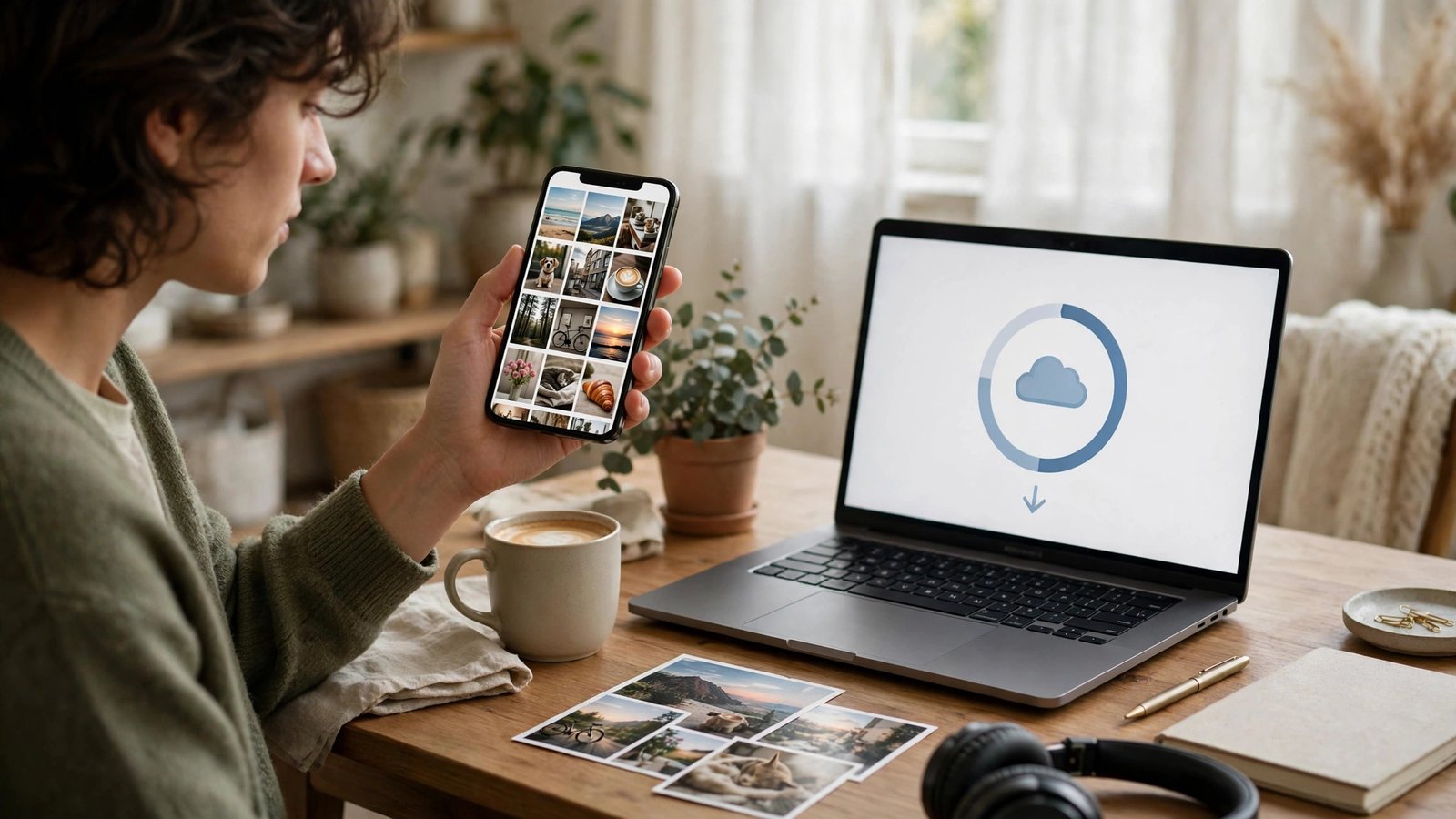
How to Back Up Your Photos and Videos on iPhone and Android in Canada
Photos are the one thing most people cannot replace. A phone can be repaired or replaced. A contact can be looked up again. A photo of a child's first steps, a family trip, or a parent who is no longer here cannot be retaken if the only copy was on a phone that was lost, stolen, or damaged.
Backing up your photos sounds technical, but it is really just one idea: make sure a second copy exists somewhere other than your phone, and check that the copy is complete before you delete anything. This guide walks through iPhone and Android, plus a simple second copy you can keep at home in Canada. Settings names can vary slightly by model and software version, so look for the same idea under a similar heading if your menu looks a little different.
Step 1: Check what you have, and how much space your backup needs
Before you turn anything on, take two minutes to see where you stand. On iPhone, open Settings, tap your name, then iCloud, and check how much iCloud storage you have used and how much is left. On Android, open the Google Photos app or your phone settings, then check your Google account storage, which covers Gmail, Drive, and Photos together in most recent versions.
Step 2: Back up photos on iPhone with iCloud Photos
On iPhone, the simplest backup is iCloud Photos. Open Settings, tap your name, then iCloud, then Photos, and turn on Sync this iPhone. Your photos and videos will upload to iCloud when you have an internet connection, usually over Wi-Fi. Keep your phone charged and connected to Wi-Fi until the upload finishes, especially after a holiday or a big event when you have hundreds of new items.
Step 3: Back up photos on Android with Google Photos
On Android, the simplest backup is Google Photos. Open the Google Photos app, tap your profile picture, then Photos settings or Backup, and turn on Backup. Choose the Google account you want to use, and check that backup is set to include the folders you care about, not just the camera folder. Many Android phones keep screenshots, downloads, and messaging app photos in separate folders, and those folders are easy to miss.
Step 4: Choose photo quality, and know what you are trading off
Both iPhone and Android backup services offer choices about quality and storage, and the right choice depends on what you value most. Original quality keeps every pixel, which is best for printing large photos or editing later, but it uses the most cloud storage. A storage saver or optimised setting reduces file size, which saves space and uploads faster, but it can reduce detail in a large print.
Step 5: Keep a second copy on a computer or external drive
Cloud backup protects you if your phone is lost. A second copy protects you if your cloud account is locked, your subscription lapses, or you accidentally delete a whole album. For photos that truly matter, keep both.
The easiest second copy is a computer. Connect your iPhone to a Mac or Windows computer with a cable, or connect your Android phone the same way, and copy the photos and videos folder to a folder on the computer. On a Mac, you can also use the Photos app or Image Capture. On Windows, you can use File Explorer to copy the DCIM folder from your phone. Give the folder a clear name with a date, such as Photos Backup November 2026, so you can find it later.
Step 6: Free up space safely, and only after you verify the backup
Once you have a complete cloud backup, and ideally a second copy for the most important photos, you can free up space on your phone. The key word is verify. Open your cloud photos on a different device or in a web browser, pick a few photos from different dates, including recent videos, and confirm they open in full.
On iPhone, you can then use Optimize iPhone Storage, as described in Step 2, instead of deleting photos one by one. On Android, Google Photos offers a Free up space option that removes device copies of photos that are already backed up. Use that built in option rather than deleting from your gallery by hand, because it is designed to keep the cloud copy safe. After you free up space, check again. Open a few photos, make sure they still load, and confirm your phone storage has actually dropped.
Frequently Asked Questions
How do I know my photo backup is really complete?
Check the backup status in your Photos or Google Photos app until it says backup complete, then open your cloud photos on another device or in a web browser. Pick photos from different dates, including recent videos, and confirm they open in full before you delete anything from your phone.
Should I use iCloud Photos, Google Photos, or both?
Use the service built for your phone as your main backup, because it is the most reliable on that device. You can add a second copy on a computer or external drive for your most important photos, which protects you if a cloud account is ever locked or a subscription lapses.
Will backing up my photos use up all my mobile data in Canada?
Not if you set backup to Wi-Fi only, which is the safer choice on a limited mobile plan. Leave your phone on Wi-Fi and charging overnight after a trip or a big event, so large videos can upload without using mobile data or draining your battery.





Post Comment