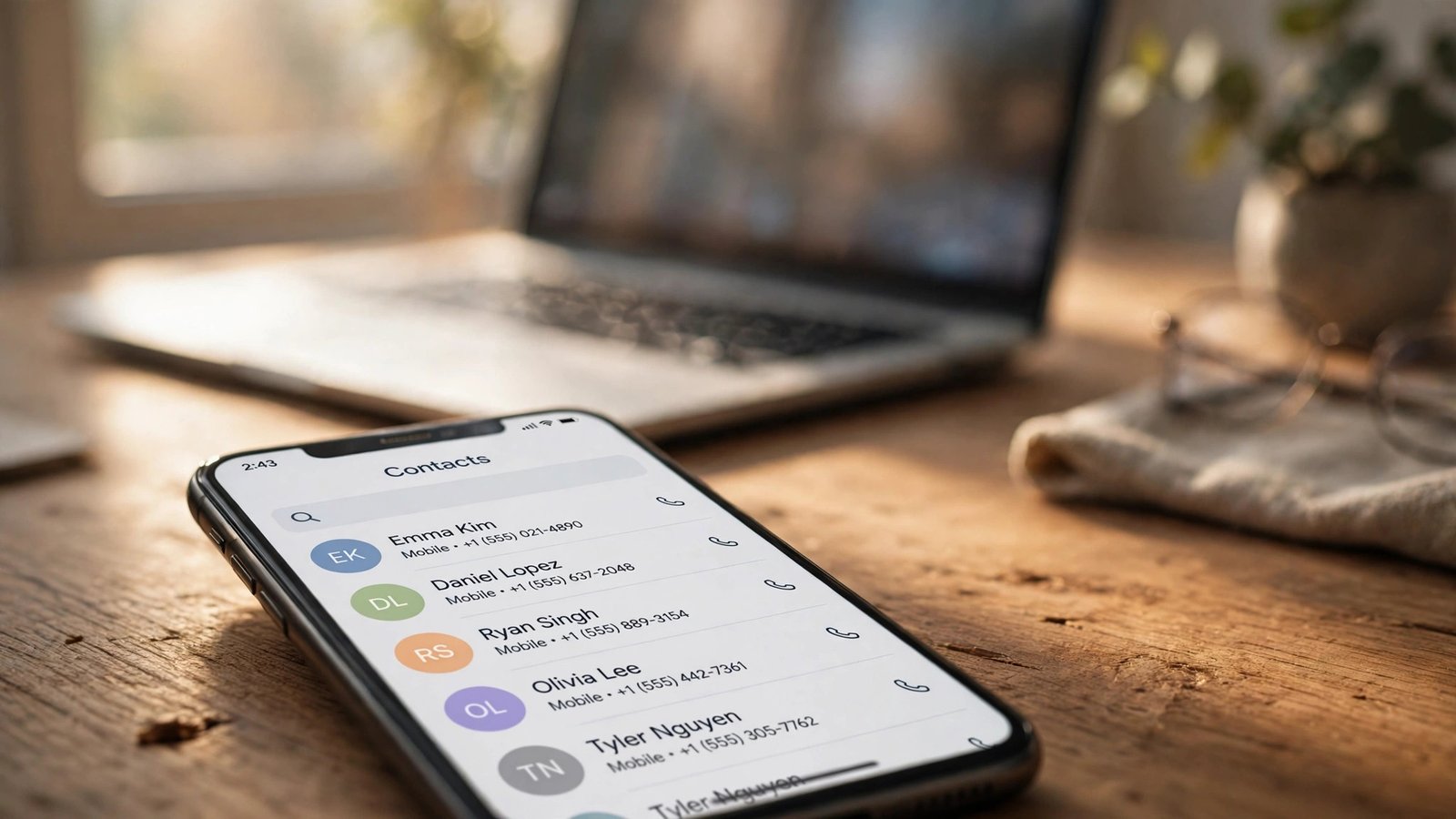
How to Back Up and Export Your Phone Contacts in Canada Before You Lose Them
Your contacts are the one thing on your phone that cannot be re-downloaded from an app store. Photos live in the cloud, messages can be restored, but a phone number you never wrote down anywhere else is gone the moment the phone is lost, broken or wiped. The fix takes about ten minutes, and once it is set up it runs itself. Here is how to back up and export your contacts on iPhone and Android in Canada.
Step 1: Turn on cloud sync on iPhone
On iPhone, your contacts sync through iCloud. Open Settings, tap your name at the top, then tap iCloud. Make sure Contacts is switched on. If it is on, every contact you add or edit is copied to your iCloud account within moments, as long as the phone has an internet connection.
To confirm it is working, sign in to icloud.com on a computer and open Contacts. If the names you see there match the ones on your phone, the sync is live. If some contacts are missing, check whether they are saved to a different account, such as Gmail or a work Exchange account, instead of iCloud.
Step 2: Turn on cloud sync on Android
On Android, contacts sync through your Google account. Open Settings, tap Google, then tap Settings for Google apps, then Google Contacts sync. Make sure Automatically sync Google Contacts is switched on. On Samsung phones the same setting lives under Settings, then Accounts and backup, then Manage accounts, then your Google account, then Sync account.
You can check the result at contacts.google.com on any browser. Sign in with the same Google account and your contacts should appear there. If the list is empty, the phone may be saving new contacts to the device or to a Samsung account instead of Google. In the Contacts app, open Settings and set the default storage location to your Google account so future contacts go to the right place.
Step 3: Export a copy as a vCard file
Cloud sync protects you from losing the phone, but a second copy protects you from the cloud itself. An account lockout, a sync error or an accidental mass delete can all wipe a cloud list. A vCard file, with the .vcf extension, is a simple export of every contact that you can store somewhere safe.
On iPhone, the easiest route is icloud.com. Sign in, open Contacts, select all contacts, then use the export option to download a vCard file. Save it on your computer and, if you like, copy it to a USB drive or an external hard drive.
On Android, open contacts.google.com, select the contacts you want, then use the Export option and choose Google CSV or vCard format. The vCard format is the better choice if you ever want to import the contacts into a different phone or a different service, because almost every contacts app understands it.
Do this export once every few months, or right before a big change such as switching phones or changing carriers. Date the file when you save it so you know which copy is newest.
Step 4: Save a copy somewhere the phone cannot reach
A backup that lives only on the phone is not a backup. Once you have the vCard file, put it somewhere the phone cannot accidentally delete. Good options are a folder on your computer, an external drive, or a cloud drive such as Google Drive, iCloud Drive or OneDrive.
If you use a cloud drive, keep the file in a folder you will remember, and avoid sharing that folder with anyone. Your contacts file contains the names, numbers and email addresses of everyone you know, so treat it the way you would treat any private document.
Step 5: Clean up duplicates and old entries before you back up
A backup of a messy list is still messy. Before your next export, take five minutes to clean up. On iPhone, open Contacts and look for the duplicates prompt, which appears when the phone spots two entries for the same person. On Android, open contacts.google.com, tap Fix and manage, then Merge and fix to combine duplicates.
Delete numbers you no longer need, such as old landlords, one-time contractors or businesses that have closed. Fix the entries that matter most, like family, your doctor, your workplace and emergency contacts, so their names and numbers are correct and complete. A clean backup restores cleanly, and a messy one just moves the mess to your next phone.
Step 6: Test the restore before you need it
The only way to know a backup works is to test it. You do not need to wipe your phone to do this. Sign in to icloud.com or contacts.google.com from a computer and confirm your contacts are there. Then check one or two entries in detail: the phone number, the email address and any notes.
If you are switching phones, the restore is the moment this pays off. On a new iPhone, signing in with your Apple ID and turning on iCloud Contacts pulls the list down in minutes. On a new Android phone, signing in with your Google account does the same. If the cloud list looks wrong for any reason, the vCard file you saved is your fallback. Import it through icloud.com or contacts.google.com and the list comes back.
Frequently Asked Questions
How do I back up my contacts on iPhone in Canada?
Turn on iCloud Contacts in Settings under your name, then iCloud. Your contacts sync to your Apple ID, and you can check them at icloud.com. For a second copy, export a vCard file from icloud.com and save it on your computer.
How do I back up my contacts on Android in Canada?
Turn on Google Contacts sync in Settings under your Google account. Your contacts sync to your Google account and appear at contacts.google.com. For a second copy, export a vCard file from contacts.google.com and save it somewhere safe.
What is a vCard file and why should I export one?
A vCard file, with the .vcf extension, is a standard export of your contacts that almost every phone and contacts app can read. It protects you if your cloud account is locked, a sync fails or contacts are deleted by mistake, because you can import the file to restore the list.



Post Comment