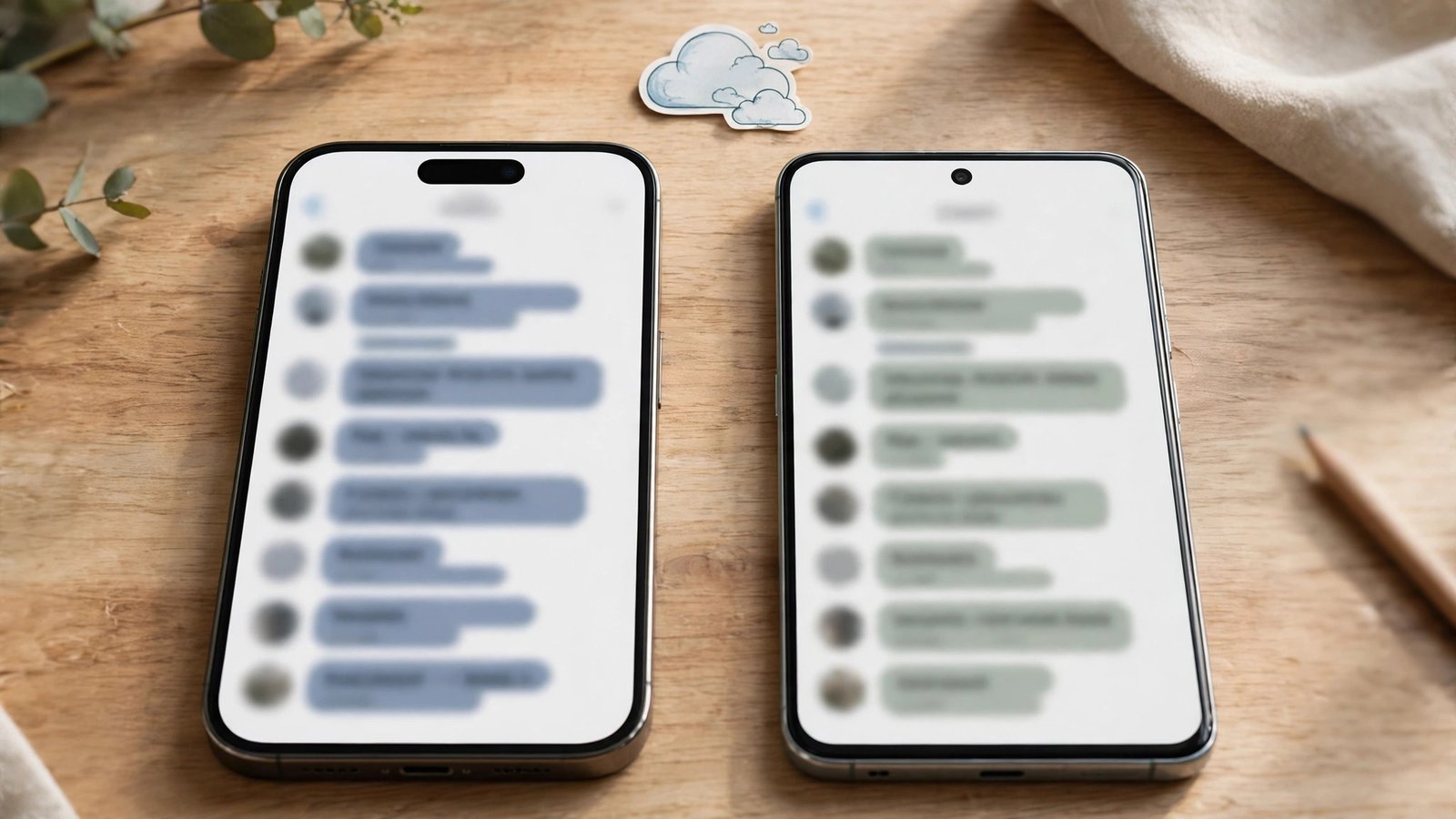
How to Back Up WhatsApp Chats on iPhone and Android in the US
Your WhatsApp chats hold years of conversations, photos, voice notes and family group threads. Lose your phone or switch to a new one without a backup, and all of it can vanish in a single afternoon. A proper backup takes a few minutes to set up, runs by itself after that, and turns a lost phone from a disaster into a minor inconvenience.
On iPhone, WhatsApp backs up to iCloud. On Android, it backs up to Google Drive. The steps differ a little between the two, but the idea is the same: save a copy of your chats in the cloud, keep it updated automatically, and restore it when you need it.
Before you start: two quick checks
First, make sure you have enough cloud storage. iPhone backups live in iCloud, and every iPhone comes with 5 GB of free iCloud storage, which fills up fast once photos and other app data join in. Android backups live in Google Drive, and in most recent versions they count toward your Google account storage, which starts at 15 GB free.
Second, connect to Wi-Fi. A first backup can be large, so use Wi-Fi instead of mobile data. Plug the phone in to charge as well, since a big backup can take a while and you do not want the battery dying mid-upload.
Step 1: Back up WhatsApp on iPhone
Open WhatsApp, tap Settings in the bottom right, then tap Chats, then Chat Backup. This screen shows the date and size of your last backup, if you have one. Tap Back Up Now to start a backup right away.
Before you tap, look at the Include Videos switch on the same screen. Videos make backups much bigger, and they take far longer to upload. If you are short on iCloud space, leave videos off and back up text and photos only. You can always change this later.
Your backup needs iCloud Drive turned on, and WhatsApp needs permission to use iCloud. If the backup fails immediately, open your iPhone Settings, tap your name at the top, tap iCloud, and check that iCloud Drive is on and that WhatsApp is listed and switched on.
Step 2: Turn on automatic backups on iPhone
A one-time backup helps today, but an automatic backup protects you every week. On the same Chat Backup screen, tap Auto Backup and pick a frequency: Daily, Weekly or Monthly. Daily is the safest choice if you chat a lot, since you lose at most a day of messages if something goes wrong. Weekly is a reasonable middle ground for lighter users.
Automatic backups run when your phone is connected to Wi-Fi and charging, in most recent versions of iOS. If you pick daily and notice backups are not happening, check that your phone is on Wi-Fi overnight and plugged in, and that iCloud still has free space.
Step 3: Back up WhatsApp on Android
Open WhatsApp, tap the three dots in the top right, then Settings, then Chats, then Chat backup. Tap Back up to Google Drive and choose a frequency: Daily, Weekly, Monthly, or Only when I tap Back up. Pick the Google account you want to use, then tap Back Up to start one right away.
As on iPhone, you can choose whether to include videos. The toggle sits on the same screen. Videos make the backup much larger, so many people leave them off and rely on their phone's photo backup for videos instead.
One detail to watch: your backup is tied to the Google account and phone number you used when you created it. If you switch Google accounts later, your old backup will not follow you. Keep the same account on the new phone when you restore.
Step 4: Turn on end-to-end encrypted backup
By default, a WhatsApp backup in iCloud or Google Drive is protected by the cloud service's own security, not by WhatsApp's end-to-end encryption. WhatsApp offers an extra layer: an end-to-end encrypted backup, which locks the backup with a password you create or a 64-digit encryption key.
To turn it on, go to Settings, then Chats, then Chat Backup on iPhone, or Settings, then Chats, then Chat backup on Android, and look for End-to-end Encrypted Backup. Follow the prompts to create a password or generate a key. If you choose the key, save it somewhere safe outside your phone. If you forget the password or lose the key, WhatsApp cannot recover the backup for you.
Step 5: Restore your chats on a new phone
When you move to a new phone, install WhatsApp, open it, and verify the same phone number you used before. WhatsApp will look for a backup tied to that number and your cloud account, and ask if you want to restore it. Tap Restore, wait for the chats to download, then let media finish restoring in the background.
Fixing backups that fail
If a backup will not start or keeps stopping, work through this list. First, check your cloud storage and free space in iCloud or Google Drive. Second, switch to a stable Wi-Fi network and keep the phone plugged in. Third, update WhatsApp from the App Store or Google Play. Fourth, sign out of your cloud account and sign back in. Fifth, restart the phone and try again.
Frequently Asked Questions
Does WhatsApp back up automatically on iPhone and Android?
Only if you turn it on. On iPhone, go to Settings, then Chats, then Chat Backup, and pick a frequency under Auto Backup. On Android, go to Settings, then Chats, then Chat backup, and choose a frequency under Back up to Google Drive. Until you pick one, WhatsApp only backs up when you tap Back Up Now.
Can I restore a WhatsApp backup on a different phone number?
No, not directly. A backup is tied to the phone number and cloud account used to create it. To restore it, verify the same number on the new phone and sign in with the same Apple ID or Google account. If you changed numbers, use WhatsApp's Change Number feature on the old phone before you switch, so the backup moves with you.
Why is my WhatsApp backup so large?
Photos and videos are the usual cause. Years of media in group chats add up fast. Turn off the Include Videos option to shrink the backup, and delete old media from large chats. In most recent versions, Android backups count toward your Google storage, so a large backup can also fill your Google account.



Post Comment