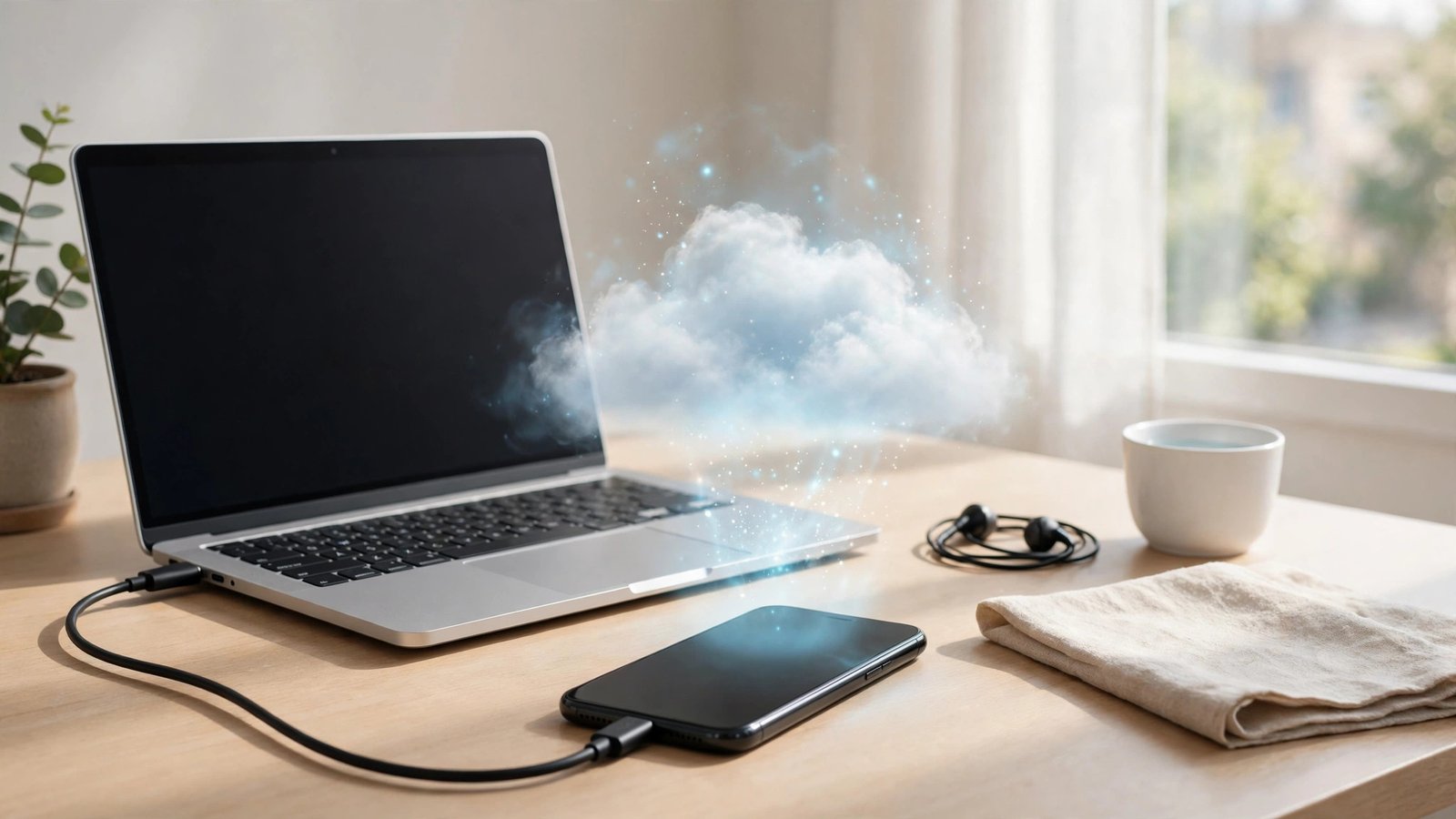
How to Back Up Your Entire Phone Before You Switch, Sell, or Reset It in the US
A factory reset is one tap away from deleting years of photos, messages, and contacts, and a new phone is only exciting until you realize something did not transfer. The fix is boring but simple: make a full backup before you switch, sell, or reset anything, and check that the backup actually worked. This guide walks through iPhone and Android backups in the US, plus a computer copy for extra safety, so you can wipe a phone with confidence instead of hope.
Step 1: Check what is already backed up
Start by looking at what your phone already saves on its own. On iPhone, open Settings, tap your name at the top, then iCloud, and review what is switched on: Photos, Contacts, Messages, and iCloud Backup itself. On Android, open Settings, then Google, then Backup, and confirm that Backup by Google One is on and when it last ran. Many people discover at this step that backups stopped months ago because storage ran out or Wi-Fi was off. If the last backup date is old, that is your first problem to solve, not a detail to skip. Also note what cloud backups do not always include: downloaded music, some app data, and files saved only in a single app's folder may need a separate copy.
Step 2: Back up an iPhone with iCloud
Plug the iPhone into power and connect to Wi-Fi, since iCloud backups need both. Go to Settings, tap your name, tap iCloud, then iCloud Backup, and tap Back Up Now. Stay on Wi-Fi until it finishes, and check the time stamp under Back Up Now to confirm it completed. If iCloud storage is full, you have two honest options: buy a month of extra iCloud storage, or back up to a computer instead (see Step 4). Do not just turn off Photos or Messages to make the backup fit, because that shrinks the very backup you are trying to make. In most recent versions, you can also back up over a cellular connection if you allow it in settings, but Wi-Fi is faster and avoids data charges.
Step 3: Back up an Android phone with Google One
On most Android phones, open Settings, then Google, then Backup, and make sure Backup by Google One is switched on. Tap Back up now and wait for it to finish on Wi-Fi. Samsung phones add a second option: Samsung Cloud backup in Settings, then Accounts and backup, then Samsung Cloud, which can cover Samsung apps and settings that Google's backup may miss. Using both is fine and gives you a fallback. Check what is included before you trust it: photos and videos usually go through Google Photos, contacts sync to your Google account, and texts back up through Google One in most recent versions. If you use WhatsApp, open WhatsApp, go to Settings, then Chats, then Chat backup, and run a backup there too, since chat history is not always part of the main phone backup.
Step 4: Make a second copy on a computer
A cloud backup is good. A second copy you can see is better, especially before selling a phone. On a Mac, connect the iPhone with a cable, open Finder, select the phone, and choose Back up all of the data on your iPhone to this Mac, with encryption switched on so saved passwords and health data come along. On Windows, use iTunes or the Apple Devices app the same way. For Android, connect with a cable, choose File Transfer on the phone, and copy your DCIM (photos), Downloads, and Documents folders to the computer. This local copy protects you if a cloud restore stalls or if you later find one file missing. Label the folder with the phone model and the date so you can find it again.
Step 5: Verify the backup, then wipe safely
Never wipe a phone on the strength of a progress bar alone. On your new phone, sign in with the same Apple ID or Google account and start the restore, then spot-check the things that matter most: recent photos, a few message threads, contacts, and one app you rely on. If anything is missing, you still have the old phone and the computer copy to fill the gap. Only when the new phone looks right should you wipe the old one. On iPhone, go to Settings, then General, then Transfer or Reset iPhone, and tap Erase All Content and Settings. On Android, go to Settings, then System, then Reset options, and tap Erase all data. Remove the SIM and any memory card first, and sign out of your accounts if the reset screen prompts you to. A verified backup turns a reset from a gamble into a routine task.
Frequently Asked Questions
How long does a full phone backup take?
It depends on how much data you have and your Wi-Fi speed. A small backup may finish in minutes, while a phone full of photos and videos can take an hour or more. Plug the phone into power, stay on Wi-Fi, and let it finish before you start a transfer or reset.
Does a cloud backup save everything on my phone?
Almost everything, but not always all of it. Photos, contacts, messages, and settings are usually covered, while some app data, downloaded files, and chats in apps with their own backup settings may need separate steps. Check the backup settings for each app you care about before you wipe anything.
Should I back up to both the cloud and a computer?
Yes, when the phone holds anything you cannot replace. The cloud copy makes restoring to a new phone easy, and the computer copy gives you a fallback if the cloud restore misses a file. Two copies take a little longer, but they remove the single point of failure.



Post Comment