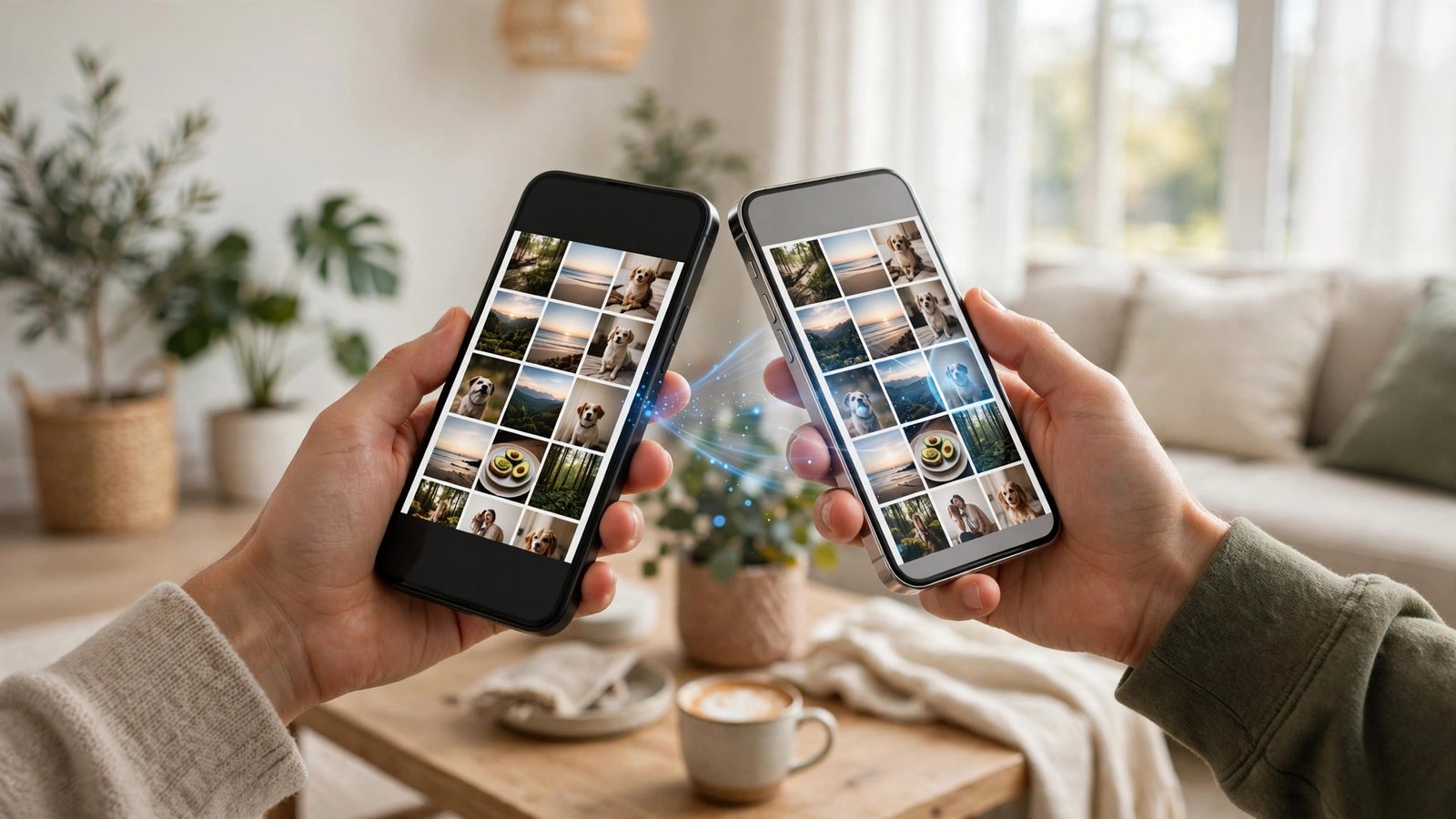
How to Use AirDrop and Quick Share to Share Files Between Phones in Canada
Sending a batch of photos to a friend should not require a cable, an upload, or a data plan. If both phones are nearby, AirDrop on iPhone and Quick Share on Android can move photos, videos, and documents directly from one phone to another over a local wireless connection. The transfer is usually fast, it does not use your mobile data, and it keeps full quality for most file types.
The catch is that the two systems are not the same, and each has its own settings. AirDrop works between Apple devices. Quick Share works between Android devices in most recent versions. Sharing from an iPhone to an Android phone needs a different approach, which this guide covers at the end. Here is how to use each one, and how to stay safe while doing it.
Step 1: Share with AirDrop on iPhone
AirDrop uses Wi-Fi and Bluetooth to find nearby Apple devices, so start by making sure both are turned on. You do not need to be connected to a Wi-Fi network, but Wi-Fi and Bluetooth both need to be switched on in Settings or Control Centre. Also check that the receiving iPhone has AirDrop set to receive from Contacts Only or Everyone. You can find that setting by opening Settings, then General, then AirDrop, or by touching and holding the connectivity panel in Control Centre.
To send a file, open the photo, video, or document you want to share and tap the share button, which looks like a square with an arrow pointing up. Tap AirDrop in the share sheet, then tap the name or device of the person nearby. On the receiving phone, a preview will appear with Accept and Decline options. Once the recipient taps Accept, the transfer starts, and photos and videos land in the Photos app while other files open in the relevant app.
If the other device does not appear, move the phones closer together, check that both have Wi-Fi and Bluetooth on, and confirm the receiving phone is unlocked and its AirDrop receiving setting is not set to Receiving Off. Turning Personal Hotspot off on the receiving phone can also help, since it can interfere with AirDrop in some cases.
Step 2: Share with Quick Share on Android
Quick Share is the built-in sharing tool on Android phones in most recent versions, and it replaces the older Nearby Share name on many devices. Like AirDrop, it uses Wi-Fi and Bluetooth for a direct transfer between nearby devices, so turn both on first.
To send a file, open it in Photos, Files, or another app and tap Share, then choose Quick Share. Your phone will scan for nearby Android devices with Quick Share enabled. Tap the device you want, and the recipient will see a prompt to accept. Once accepted, the file transfers directly, and photos land in the gallery while other files go to Downloads or the relevant app.
You can control who can discover your phone in Quick Share settings. The usual options let you receive from everyone nearby, from your contacts only, or from only your own devices. Contacts only is a sensible default for most people, since it limits unexpected requests. You can find these settings in the Quick Share panel or under Connected Devices in Settings, depending on your phone maker.
If a device does not show up, check that both phones have Bluetooth and Wi-Fi on, that location permission is allowed for Quick Share where your phone asks for it, and that both phones are close together with their screens on.
Step 3: Share between an iPhone and an Android phone
AirDrop and Quick Share do not talk to each other directly, so an iPhone to Android transfer needs another route. The simplest options use a link or a shared album rather than a direct wireless transfer.
One easy method is a shared cloud link. Upload the photos or files to Google Photos, Google Drive, iCloud, or another service you already use, then share the link with the other person by text or email. The recipient can download the files without needing your app or account. Check the sharing setting on the link before you send it, so you share only the files you intend to.
Another option is a messaging app you both use, such as WhatsApp or Telegram, but keep in mind that some messaging apps compress photos and videos, which can reduce quality. For full-quality originals, a cloud link or a direct cable transfer to a computer in between is the safer choice.
For a single small file, email also works, though most email services limit attachment size. If the file is large, a cloud link is the better option.
Step 4: Keep AirDrop and Quick Share safe
Wireless sharing is convenient, and it is also a way for strangers to send you unwanted files. Keep your receiving setting on Contacts Only when you are in a public place, such as a bus, a campus, or a shopping mall. Switch to Everyone only for the few minutes you need to receive from someone who is not in your contacts, then switch it back.
Never accept a file from a device you do not recognize. A preview can look harmless, and accepting it is what starts the transfer. If you receive an unexpected request, decline it and move your receiving setting back to Contacts Only.
Also remember that shared files can include location data. Photos taken on a phone often carry location information in their metadata. If you are sharing photos publicly or with people you do not know well, consider removing location data first, or share through a service that strips it, depending on your privacy needs.
Frequently Asked Questions
Does AirDrop use mobile data?
No. AirDrop transfers files directly between nearby Apple devices over Wi-Fi and Bluetooth, so it does not use your mobile data plan or require a Wi-Fi network connection.
Can I use Quick Share to send files to an iPhone?
No, Quick Share works between Android devices, and AirDrop works between Apple devices. For iPhone to Android transfers, use a shared cloud link, email for small files, or a messaging app, keeping in mind possible compression.
Why does the other phone not appear in AirDrop or Quick Share?
Check that both phones have Wi-Fi and Bluetooth on, are close together with screens on, and that the receiving phone is set to accept from contacts or everyone as needed. Turning off Personal Hotspot on the receiving phone can also help with AirDrop.




Post Comment